











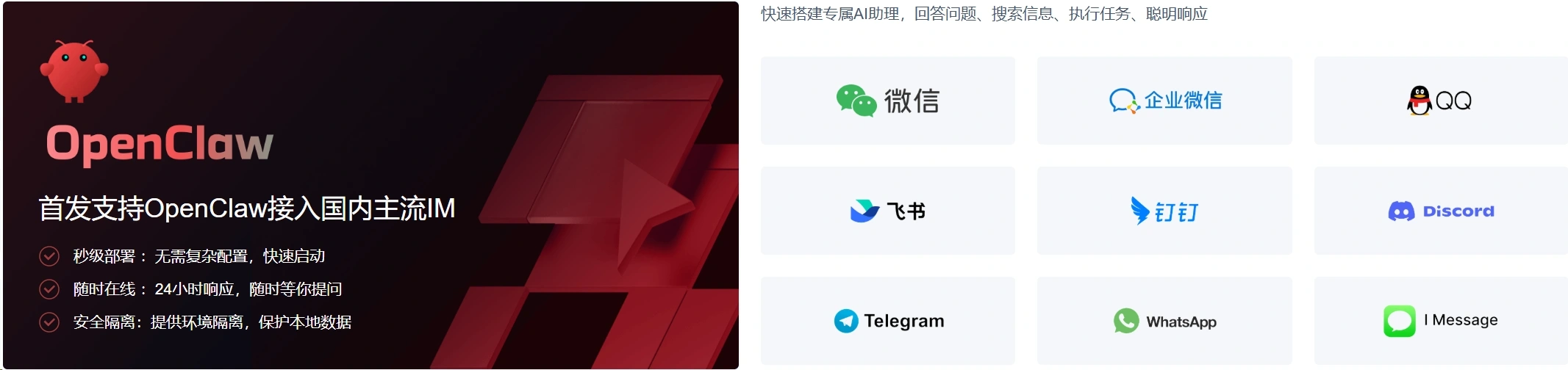
The core value of OpenClaw is not just “being able to chat”, but rather its role as a self-hosted gateway that connects chat software, control interfaces, command-line entry points, and AI agents to form a long-term online workflow portal.
It can be regarded as a single source of information for conversations, routing, and channel connections. It can connect to channels such as Discord, Telegram, Slack, WhatsApp, Signal, iMessage, and Microsoft Teams, and provides a browser dashboard and a TUI interface.
At present, WeChat, QQ, Workplace, Feishu, DingTalk and other mainstream IM apps in mainland China have all been fully supported!
It supports the following deployment methods:
- Local computer deployment
The advantage is that it can be set up quickly, which is suitable for testing and short-term experiences.
The problem is that it's hard to ensure that the service is stable and available 24 hours a day. Moreover, the AI running environment is mixed with your personal files, daily software, and development tools on the same machine, so the isolation is generally not very good.
- \nCloud server deployment
It is more suitable for long-term operation. The instances are independent, the network is stable, and it can be continuously online, making it more convenient to use the AI assistant as a “resident service”. Tencent Cloud also lists “always online”, “safe isolation”, and “fast deployment” as the main advantages of this approach on the OpenClaw dedicated page.
Method 1: Deploy the newly purchased server with one click
You need to prepare two things
- 1. Tencent Cloud account
- First, make sure you can log in to the Tencent Cloud console.Register for a Tencent Cloud account
- 2. Large model API key
- Later, when initializing OpenClaw, it will be used. Without an API Key, the service cannot function normally after it's installed.
- For example, Qwen, DeepSeek, Fire Engine, etc.
Buy a server
Step 1: EnterServer Purchase PageSelect the OpenClaw template
In the image or application template, find OpenClaw。
Attention:
What we need to choose here is OpenClaw application templateIt's not an ordinary Ubuntu system image.
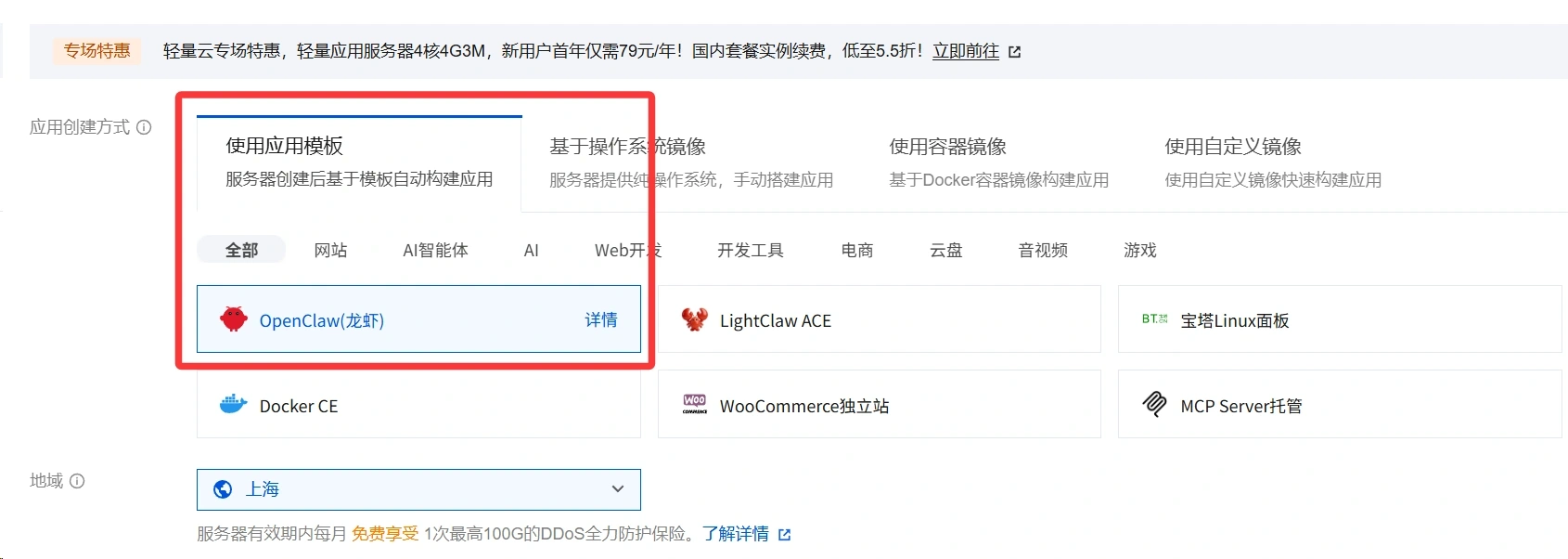
draw attention to sth.
You can enter directlyTencent Cloud Purchase PageYou can also purchase it on the Tencent Cloud event page.
It is recommended to enter the event page to make a purchase. You can buy discounted models there.
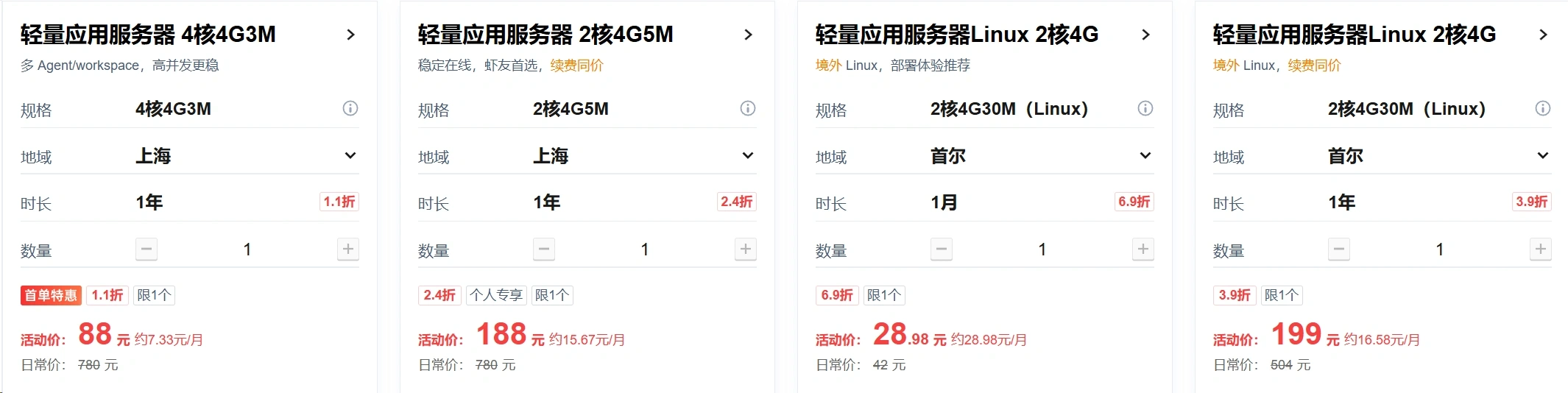
Event address:https://www.likacloud.com/tolink/tencentcloud-china/
Step 2: Select the server configuration
Open Tencent Cloud Lightweight application server Lighthouse Purchase page.
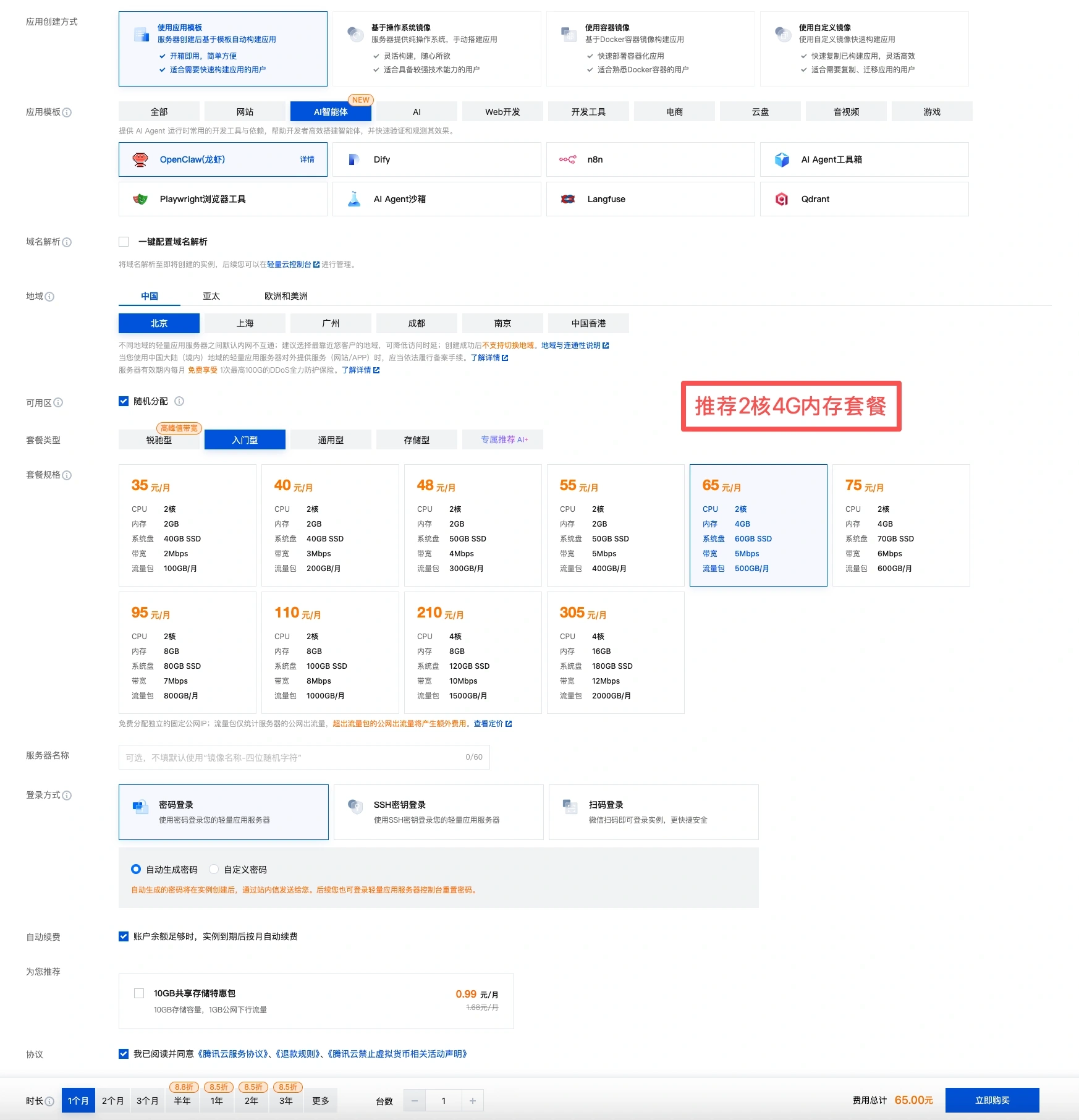
It is recommended to choose a phone with a 2-core processor and 4GB of RAM. However, if you just want to use it for ordinary chatting, a phone with a 2-core processor and 2GB of RAM would also suffice.
Step 3: Select a package and purchase it
For your first use, you can just select the entry-level configuration first.
First, we need to ensure that the process runs smoothly, and then we can upgrade it if necessary in the future.

Step 4: Check the OpenClaw app
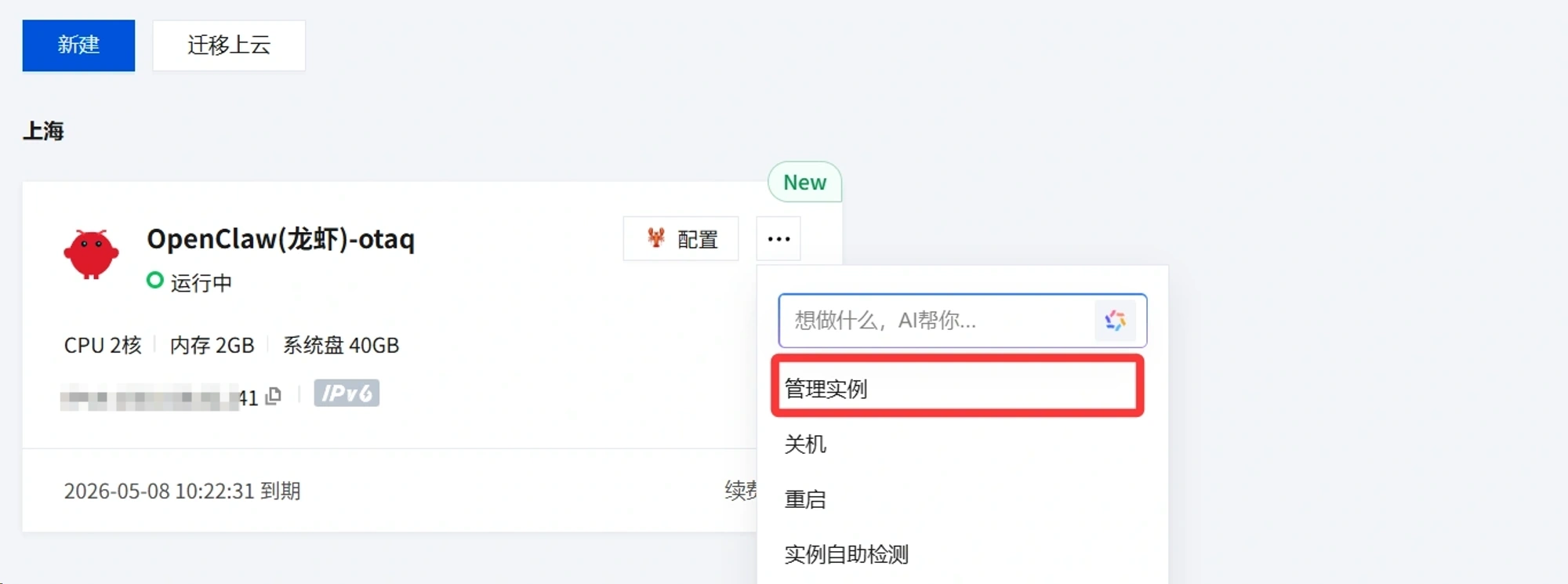
Click next to the server configuration in the server listThree dotsOr click onconfigureEnter the server management
Method 2: One-click deployment of the existing server
If there are already servers under your account, you can also deploy them with one-click deployment if you want to deploy them through existing servers.
Step 1: Reinstall the system
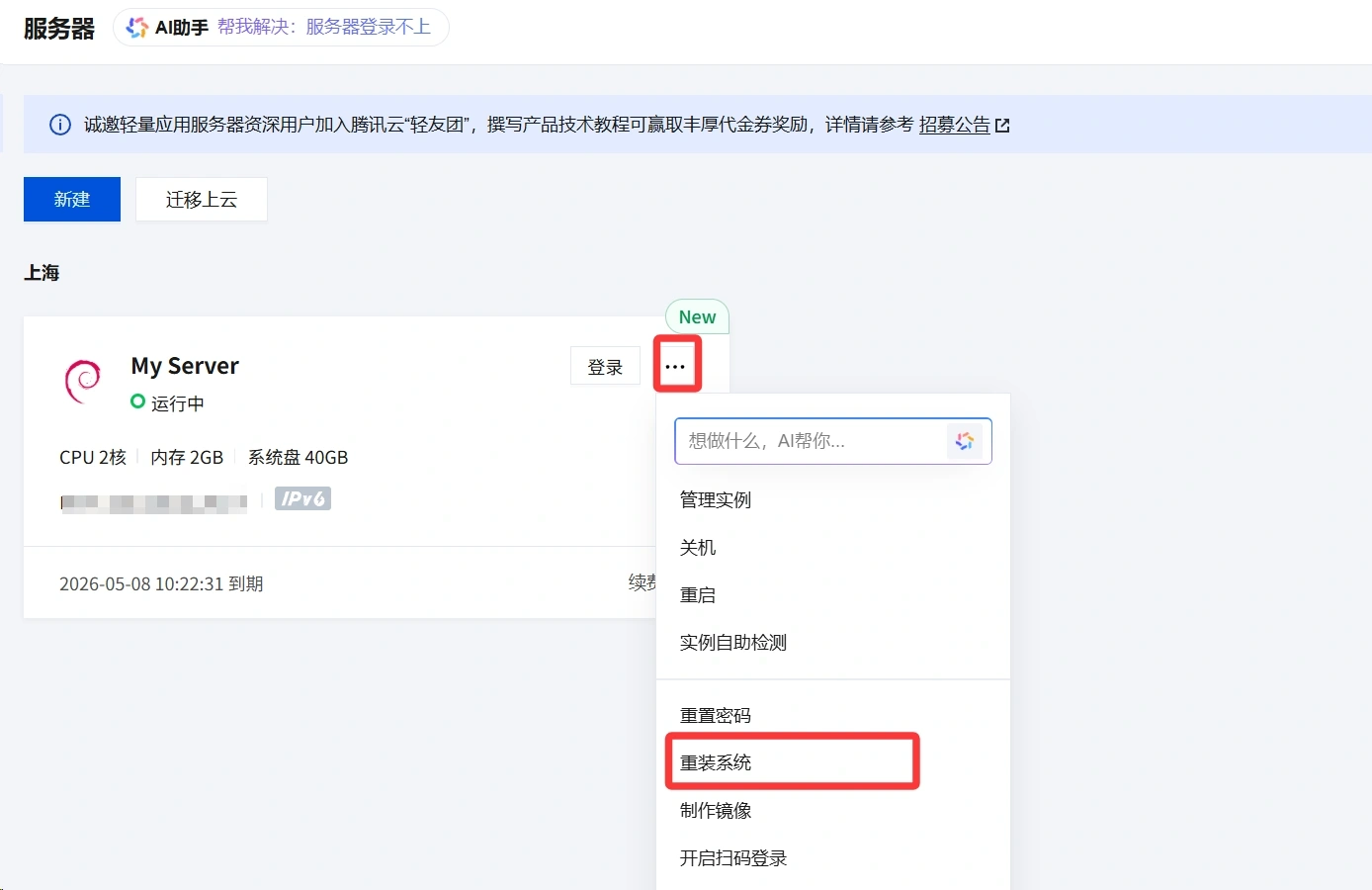
go intoTencent Cloud China Control PanelFind the server list, click the three dots next to the server login, and then click on "Reload System".
Step 2: Select a template
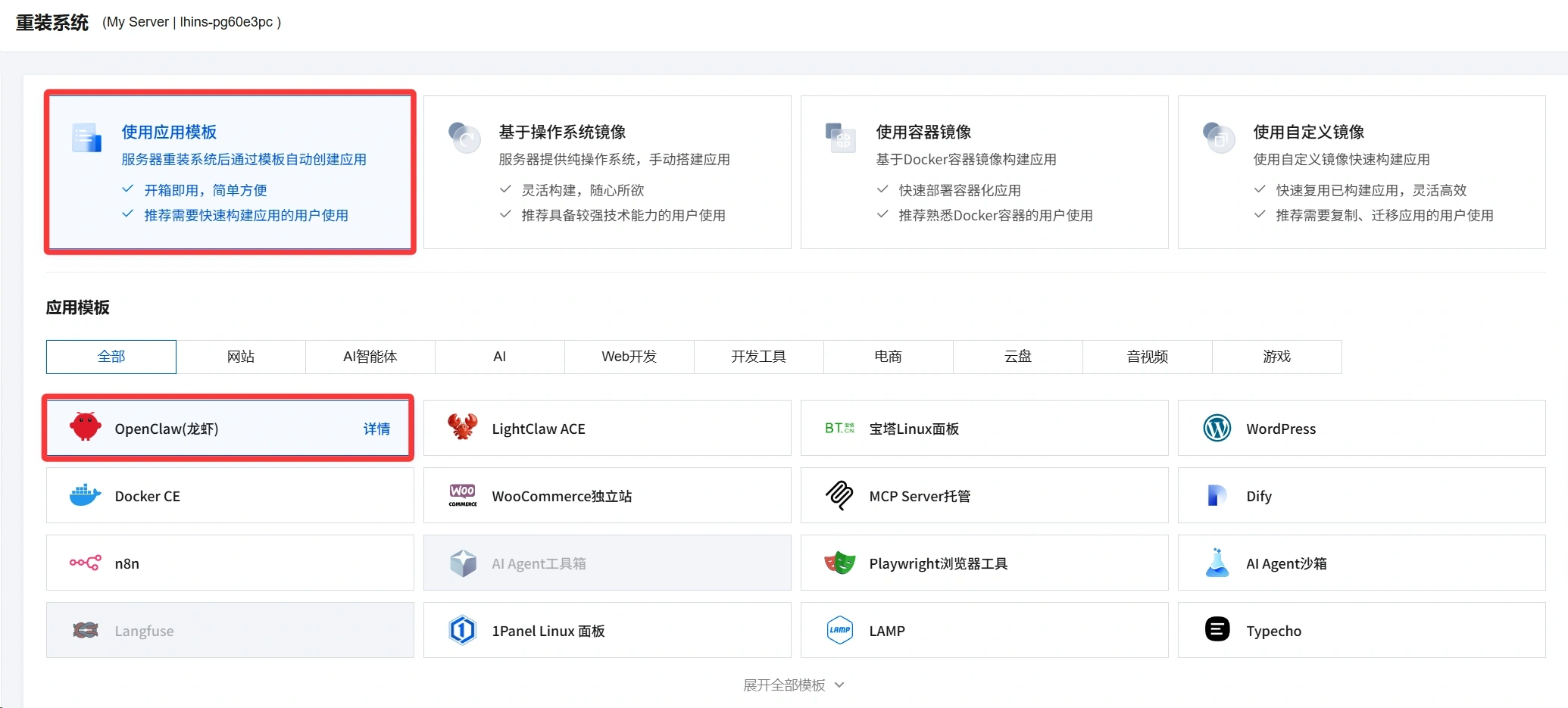
Select the app template above, and choose OpenClaw (Lobster) below.
Finally, click OK to start reinstalling the system
take note of
If you're just testing OpenClaw (Lobster) and you need to keep your server data, you must select it when reinstalling.Reinstall after backing upIf the data is not needed, you can choose not to back it up and just reinstall it directly
OpenClaw model configuration
Step 1: Go to the server settings
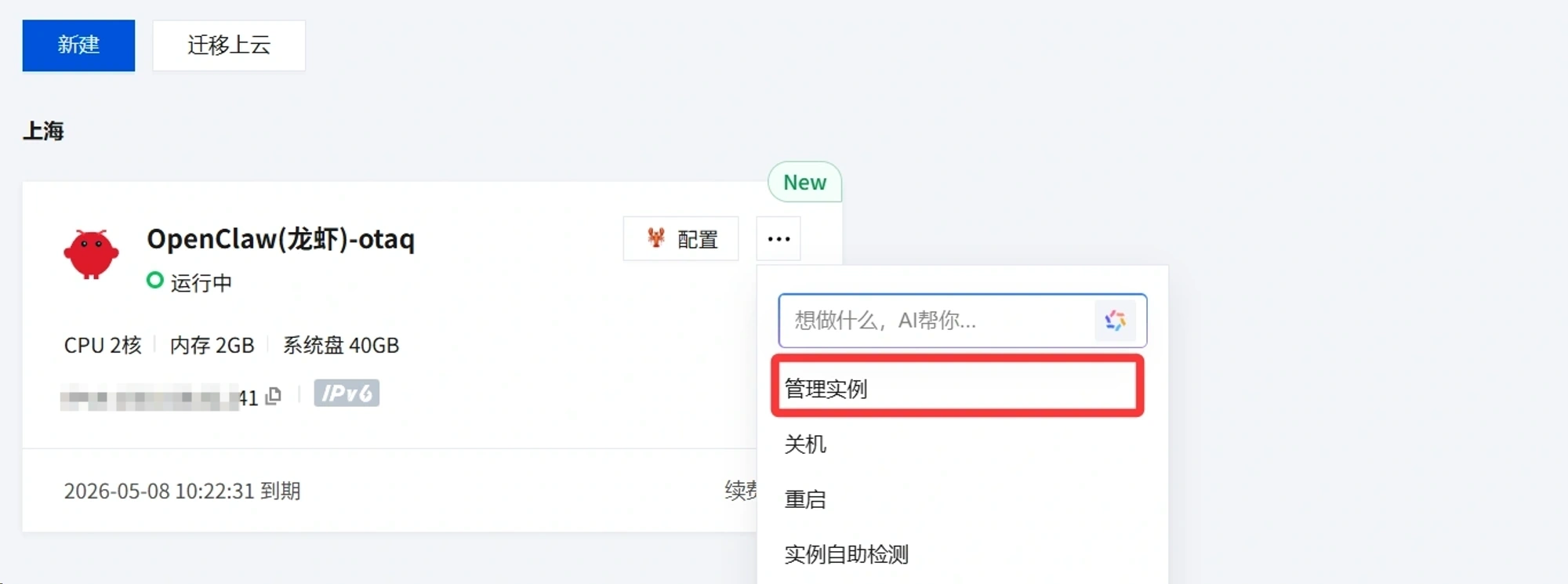
InTencent Cloud China Control PanelFind the server list, click on "Configure" to enter the server management settings
Step 2: Configure the model
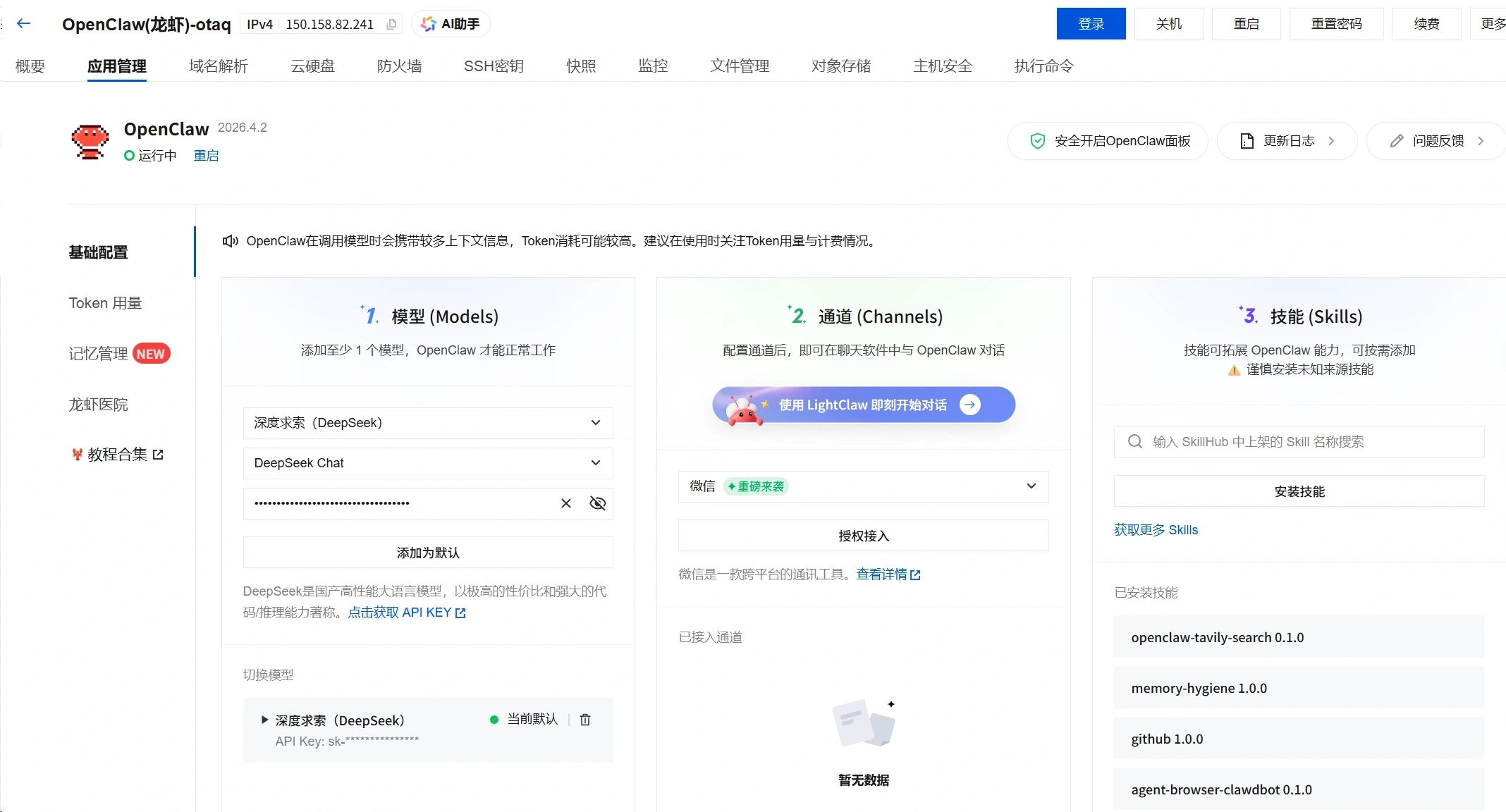
At the model settings, select the model you have prepared, such as DeepSeek. After selecting the model, enter the API Key, and then click Add as Default to complete the process.
 English