











If you have already deployed OpenClaw on a cloud server, the overall process of accessing QQ is actually not complicated: First, go to the QQ Open Platform to create a QQ robot and obtain the API key. AppID and AppSecretThen, go back to the OpenClaw management panel on the cloud to complete the model configuration and channel configuration, and finally verify whether the robot can respond normally in QQ. Tencent Cloud's access method uses a visualized panel, so you don't need to run additional commands manually.
Prepare these items before you start
Before conducting the official operation, first confirm that you already meet the following requirements:
- I have a QQ account that has completed real-name authentication.
- I have already deployed OpenClaw on the Lighthouse lightweight application server.
- If your OpenClaw instance was created with an older version, it's best to update to the latest application version first before proceeding with the configuration.
- If you plan to use the QQ channel for a long time, it is recommended to prioritize choosing domestic servers and model services that can be accessed stably.
Register and log in to the QQ Open Platform

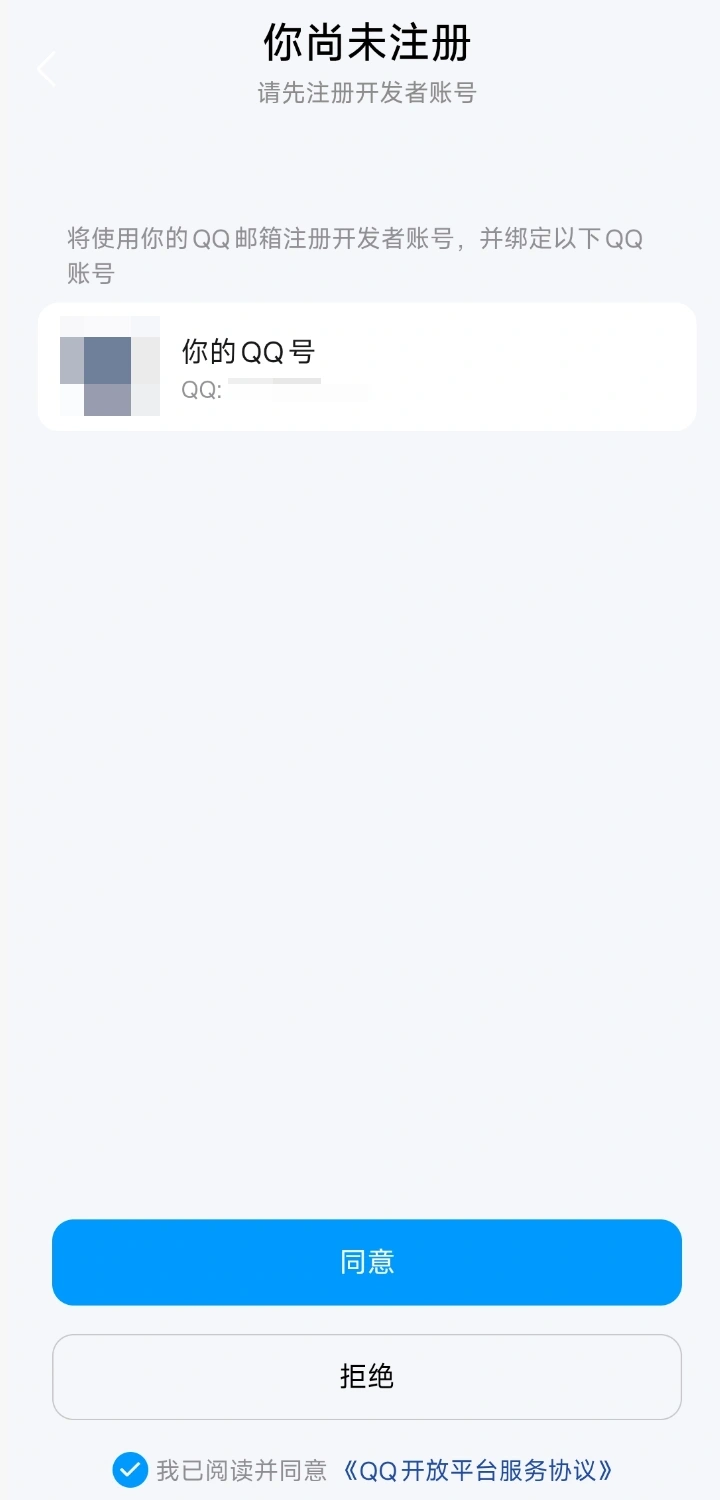
First, go to the QQ Open Platform and log in by scanning the QR code with your mobile QQ. If you haven't registered before, after scanning the QR code and authorizing, the platform will automatically help you complete the registration and bind your current QQ account to the Open Platform. After that, you will enter the management page of the QQ robot.
Create your QQ robot

After entering the QQ robot page, click on “Create a robot” and follow the on-screen prompts to create a new robot. Once the creation is complete, the system will generate two crucial parameters:
AppIDAppSecret

Immediately copy and save these two values, as they will be needed later when configuring OpenClaw. It's particularly important to note here that...AppSecret For security reasons, it's usually not displayed in plain text for a long time. It may need to be reset when checking it later, so it's important to save it properly the first time it appears.
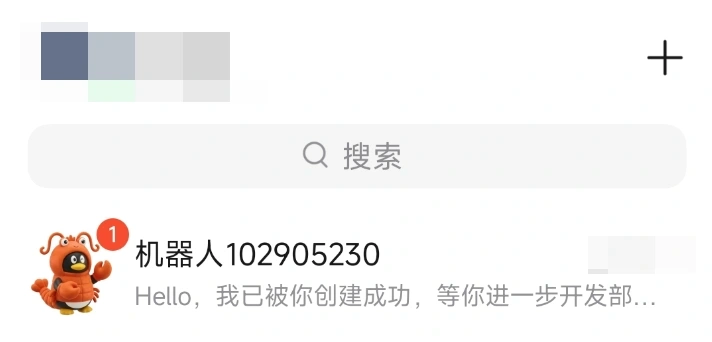
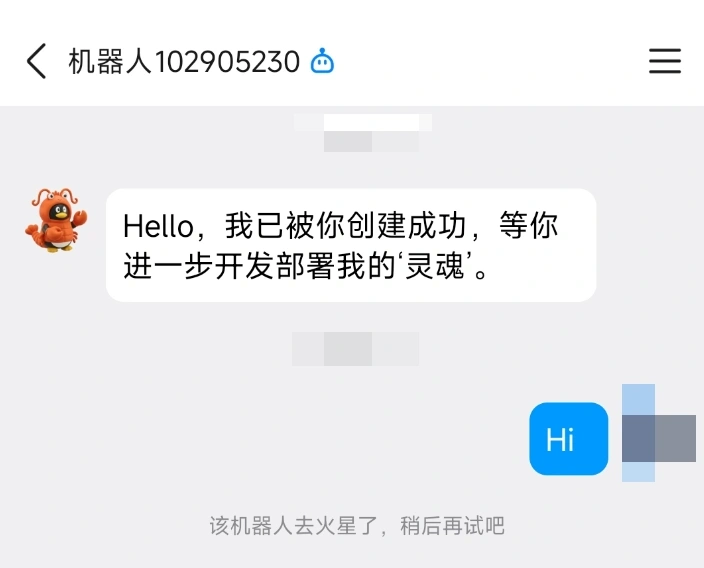
After the creation is completed, you can usually see the bot appear in the message list in the QQ client. However, it usually doesn't work properly at this time, because it's just “built”, and it hasn't really connected to your OpenClaw instance yet. The original text mentions that if you haven't completed the cloud configuration, you may see prompts like “The bot has gone to Mars. Please try again later” when chatting with the bot.
Enter the OpenClaw management page
Next, go back to the Tencent Cloud console, find the Lighthouse instance where you deployed OpenClaw, enter the instance details, and then go to the “Application Management” page. All subsequent model settings and QQ channel settings will be completed here.

First, configure the model properly

QQ is just the entry point for messages. The model you configured for OpenClaw is actually responsible for understanding and responding to the content. Therefore, before connecting to QQ, make sure that the model API Key has been correctly filled in and the model itself can be called normally.

This is very important because many people think that “QQ not responding” is due to improper channel configuration, but in fact, one of the more common reasons is that the model is not properly configured, the key is filled in incorrectly, or the model service itself is unavailable. The original text also specifically reminds us that model configuration is a necessary step.View the registration address of popular models in the model database。
Configure the QQ channel
After confirming that the model is correct, proceed to configure the channels.
Find it on the “App Management” page. Channel In the configuration area, add a QQ channel, and then import the file you just saved. AppID and AppSecret Fill in the information, save and apply the configuration. After the system has finished processing, if the page displays a success message, it means that the QQ channel has been successfully integrated into OpenClaw.

If you fill in the parameters incorrectly in this step, the most typical phenomenon is that after you return to QQ, the robot still cannot respond normally, or it continues to prompt an abnormal state. Therefore, once the operation fails, the first thing to check is whether there are any copying errors in these two values, whether they are omitted, or whether the old Secret is filled in instead.
Go back to QQ to check whether the connection has been successfully established.
After completing the model configuration and QQ channel configuration, you can return to Mobile QQ or PC QQ and directly send messages to the robot for testing. As long as it can understand and respond normally like an AI assistant, it means that the entire process has been successfully implemented.
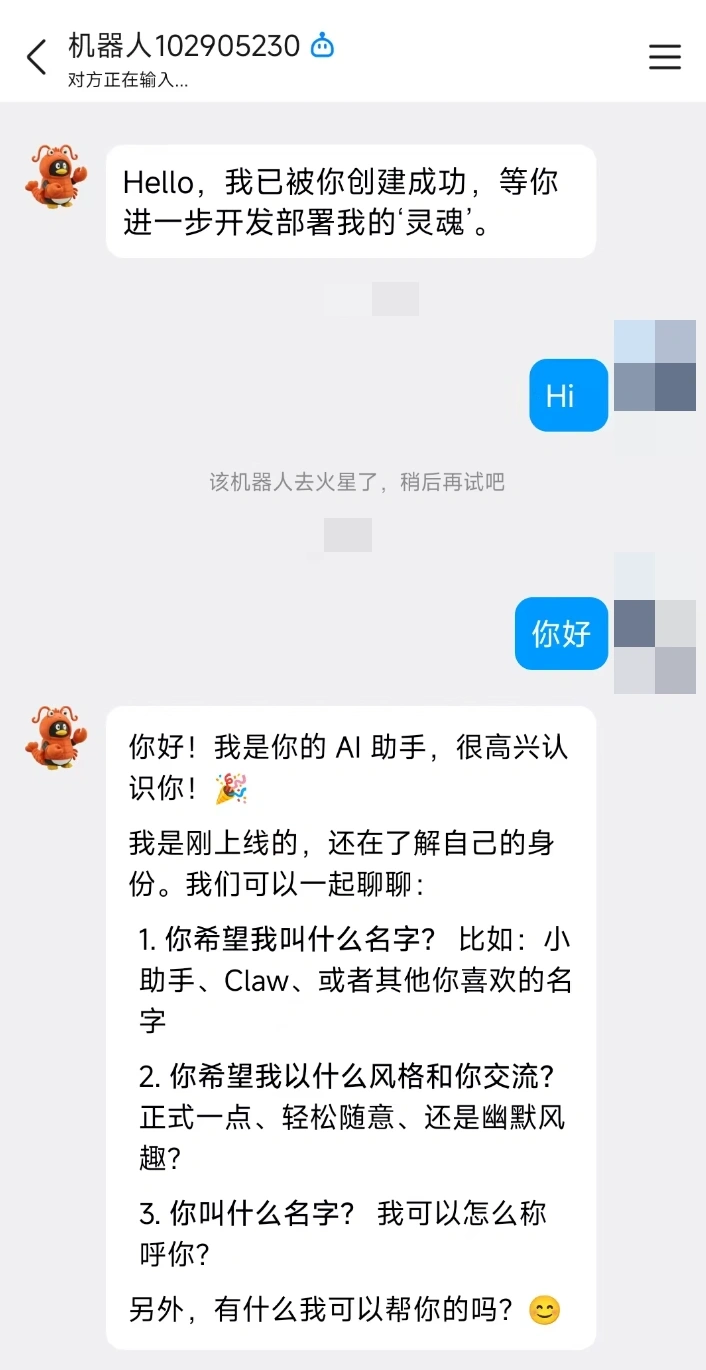
There's a detail that needs attention here: It's not recommended to directly add this QQ robot to the group for interaction. At least in the current scenario, it would be more reliable to test and use it in a one-on-one chat mode first.
What can I do after successfully accessing it?
After connecting to QQ, the robot can not only send and receive ordinary text messages. The range of capabilities mentioned in the original text also includes:
- Receive the text
- Receive the pictures
- Receive the file
- Reply text
- Reply with a picture
- Reply in Markdown format
- Send a message proactively
- Voice message
- Replies to the document
However, “quoting historical messages” is currently not supported.
Another very important reminder is that QQ is just a channel. Whether you can actually recognize images, generate images, or process files still depends on the capabilities of the underlying model.

For example, if you want the robot to view images, you need to configure OpenClaw with a model that supports visual understanding; if you want it to generate images, you need to connect it to a model that supports image generation.

The two most common problems
9.1. 机器人提示异常,无法对话
If the robot replies with something like “I'm on Mars. Please try again later,” first check the following two items:
- Did you not fill in the QQ robot information in OpenClaw at all?
AppIDandAppSecret - Did you enter the wrong information?
AppIDOrAppSecret
9.2. 看起来接通了,但机器人就是不回消息
This situation is usually not a problem with the QQ channel itself, but rather an abnormal model configuration. For example, an incorrectly configured API Key, an unavailable model, or a failed model call can all cause the bot to receive messages but fail to respond. The solution is to return to the model configuration page of OpenClaw and re-check the model's access status.
Summary
To connect OpenClaw to QQ, the core process consists of four steps:
- Deploy OpenClaw properly
- Create a robot on the QQ Open Platform
- Keep it well
AppIDandAppSecret - Complete the model configuration and QQ channel configuration in the cloud panel
As long as you follow these four steps correctly, you can basically successfully turn the QQ robot into your OpenClaw chat interface. Later, whether it's personal assistant services, document processing, image-text Q&A, or timed reminders, all of these can be further expanded on this foundation.
 English