


















In the beginning, WordPress was just an online blogging platform. Time has passed, and today it has evolved into a full-fledged content management system, or a back-end software, capable of powering a wide range of applications includingE-commerce sites withinof any other website.
WordPress as an e-commerce platform is a popular choice among website owners, but that doesn't mean it's for everyone. But if it fits your needs, here are some reasons why it is a good choice.


pivot
- 您想要完全掌控您的网站
- 您希望免除像 BigCommerce 或 Shopify 这样的电子商务平台的月费。
- 您希望建立与电子商务无关的其他网站,例如博客、页面等。
- 随着你的成长,你会想要建立一个小型网站。
- 您不会受到技术工作的影响。默认情况下,WordPress 网站旨在让初次使用者更容易拥有网站,但他们需要具备一些运行网站的基本知识。
- 您没有计划集成复杂的支付系统。例如,您打算使用 PayPal、Google Wallet 或 Amazon,而不是通过自己的服务器处理支付。
- 你需要一个简单的平台,能让你集结一支开发团队共同应对大型项目并实现成长。
In this tutorial, we will provide information on how to use theWooCommercePlugin step-by-step guide to building a WordPress eCommerce site.
Here we go.
Step 1: Install WordPress
The first step is to add the following to yourServersThis may sound difficult at first, but it's actually a straightforward process. If you don't already have a domain name and hosting, you'll need to first register with one of the many hosting/domain providers on the market.


WordPress documentation for newbies:WordPress 2025 Technical Documentation & Guide for Beginners | Official Resources, Tutorials & API Reference - LikaCloud Cloud Computing
E-commerce websites are slightly more complex than regular blogs and therefore require more memory allocation for PHP.
If you need a small website with a small number of products and not much traffic, you can choose to share the low-profile server activities of various vendors, with RAM starting from 1G, 2G or higher is recommended. You can refer to such as Tencent cloud、Ali CloudOrJD Cloudand other sites.
If you need to handle thousands of products and visitors, you will need a highly configured server.Refer to Cloud Hosting Activity Recommendation Page。
Step 2: Install the WooCommerce Plugin
The installation process for all WordPress plugins is quite similar. Go to yourWordPress DashboardClickpluginThen selectAdd New Plugin. Type WooCommerce in the search box to search.
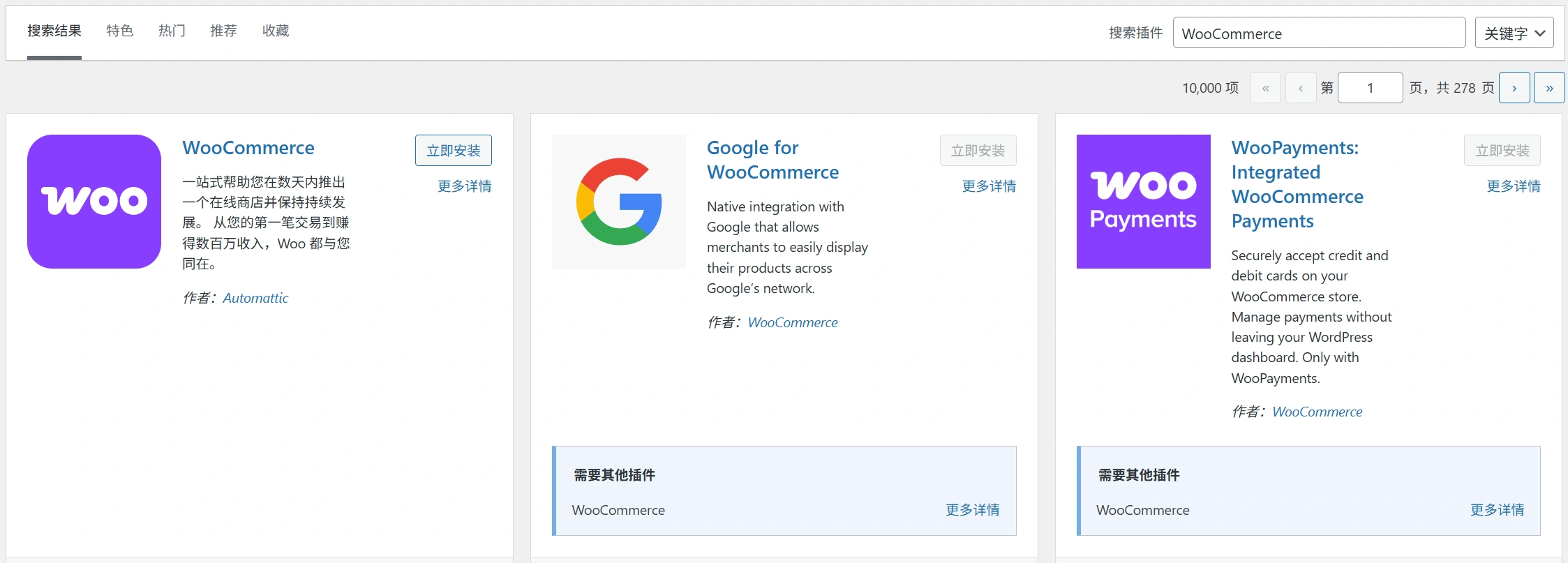
Then, click the Install Now button. You will see a promptactivatetext, go ahead and click on it.
After activating the plugin, you will be presented with WooCommerce's on-screen setup wizard to help you complete the installation of the plugin. The wizard will guide you through the initial setup. First, click on theLet's get started.。
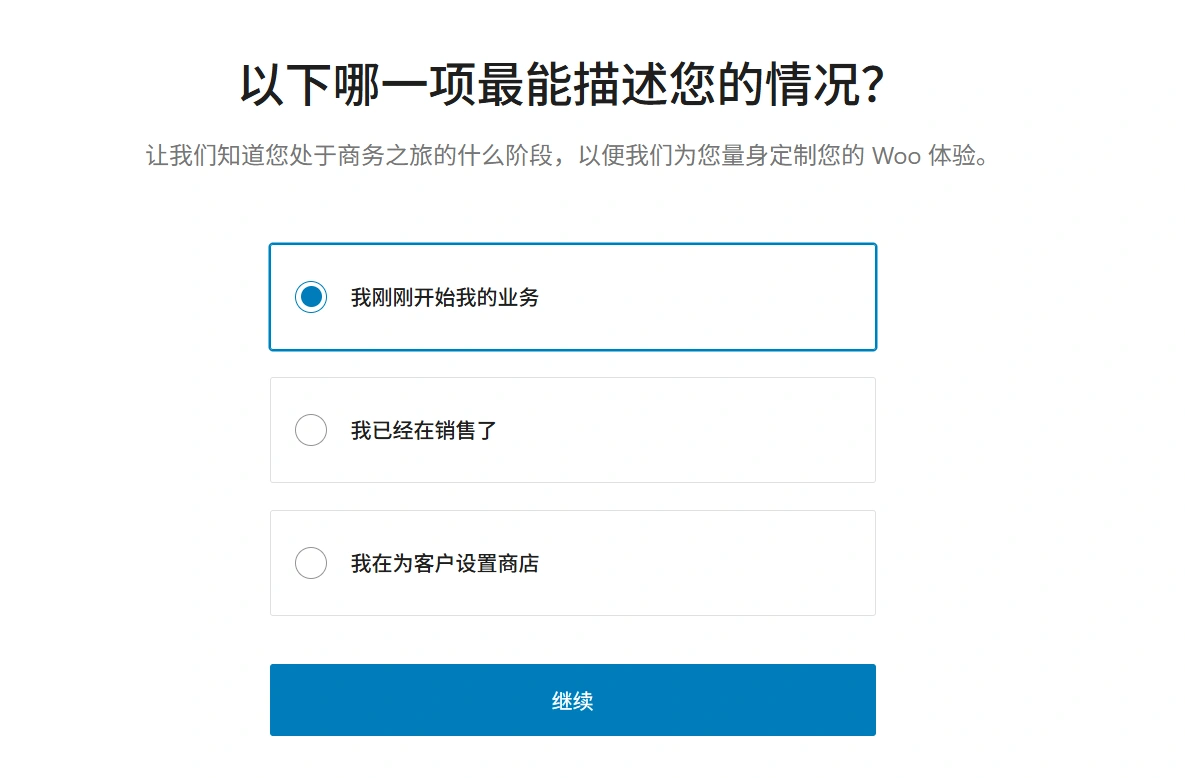
WooCommerce requires several pages to run. Therefore, please create the key store pages. Start creating the following pages.
- shopping cart page – This is the shopping cart area where visitors confirm their orders before proceeding to checkout.
- store page – Used to showcase your products.
- pay the bill – In this step, customers can choose their preferred delivery/shipping method and proceed to pay for the goods.
- My Account– This is more like a personal profile page for registered customers, used to view their past orders.
After confirming these details, clickproceed withWooCommerce will set up these pages for you.
Set your location
Next, you will need to set the location of your store. These details will help determine where your business originates from, the unit of measure, and the type of currency.
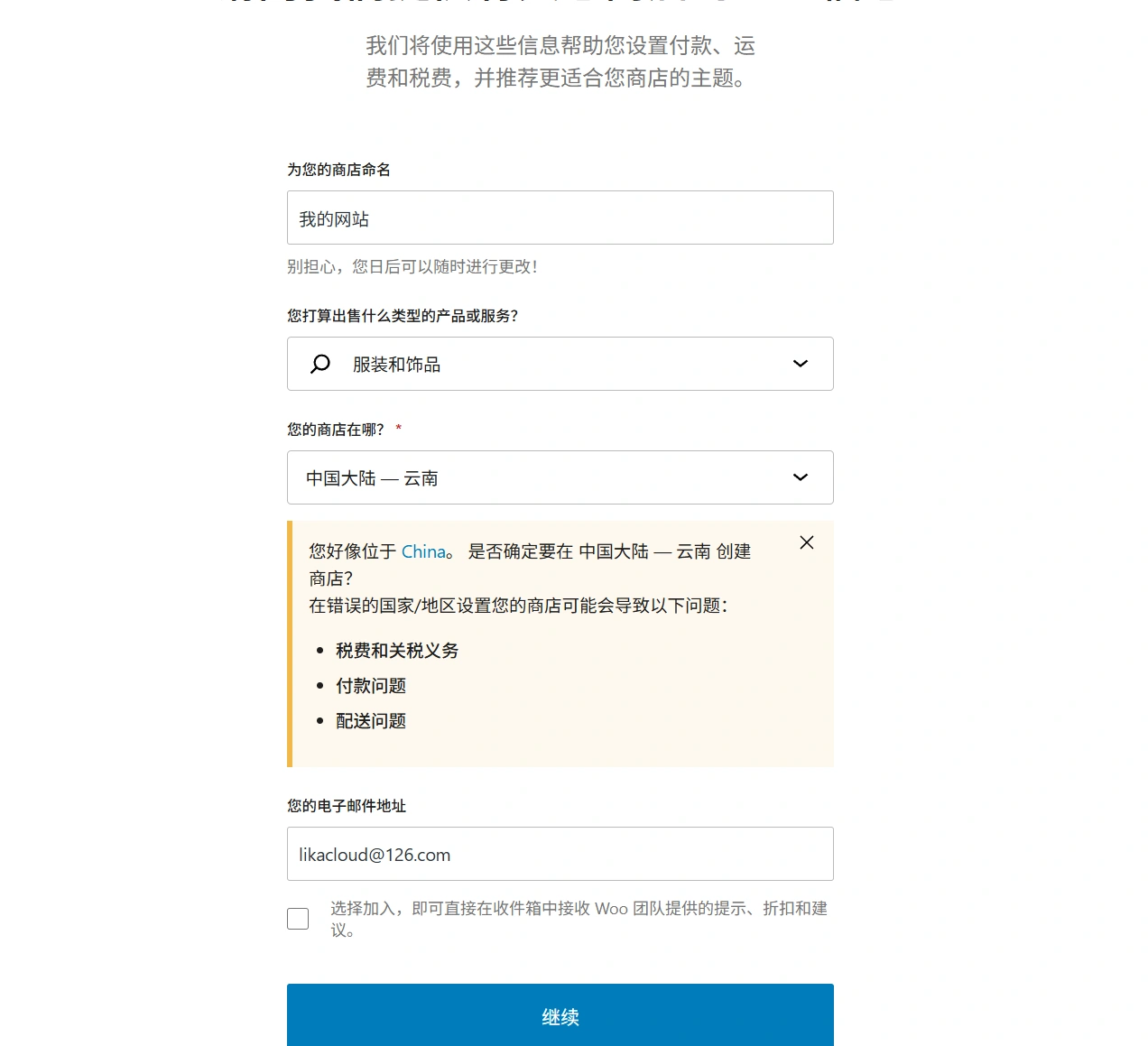
Now, click on theproceed withbutton to complete the setup.
Includes sales tax and shipping details
Taxes are an important aspect to consider when running an eCommerce store.WooCommerce will assist you with these steps.
First, you need to determine if you will be shipping physical items. Depending on your choice, WooCommerce will pre-configure the rest of the shipping details in the Settings section.
WooCommerce offers an excellent tax module that helps users calculate the appropriate tax rate based on the location of the store.
Therefore, if you plan to collect sales tax, simply check the main checkboxes as shown below. When finished, a new set of checkboxes will pop up with instructions on what to do next.
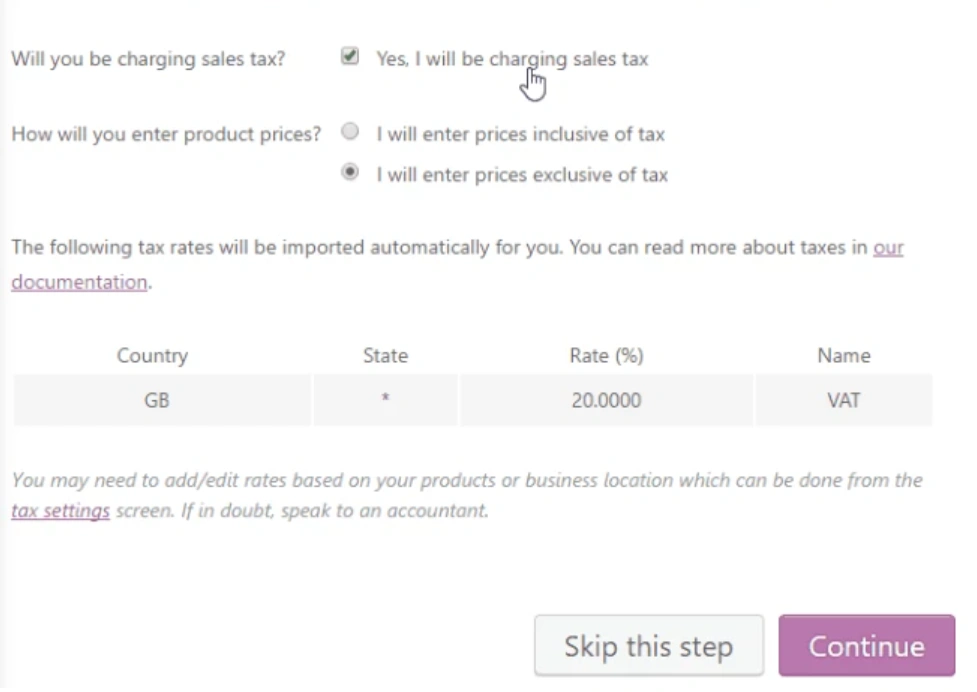
Clickproceed withbutton to continue the operation.
Choose a payment method (PayPal recommended)
Next, you need to choose a payment method for your e-commerce store. Payments seem to be one of the trickiest aspects of running a store. It's recommended that you initially use Paypal as a payment method, but WooCommerce offers other relevant options as well.
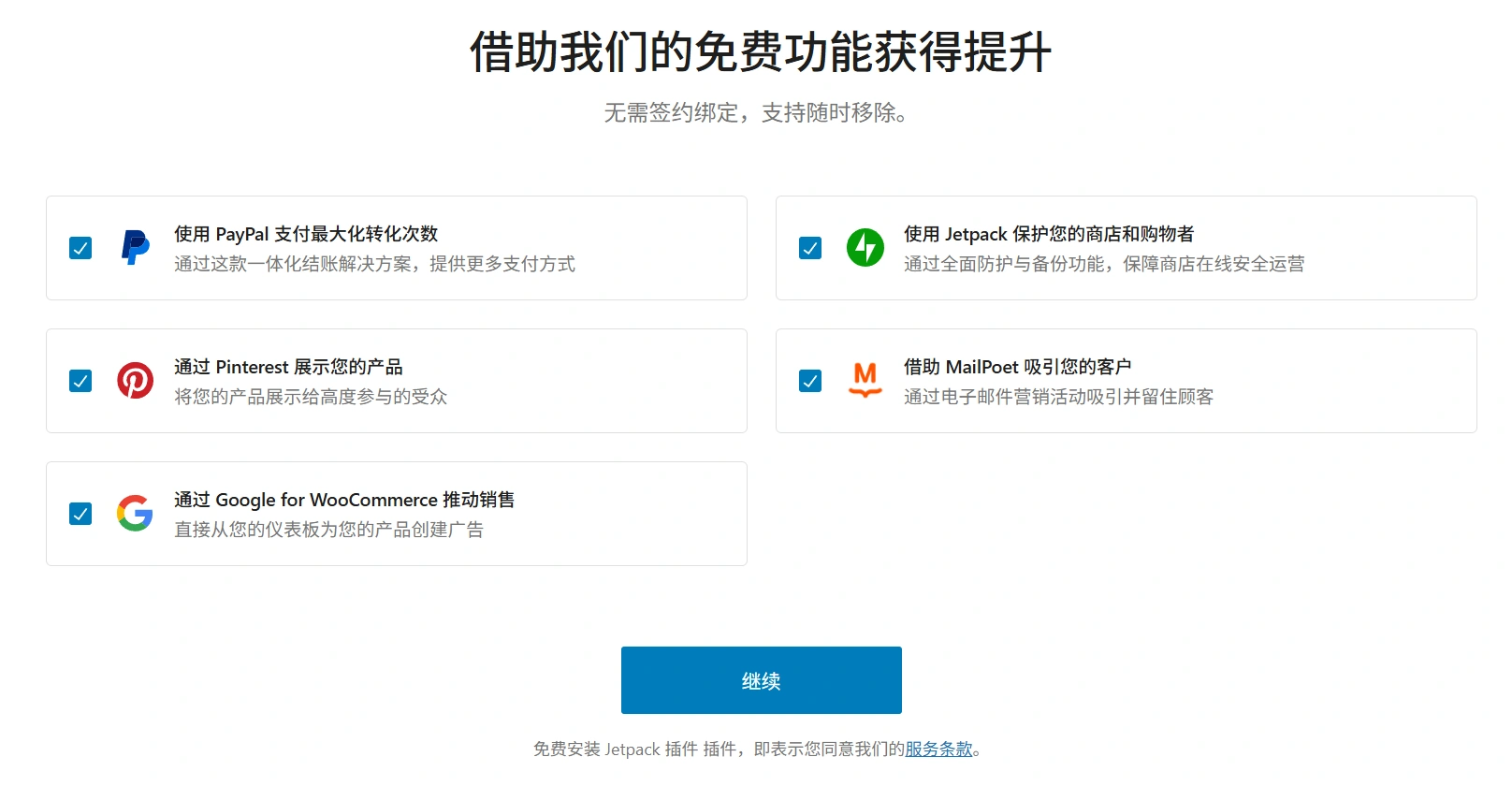
Again, when you're done, clickproceed withButton.
Step 3: Choose a theme for your e-commerce store
Next, you'll need to choose a theme for your online store, including the design and layout.WooCommerce offers a wide range of unique designs tailored specifically for your store. By default, WooCommerce works well with any theme on WordPress. These themes come with excellent features that will make your store look great.
It is recommended to use the default WooCommerce theme, i.e.Storefront. Its default version is free enough to help you get started.

Alternatively, you can visit the WordPress theme directoryThemeForest, and browse the available options in their e-commerce section.
Once you have selected your preferred theme, make sure that the individual pages display beautifully.
Step 4: Add your products
Now that WooCommerce has been successfully installed, you can start adding your first product.
To open your store, you will need some products. To create a product, go to the dashboard and click on theofferingsThen go toAdd Product。
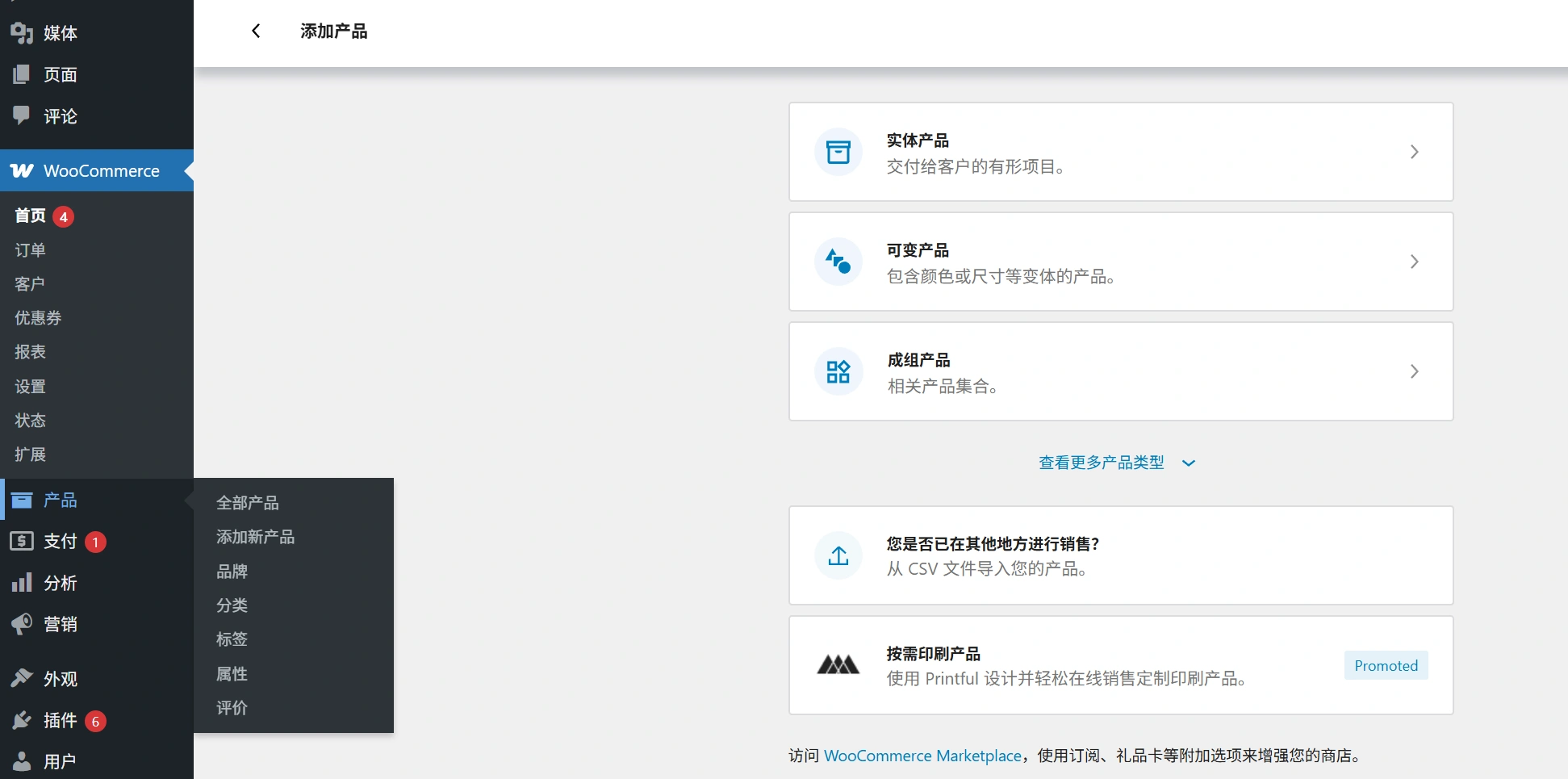
You should see a classic editing interface on WordPress. It should look something like this:
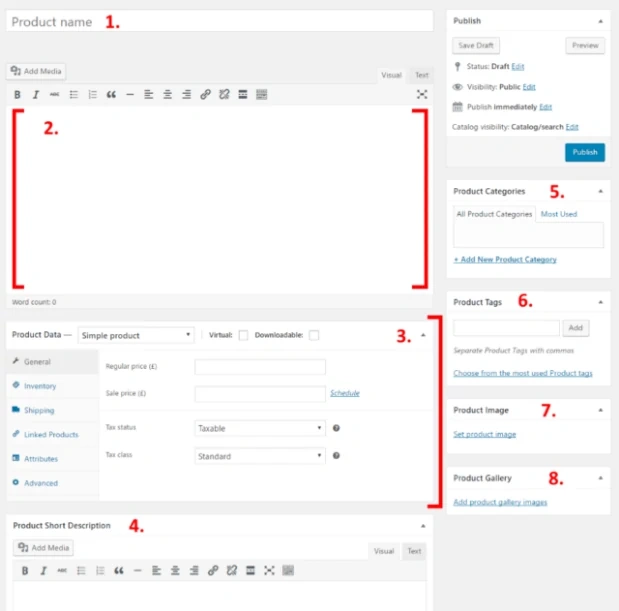
The following sections will be shown:
- Diethylammonium chloride
- Main Product Description. In this field, you are free to add any information about the product, including images, titles, columns and even videos. Do as you wish and include everything you want.
- Product data area. Here you can set the type of product you want to add, specifying whether it is a downloadable product or only as a virtual product. This section also contains several other functional blocks, they include:
- stockpiles
- haulage
- Related Products
- causality
- high level
- Short description of the product. This section contains the product description that will be displayed on the product page.
- Product Categories. This section will group products by their respective categories.
- Product Labeling. Helps you organize your product database.
- Product Images. Add your product image here.
- Product Gallery. You can add additional images of your product to showcase its unique features.
Once you have completed the product section, simply clickpostButton. Congratulations, you have successfully added your first product.
reach a verdict
Now your eCommerce store setup is complete and you have successfully added a product. Please follow the same process to add more products to the database. If you like the control that WooCommerce offers, then install it and open your online store.
Recommended Hosting for WooCommerce




 English