











In addition to regular updates, WordPress has two "low-cost, high-yield" security settings:Disable background file editingandHide backstage login address. These two operations can directly cut off the most common invasion paths used by hackers (e.g., modifying core files through loopholes, violently breaking login passwords), and the setup is simple enough that novices can easily complete it. This section will explain in detail the specific steps and principles.
I. Why these two settings?
Two of the most common means of hacking WordPress sites are the most prevalent:
- Implanting malicious code by editing a file in the backendWordPress by default allows administrators to edit the code of themes and plugins directly in the background ("Appearance → Theme Editor" "Plugins → Plugin Editor"). Once a hacker obtains administrator privileges through a loophole, he or she can modify the core files, implant viruses, backdoors, or tamper with content through this feature.
- Brute Force LoginThe default WordPress login is
域名/wp-adminOr域名/wp-login.php(uniform across the network), the hacker will use a program to bulk scan this address and try to use common usernames (such asadmin) and weak password logins to control the site once successful.
Setup 1: Disable background file editing (5 minutes)
After disabling file editing, the "Theme Editor" and "Plugin Editor" entrances in the backend will disappear, preventing hackers (or misguided administrators) from modifying the code from the root.
Step 1: Locate and Edit wp-config.php file
wp-config.php It is the core configuration file of WordPress, which stores the database information and other key settings, and modifying it needs to be done through the server file management tool:
- Log in to your server control panel (e.g., Pagoda Panel) and locate your web site's root directory (usually the
wwwroot/你的域名/)。 - In the root directory, find the
wp-config.phpRight click on the file and select "Edit" (if you use FTP tool, you can download it locally and edit it with Notepad before uploading).
Step 2: Add Disable Code
In wp-config.php In the file, find "/* Okay, that's it, stop editing! Have fun using it! */The line of code "/*" in itabovePaste the following code:
// 禁用主题和插件编辑器
define('DISALLOW_FILE_EDIT', true);
Step 3: Save and verify results
- Save the file and close the editor.
- Back in the WordPress backend, after refreshing the page:
- Go to the Appearance menu and the Theme Editor option has disappeared.
- Go to the "Plugins" menu and the "Plugin Editor" option has disappeared.
III. Setup 2: Hide background login address (easier with plug-ins)
Hiding the login address is not removing the default address, but adding a new customized login portal (e.g. 域名/my-login), while blocking the default wp-admin The login page (which will bounce to a 404 error when accessed), so that hackers can't find the login portal.
Recommended plugin: WPS Hide Login (free, lightweight)
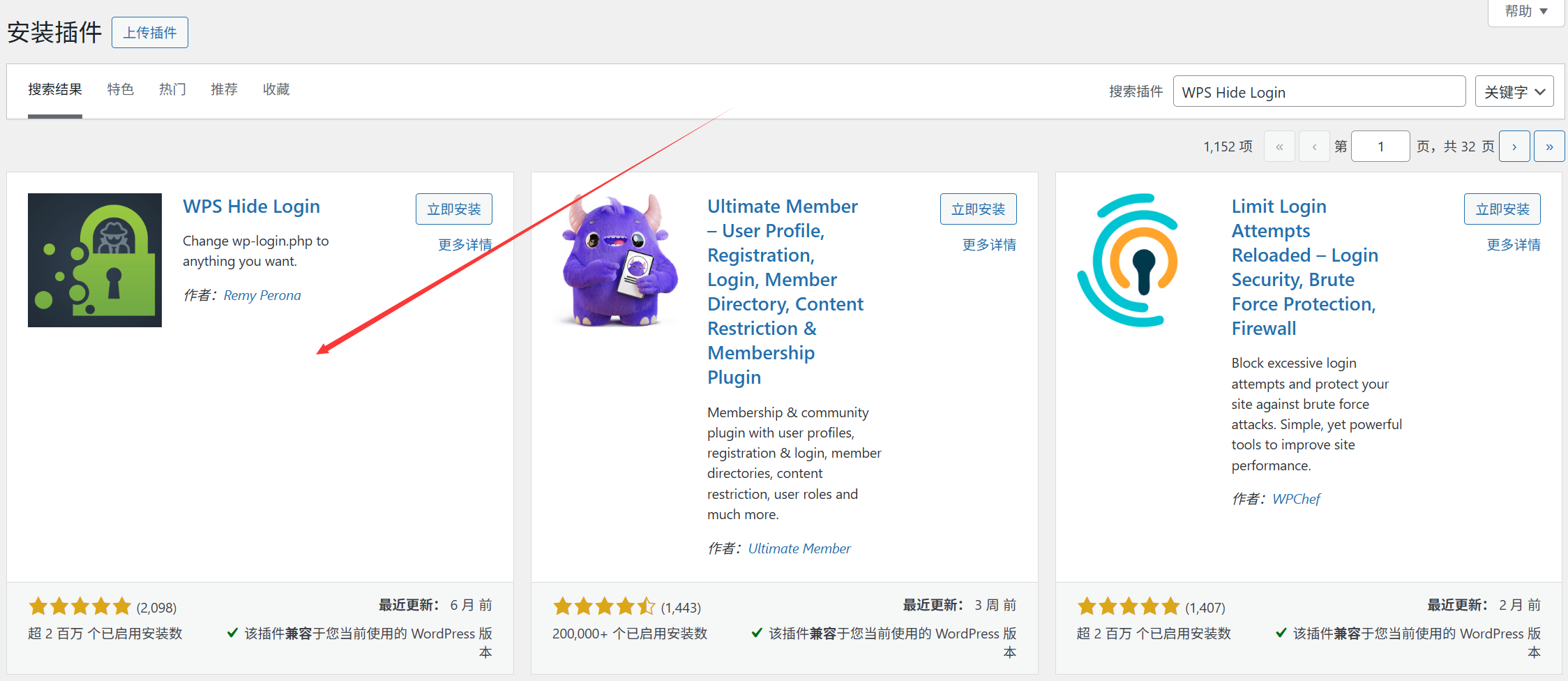
- Installation of plug-ins: Go to "Add-ins→Install Add-ins" in the background, search for "WPS Hide Login", click "Install" and "Activate".
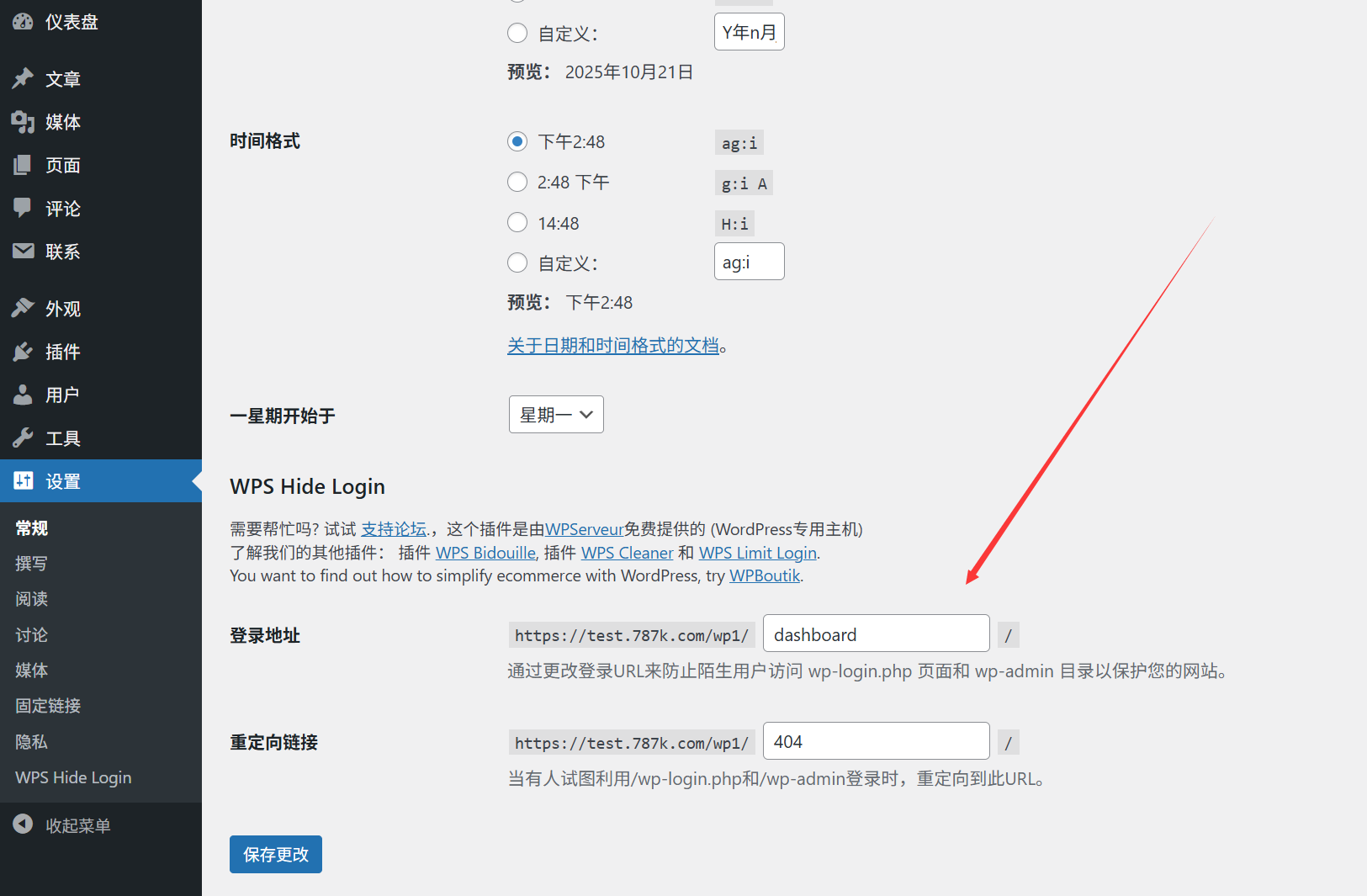
- Setting up a customized login addressAfter activation, go to "Settings→WPS Hide Login" page, and in the "Login URL" input box, fill in the customized path you want to set (we suggest you to keep it simple and memorable, for example).
myadmin"login2023").- Example: Enter
dashboardThe new login address is域名/dashboardThe "Redirect URL" can be left as default. Just leave the "Redirect URL" as default (hackers will be redirected to a 404 page when accessing the old address).
- Example: Enter
- Save and memorize the new address: Click "Save Changes" and the system will take effect automatically.Be sure to write down your new login address immediately(It is recommended to save it to a notepad or cell phone memo) to avoid forgetting it and not being able to log in.
Verify hidden effects
- Use the new address (e.g.
域名/dashboard) Test the login to confirm that you can access the backend properly. - Access to the default address
域名/wp-adminOr域名/wp-login.phpIf the hide is successful, it should display a 404 error or jump to the home page.
IV. Key considerations (avoiding operational errors)
About disabling file editing:
- Does not affect normal use: Files can still be edited via FTP or server panel after disabling (only the background visual editing is turned off), with no effect on normal users.
- What if I need to edit the code?: If you need to modify the theme/plugin code in the future, you can delete it temporarily.
wp-config.phpThe disable code added in the - Beginners should be careful to change the code manually: Even if editing is not disabled, it is not recommended for newbies to change the code in the background (it may cause the site to crash).
About hiding the login address:
- Don't forget the new address.: This is the most common problem! If you forget to customize your login address, you need to delete it through the server file management tool!
wp-content/plugins/wps-hide-loginfolder (the default login address is restored to take effect after the plugin is removed). - Don't change it too often: Frequent changes to the login address may cause you to confuse yourself, so it is recommended to set it up and use it for a long period of time.
- More secure with strong passwords: Hiding the address just makes it more difficult for hackers to do so, and it is still necessary to ensure that the administrator password is sufficiently complex (refer to section 11.2).
V. Common problem solving
1. What if I want to restore editing after it has been disabled?
- re-edit
wp-config.phpfile, remove the addeddefine('DISALLOW_FILE_EDIT', true);The code, when saved, is restored by the backend editor.
2. I can't log in from my phone or plugin after hiding my login address?
- Some mobile management plugins (such as the official WordPress app) may rely on the default login address, so you can check "Allow REST API access" in the WPS Hide Login settings (usually at the bottom of the plugin settings).
3. Can hackers still find the new login address?
- Avoid giving out your login address in public (e.g. don't mention it in the article)
域名/dashboard)。 - Customized paths can be changed periodically (just change them via the plugin settings page) to further reduce the probability of detection.
wrap-up
Disabling file editing and hiding your login address are security measures that do a lot of good for a little money -- they hardly affect normal use, but are effective in thwarting most rudimentary hacker attacks. Remember: disabling editing relies on modifying wp-config.phpIf you want to hide the address with the WPS Hide Login plug-in, be sure to verify the effect and make a good record after the operation.
These two settings, in conjunction with regular updates and strong passwords, can build a basic safety net for your website.
 English