











Pictures are the “face value bearer” of the website, but if not handled properly, it will become a “liability” that slows down the website, and will also miss the opportunity to improve SEO. The core of image optimization is to “reduce the volume without affecting the visual effect” and “let the search engine understand the content of the picture”, and thecompressed sizeandAdd alt tagare the two most basic and effective methods.
First, why optimize images?
It's important to understand the importance of optimization first before you take this step more seriously:
- Improved loading speed: Large, unoptimized images make pages take longer to load and visitors may leave without waiting for them to finish loading (studies show that 53% visitors abandon a page that takes more than 3 seconds to load).
- Save server space: The compressed image size is smaller, can reduce the server storage footprint and traffic consumption (especially important for servers that charge by traffic).
- Help SEO Ranking: Search engines (such as Baidu, Google) can not directly “see” the picture, only through the text information (such as alt tags) to understand the content, optimize the picture can make the picture in the search results to get more exposure.
- Adaptation to mobile devices: Mobile phone users have limited traffic, small size images can reduce loading consumption and improve the mobile experience.
Second, the picture compression: reduce the volume, without loss of picture quality
The principle of image compression is to remove redundant pixel information (e.g. color differences that are difficult to distinguish with the naked eye) from an image to reduce the file size while maintaining the visual effect. Recommended for newbiesPlug-in auto-compressionNo manual operation is required.
Method 1: Automatic compression with a plug-in (recommended for beginners)
Recommended plugins: Smush or ShortPixel (free version is enough)
In order to Smush As an example, the steps are as follows:
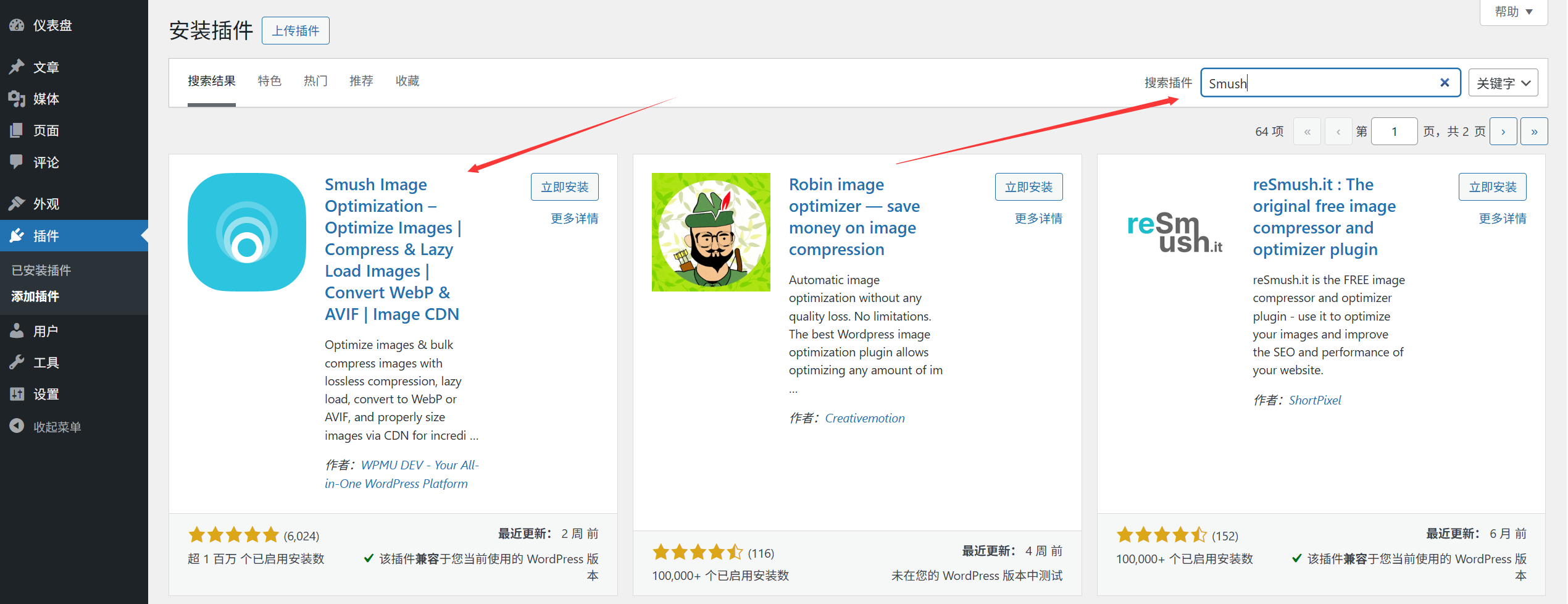
- Install the plug-in: Background [Plug-in] → [Install Plug-in] → Search “Smush” → Click [Install] → [Activate].
- Basic settings:
- After activation, go to the plugin settings page and check “Automatically compress newly uploaded images” (newly uploaded images will be automatically compressed, no need to do it manually).
- Click on “Batch Compression” and select “Compress all images” (for old images that have been uploaded to the media library).
- Waiting for compression to complete: the plugin will show the compression progress and space saved (e.g. “50 images have been compressed, saving 20MB of space”).
dominance: Fully automated processing, support for batch compression, free version can meet the needs of small and medium-sized websites (Smush free version of a single image up to 5MB, ShortPixel free version can compress up to 100 images per month).
Method 2: Manual compression before uploading (for extreme optimization)
If the size of the image is particularly large (e.g. the original photo taken by the camera can easily exceed 10MB), it is recommended to compress it manually on the computer before uploading it to the website:
- Online Tools(No software installation required):
- TinyPNG (\ntinypng.com): Supports PNG and JPG, high compression rate, low loss of image quality, and can upload 20 pictures at a time.
- Image compression tool, supports WebP format (smaller size than JPG 30%-50%).
- procedure:
- Open the tool → upload the image → wait for the compression to complete → download the compressed image → upload it to the WordPress media library.
Scenario: Important images such as home page banner, product detail page main image, etc. Manual compression can control the image quality more accurately.
Compression Notes:
- Ordinary images (such as those accompanying articles) are compressed into the Within 200KB That's it, the homepage big picture control is in Within 1MB。
- Priority use WebP format(WordPress 5.8+ has native support), the size is about 50% smaller than JPG under the same image quality.
- Avoid over-compression: Compression rates above 80% may result in blurry images, especially those with a lot of text (e.g. screenshots, infographics).
Third, add alt tags: so that the search engine “understand” picture
“The ”alt tag“ (full name ”alt attribute“) is the ”text description" of the image, which is displayed when the image fails to load due to network problems; more importantly, the search engine will understand the content of the picture through it, affecting the ranking of the picture in the search results.
Why do I have to add alt tags?
- Example 1: a picture of “red sneakers”, if there is no alt tag, the search engine may only know that this is a picture; add alt tag “red sneakers lightweight and breathable”, the search engine will be associated with the search terms related to “red sneakers”. red sneakers" related search terms.
- Example 2: When an image fails to load, the visitor sees the alt tag text and knows what the image should have been (instead of a blank or “image cannot be displayed” icon).
How to add alt tags?
Method 1: Add directly when uploading images (recommended)

- Upload an image (either via the media library or the editor), and in the Image Settings pop-up window, find the Alternative Text (i.e. alt tag) input box.
- Fill in the description:
- Be concise and accurate (10-15 words are appropriate), and include the core content of the image (e.g., “front of company office” “exterior of model 2023 laptop”).
- Avoid stacking keywords (e.g. “WordPress website builder website design company” as an invalid description).
- If the image is decorative (e.g., divider, background pattern), leave it blank or fill in “Decorative Image” (to avoid misleading search engines).
- Click “Insert into Post” and the alt tags will automatically take effect.

Method 2: Add/modify alt tags for uploaded images
- Go to [Media] → [Library], find the picture you need to modify, and click on the picture to enter the editing page.
- Fill in or modify the content in the “Alternative Text” box on the right, and click [Update].
alt Tags vs Title vs Caption: don't get confused!
Many newbies confuse these three concepts and make a simple distinction:
- alt tag (alternative text): For search engines and load failures, affects SEO and must be filled in.
- Title: Text to be displayed when the mouse hovers over the image (optional, suitable for additional details such as “Click to view high resolution image”).
- Description (Caption): Text displayed below the picture (similar to a picture caption, e.g. “Figure 1: Company annual meeting site”, fill in as necessary).
IV. Frequently Asked Questions for Newcomers
- Do all images have to be alt tagged?Almost. Except for purely decorative images (e.g., solid-colored backgrounds, borders), other images that contain actual content (product images, people images, scene images, etc.) need to be added, which is a basic requirement for SEO.
- What should I do if my pictures become blurry after compression?Reduce the compression strength (the compression rate can be adjusted in the plugin), or recompress with a manual compression tool (such as TinyPNG) to retain a higher image quality.
- WebP format images don't show up in old browsers?WebP is supported by modern browsers (Chrome, Edge, Firefox, Safari 14+) and older browsers (such as IE) have been rarely used without undue concern. For compatibility, install the plugin “WebP Express”, which automatically provides JPG alternatives for older browsers.
- No change in site speed after image optimization?It may be due to other factors (e.g. slow server, too many plugins), you can use GTmetrix tool to check first to see if “image size” is still the main issue.
Image optimization is a “low cost, high return” operation: 10 minutes spent setting up a plugin and adding alt tags can dramatically improve your site's speed and SEO performance. Make it a habit to “optimize what you upload” and your site will be more popular with visitors and search engines.
 English