











Plugins are the core tools that extend the functionality of WordPress, and learning to install, activate, and remove plugins is an essential skill for newbies. These operations do not require technical basis, follow the steps step by step, 3 minutes to master. This section will explain in detail 3 ways to install plug-ins (suitable for different scenarios), as well as activate, delete the specific operation.
I. Installation of plug-ins: 3 common methods (from simple to advanced)
Method 1: Install from the official WordPress repository (recommended for newbies, most convenient)
The official WordPress plugin repository (wordpress.org/plugins) There are more than 60,000 free plugins, search and install them directly in the backend, no need to download files manually.
move:
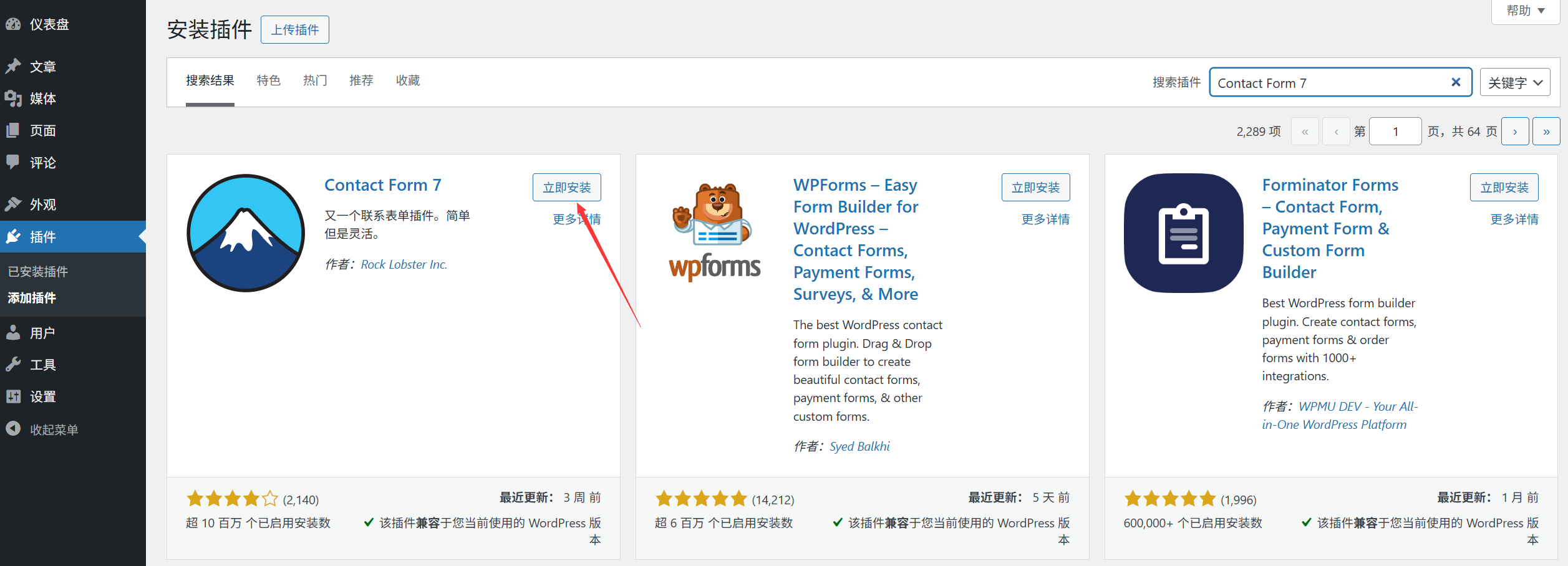
- Log in to the WordPress backend, click [Plugins] → [Install Plugins] on the left menu;
- Enter the name of the plugin in the search box at the top (e.g. “Wordfence” “Contact Form 7”) and click Search;
- Find the target plugin in the search results and click [Install Now];
- Wait a few seconds for the plugin to download and install automatically (the screen will say “Installing...”);
- After the installation is complete, the button will change to [Activate], click to enable the plug-in (see “II. Activating the plug-in” section).
Scenario: Install free plugins and know the specific plugin name (e.g., recommended plugins as previously learned).
Method 2: Upload local plugin file to install (suitable for installing paid plugins or plugins not available in the official library)
If the plugin was downloaded from the developer's official website, ThemeForest, etc. (usually as a ZIP archive), you need to upload and install it manually.
move:
- First download the plugin ZIP file to your computer (note: do not unzip it, keep it in ZIP format);
- Background [Plugin] → [Install Plugin], click the top [Upload Plugin] button;
- Click [Select File], find the downloaded ZIP plug-in file from your computer, select it and open it;
- Click [Install Now] and wait for the upload and installation (may take a few tens of seconds if the file is large);
- After the installation is complete, click [Activate].
take note of:
- If you are prompted with “Upload failed”, the file may have exceeded the server's upload limit (see “File Size Limit” solution);
- Make sure that you are downloading regular plugins (especially paid plugins, avoid downloading cracked versions from unofficial sources, which may contain viruses).
Method 3: Installation via FTP tool (suitable for when the plugin is too large or the backend installation fails)
When the plugin ZIP file exceeds the background upload limit (e.g. greater than 50MB), or when the background installation fails frequently, you can upload and install it with the FTP utility.
move:
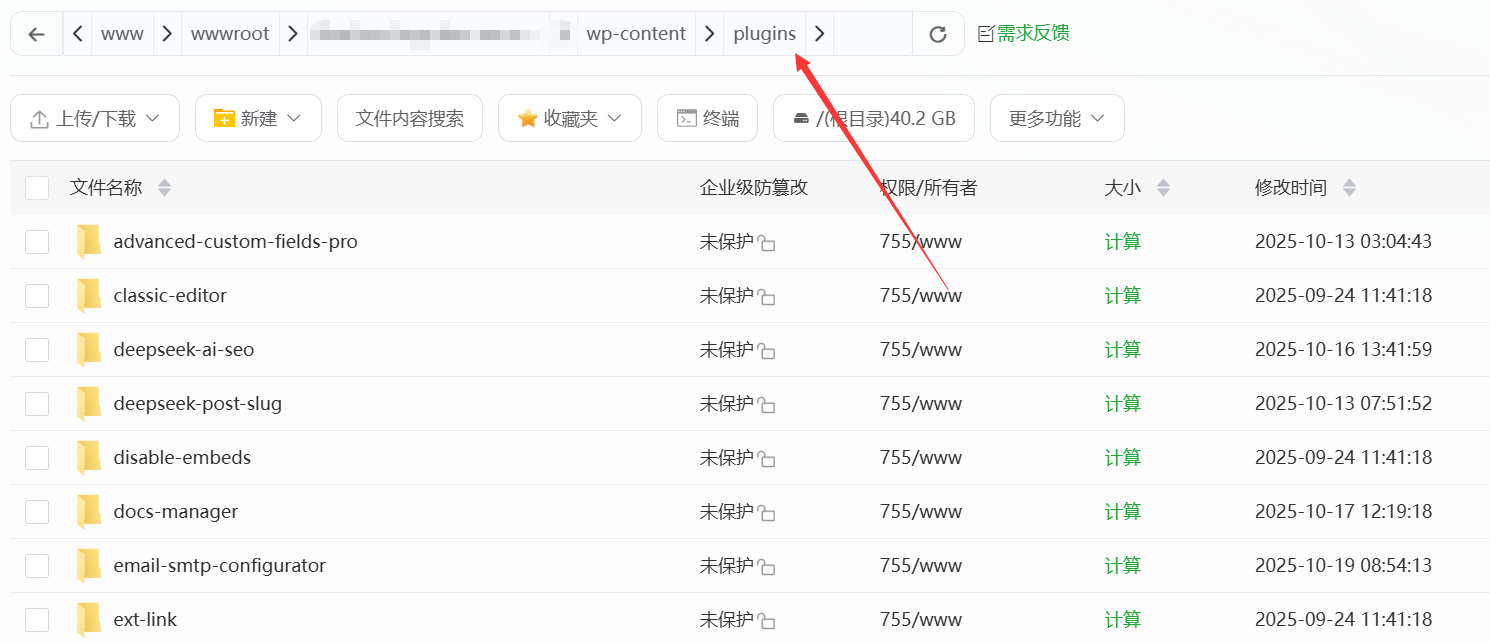
- First unzip the plugin ZIP file on your computer (to get a folder with a name that is usually the plugin's English name);
- Connect to the web server using the FTP utility (host address, username, and password are obtained in the server control panel, see Section 5.4 for details);
- On the server side, find the
/wp-content/plugins/folder (this is a special directory for WordPress plugins); - Take the unzipped plugin folder on your computer and drag it to the server's
pluginsfolder; - After uploading, go back to the WordPress background [Plugins] → [Installed Plugins], find the plugin you just uploaded, and click [Activate].
Scenario: Install oversized plug-ins (such as themed companion plug-ins with a large number of templates), or in the background when uploading is not possible due to network problems.
Second, activate the plug-in: let the plug-in start working
After installing a plugin, it must be “activated” in order to use its features (some plugins are automatically activated after installation, but most require manual action).
activation step:
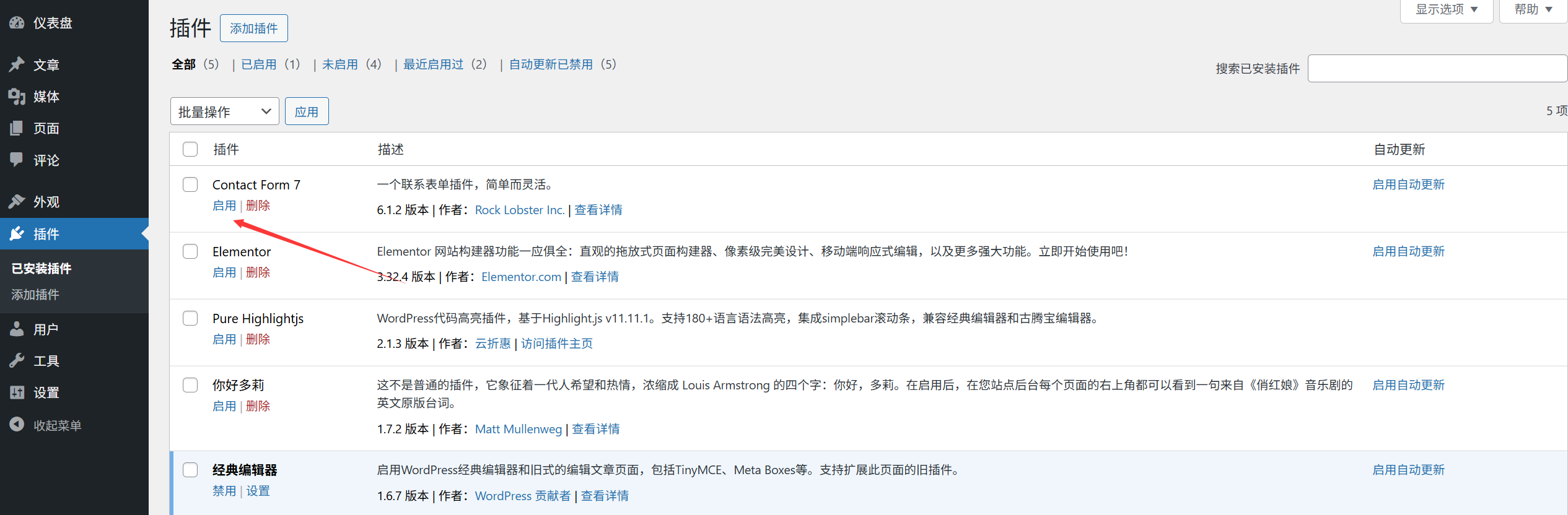
- Method 1 (Activate immediately after installation): After following the “Installation Steps” above, click the [Activate] button;
- Method 2 (activate installed plug-ins): Background [Plug-ins] → [Installed Plug-ins], find the plug-ins that need to be activated, and click [Activate] under the plug-in name.
After activation, the plugin will show “Activated” status, and some plugins will add a new settings portal in the left menu of the backend (e.g. Yoast SEO will add a new “SEO” menu).
Third, delete plug-ins: completely remove unwanted plug-ins
If the plugin is no longer used, it is recommended to delete it completely (only “deactivating” leaves files behind that take up space on the server).
Deletion step:
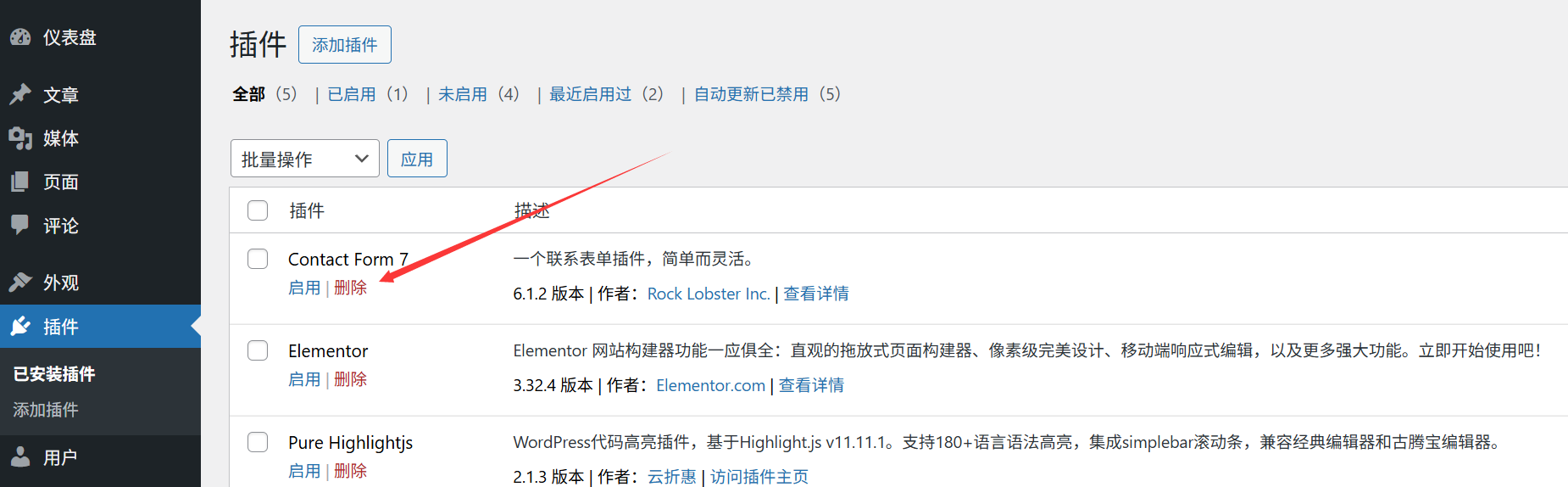
- Deactivate the plug-in first: Background [Plug-in] → [Installed Plug-in], find the plug-in that needs to be deleted and click [Deactivate];
- After the plug-in is deactivated, the [Deactivate] button will change to [Delete], click [Delete];
- A confirmation window pops up, prompting “This operation will permanently delete the plug-in and all its data”, click [OK];
- Wait a few seconds and the plugin will be completely removed (the plugin files on the server will also be removed).
take note of:
- It is recommended to backup plugin settings before deletion (especially for paid plugins, if you need to reinstall in the future, you can import the backup to restore the settings);
- Some plugins will retain database data (e.g. form submission records, user data) after deletion, if you need to clean it up completely, you can find “Delete All Data” option in the plugin settings (usually in the plugin “Advanced Settings”).
IV. Frequently Asked Questions for Newcomers
- Installation of the plugin prompts “Unable to install the plugin because it cannot connect to the WordPress.org”? Cause: Server network problem or firewall restriction. Solution: Retry at another time, or contact your server provider and ask them to check if they are blocking the official WordPress address.
- What should I do if I get a white screen / error after activating the plugin?Cause: Plugin conflicts with WordPress version, theme or other plugins. Solution: Access via FTP tool
/wp-content/plugins/folder, delete the plugin folder just activated, the site can be restored; after that, change a similar plugin, or update WordPress / theme to the latest version and try again. - What should I do if I want to recover the plugin after deleting it by mistake?You can only reinstall it (free plugins are re-downloaded from the official repository, paid plugins are reacquired from the purchased channel). If you have backed up the plugin settings before, just import the backup after reinstallation.
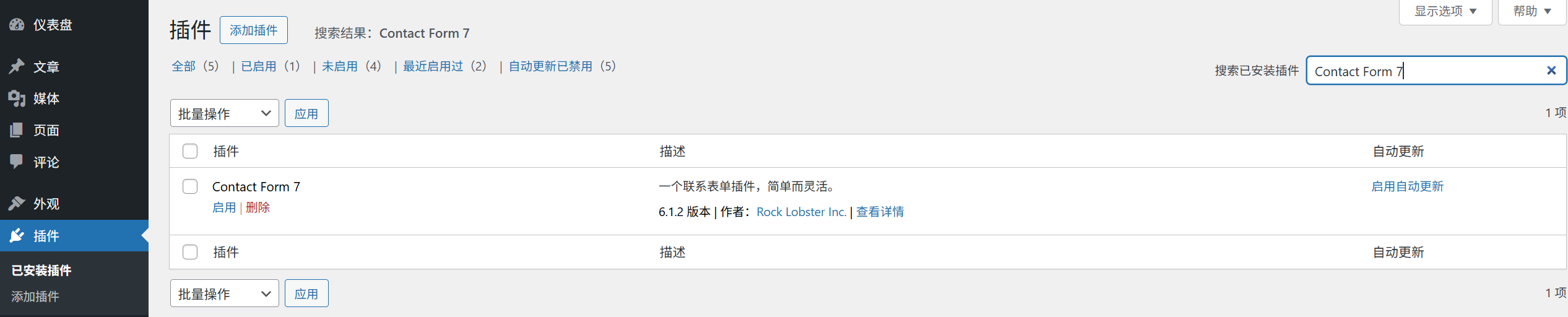
- There are so many plugins, how do I find a particular plugin quickly?Enter the plugin name in the search box at the top of the [Installed Plugins] page for quick filtering (similar to searching for articles) or press CTRL+Find on your keyboard.
Installing, activating, and deleting plugins is the most basic operation of WordPress, and you will be able to master it after a few more tries. Remember: every time you install a new plugin, first browse in the front of the site to confirm that there is no error or error report, and then subsequent settings.
 English