


















Profile settings are an important part of WordPress user management, not only does it affect how you are displayed in the backend of the site, but it is also displayed in the frontend locations such as post author information, comment sections, and more. A well-developed profile information makes a website more professional and helps visitors get to know the content creators better. This section will detail how to set up and optimize all aspects of your profile.
I. Why should I improve my personal data?
A well-developed profile serves several important purposes:
- professional image: Displaying a full profile in the article author information area enhances the professional feel of the site.
- user trust: A clear personal message helps build the reader's trust in you.
- brand building: Reinforcement of personal or corporate brand identity through consistent headshots, nicknames and profiles.
- contact details: Easy for readers readers to contact you via social media or email.
- functional requirement: Some plugins and themes may require full profiles to work properly.
Whatever information is mainly displayed in the following locations:
- Author information area for articles and pages
- Commenter information in the comments section
- Backend user list and profile page
- Sidebar or footer author information display for some themes
II. Entering the profile setting page
- Login to WordPress Backend(Address:
域名/wp-admin)。 - Click on the upper right corner of theUsername or AvatarIn the dropdown menu, select "Edit Profile". Or, click on the left menu "subscribers"-"personal profile」。
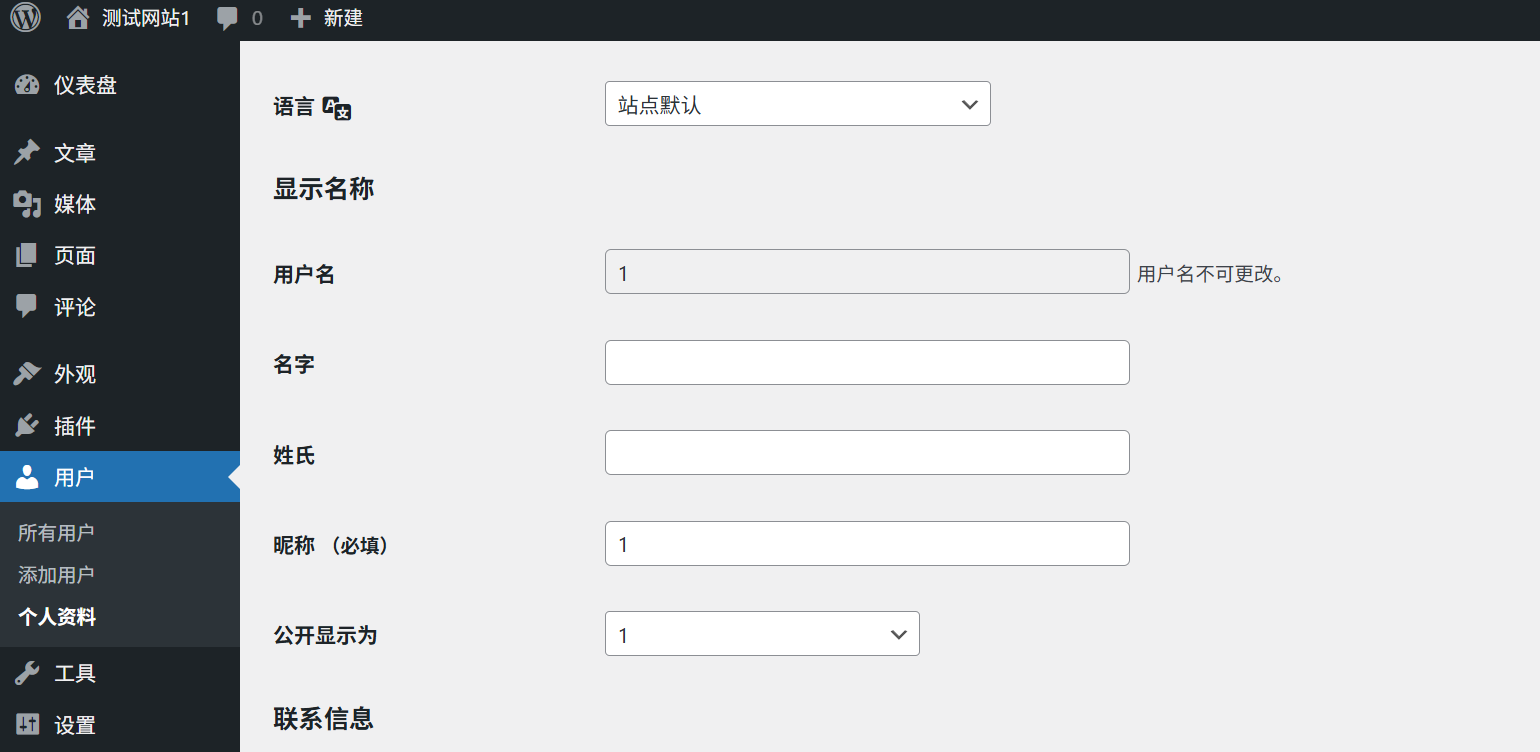
III. Basic Personal Information Settings
On the profile page, you can set the following basic information:
1. Nickname (important)
- term of endearment: This is the name you want to display on your website, and will appear in the article author information, comments section, etc.
- How to display the name: Select the name format to be displayed in the foreground from the drop-down menu, which can be a combination of username, nickname, name, etc.suggestion: Set a professional and memorable nickname and avoid names that are too casual or difficult to understand.
2. Personal information
- Nameandlast name: Fill in your real name (optional).
- node: Enter your your your personal or business website address (optional).
- Biographical Info(Personal Profile): A short introduction to your professional background, hobbies, or website topic (100-150 words recommended).draw attention to sth.: The profile can contain relevant keywords that will help with SEO optimization.
3. Contact information
- email: This is the most important primary contact for receiving WordPress notifications, password resets, and other important information.take note of: Ensure that you fill in a valid e-mail address and check your mail regularly.
- Other Contacts: Depending on the theme and plugin support, it may also be possible to add social media accounts, phone numbers, and other information.
IV. Setting up a personalized avatar
Avatar is your visual identity on your website, which will be displayed in the comments section, author information, etc. WordPress offers several ways to set up an avatar:
1. Use of Gravatar avatars (recommended)
Gravatar (Globally Recognized Avatar) is a global avatar service that allows you to use the same avatar on all Gravatar-enabled websites by registering once.
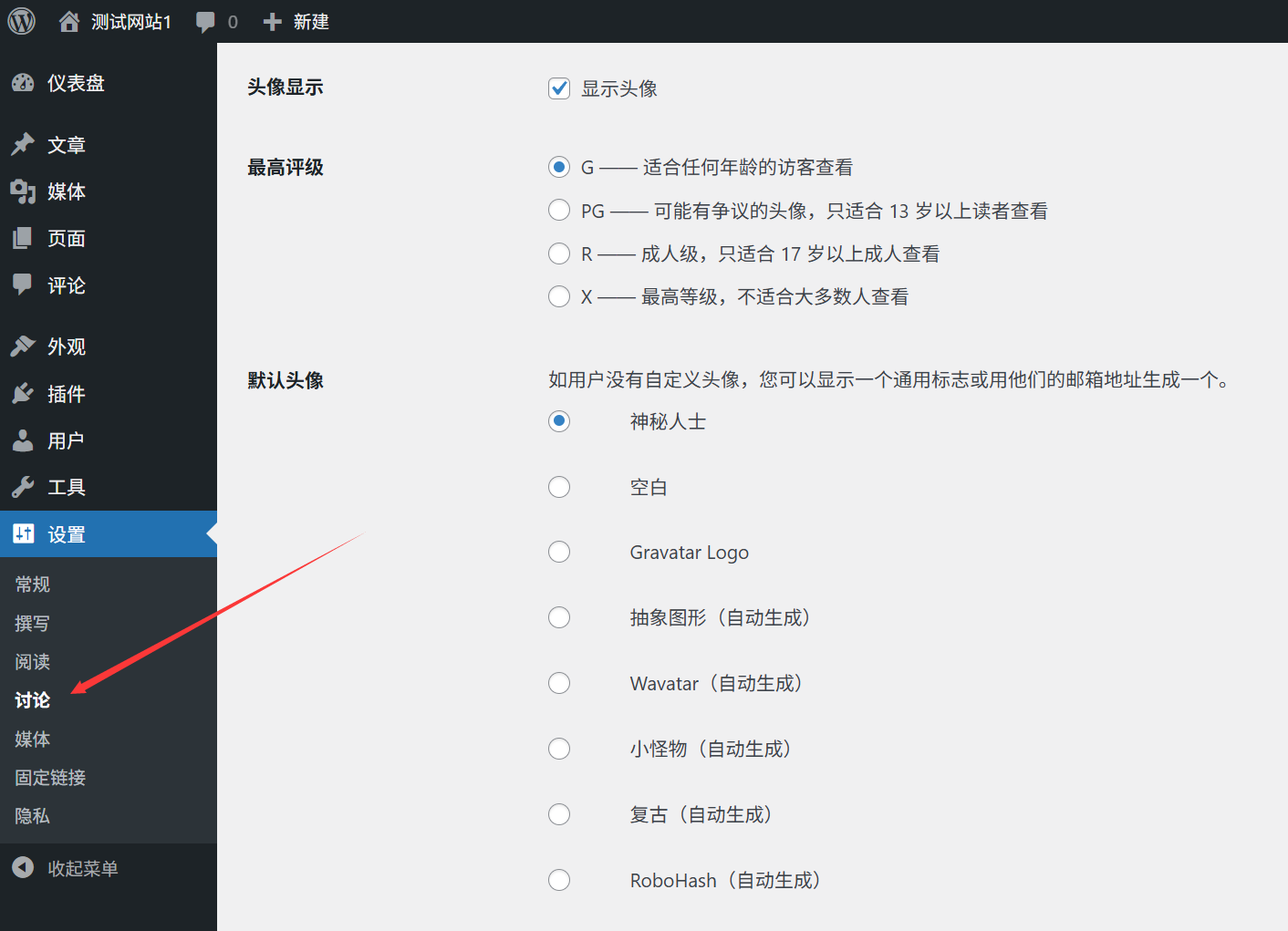
Setup Steps:
- interviewsGravatar Official WebsiteIf you are a WordPress user, sign up for an account using your WordPress registered email address.
- Log in and upload your favorite avatar image (recommended size at least 256x256 pixels).
- Set the rating of the avatar (G, PG, R, X), usually choosing G (for all ages).
- After you save your settings, WordPress will automatically synchronize your Gravatar avatar.
dominance:
- One setup, multi-site
- Automatic updating, no need to modify it individually on each site
- Supports multiple sizes and ratings
2. Use of local avatars (optional)
If you don't want to use Gravatar, or if access to Gravatar is slow in some areas, you can use the Local Avatar plugin:
- Installation and activationSimple Local Avatars" or "Local AvatarThe plug-ins such as "The
- On the profile page, find the "Local avatar" upload area.
- Click on the "¡ÓSelect File", upload your avatar picture.
- Click on the "¡ÓUpdating personal data" Save settings.
dominance:
- No dependency on external services, fast loading
- Full control over avatar display, independent of Gravatar policy
V. Personal option settings
On the profile page under "personal optionIn the "section", you can customize the experience of using the WordPress backend:
1. Management toolbar
- Show toolbar while browsing the site: After checking the box, when you visit the frontend of the website under the login status, the administration toolbar will be displayed at the top, which is convenient for quickly entering the backend or editing the current page.
2. Editor settings
- Visualization Editor: Checked to use the Gutenberg block editor (default), unchecked to use the classic editor.
- Automatically save drafts when writing articles: It is recommended to check this box to prevent content loss due to accidental browser closure.
- Remote Release: Allow articles to be published via external tools (just leave the default generally).
- magnitude: Set the default size of the editor (usually just leave it at default).
3. Management interface color scheme
- Choose your favorite backend color theme and click Preview to see the effect.
- Multiple color schemes are available by default, and more themes can be added via plugins.
4. Keyboard shortcuts
- Enabling Keyboard Shortcuts: Checking the box allows you to use keyboard shortcuts to operate the backend and improve efficiency.
- Click on the "¡ÓShow keyboard shortcuts" allows you to see a list of all available shortcuts.
VI. Managing social media links
Many WordPress themes support displaying social media icon links in the author information area. Setting up these links can help readers follow you through multiple channels:
Method 1: Customize Settings by Theme
- Click on the left side menu "¡§Theexterior condition"-"customizable」。
- Finding the "-Author Information" or "social media"Related Settings (location may vary for different themes).
- Enter your social media account URLs (e.g. WeChat, Weibo, Facebook, Twitter, etc.).
- Click on the "¡Ópost" Save settings.
Method 2: By profile field
- On the profile page, scroll down to "contact details" section.
- Enter your social media account URLs (e.g. Twitter, Facebook, etc.).
- If the theme supports it, these links are automatically displayed in the author information area.
Method 3: Use of plug-ins
If the theme does not support social media links, you can use a plugin such as "Simple Social Icons" or "Social Icons Widget & Block" to add.
VII. Profile optimization techniques
1. Maintaining coherence
Ensuring that your nickname, avatar and profile are consistent across all platforms helps to build a personal brand image.
2. Specialized avatar options
- Use clear headshot images and avoid blurry or low-resolution images.
- Professional websites recommend using real photos or high-quality brand logos.
- The background color of the header image should preferably be coordinated with the design style of the website.
3. A strong and concise personal profile
- Highlight your areas of specialization and expertise.
- Adding 1-2 keywords helps with SEO optimization.
- Keep it simple, usually 100-150 words.
4. Regular updates
- Keep your profile up to date when your professional background, contact information, or website topics change.
- It is recommended that you check your profile every 3-6 months to ensure that the information is up to date.
VIII. Common problem solving
1. Avatar not displayed or displayed incorrectly?
- Gravatar avatar issues:
- Make sure to use an email address that is registered with Gravatar and upload an avatar.
- Check that the avatar rating is appropriate for your site (usually choose a G rating).
- Clear your browser cache or test with a different browser.
- Local avatar issues:
- Make sure the Local Avatar plugin is installed and activated.
- Check if the uploaded image format is supported (JPG, PNG, GIF).
- Verify that the image size meets the requirements (at least 256x256 pixels is generally recommended).
2. Changes to personal data do not take effect?
- Make sure to click on the "Updating personal data" button to save the changes.
- Clear your browser cache and refresh the page to see the results.
- Check if there is a plugin conflict, you can temporarily disable all plugins and retry.
3. How can I hide certain information in my profile?
- If you don't want to show certain information in the frontend (e.g. mailbox), you can find the relevant option to hide it in the theme settings.
- Install the plug-in as followsWP User Profile Control" allows finer control over what is displayed on the profile.
- For users with some knowledge of the code, you can customize the author information display by modifying the theme template file.
4. How can I update multiple users' profiles in bulk?
- Administrators can add a new function to thesubscribers"-"all users" page to bulk edit user profiles.
- Check the users that need to be edited from the "batch operation"In the drop-down menu, select "¡§编辑", click "appliance」。
- In the pop-up editing interface, you can batch update the character, nickname, display name and other information.
wrap-up
A well-developed profile setup not only enhances the professional image of your website, but also helps build reader trust and promotes interaction. Keep the following core points in mind:
- Set a professional and memorable nickname and choose an appropriate display name format.
- Set up a personalized avatar using Gravatar or a native avatar plugin to keep images clear and professional.
- Complete a concise and strong biography highlighting areas of specialization and expertise.
- Add social media links to make it easy for readers to follow you through multiple channels.
- Customize the backend options according to your personal habits to increase productivity.
With these simple but effective settings, you can make your WordPress website more professional and personalized.
 English