











Website data is like your “digital assets” - articles, images, user information, order records, etc. Once lost (e.g. server crash, hacked, deleted by mistake), it may take a lot of time or even money to recover. While UpdraftPlus It is the most popular backup plugin for WordPress, which can help you automatically “copy” your website data and store it safely, which is equivalent to buying a “data insurance” for your website, and it is easy for newbies to get started.
I. Why must you back up? These scenarios may cost you a lot of money
Don't wait until something goes wrong to regret it! Any of the following scenarios can lead to data loss, and backups are the only “remedies” for regret:
- server failure: The web host may suddenly crash (e.g. hard disk corruption) and data is lost outright;
- operator error: Accidentally deleting an important post, deleting a plugin / theme by mistake, or even clicking “Empty Database” by mistake;
- hacking attack: After a website has been implanted with a virus, it may be necessary to delete all the files and rebuild it again, and without a backup you are starting from scratch;
- update failure: When upgrading a WordPress version, theme, or plugin, there may be compatibility issues that cause the site to crash and need to be restored to its pre-update state.
UpdraftPlus does just that:Regularly backup all the data (files + database) of the site packaged, stored in a safe place, a key to restore when the problem occurs。
Second, why is UpdraftPlus suitable for newbies?
As a backup plugin with over 3 million installations, UpdraftPlus can be the first choice of newbies for the core reasons of “simplicity, reliability and flexibility”:
- Minimalist operation: Backup and restore are just 1-2 clicks away, no need to be tech-savvy;
- Supports automatic backup: After setting up once, daily / weekly backup is automatic, no need to do it manually;
- Flexible backup locations: It can be stored to computer, cloud (such as Baidu Cloud, Dropbox, Google Drive), not afraid of server together;
- The free version is good enough: The basic backup and recovery features are completely free for personal and small website needs.
Third, UpdraftPlus installation and basic settings (free version of the tutorial)
Step 1: Install and activate the plugin
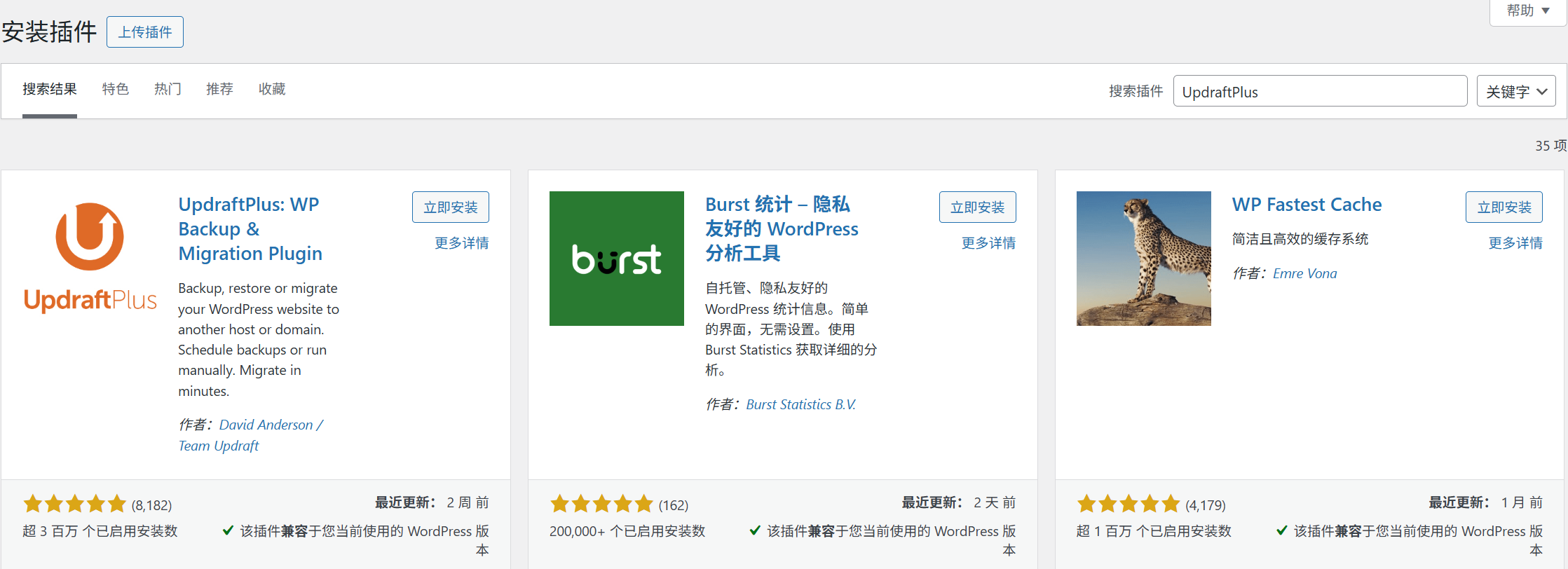
- Backend [Plugins] → [Install Plugins], search for “UpdraftPlus - Backup/Restore”;
- Click [Install Now] and click [Activate] when finished.
Step 2: Set up automatic backup (core function, once set up for life)
After activation, [UpdraftPlus Backups] will appear on the left menu, click to enter the settings page, focus on configuring the following 3 items:
1. Select the backup content (the default is all, no need to change for beginners)
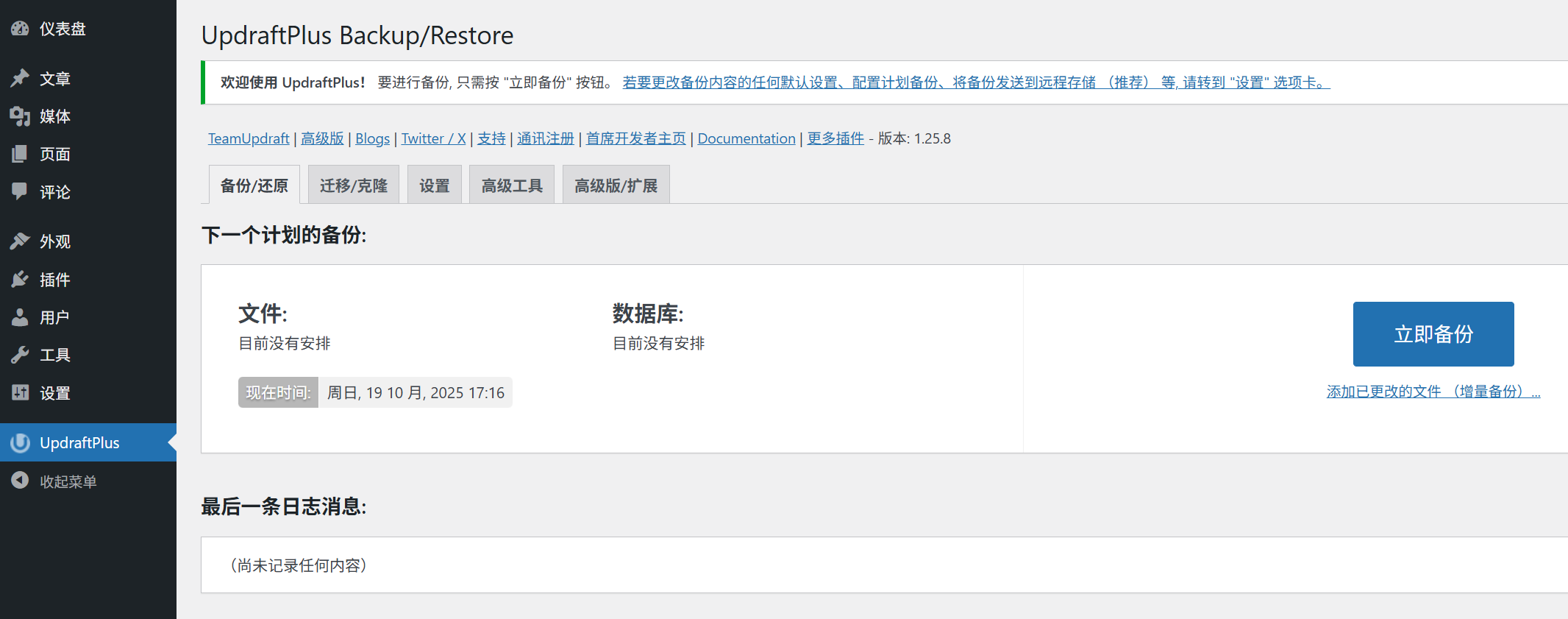
- The plugin defaults to check “Files” (themes, plugins, images, etc.) and “Databases” (posts, users, settings, etc.), and it is recommended to keep them all checked (to ensure that backups are complete).
2. Setting the frequency of backups (chosen according to the frequency of website updates)
Set in “Automatic Backup Scheduler”:
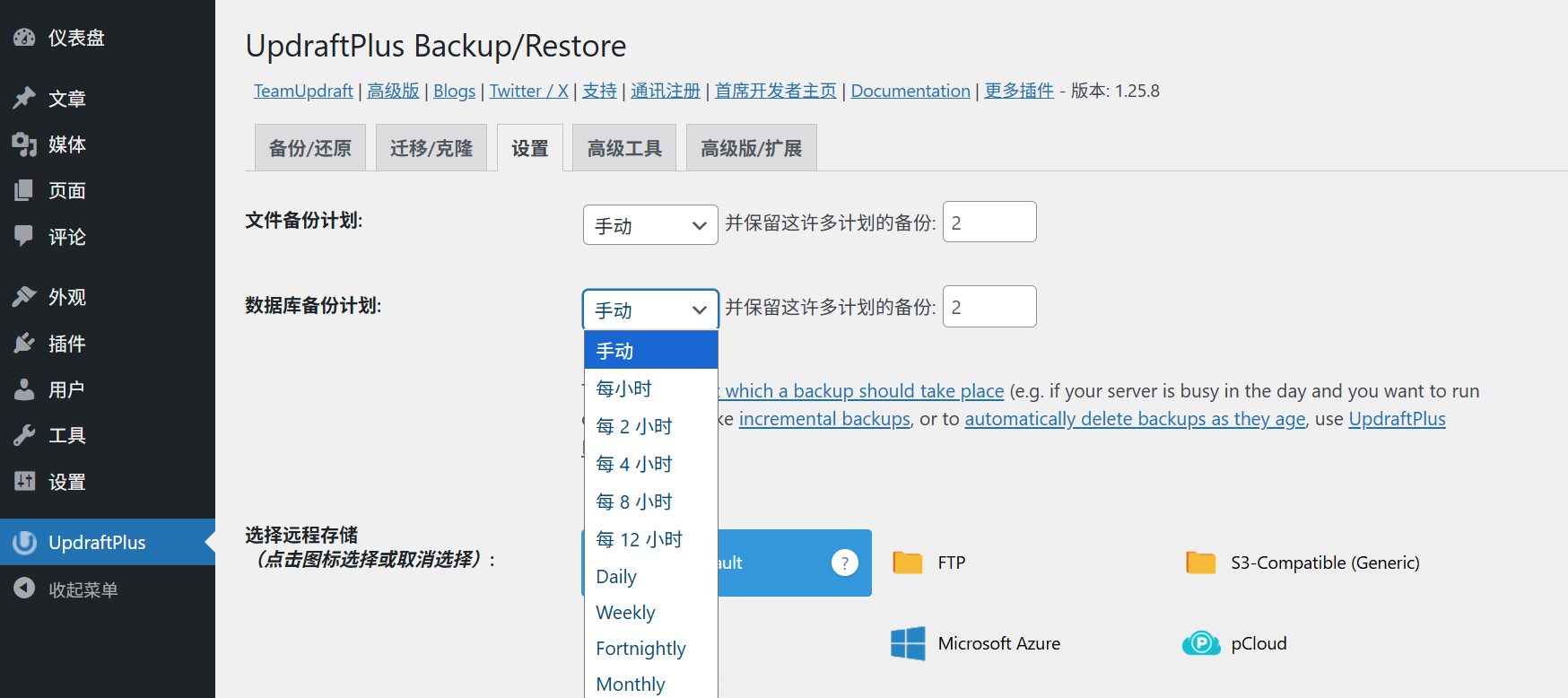
- File Backup: Select “Weekly” if the site is updated infrequently (e.g., 1-2 articles per month), or “Daily” if articles/pictures are posted frequently;
- Database Backup: For more frequent database changes (e.g. with visitor comments, form submissions), it is recommended to select “Once a day”;
- Number of backups to keep: select “Keep 3” (saves space and keeps backups from different points in time, preventing problems with the most recent backups as well).
3. Select the backup storage location (strongly recommended to save to the cloud)
Backups can't just exist on the web server (in case the server goes down, the backups will be lost), the following two methods are recommended:
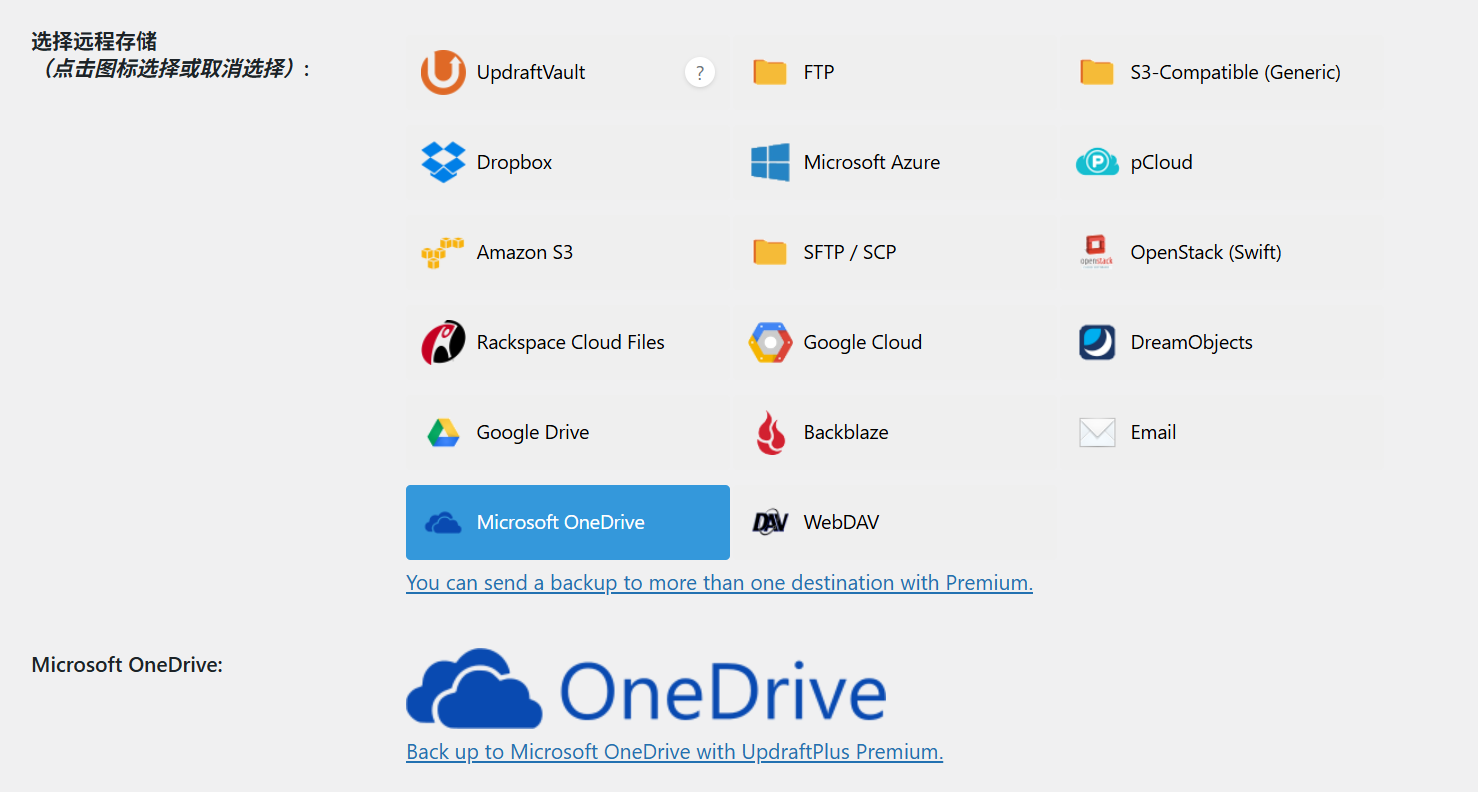
- Way 1: Save to OneDrive (for domestic users)
- On the Settings page “Select Remote Storage”, drop down and select “Microsoft OneDrive”;
- Click “Authorization”, follow the prompts to sign in to your Microsoft OneDrive account and authorize it (you need to have a Microsoft OneDrive account, and 5G of free space is enough to store backups);
- After successful authorization, the backup is automatically uploaded to the “UpdraftPlus” folder in Microsoft OneDrive.
- Mode 2: Save to computer (suitable for websites with low backup frequency)
- Select “Manual Download” (no setup required, manually download to your computer after backup is complete);
- After each backup, click “Download Backup File” in [Existing Backup] to save it to your computer hard disk or USB flash disk.
Recommended for newbies: Prioritize using Baidu cloud (automatic upload, no need to do it manually, more reliable).
Step 3: Manually create the first backup (immediately, for peace of mind)
After setting up an automatic backup, it is recommended that you immediately take a manual backup to confirm proper functioning:
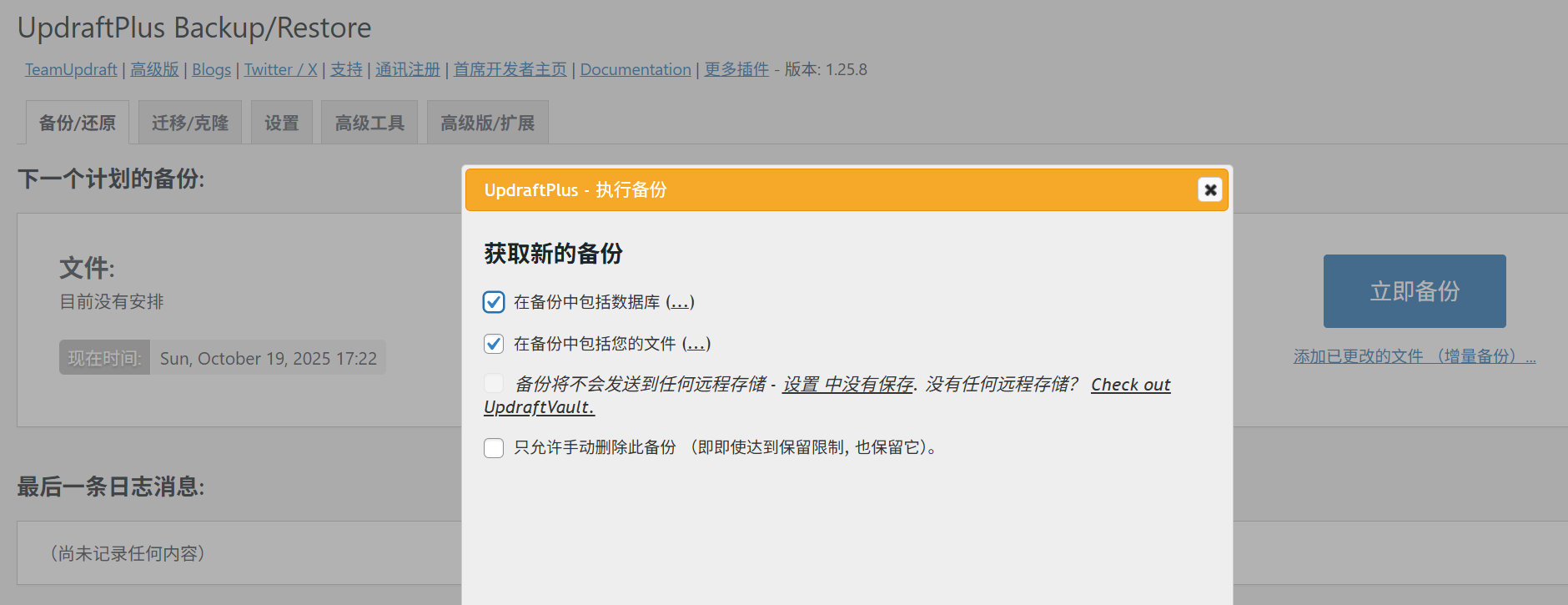
- On the [UpdraftPlus Backups] page, click “Backup Now” at the top;
- Keep the pop-up window as default (“Backup files and databases”) and click “Backup”;
- Wait for the backup to finish (the time depends on the size of the website, about 1-3 minutes for 100MB), and the progress bar will show “Backup Successful” when it finishes.
Fourth, the critical moment: how to restore the site with backups?
In case something goes wrong with the website (e.g., it doesn't open, content is lost), the steps to restore it with a backup are as follows:
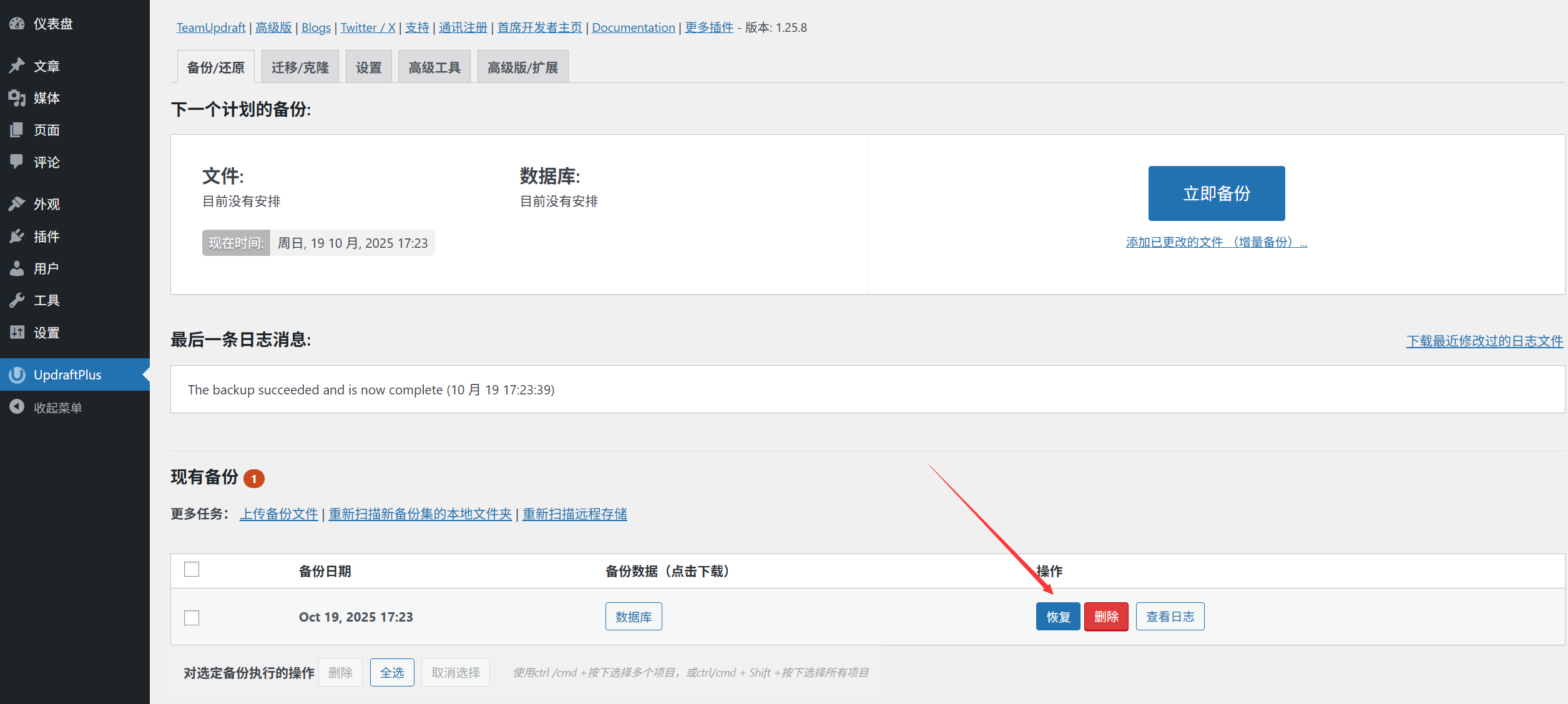
- Go to [UpdraftPlus Backups] → [Existing Backups] and find the most recent “successful” backup (it is recommended to select the one before the update or before the problem);
- Click the “Restore” button for that backup;
- A pop-up window will appear with “All Files” and “Database” checked by default, click “Recover”;
- The plugin will prompt “The site may be temporarily inaccessible during the recovery process”, click “Confirm”;
- Wait for the restoration to complete (the progress bar goes through and displays “Restoration Successful”) and refresh the site to restore it to the state it was in when it was backed up.
Fifth, free version vs paid version: how to choose the newbie?
- free version: Support for automatic backup, cloud storage (Baidu cloud, Dropbox, etc.), full recovery features, fully able to meet the needs of personal blogs, corporate display station (90% of the newbie with the free version will be enough).
- paid version(UpdraftPlus Premium): about $70/year, more “Incremental Backup” (save space by backing up only changed files), “Database Search and Replace” (for migrating websites), “Priority technical support” and other features, suitable for e-commerce sites or sites with a large amount of data.
Beginner's ConclusionIf you install the free version first, do a good job of automatic backup and cloud storage; if the website has a large amount of data (such as more than 1GB) or needs to migrate the website in the later stage, then consider upgrading the paid version.
VI. Frequently Asked Questions for Newcomers
- Is the backup file large and will it take up a lot of space?The free Baidu Cloud has 2TB of space (enough to store hundreds of backups), so you don't have to worry about running out of space. If it is a small website (such as 50MB or less), each backup is only a few tens of MB, very lightweight.
- Do automatic backups slow down websites?No. UpdraftPlus automatically backs up when the site is less visited (e.g. early morning) with little disruption to normal access.
- I deleted my website files after backup, can I get them back by restoring?Can! As long as the backup contains “files” (themes, plugins, images, etc.), all files will be restored after restoration.
- How often does it make the most sense to back up?Follow the principle of “the more frequent the updates, the more frequent the backups”:
- Personal blog (updated once a week): backed up once a week;
- Enterprise site (occasional updates): 1 backup per month;
- E-commerce / Info Station (updated daily): backed up 1 time per day.
In summary: Backups are a website's “life saver”
draw attention to sth.
Many newbies think that “backups are too much of a hassle”, but remember:Taking 5 minutes to set up a backup can save you days or even weeks of recovery time in the future!. Losing website data and regretting it is like losing your wallet and remembering you left the door unlocked -- it's too late.
The most core value of UpdraftPlus is not “how powerful backups are”, but “how easy it is for newbies to stick to backups”. After setting up the automatic backup, you hardly need to care about it, but if something goes wrong, it will become your most reliable “life-saving tool”.
 English