











HTTPS is a fundamental sign of website security - it encrypts the transmission of data between users and websites, preventing information from being stolen or tampered with. Nowadays, search engines (e.g. Google, Baidu) prioritize the display of HTTPS websites, and browsers also mark HTTP websites with an "insecure" alert, which seriously affects user trust. In this section, we will take Pagoda Panel as an example to teach you how to apply for Let's Encrypt certificate and open HTTPS for free, and the whole process is visualized so that even a novice can complete it easily.
First, understand: HTTPS is what? Why must be enabled?
- Difference between HTTP and HTTPS: HTTP is a clear text transmission (data is "naked" in the network), while HTTPS encrypts the data through SSL certificates (similar to putting a lock on a package). Intuitive difference: HTTPS has a "little green lock" in front of the website address, while HTTP shows "not secure".
- 3 Reasons Why HTTPS Must Be Enabled:
- user trust: Browsers mark HTTP sites with a warning that visitors will feel unsafe and leave.
- SEO Ranking: Search engines explicitly state that "HTTPS is a ranking bonus" and that HTTPS sites rank higher for the same content.
- Functional limitations: Some advanced features (e.g., WeChat payment, location acquisition) are only supported for HTTPS sites.
- Free certificates are enoughLet's Encrypt provides free SSL certificates, which cost hundreds of dollars per year, while the free certificates provided by Let's Encrypt do not have any essential difference with paid certificates in terms of security, and can fully meet the needs of personal and small and medium-sized enterprises' websites, the only difference is that the free certificates need to be renewed every 3 months (Pagoda can automatically renew them).
Second, the preparatory work: confirm that your domain name has been resolved to the server
Before applying for SSL certificate, you need to make sure that the domain name has been correctly resolved to your server IP (refer to Domain name resolution steps), otherwise the certificate application will fail.
Validation Methods: Enter your domain name in the browser (e.g. http://likacloud.com), can open your website normally (display WordPress page or default page), that means the resolution is successful.
Step 3: Apply for Let's Encrypt Free Certificate with Pagoda Panel
Step 1: Log in to the Pagoda Panel and locate your site
- Open the pagoda panel login address (usually
服务器 IP:8888), enter your account password to log in. - Click on "Sites" in the left menu and locate the site where you need to install the certificate (i.e. the site corresponding to your domain name).
Step 2: Apply for Let's Encrypt Certificate

- Click the "Settings" button on the row where the site is located to enter the site settings page.
- Select "SSL" in the left menu to enter the certificate setting page.
- Select "Let's Encrypt" in "Certificate Type" and check the following options:
- "Domain Name": Automatically display your main domain name, if you need to protect it at the same time.
www.example.comandexample.comIf you want to add a domain name, you can click "Add Domain Name" to add it (we recommend checking both boxes to avoid user input).www(When displaying insecurity). "MTA-STS Records" and "TLS-SNI-01": Leave them unchecked by default (no need to set them for beginners). "Auto Renewal": Be sure to check this box! The certificate will be automatically renewed before it expires, so you don't need to do it manually.
- "Domain Name": Automatically display your main domain name, if you need to protect it at the same time.
- Click "Apply" button, wait for 1-3 minutes, the panel will show "Successful Application" prompt.
Step 3: Force HTTPS to be Enabled (Auto Jump)
After the certificate is successfully installed, you need to set up "HTTP Auto Jump to HTTPS" - let the user enter http://likacloud.com When it is used, it automatically jumps to the https://likacloud.comTo prevent visitors from seeing the "Not Safe" prompt.

- On the "SSL" settings page, find the "Force HTTPS" option and click the "Enable" button on the right side.
- The system will automatically configure the jump rules, no need to do it manually.
Verify: Is HTTPS in effect?
After completing the above steps, confirm that HTTPS is working as follows:
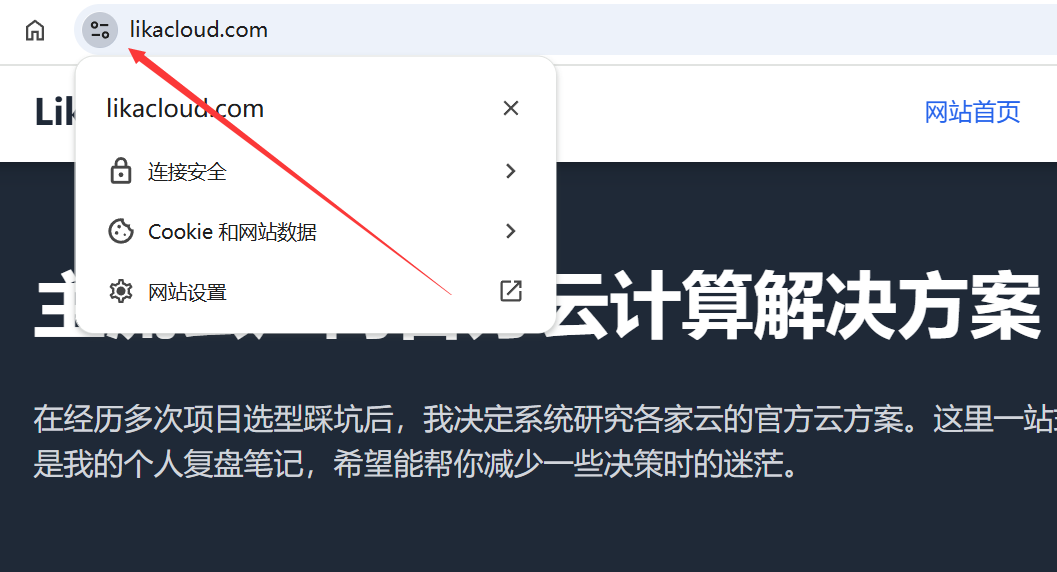
- browser authentication: Open a new browser window (to avoid the effects of caching) and enter your domain name (you can just type)
likacloud.comNo need to addhttpOrhttps):- The address bar should automatically display
https://and there is a "little green lock" icon on the left side.likacloud.com - Clicking on the little green lock will display the "Connection is secure" prompt.
- The address bar should automatically display
- Check if the jump is in effect: Manual input
http://(Note that thelikacloud.comhttp), if you can automatically jump to thehttps://, indicating that the forced jump setting is successful.likacloud.com - Troubleshooting Frequently Asked Questions:
- If "Invalid certificate" or "Connection is not secure" is displayed:
- Check that the domain name resolution is correct (make sure the domain name points to the current server IP).
- Confirm that the corresponding domain name is checked when applying for a certificate (if it is also checked).
likacloud.comwww.)。likacloud.com - Clear browser cache and retest (shortcut)
Ctrl+Shift+Delete)。
- If the style of the website is messed up (e.g. images are not displayed, layout is messed up): the reason is that there is "mixed content" in the website (some resources are still used).
httploaded), you can install the plug-in "Really Simple SSL" to fix it automatically (after installing and enabling, the plug-in will automatically replace all thehttplink ashttps)。
- If "Invalid certificate" or "Connection is not secure" is displayed:
V. Considerations: Making HTTPS Work for the Long Term

- Reliance on automatic renewal: Let's Encrypt certificate is valid for 90 days, Pagoda will automatically renew the certificate 30 days before the expiration date after checking "Auto-renewal", no need to do it manually. You can check the expiration time of the certificate on the "SSL" page of Pagoda (e.g. "Valid until: 2024-06-01").
- Replacement of servers requires a new application: If you change servers in the future, you need to re-apply for the certificate in the Pagoda panel of the new server (the certificate is bound to the server and cannot be directly migrated).
- Sub-domains need to be applied for separately: If your site has subdomains (e.g.
blog.), you need to apply for a separate certificate for each sub-domain (same steps, just enter the sub-domain in "Add Domain").likacloud
wrap-up
Enabling HTTPS is a necessary step before a website is launched, and with the help of Pagoda Panel and Let's Encrypt free certificates, even a novice can complete the setup in 5 minutes. The core steps are: Apply for a certificate → Enable forced bounce → Validate to take effect, and the key is to check the "auto-renewal" box to avoid expiration of the certificate.
After completion, your website will display "Little Green Lock", which not only enhances user trust, but also gains search engine ranking advantages.
 English