


















The Gutenberg editor is centered on "Block (Block)". When inserting text, images, etc., the essence is to add the corresponding type of block and edit it. This approach is highly flexible and provides precise control over the style and position of each element. Here are the detailed steps:
I. Inserting text: building content with "paragraph" and "heading" blocks
Text is the main body of the article, and Gutenberg implements text layout through the 'Paragraph' and 'Title' blocks, which operate as follows:
1. Insert paragraph text (body content)
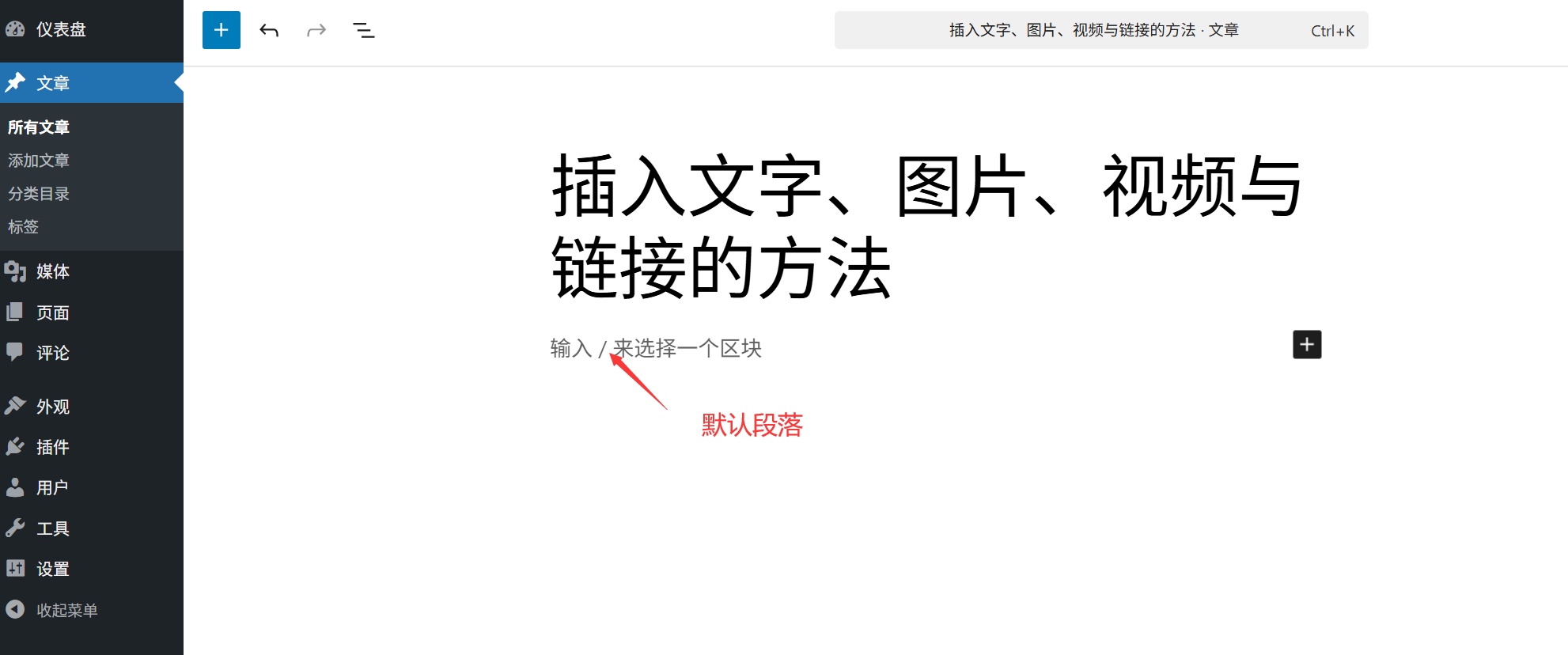
- Method 1: When you enter the article editing page, the "Start Writing or Type / to Add Block" prompt will be displayed by default, and the system will automatically create the "Paragraph" block when you enter the text directly.
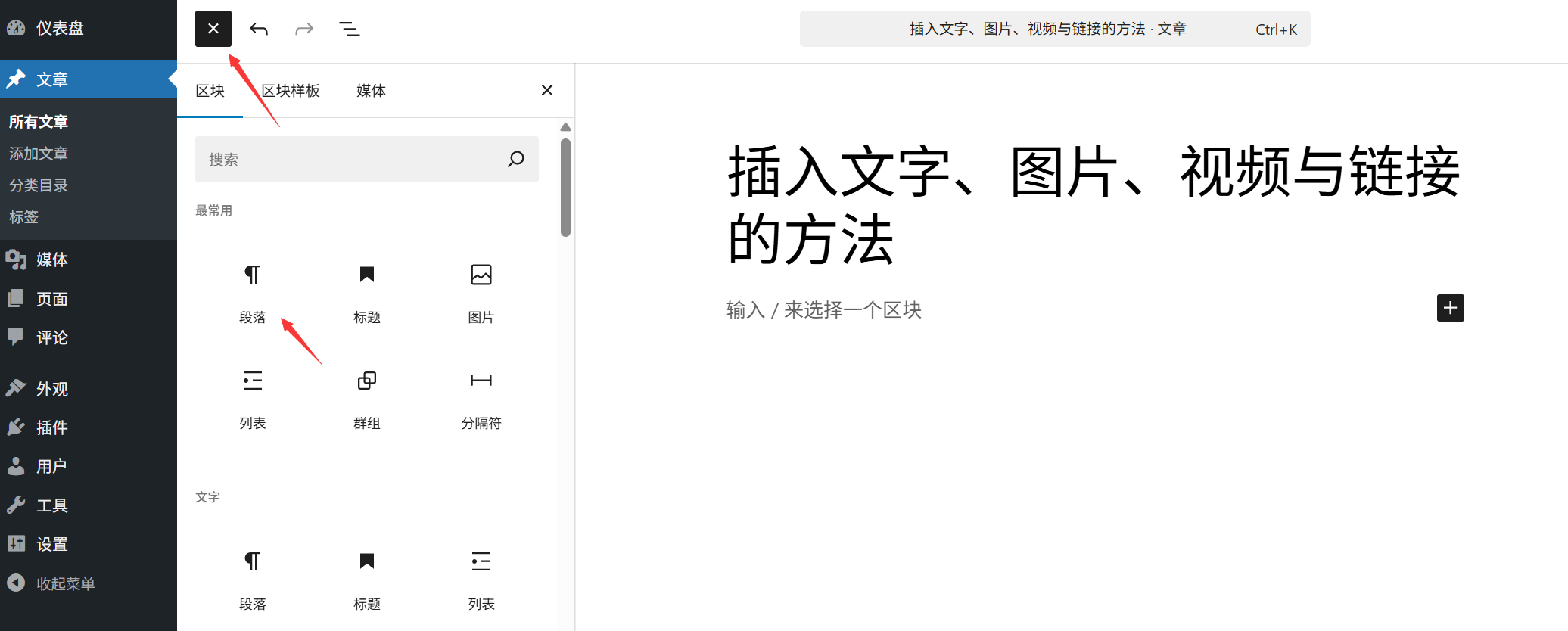
- Method 2: Click the "+" icon (block inserter) in the edit area, search for "paragraph" and click it to generate a blank paragraph block and then enter the content.
formatting:
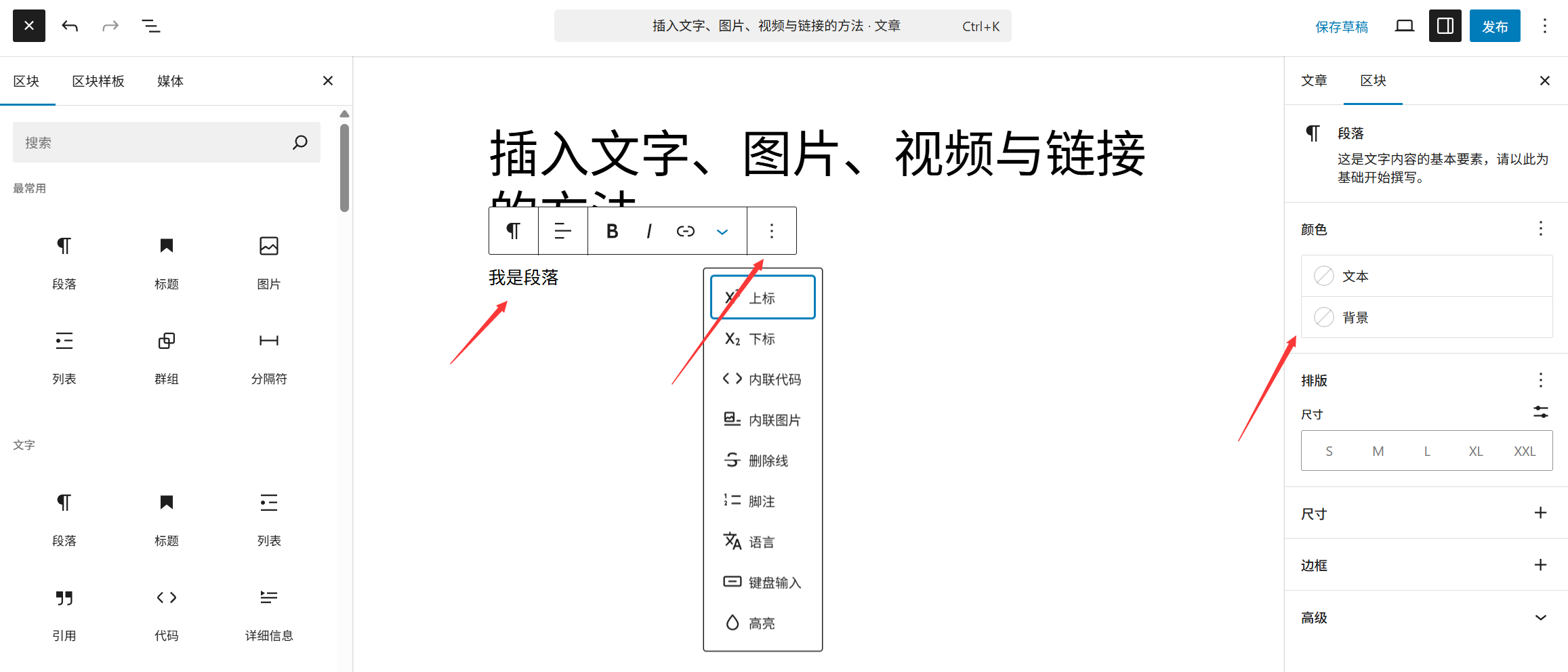
When you select a paragraph block, the Block (Block Settings) panel will be displayed on the right side and you can set it:
- Alignment (left-aligned, centered, right-aligned, ends-aligned);
- Text size (small, normal, large, extra large);
- Text color (click on the color square to choose, paying attention to the contrast with the background color to ensure readability);
- Background color (adds a base color to the paragraph to highlight important content).
2. Insertion of headings (hierarchy of content)
The title is used to distinguish the structure of the article (e.g. chapter, section), and it is recommended to use it according to the "H1-H6" hierarchy (H1 is usually the main title of the article, which has been defaulted to the top of the editing page, so there is no need to add it repeatedly).
procedure:
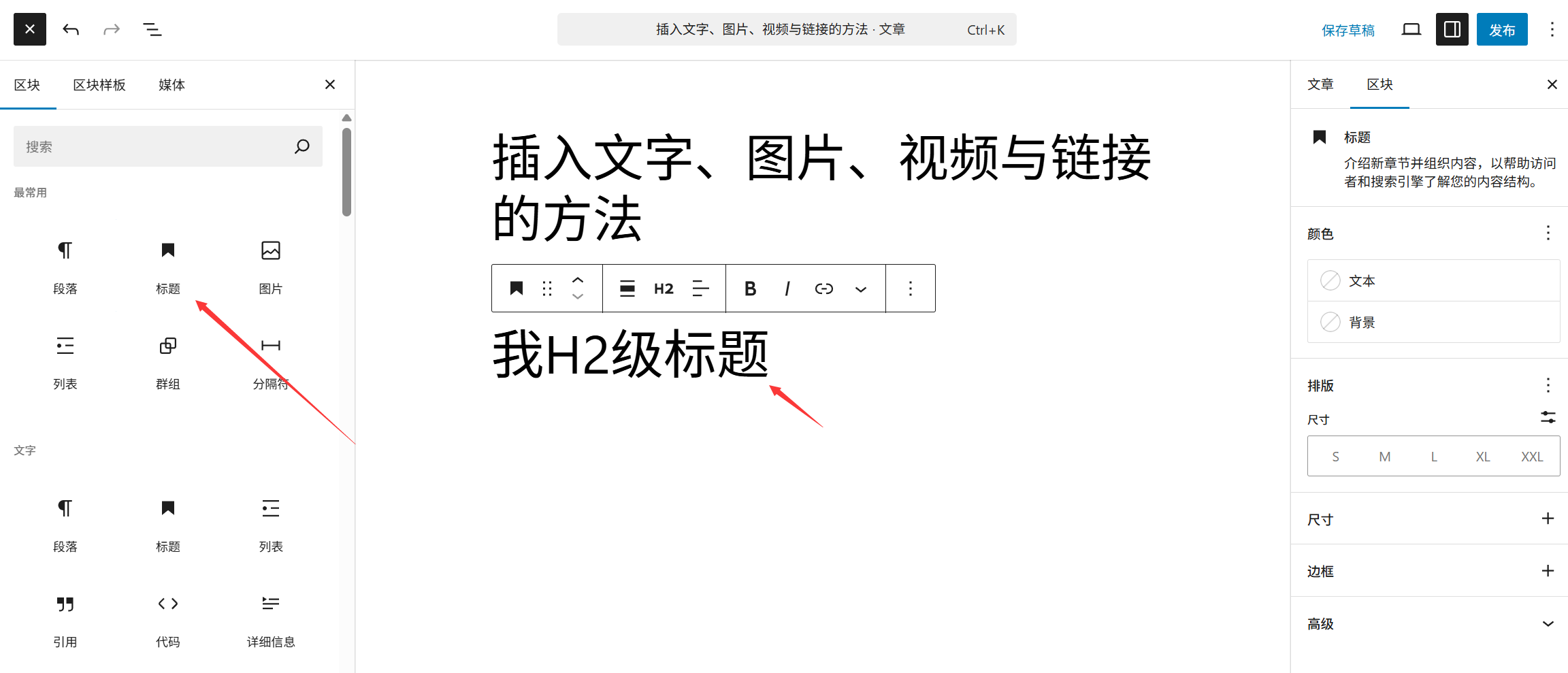
- Click on the "+" icon in the edit area, search for "Title" and select it to generate a title block.
- Enter the title text (e.g., "I. Preparation for Installation").
- Select the block and choose H2-H6 (H2 for level 1 subheadings, H3 for level 2 subheadings, and so on) in the "Heading Level" in the right panel.
skill: After entering text, select the text and press the Ctrl+B(bold) or Ctrl+I(italicized) for quick text styling.
II. Inserting images: using the "Pictures" block to add images and optimize them
Images bring articles to life, and Gutenberg's 'Images' block supports uploading, resizing, and optimization in the following steps:
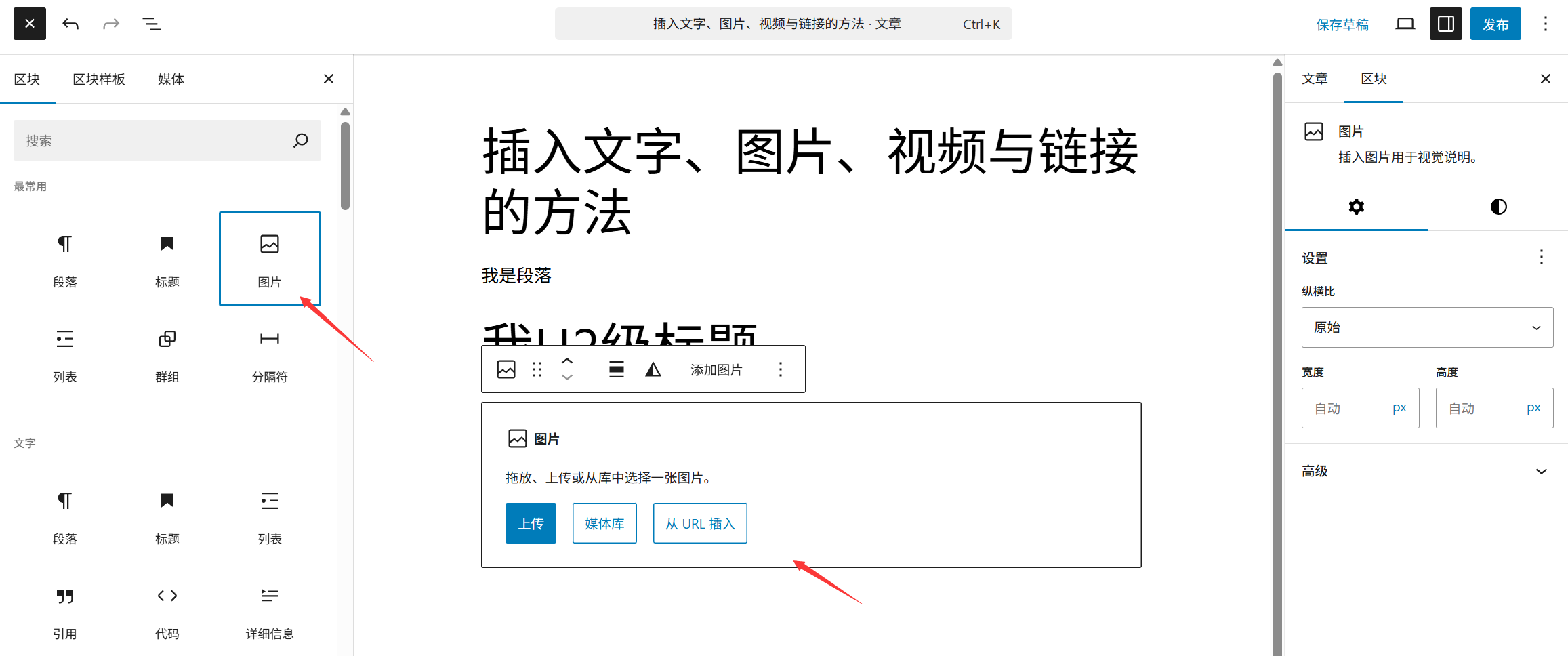
1. 3 ways to insert pictures
- Way 1: Upload a new imageClick the "+" icon → Search for "Pictures" → Click "Upload" → Select a picture file on your computer → Wait for the upload to complete.
- Way 2: Using images from the media libraryIf a picture has already been uploaded (e.g., a previously inserted picture), click the "Pictures" block and then select "Media Library" → Check the target picture → Click "Select".
- Way 3: Paste the image directlyCopy the image in your computer (right click "Copy"), go back to the edit area and right click "Paste", the system will automatically create the image block and upload it.
2. Adjustment of image styles (must be optimized)
With the image block selected, the right panel allows you to set the following key parameters:
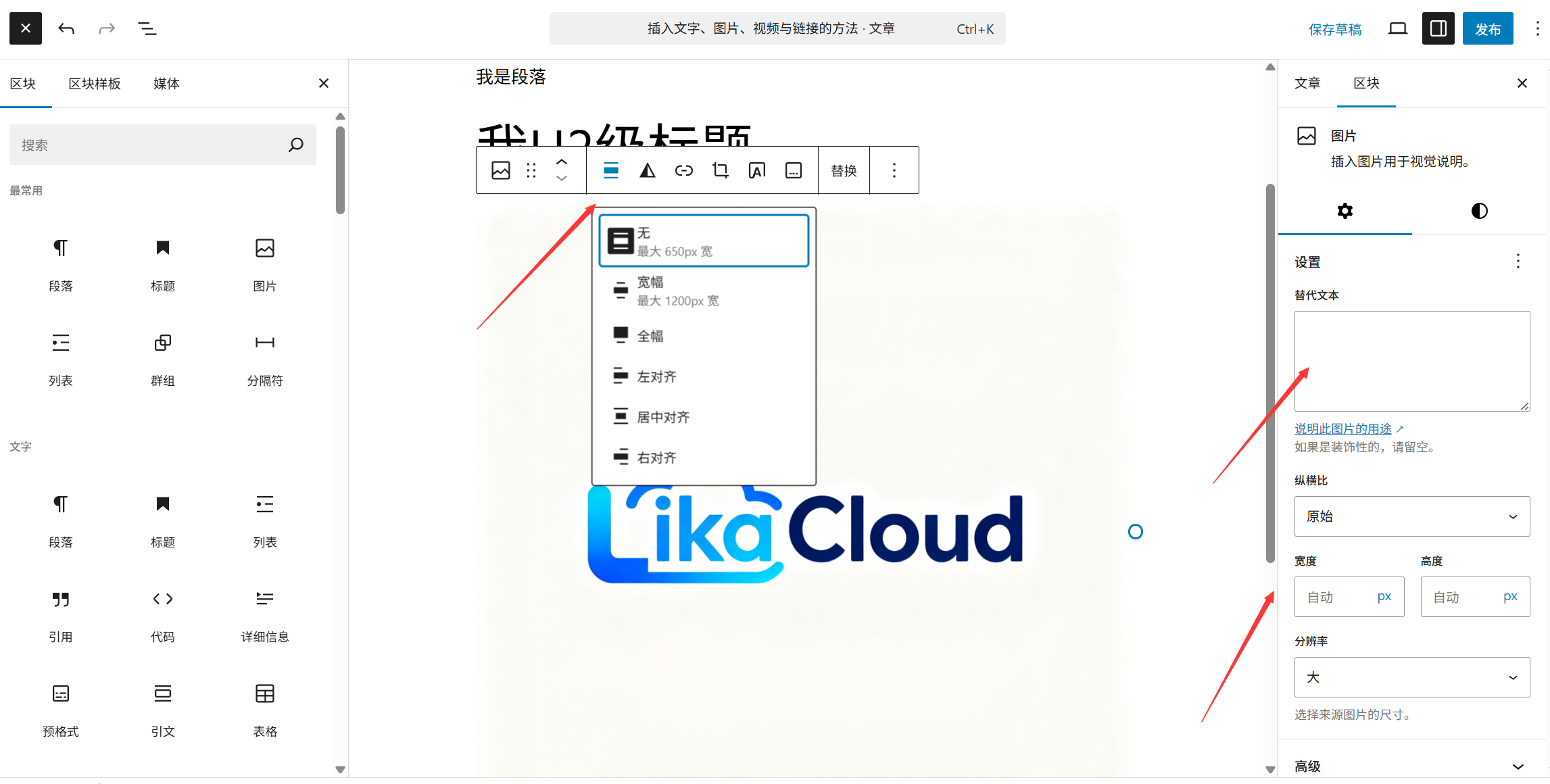
- alignment:
- Left-aligned / Right-aligned: images are displayed against the side and text is displayed around them;
- Center Alignment: The image is displayed in the center, with text above and below;
- Wide alignment: the image takes up the full width of the edit area (suitable for large images).
- magnitude: Drag the "Width" slider to adjust the scale (it is recommended to keep "Constrain Scale" checked to avoid distortion of the image).
- link: Click on the "Link" input box to link the image to other pages (e.g. click on the image to jump to the high-resolution image page), no need to link can be left blank.
- Alternative Text (Alt Text): Input image descriptions (e.g. "WordPress Installation Steps Screenshot") to help search engines recognize image content, improve SEO and facilitate accessibility.
3. Resolution of common problems
- Failed to upload images: Check the image size (recommended no more than 5MB for a single image), format (supports JPG, PNG, WebP), or refresh the page and try again.
- Blurry images: Make sure you upload the original image (resolution at least 1000px wide) and avoid zooming beyond the original size.
Insert video: add local or online video with the "Video" block
Whether it's a video you've shot yourself or a video from YouTube, Station B, or other platforms, you can insert it through the 'Video' block:
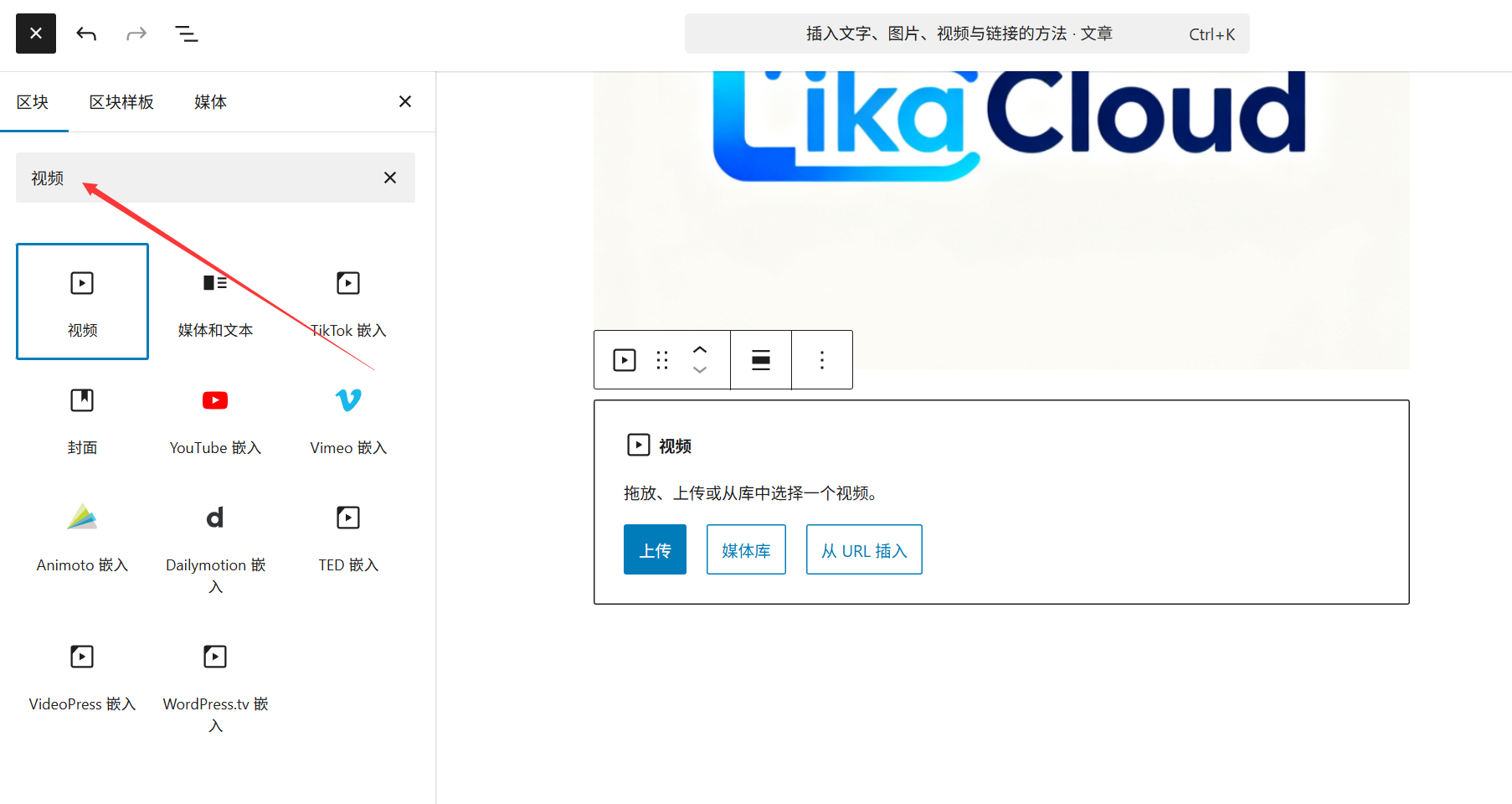
1. Insert a local video (one you uploaded yourself)
- Click the "+" icon → Search for "Video" → Select "Upload" → Select a video file from your computer (MP4, WebM formats are supported).
- Once the upload is complete, the video is automatically displayed in the block and can be tested by clicking play.
take note of: Local video files are large, may occupy server space and slow down the loading speed, it is recommended to use this method only for small videos (within 100MB), and prioritize the online platform for large videos.
2. Insert online video (recommended!)
Inserted via a video platform link, it takes up no server space and loads faster:
- Open the video platform (e.g. YouTube, B Station, Tencent Video), find the target video, copy the sharing link (e.g.
https://www.bilibili.com/video/BV123456)。 - In the Gutenberg editing area, directly paste the link → the system will automatically recognize and create the video block to display the video player.
Supported platformsYou can use YouTube, B-Site, Tencent Video, Youku, Aqiyi and other mainstream platforms, and wait 2-3 seconds for the link to load after pasting it.
3. Video styling
Select the video block and the right panel can be set:
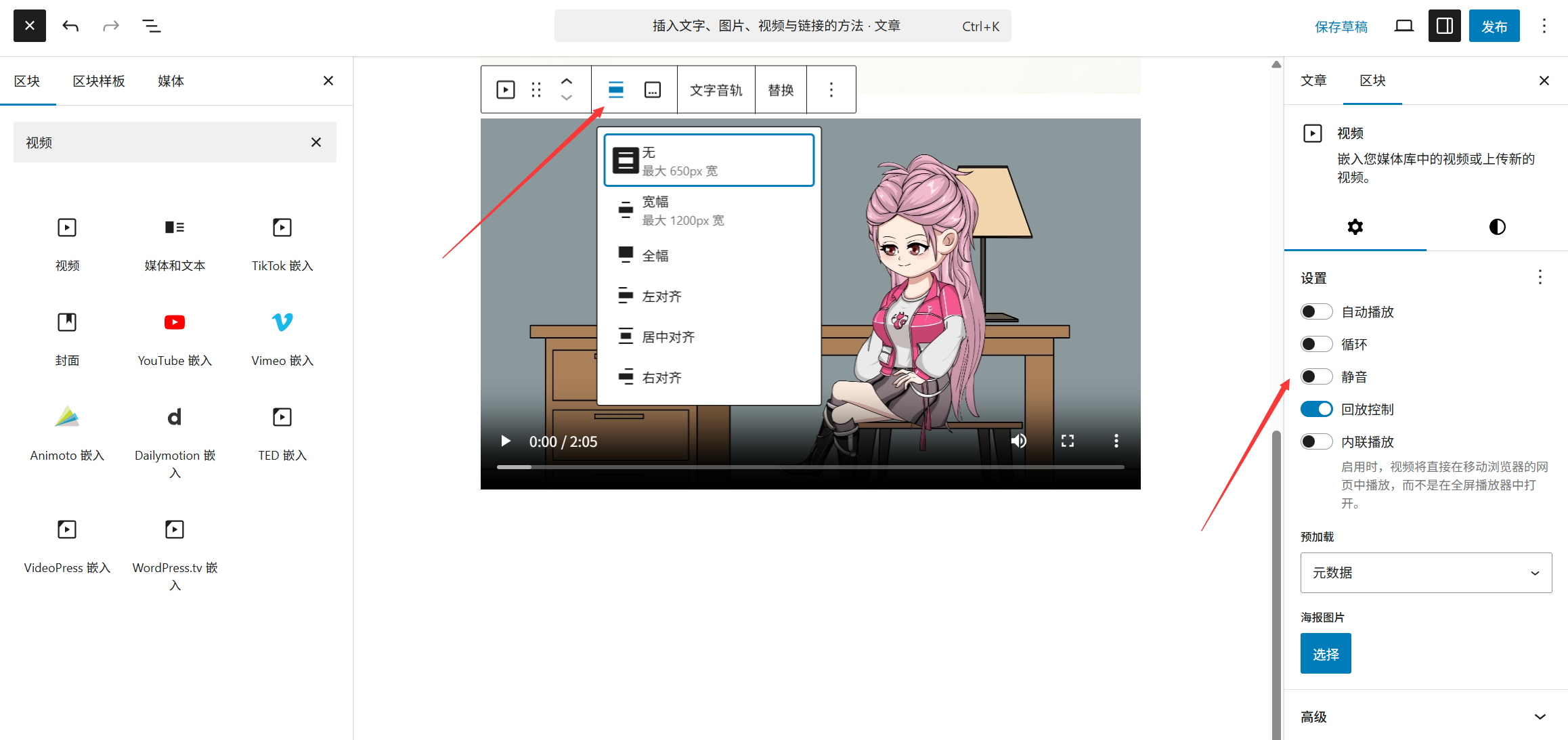
- Alignment (same as image, left/right alignment allows text to wrap around);
- Width (adjust the video player size, it is recommended not to exceed 1000px width to avoid incomplete display on cell phones);
- Autoplay: not recommended (most browsers block autoplay, affecting the experience).
Fourth, insert links: let the text, pictures associated with other content
Links are the 'blood vessels' of a website, which can associate content with other pages and external websites, and Gutenberg supports adding links to text and images:
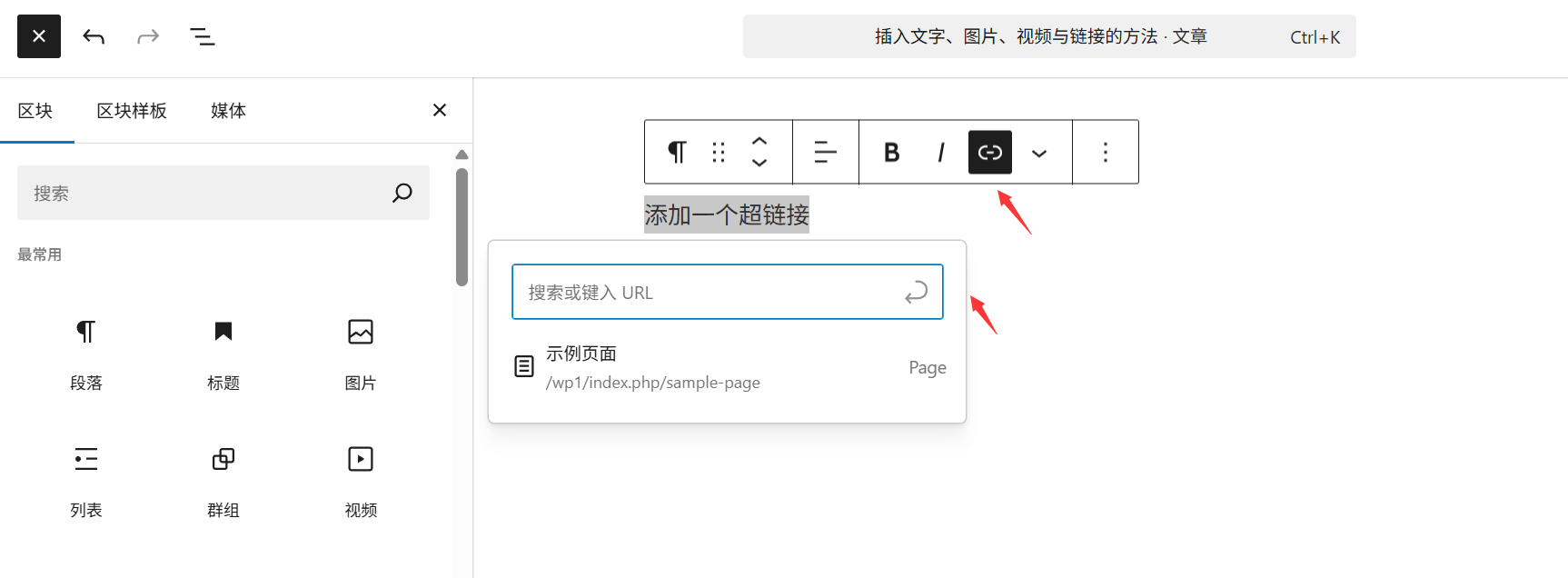
1. Adding links to text (hyperlinks)
- Check the text that you need to add a link to (e.g. "Click for detailed tutorial").
- Click on the "link" icon (chain shape) in the toolbar that pops up above, or press the shortcut key
Ctrl+K。 - Paste the address of the link (e.g., a link to a page on the site) in the input box.
https://你的域名/教程or external linkshttps://example.com)。 - Optional settings:
- Check "Open in new tab" (external links are recommended to avoid visitors leaving your site);
- Click on the "Link Settings" icon (small cogwheel) to add a link title (hint text displayed on mouse hover).
- Click "Enter" or "Apply" to complete the setting, the text will turn blue and underlined, indicating that the link was added successfully.
2. Adding links to images
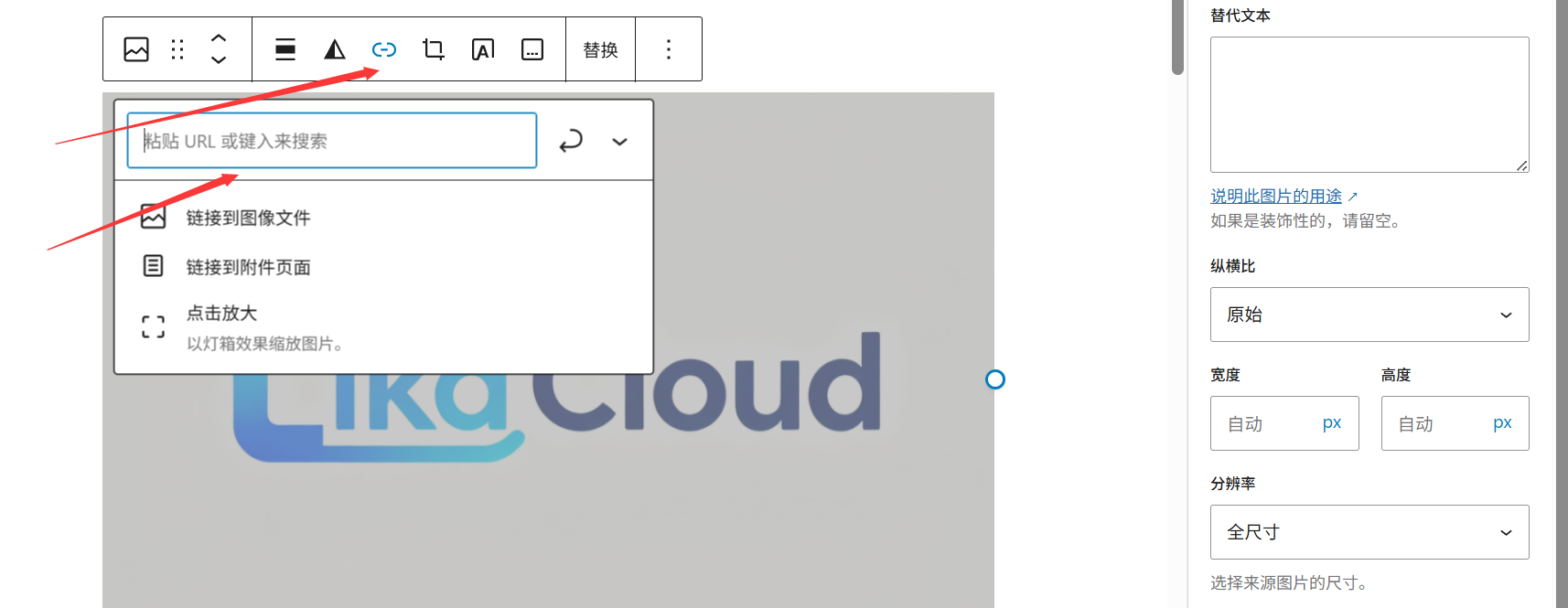
- Select the image block and find the "Link" input box in the right panel.
- Enter the link address (e.g. click on the image to jump to the product detail page).
- Check "Open in New Tab" (as desired) and click on the blank space to save.
3. Removal of links

- Text link: Select the text with link, click the "Remove Link" icon (chain with cross) in the toolbar, or press the
Ctrl+KDelete the link address afterward. - Image Link: Select the image and delete the address in the "Link" input box on the right side.
V. Tips for novice operators
- Block Operation Shortcuts:
- Quickly add a block: enter
/+ block name (e.g./图片(Pull up the image block directly); - Move block: Select the block and press
↑/↓arrow keys, or drag the "⋮⋮" icon to the left of the block; - Delete block: Select the block and press
Deletebutton, or click the "Delete" icon in the block toolbar.
- Quickly add a block: enter
- Real-time preview: Click the "Preview" button at the top right corner of the editing page to see if the link is working and the image/video is displayed properly.
- Avoid excessive typographyText color and background color should not be too much (no more than 3), to keep the page clean; picture and video size unity (such as width are set to 800px), to enhance the aesthetic degree.
With the above steps, you can easily insert and edit text, images, videos & links in Gutenberg Editor. Remember: each element is a separate 'block', select it and adjust the settings in the right panel for precise typography. Practice a few more times and you'll be proficient in no time!
 English