


















Installing and activating a theme is the first step in the design of a WordPress website, and it's a very simple process that can be done entirely in the backend without any knowledge of code. This section details how to search, preview, install and activate themes in the WordPress backend, as well as manage installed themes.
A. Why install the theme directly in the background?
Installing a theme directly in the WordPress backend has the following advantages:
- convenient and efficient: No need to download files locally, install directly from the official theme repository.
- safe and reliable: The official themes are carefully reviewed and their security is guaranteed.
- automatic update: Theme updates can be received and installed directly in the backend.
- preview function: You can preview the theme effect before installation to avoid installing inappropriate themes.
- one-click activation: After installation just click the button to activate the use.
For newbies, this is the most recommended way to install the theme.
Second, search and install free themes
WordPress Official Theme Library (WordPress.org Themes) offers thousands of free themes covering a wide range of design styles and functionality needs.
Step 1: Go to the theme management page
- Login to WordPress Backend(Address:
域名/wp-admin)。 - Click on the left side menu "¡§Theexterior condition"-"thematic", go to the theme management page.
- On the Theme Management page, you can see the currently installed themes, as well as the "Add New Topic" button.
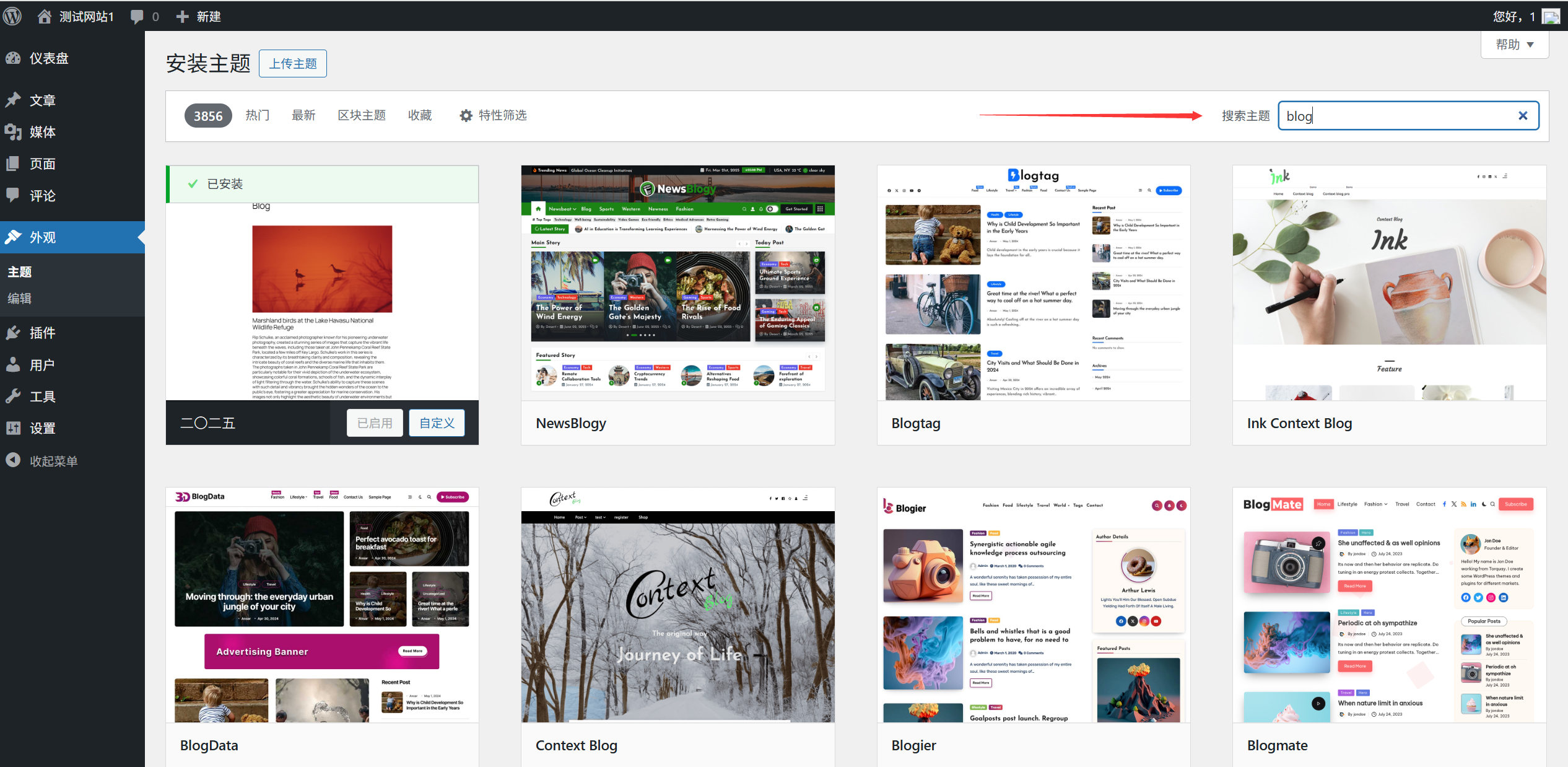
Step 2: Search for Topics
- Click on the "¡ÓAdd New Topic" button to go to the Theme Search and Installation page.
- Search for the topic you need by entering keywords in the search box at the top of the page:
- Search by function: e.g. "blog", "business", "e-commerce", "photography", etc. Search by style: e.g. "Simple", "Modern", "Creative", "Professional", etc. Search by topic name: If you know the specific topic name.
- Search results display thumbnails, names, ratings, and profiles of related topics.
Step 3: Preview the theme
Before installing the theme, it is recommended to preview the results to make sure it meets your needs:
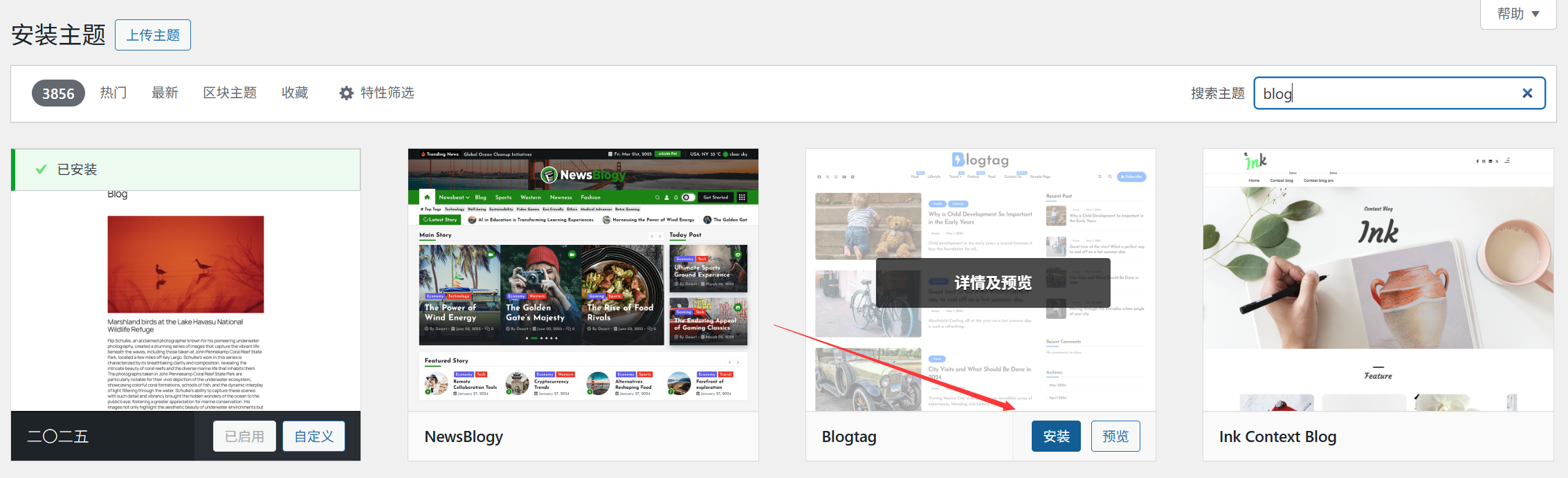
- Find the topic you are interested in and click on the "previews" button.
- The system opens a preview window showing the actual effect of the theme.
- In the preview window, you can:
- Click on the different navigation menus to see the layout of each page. Use the top "previous one" and "the next one" button to browse more topics. Click on the "mounting"button to install the theme directly. Click on the "Close Preview" returns to the list of topics.
Step 4: Install the theme
After confirming that the theme meets the requirements, you can start the installation:
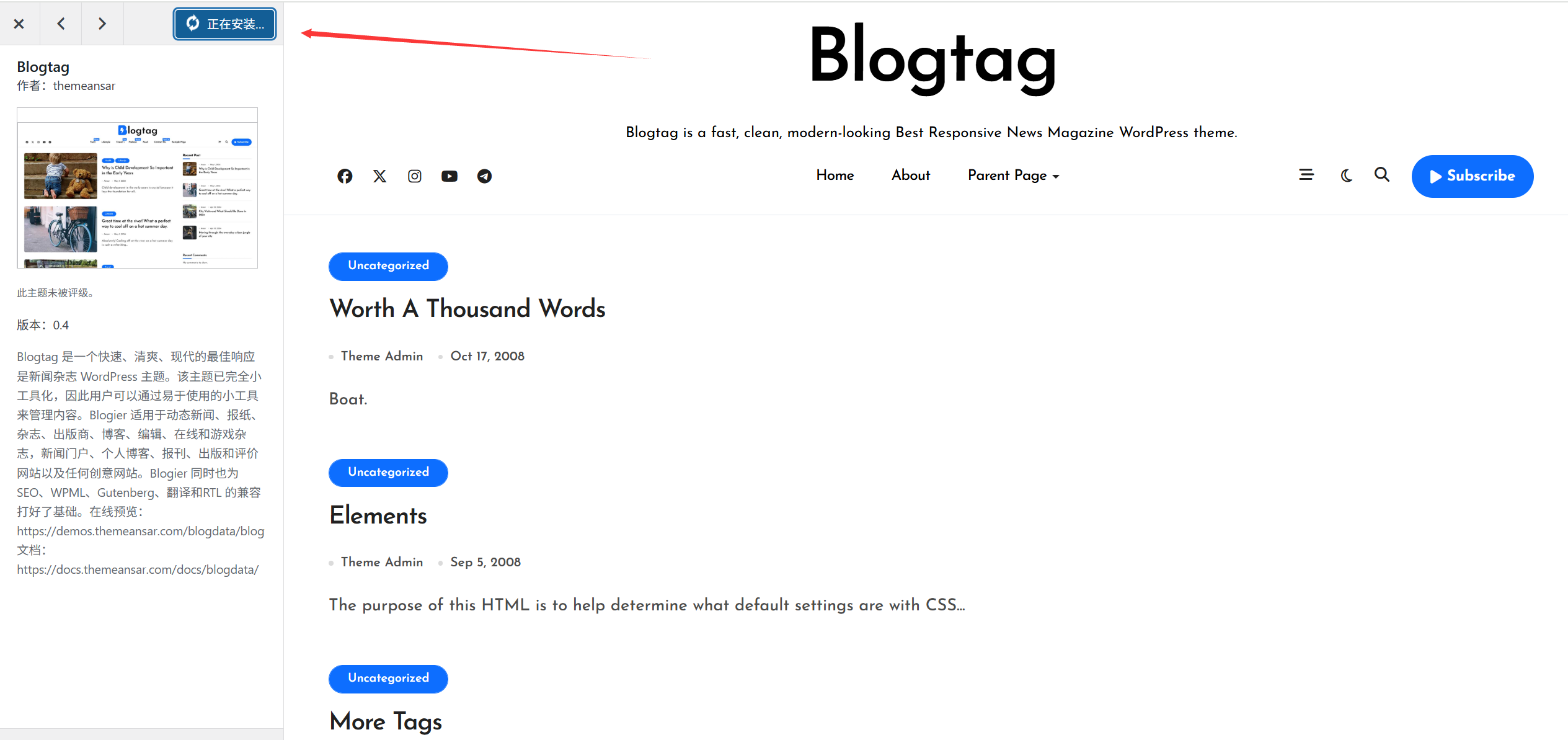
- There are two mounting options:
- Mode 1: On the Theme List page, find the target theme and click on "¡§Theme Listmounting" button.
- Mode 2: In the preview window, click on the top "mounting" button.
- Once clicked, WordPress automatically downloads and installs the theme, and the installation process usually takes just a few seconds.
- After the installation is completed, "mounting" button will become "activate" and "previews"Two buttons.
Step 5: Activate the theme
Once installed, the theme needs to be activated in order to be displayed on the frontend of the site:
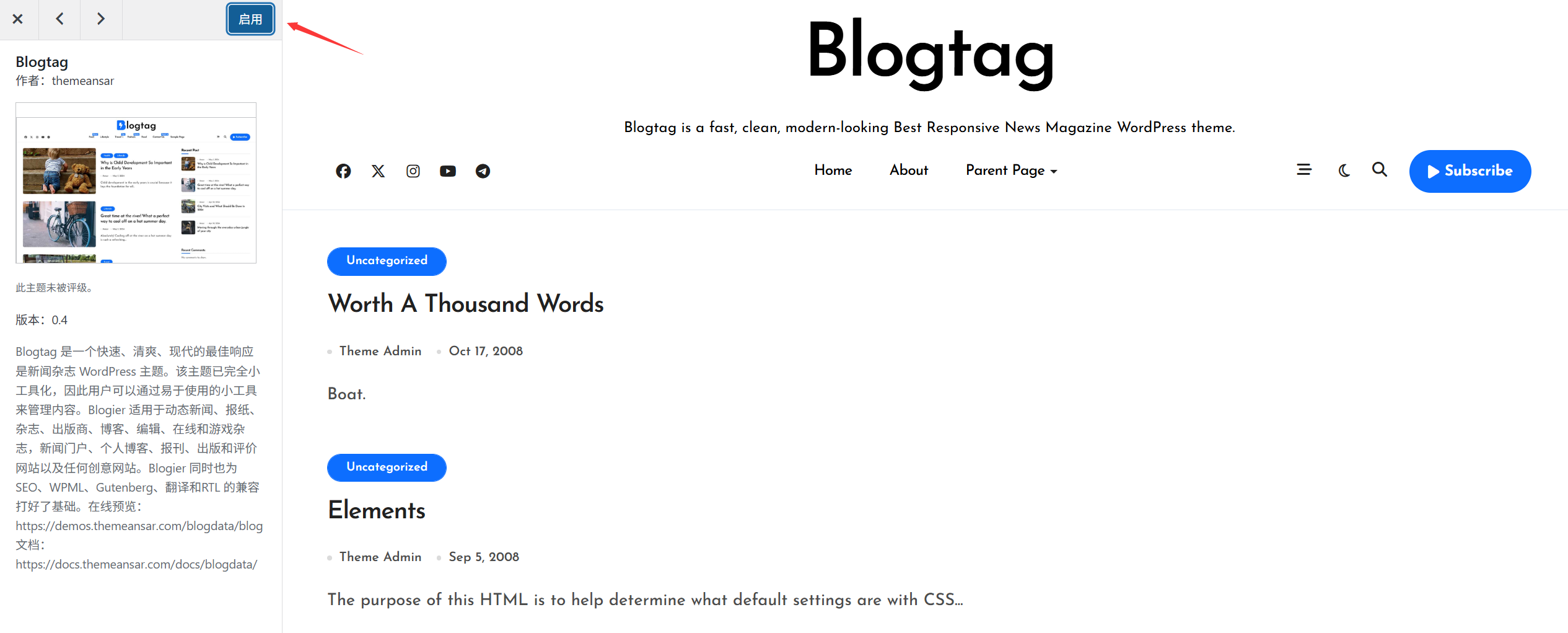
- Click on the "¡Óactivate" button to activate the theme.
- After successful activation, the theme card will display "activated"Logo.
- Visit your site's frontend at this point to see the effect of the new theme.
III. Installation of paid themes or customized themes
If you purchased a paid theme, or downloaded the theme file (usually in ZIP format) from another source, you can install it by the following method:
Step 1: Prepare the theme file
- Make sure you have the ZIP archive of the theme (do not unzip it).
- Purchased paid themes are usually downloaded from the developer's website to ensure that the files are complete and undamaged.
Step 2: Upload and install the theme
- In the WordPress back-end, go to theexterior condition"-"thematic"-"Add New Topic" page.
- Click on the "¡Ó at the top of the page.Upload a topic" button.
- In the upload window that pops up, click on "Select File" button.
- Locate the theme's ZIP file on your local computer, select it and open it.
- Click on the "¡ÓNow installing" button to start uploading and installing the theme.
- After the installation is complete, click on the "activate" button to enable the theme.
IV. Managing installed themes
On the Theme Management page, you can perform various management operations on the installed themes:
1. View installed themes
- In the "exterior condition"-"thematic" page, all installed themes are displayed as cards.
- The currently activated theme will have a "activated" logo and is usually displayed at the top.
2. Preview of installed themes
- Locate the theme you want to preview and click "Preview".previews" button.
- You can view the theme effect in the preview window without affecting the front-end display of the site.
3. Activating different themes
- Find the theme you want to use and click on theactivate" button.
- When you activate a new theme, the old theme is automatically deactivated, but not deleted.
4. Customized themes
- For themes that support real-time customization, you can click on the "customizable" button to enter the theme customization page.
- In the customization page, you can modify various settings of the theme, such as colors, fonts, layout, etc. (see Section 12.4 for details).
5. Deletion of unneeded topics
In order to save space and improve security, it is recommended to delete themes that are no longer in use:
- Locate the topic you want to delete and click on the bottom-right corner of the topic card "more" button (three dots).
- In the drop-down menu, select the "removing」。
- In the confirmation dialog box, click "recognize", delete topic.take note of:
- It is not possible to delete a topic that is currently active.
- Before deleting the theme, it is recommended to backup the theme's customization settings and data.
- Keep at least one alternate theme in case something goes wrong with the current theme.
V. Common problem solving
1. Can't find the topic you want?
- Check keywords: Try searching using different keywords, or just searching the topic name.
- Check the subject library: Confirm that the theme actually exists in the official WordPress theme repository.
- regional restriction: Some themes may not display due to regional or language settings.
- network problem: Check the network connection, refresh the page and retry.
2. Theme installation failed?
- File Size Limit: If the uploaded theme file is too large, it may exceed the server's upload limit. Solution: Contact your hosting provider to increase the upload limit, or install the theme manually via FTP.
- file corruption: The downloaded theme file may be damaged or incomplete. Solution: Redownload the theme file and make sure the file is complete and undamaged.
- Competence issues: The server may not have sufficient permissions to create directories or write files. Solution: Check and adjust server file permissions, or contact your hosting provider for assistance in resolving the issue.
- lack of memory: Insufficient memory may occur during installation. Solution: Increase the PHP memory limit or disable unnecessary plugins before installation.
3. Problems with the site after theme activation?
- White screen or error: It is possible that the theme is not compatible with the WordPress version, or conflicts with other plugins. Solution:
- To access the site files via FTP, go to
wp-content/themes/Catalog. - Rename the currently active theme directory (e.g.
twentytwentyone-bak)。 - WordPress automatically activates the default theme and the site returns to normal.
- Check the theme for updates or contact the theme developer for support.
- To access the site files via FTP, go to
- Styles are messed up: It could be a caching issue or improper theme settings. Solution:
- Clear your browser cache and website cache.
- Check the theme settings to make sure they are configured correctly.
- Verify that the theme supports the current version of WordPress.
4. How do I install a theme manually (via FTP)?
If the background installation fails, you can install it manually via FTP:
- Connect to the server using an FTP utility such as FileZilla.
- Go to the root directory of the
wp-content/themes/Folder. - Extract the downloaded theme ZIP file to get the theme folder.
- Upload the theme folder to the
themesCatalog. - Go back to the WordPress backend and go to the "exterior condition"-"thematic" page.
- Find the topic you just uploaded, and click on "Clickactivate" button.
5. What if the theme update fails?
- Checking the network connection: Ensure that the server is accessibleWordPress.org。
- manual update: Download the latest version of the theme file and overwrite the old one via FTP.
- Competence issues: Make sure the server has enough permissions to write to the theme directory.
- plug-in conflict: Temporarily disable all plugins and try to update the theme.
VI. Best practices for theme installation
- Keeping the number of topics lean: Install and keep only the themes that are in use and likely to be used, and delete the ones you don't need.
- Regularly updated topics: Update the theme in time for new features, security patches, and compatibility improvements.
- Backup Theme Settings: Backup the current theme's customization settings before updating or changing the theme.
- Testing new themes: Check the effect with the preview function before activating the new theme.
- Retain the default theme: Keep at least one WordPress default theme (e.g. Twenty Twenty-Three) as a backup.
- Pay attention to theme compatibility: Choose a theme that is compatible with the current WordPress version and avoid outdated themes.
wrap-up
Searching for, installing, and activating themes in the WordPress backend is a simple and intuitive process that can be easily accomplished by even a novice user. Installing free themes is easiest and safest through the official theme repository, while for paid or custom themes, you can install them by uploading a ZIP file.
Remember to preview the effect before installing a new theme, and promptly check if the website functions properly after installation. Keeping your theme streamlined and regularly updated is an important measure to maintain the security and performance of your website.
 English