


















When you buy a server, all you get is a “blank” virtual computer. We need to install an operating system on it, build a runtime environment (e.g. PHP, MySQL) and find an easy way to manage it. For newbiesPagoda Panelis the best tool for accomplishing all this, transforming complex command-line operations into intuitive graphical point-and-click operations.
This chapter will walk you through the entire process from purchasing a server to getting your WordPress installation ready via the Pagoda Panel.
I. Purchase a server and get login information
1. Selection and purchase
Take the previously recommendedTencent Cloud Lightweight Application ServerAs an example (as it is very easy to pre-install a pagoda panel):
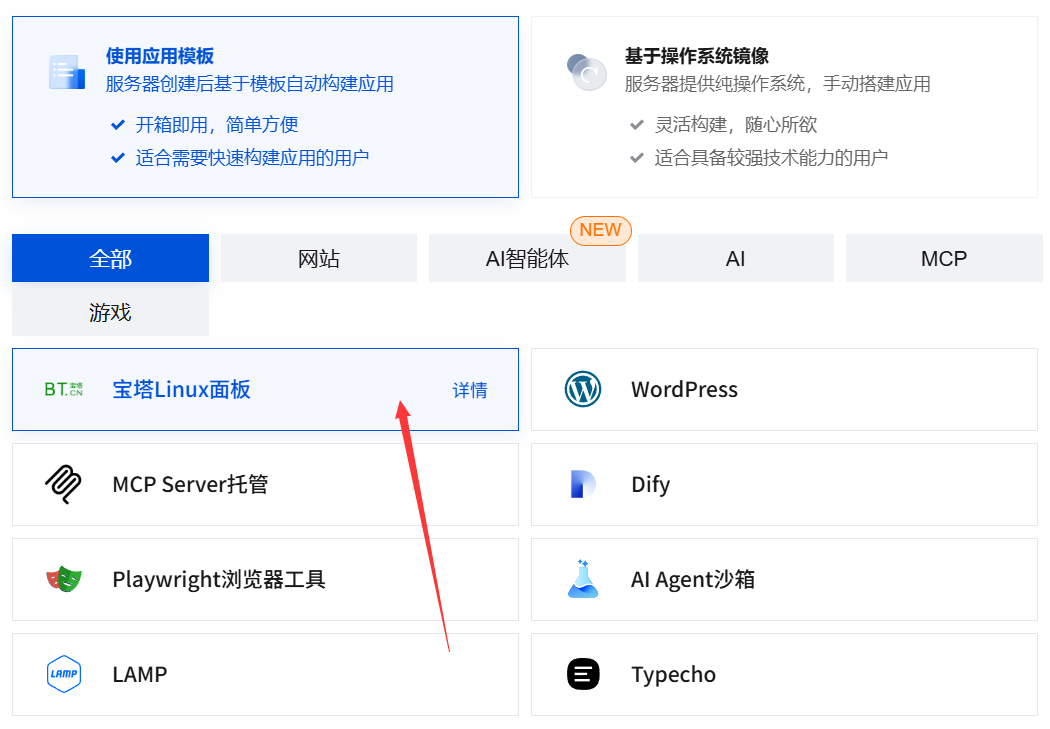
- interviewsTencent cloud official websiteTo purchase, go to the “Lightweight Application Server” purchase page.
- Choose a configuration that is suitable for novices:
- Territory.Select the geographic region closest to your target users (e.g. “Shanghai” or “Guangzhou” for domestic users).
- Mirroring. That's the key!In “Application Mirroring” select the“Pagoda Linux panel.”. This way Tencent Cloud will automatically install a pristine system and a new version of the Pagoda panel for you.
- Packages.Choose the minimum configuration (e.g. “2-core CPU, 2GB RAM, 4Mbps bandwidth”) to support the newbie period perfectly.
- Finish paying for your purchase.
2. Access to critical server information
After successful purchase, find your server instance on the “Light Application Servers” page of the Tencent Cloud console and click to enter the management page. Find the three most important pieces of information here:
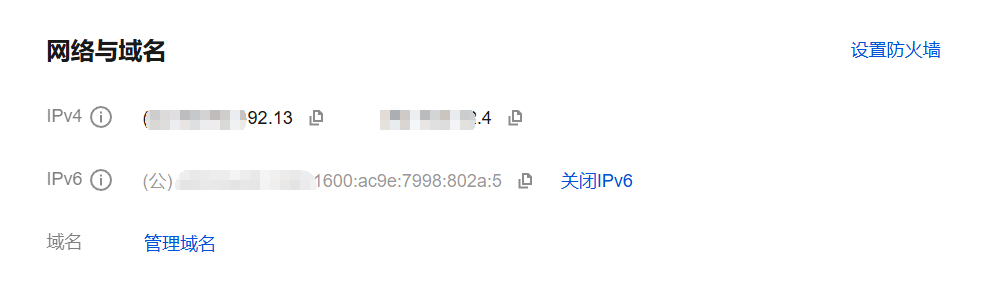
- Public IP address.The Internet address of your server (e.g.
123.123.123.123)。 - Username.It's usually
root(Super Administrator account for Linux systems). - Password.This is the password for logging into the server and pagoda panel. If you don't know it, you can set a new password in the “Reset Password” function in the backend.Please make sure to keep it safe!
II. Initializing the Pagoda Panel
Now that your server has the Pagoda panel pre-installed, we need to do the initial setup.
- Log in to the Pagoda panel.
- Open your browser and type in the address bar.
http://你的公网IP:8888 - (Example:
http://123.123.123.123:8888) - The first visit will take you to the Pagoda Panel's installation guide screen.
- Open your browser and type in the address bar.
- Agree to the User Agreement.Check the box to agree and go to the next step.
- Install the LNMP environment.
- Pagoda will recommend you to install a set of server software (LNMP for Linux, Nginx, MySQL, PHP).
- PHP.Select the latest stable version (e.g.PHP 8.2), WordPress supports it perfectly.
- MySQL.optionMySQL 5.7maybe8.0。
- Other options (Nginx, Pure-FTPd, etc.).Just keep the default.
- Click “One-Click Installation”, the system will automatically complete the deployment of all environments. This process requires15-30 minutesPlease be patient.
- Log in and enter the panel.
- After the installation is complete, the page will display yourPagoda Panel Login Address, Username and Password。
- Important.This informationBe sure to take a screenshot and save it! This is your future entry point for managing the server.
- Log in to the Pagoda panel using the username and password given.
III. Obtaining FTP information (operating in the Pagoda panel)
FTP is used to transfer files between a local computer and a server. Although the Pagoda Panel's file manager is strong, sometimes FTP is still needed.
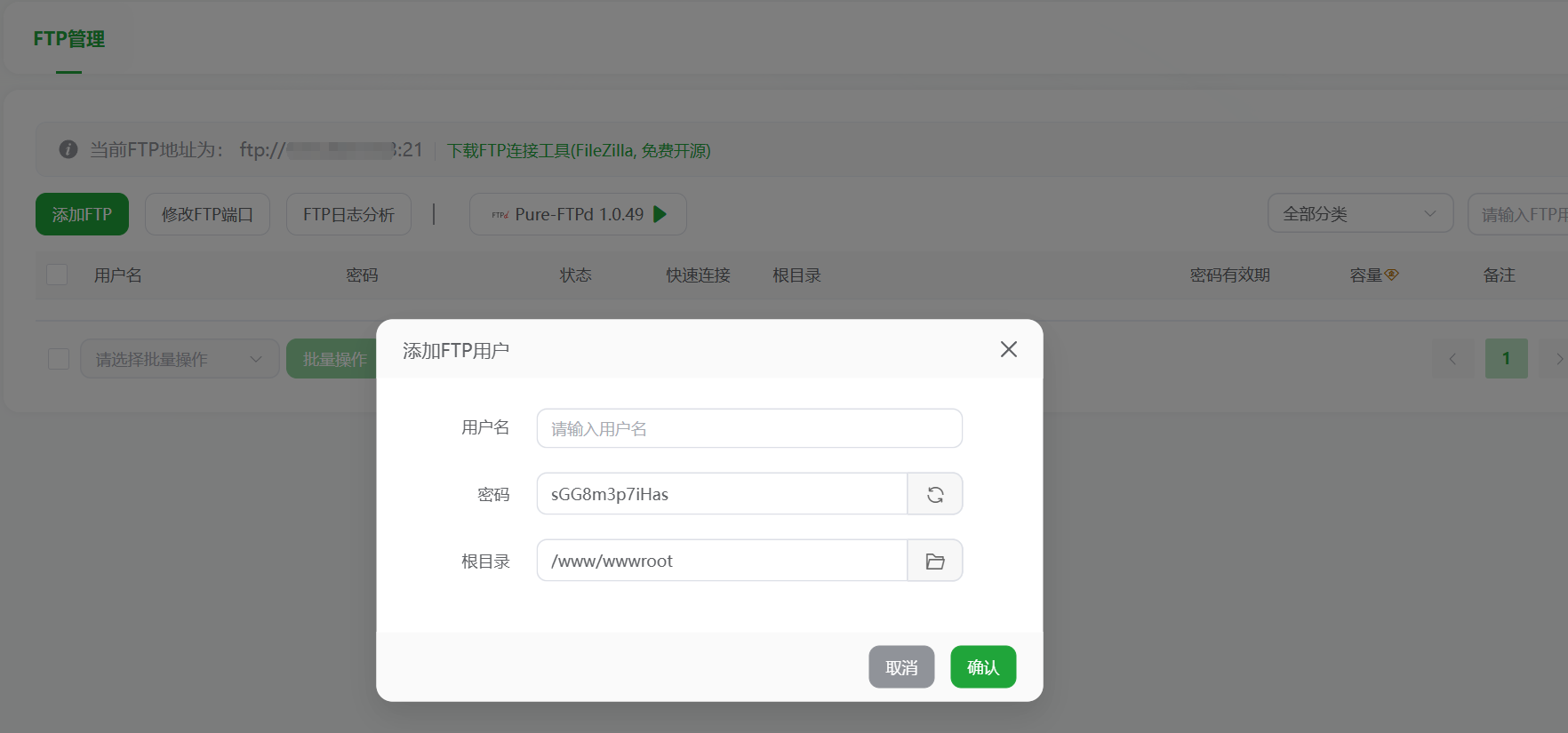
- Create an FTP account.
- After logging in to the Pagoda panel, find the left-hand menu“FTP”->“FTP account”。
- Click “Add FTP account”.
- Account.Enter the FTP username you want (e.g.
mywebsite)。 - Password.Set a strong password.
- Root directory. Very important!Click on the folder icon on the right and select
/www/wwwrootThis directory. This is the root directory where the Pagoda Panel stores the site files by default. - Click “Submit” and the FTP account is created.
- Get FTP connection information.
- After successful creation, you will see all the information in the FTP account list:
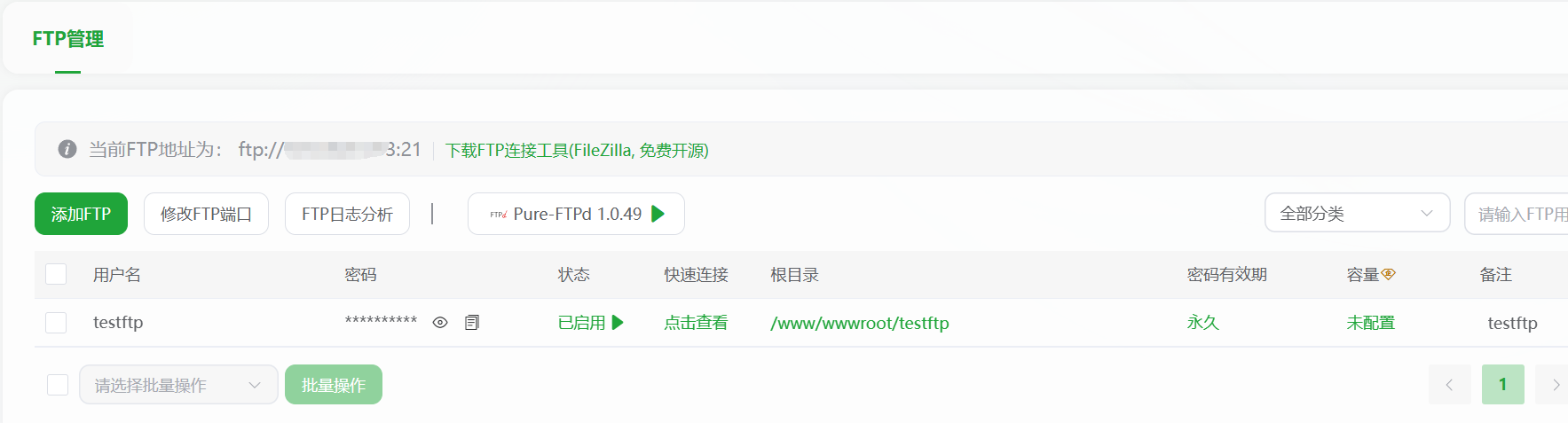
- FTP Address.It's yours.public IP。
- FTP username.You just set it up.
- FTP password.You just set it up.
- FTP port.It's usually
21。
- Connect using an FTP client (FileZilla as an example).
- Download and install the FileZilla client.
- Once it opens, enter it in the top host field:
你的公网IPThe username and password are filled in with the FTP information created in Pagoda, and the port is filled in with21Then click on “Quick Connect”. - After a successful connection, the remote site window on the right side shows the files on the server, and the left side shows your local computer files. You can upload and download files by dragging and dropping.
IV. Security-enhanced settings (mandatory steps)
Server security is crucial, and Pagoda Panel makes this easy.
- Modify the default port of the Pagoda Panel.
- On the left side of the panel find the“Panel Settings”。
- Change the “Panel Port” from the default
8888Modify it to a different random port (e.g.28377). This protects against scanning attacks by automated scripts.
- Modify the security portal.
- In the Panel Settings, there is a “Security Entry” (a random string such as
/bt-abc123). Be sure to save this entry. In the future your login will change to:http://你的公网IP:28377/bt-abc123. This is much safer.
- In the Panel Settings, there is a “Security Entry” (a random string such as
- Install the firewall.
- In the “Software Store” of Pagoda Panel, search for “Firewall” and install plug-ins such as “Pagoda System Firewall” or “Nginx Firewall Install plug-ins such as ”Pagoda System Firewall" or "Nginx Firewall" to effectively block common network attacks.
Summary.
At this point, your server is no longer a “blank” computer. With the Pagoda Panel, you have:
- ✅ Purchased a server and obtained login information.
- ✅ Initialized and logged into the Pagoda panel.
- ✅ Installed PHP, MySQL, and other necessary WordPress runtime environments.
- ✅ An FTP account is created to transfer files.
- ✅ Basic security settings were made.
What's next?Next, you can easily in the Pagoda panelAdd site、Creating a databaseThen it's time to start installing WordPress! The “Websites” module in the Pagoda panel will make it easy for you.
 English