











Whether you have a personal blog, a corporate website or an e-commerce platform, you need a “contact form” - something that makes it easy for visitors to message you (e.g., ask a question, submit a request, give feedback on a suggestion).Contact Form 7 Is the oldest WordPress form plugin (installed base of more than 5 million), free, flexible and powerful, can help you quickly create a variety of forms (contact form, enrollment form, feedback form, etc.), newbies only need to simply configure to use.
I. Why do I need a contact form? Can't I just put my e-mail / phone number?
Putting a direct mailbox or phone number may seem simple, but there are 3 distinct disadvantages:
- Visitors are too much trouble: You need to copy your email address and open your email client to send it, and many people will give up halfway through;
- Vulnerable to spam: Public email addresses are crawled by bots and receive tons of spam;
- Information is not standardized: Visitors may miss key information (e.g., not clarifying their needs when inquiring about a product) and respond inefficiently.
And contact forms solve these problems:
- Visitors fill out the submission directly within the site in one step;
- Email addresses are hidden in the background to avoid being targeted by spam;
- Fields that need to be filled in (e.g., name, phone number, type of need) can be customized to ensure that the information is complete.
Contact Form 7 installation and creation of the first form
Step 1: Install and activate the plugin

- Backend [Plugin] → [Install Plugin], search for “Contact Form 7”;
- Click [Install Now] and click [Activate] when finished.
- Once activated, the [Contact] option will appear in the left menu.
Step 2: Create a default contact form (recommended for newbies, straight out of the box)
Contact Form 7 comes with a predefined contact form template with common fields (name, email, subject, message content) that can be used directly by novices:
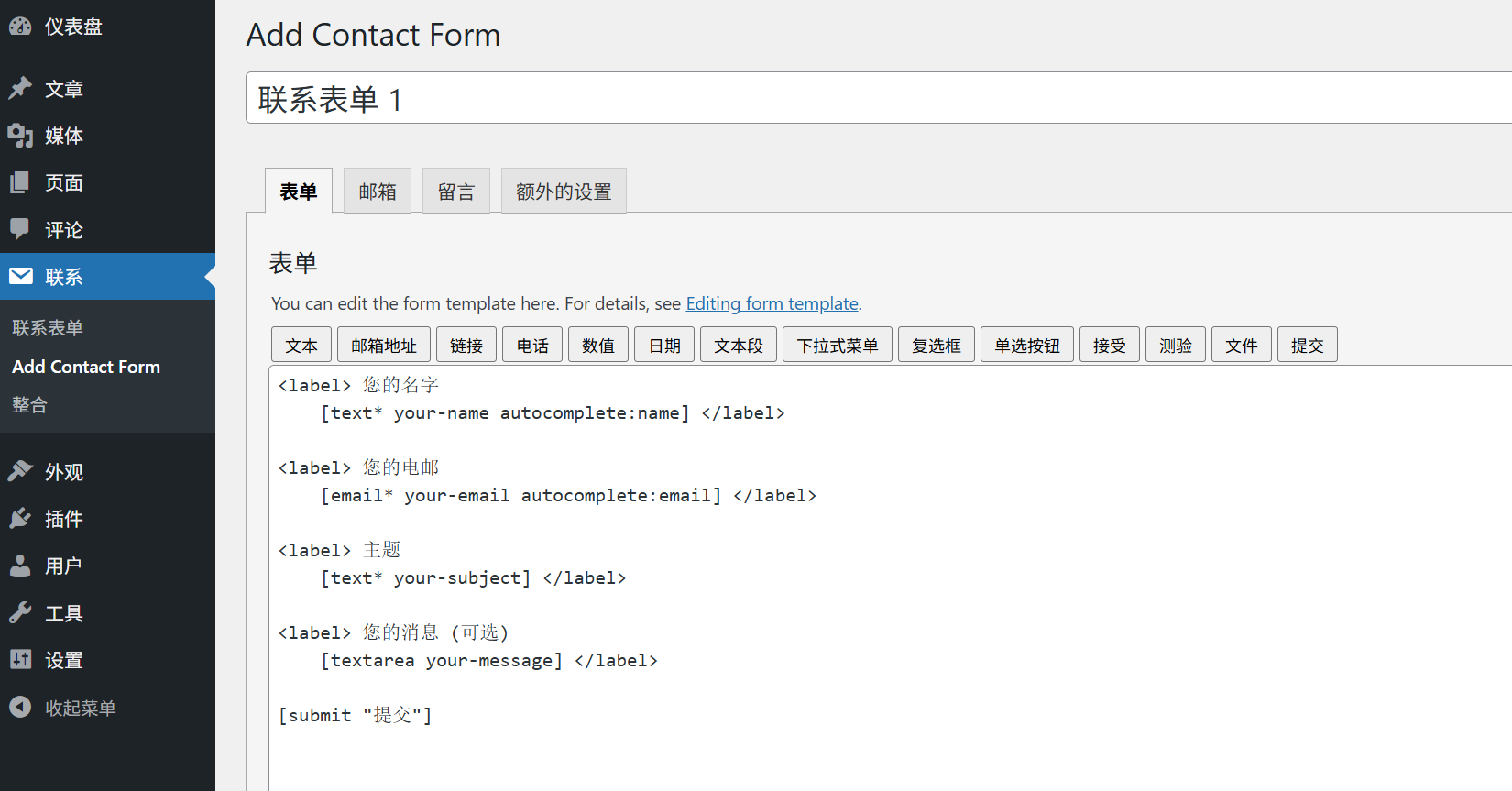
- Click [Contact] → [Add New] on the left to enter the form editing page;
- The plugin automatically generates a form name (e.g. “Contact Form 1”) that can be modified to “Website Contact Form” (for easy identification);
- The lower “Form” area is the code for the form (you don't need to know the code, just keep the default), which contains 4 fields by default:
- Name (text box);
- Email (email box with verification, make sure it's formatted correctly);
- Subject (text box for a quick overview of the message subject);
- Message (multi-line text box, fill in the details).
Step 3: Setting up “Feedback” and “Receive Emails” after form submission”
It's not enough to be able to submit a form, you need to set it up: what alerts do visitors see when they submit? What email address is the message sent to?
1. Set the “mail” receiving address (key! Make sure the message can be received)

- Scroll down to the “Mail” area on the form editing page;
- Find the “To” input box and fill in your usual email address (e.g.
contact@你的域名.com); - Other options are left as default (“From”, “Subject”, etc. are automatically populated with form content).
2. Setting up a “message” prompt (to tell visitors the result of their submission)
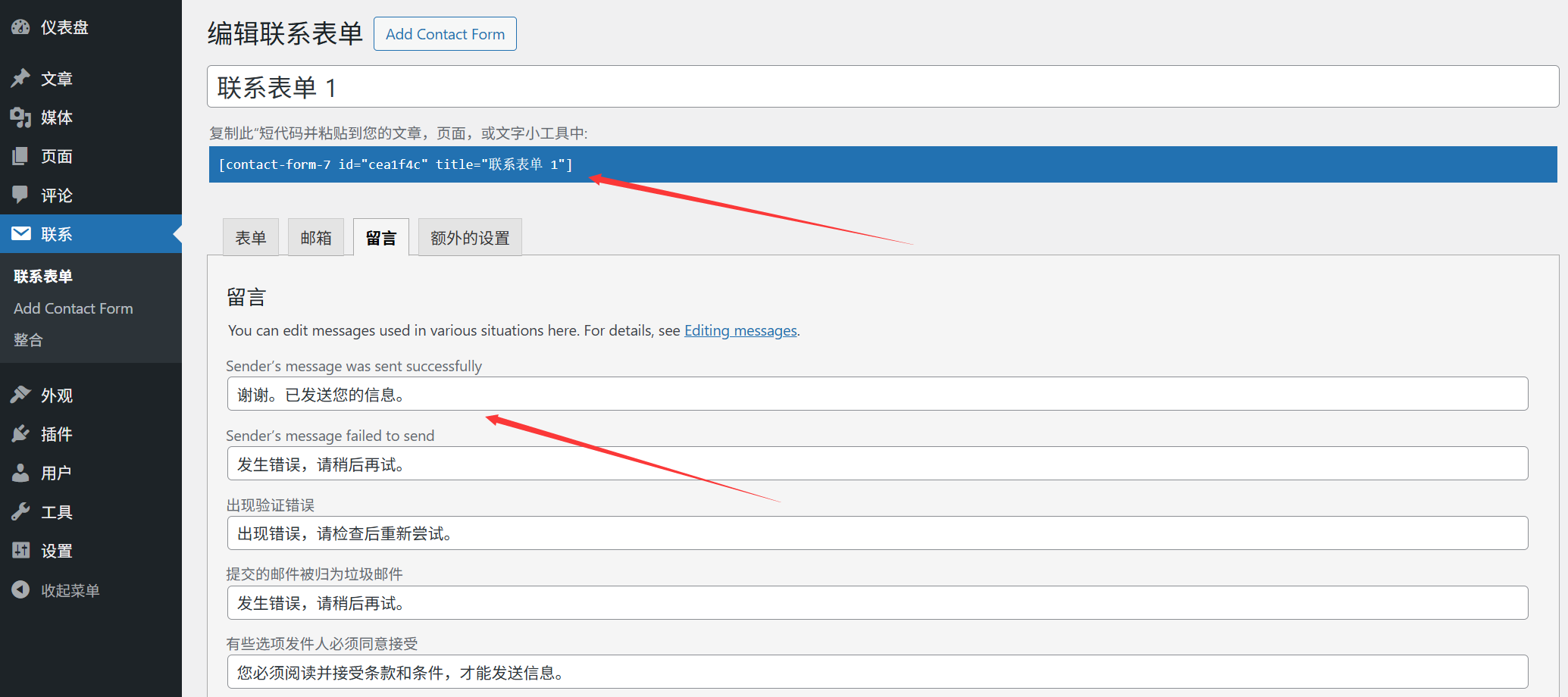
- Scroll down to the “Messages” area to customize the alert text:
- “Send Successful Message”: e.g. “Thank you for your message, we will reply as soon as possible!” ;
- “Validation error message”: e.g. “Please check that the fill-in is correct (e.g. mailbox format)”.
Step 4: Save the form and get the “short code”
- Click [Save] in the upper right corner of the page, the form creation is complete;
- After saving, a “shortcode” will be displayed at the top of the page (e.g.
[contact-form-7 id="123" title="网站联系表单"]), copy this code (it will be used later).
Third, add the form to the “Contact Us” page
Once the form has been created, it needs to be placed on the website's “Contact Us” page (or any other desired page) so that visitors can see it:
- Go to [Pages] → [Add New] (or edit an existing “Contact Us” page);
- In the editor, position the cursor where the form needs to be displayed;
- Paste the short code you just copied (e.g.
[contact-form-7 id="123" title="网站联系表单"]); - Click [Publish] or [Update] and visit the page to see the form.
IV. Customized forms: adding/deleting fields (adjusted as needed)
If the default form does not meet the requirements (e.g. you need to add the “Phone” “Company Name” field), you can customize it to change it:
Example: Adding a “Phone” field to a form
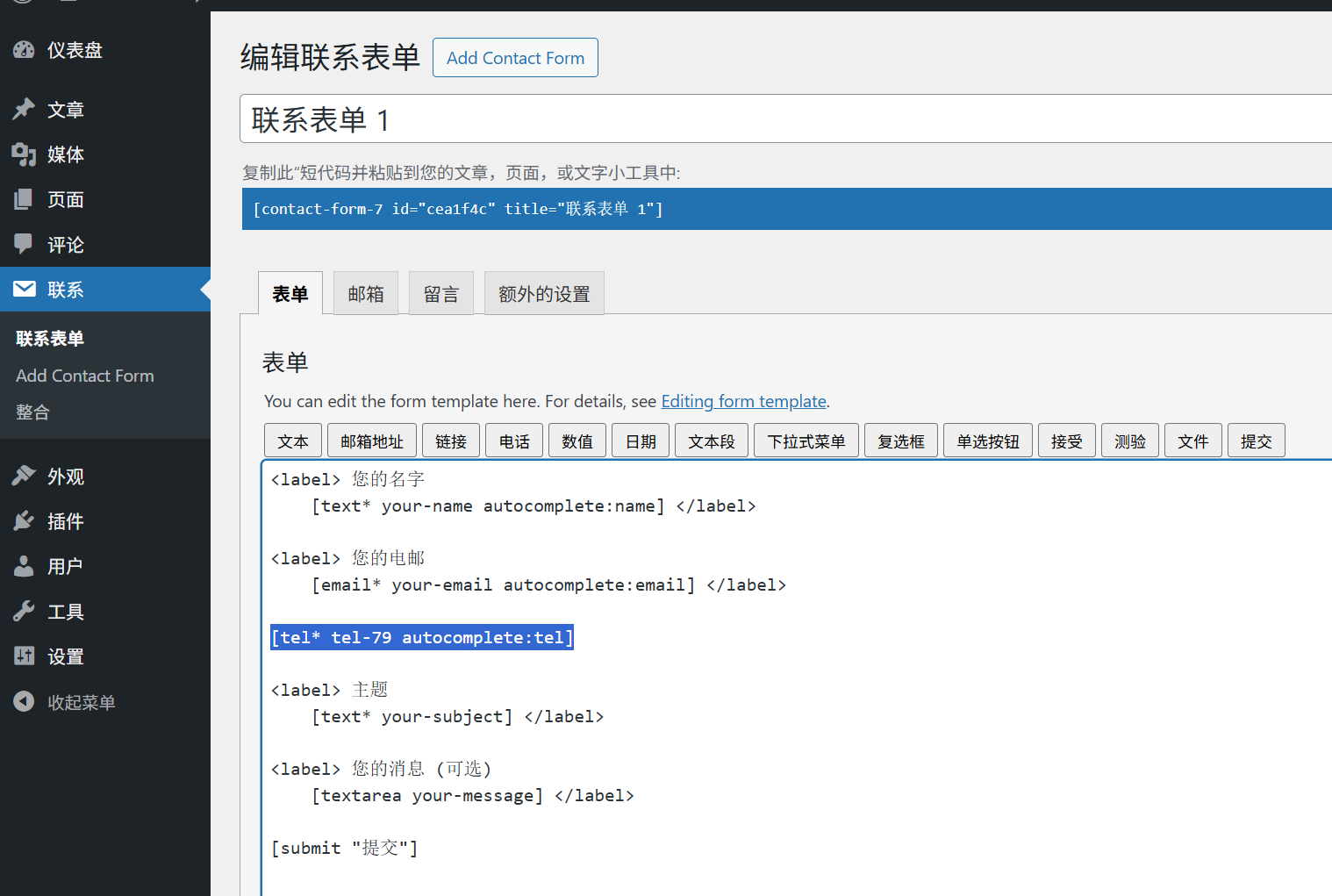
- Go to [Contact], find the form you created and click [Edit];
- In the “Form” edit area, find the “Mailbox” field, click [Insert Label] → [Text] in the toolbar;
- In the pop-up window:
- “Name” Fill in “tel” (internal identification, lowercase English);
- “Label” Fill in “Phone” (text to display to visitors);
- Check the “Required Fields” box (make sure visitors must fill them out);
- Clicking [Insert Tag] will automatically generate a line of code (e.g.
[text* tel placeholder "请输入您的电话"]);
- Click [Save] to update the page and the form will have the extra “Phone” field.
Common field types (on demand)
- text box: Suitable for short content such as name, phone number, company name, etc;
- mailbox: Specialized for filling in mailboxes, which will automatically validate the format;
- textarea: Suitable for filling in long content (e.g. messages, descriptions of needs);
- drop-down menu: Suitable for allowing visitors to select options (e.g. “Type of inquiry: Product inquiry / After-sales question / Cooperation negotiation”);
- checkbox: It is appropriate to tick more than one option (e.g. “Services of interest: Website Development / SEO Optimization / Branding”).
V. Frequently Asked Questions for Newcomers
- Not getting emails after form submission?This is the most common problem to solve:
- Check that the “To” mailbox in the “Mail” settings is correct (don't fill in the wrong one!). .;
- Check your mailbox's “Spam” folder (form emails can be misdiagnosed as spam);
- If you still can't receive it, install the plugin “WP Mail SMTP” (fix WordPress mail sending function, newbies can just follow the plugin wizard to set it up).
- How to modify the style (e.g. font, color, width) of a form?Contact Form 7 does not support visual change of styles and requires simple CSS code:
- Method 1: Find “Custom CSS” in the theme settings (usually in [Appearance] → [Customize] → [Extra CSS]); Method 2: Example: Make the input box width 80%, add code:
.wpcf7 input, .wpcf7 textarea { width: 80%; padding: 10px; margin-bottom: 15px; } - (If you don't know how to write CSS, you can search for “Contact Form 7 Style Code” and copy the existing one to modify it).
- Can the form be automatically saved to the backend after submission?It is not supported in the free version. Submitted messages are only sent by email. If you need to save them to the backend (to prevent loss of emails), you can install the plugin “Flamingo” (a companion plugin developed by the author of Contact Form 7, specifically for saving form data).
- How can I prevent bots from submitting spam?Enable the “Anti-Spam” feature:
- Edit the form and add a line of code in the “Form” field
[recaptcha](Google CAPTCHA); - Go to [Contact] → [Integration] and follow the prompts to connect to Google reCAPTCHA (you need to register a free API key, just follow the wizard).
- Edit the form and add a line of code in the “Form” field
To summarize: contact forms are the “last mile to conversion”
For visitors, a contact form is “the fastest way to express their needs”; for website operators, it is “an important channel for acquiring potential customers”.
Contact Form 7, although you need to manually write short codes and change fields, is free, flexible and stable, and after learning the basics, it can meet a variety of form needs from simple to complex. Remember: the form should not be too complex (the more fields, the more likely that visitors will give up), retain the core information (name, contact information, needs) can be, so that the threshold of communication to minimize.
 English