











WordPress supports multi-user collaborative management. By creating accounts with different roles, you can let team members do their own work, which not only ensures the efficiency of website management, but also avoids the security risk caused by the abuse of privileges. For example: the administrator is responsible for global settings, the editor focuses on content review, and the author only needs to publish their own articles. This section describes in detail how to create accounts with different roles and the principles of permission assignment.
First, understand: WordPress What are the user roles?
WordPress comes with 5 preset user roles, with permissions in descending order:
| character name | Scope of core competencies (a must for newbies) | Fits the crowd |
|---|---|---|
| janitors | Have all site permissions (modify settings, install plugins, delete content, etc.) | Website owners, core managers |
| 编辑 | Publish and manage all articles/pages, can't change core settings | Content reviewer, editor-in-chief |
| author | You can only post and manage your own articles, you can't edit other people's content | Columnist, guest author |
| benefactor | Articles can be written but are subject to review and cannot be posted directly | Novice authors, contributors who need to be reviewed |
| subscriber | Only personal data can be managed, no content publishing privileges | Website members, login-only users |
Core principles: Assign users "just enough" permissions to avoid over-authorization (e.g., regular authors don't need "edit" permissions).
II. Detailed steps for creating a new user account
The process of creating accounts for different roles is the same, only the "role selection" step is different, and the whole process is visualized in the background:
Step 1: Go to the User Management page

- Log in to the WordPress backend (
域名/wp-admin)。 - Click "Users" → "Add New User" in the left menu to enter the creation page.
Step 2: Fill in basic user information
Fill in the form with the following key information (with * (Required field):
- user ID*: Login account (English / numeric recommended, e.g.)
zhangeditor(avoid Chinese).take note of: Once created, the user name cannot be modified, so be careful when filling it out. - email*: The user's usual e-mail address (for receiving login notifications and password reset links).
- name and surname: The user's real name (optional, to be displayed in the author profile).
- node: User's personal website (optional, not required).
- cryptographic:
- Mode 1: Check "Send password reset link to new users", the system will automatically send an email for users to set their passwords (recommended, more secure). Mode 2: Click "Show Password" to set password manually (must include upper and lower case letters, numbers and symbols, and make sure the strength is "strong").
Step 3: Select User Roles
In the "Role" drop-down menu, select the corresponding role according to your needs:

- If you need the other party to manage the whole site (e.g. partner), select "Administrator".
- If you need the other party to review all posts, select "Edit".
- If the other party only posts their own content, select "Author".warnings: "Administrator" privileges are extremely high and only assigned to fully trusted people to avoid account leakage leading to website tampering.
Step 4: Create Users
After filling out the form, click the "Add New User" button at the bottom of the page and the system will create the account immediately:
- If you choose to send a password email, the new user will receive an email containing a password reset link, which can be clicked to set the password.
- If you have set a password manually, you can inform the other party of your user name and password in a secure way (sending them in clear text is not recommended).
Third, management of existing users: modify the role, reset the password, delete the account
You can manage users on the "Users -> All users" screen after creating them:
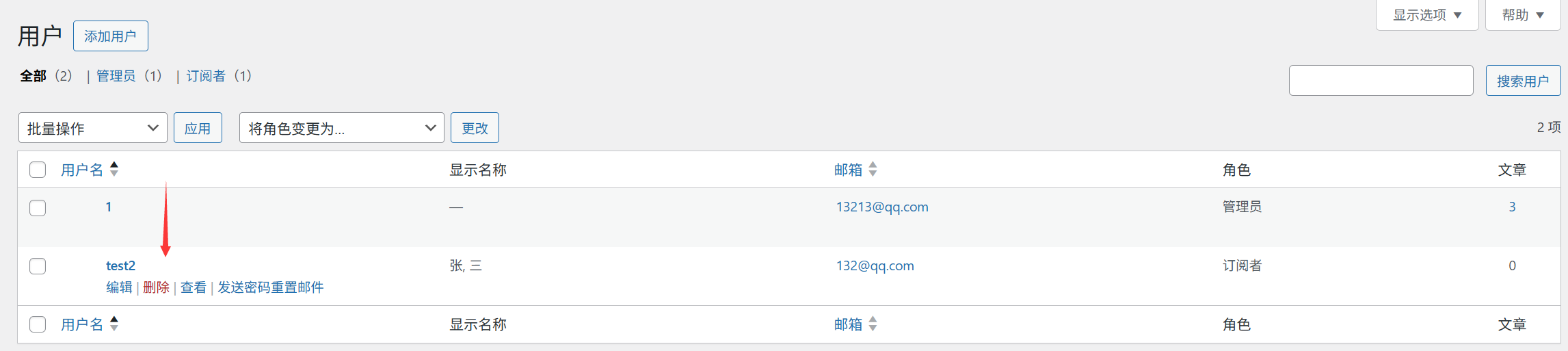
1. Modification of user roles
- Go to the "All Users" page and find the user who needs to be adjusted.
- Hover over the username and click 'Edit'.
- Select the new role from the "Role" drop-down menu and click "Update User" to save.Sample Scenarios: Promote "Author" to "Editor" to give them permission to review other people's posts.
2. Reset user passwords
- Go to the User Edit page and scroll to the 'New Password' area.
- Click "Generate Password", the system will automatically create a strong password (can be changed manually).
- Click "Update User" and the new password will take effect immediately (it is recommended to notify the user at the same time).
3. Deletion of users
- On the "All users" screen, check the users that you want to delete.
- Select 'Delete' from the Bulk Actions drop-down menu and click 'Apply'.
- On the confirmation page, select "Transfer all content to:" another user (to avoid content loss) and click "Confirm Deletion".take note of: Before deleting an administrator account, make sure you keep at least one other administrator account, otherwise you may not be able to log in to the backend.
IV. Practical tips for multi-user management
1. Distinguish roles with mailbox prefixes (for ease of administration)
When creating a username, you can add a role prefix, for example:
- Administrator:
admin_li - Editor:
editor_zhang - Author:
author_wangThis allows you to quickly recognize roles in the user list and avoid operational errors.
2. Regular purging of inactive users
Go to the "All Users" page and sort by "Last Logged In" for users who have not logged in for a long time (e.g., more than 6 months):
- In case of regular authors / subscribers, the account can be deleted (by transferring its content first).
- If you must keep it, you can temporarily change it to "Subscriber" permission to reduce the security risk.
3. Limiting the number of administrators
Even for team management, there should not be too many administrator accounts (no more than 3 is recommended), and other members should be assigned roles such as "editor" and "author" according to their duties to minimize the risk of misuse.
V. Common problem solving
1. New users can't receive the password e-mail?
- Check that the mailbox is filled in correctly (case sensitive and special symbols).
- Check the spam folder (system mail may be misdiagnosed as spam).
- If you still cannot receive it, set the password manually and then inform it by other means (e.g., send it separately by WeChat).
2. How can users be prevented from modifying their personal data?
- Install the plug-in "User Profile Control" to restrict users from modifying information such as name and e-mail address.
- Ideal for scenarios where a multi-user site manages author profiles in a unified way.
3. Can't log in because I deleted my administrator account by mistake?
- Modify the database recovery through the Pagoda Panel (refer to Section 9.1 "Forgot Password? 3 Ways to Recover").
- or reinstall WordPress (will overwrite existing settings, proceed with caution).
wrap-up
Reasonable allocation of user roles is the basis of website security management, and the core logic is "minimization of privileges" - only give users the necessary privileges to complete their work. When creating accounts, pay attention to the standardization of user names and security of passwords, and regularly clean up inactive users.
For personal websites, usually only 1 administrator account is needed; for team websites, it is recommended to set up 1-2 administrators, 1 editor, and the rest of the members will be assigned the role of "Author" or "Contributor" according to their content contribution.
 English