











Previewing, saving and publishing are three key aspects when writing articles. Mastering the correct process can avoid problems such as lost content and wrong publishing, so that your articles can be presented to readers in the best condition. This chapter takes the Gutenberg editor as an example and explains in detail the operation and precautions of each step.
I. Saving drafts: preventing content loss (core habits)
Regardless of the length of the articleSaving drafts at all times is a must-have habit!WordPress has an autosave feature, but saving manually is more reliable, especially when editing long or complex content.
1. 3 ways to save drafts manually
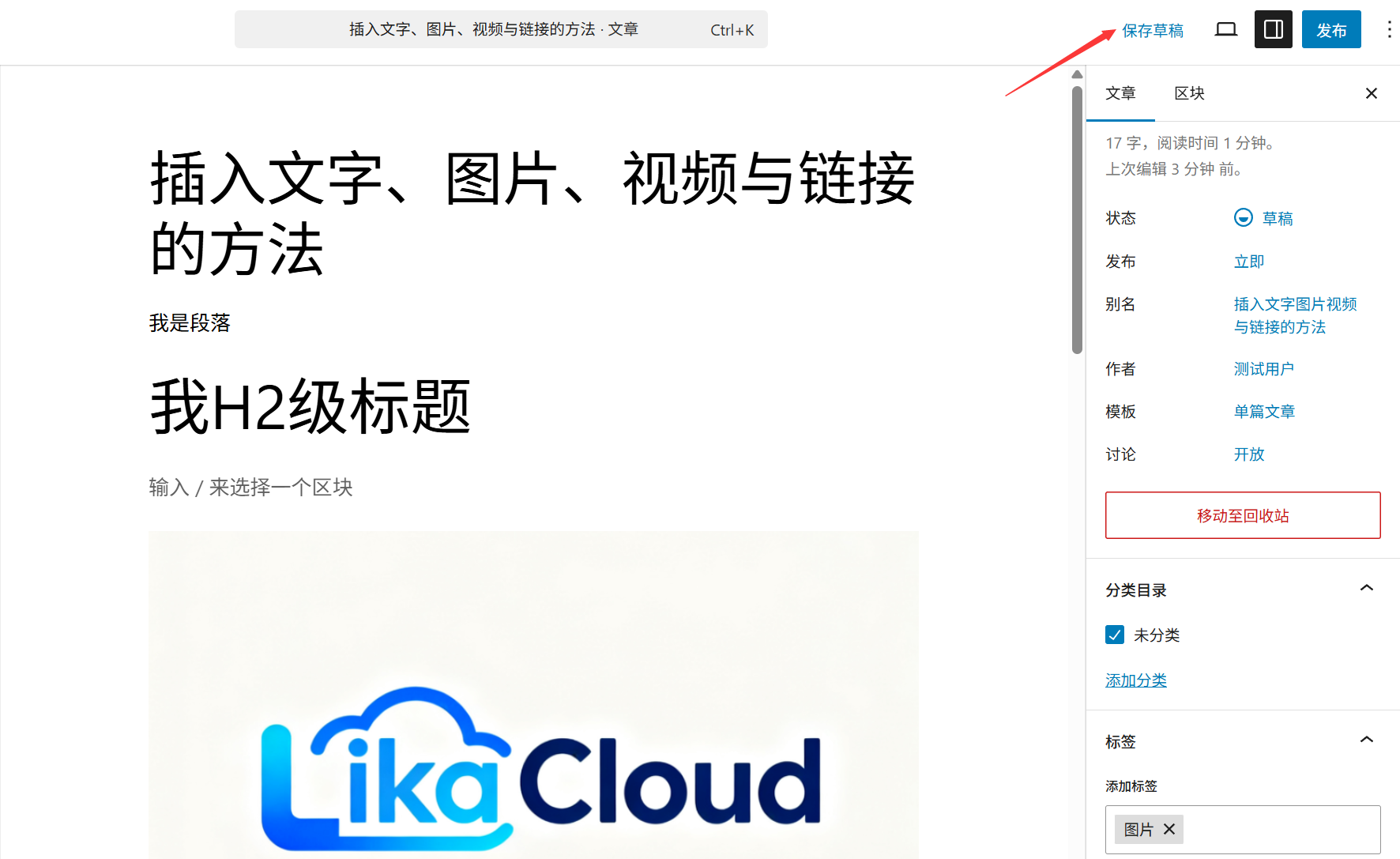
- Shortcut to save: Press while editing
Ctrl+S(Windows) orCommand+S(Mac), which is the quickest way to do this (and recommended to use it once every time you finish a paragraph or insert a picture). - Button Save: Click on the 'Save Draft' button in the top right corner of the editor (it appears as 'Save' in the Gutenberg editor, and the button briefly shows 'Saved' when clicked).
- autosave: The system will auto-save every 60 seconds, and "Auto-saving..." will be displayed at the top of the editing area. at the top of the editing area and "Auto Save..." will be displayed when it is finished. ButDon't rely on autosave(Network interruptions and browser crashes may cause autosave to fail).
2. Considerations for the preservation of drafts
- segmentation: When writing long articles (e.g., tutorials, reviews), manually save every subsection (e.g., "Step 1: Preparation") to reduce the amount of rework in case of accidental loss.
- Handling of save failuresIf you are prompted with "Save Failed" after clicking Save, check the network connection first, close other memory-consuming software (e.g. multiple browser tabs), and retry again; if it fails again and again, you can copy the current content to Notepad, and then re-paste and save it after refreshing the page.
- Location of drafts: Saved drafts are displayed in the WordPress backend under "Posts→All Posts" with the status of "Draft", making it easy to continue editing them.
II. Previewing the article: a "final check" before publication
Preview allows you to see the actual display of the article (including typography, images, links, etc.) before publishing, avoiding problems that you can't see in editing mode (e.g., formatting errors, broken links).
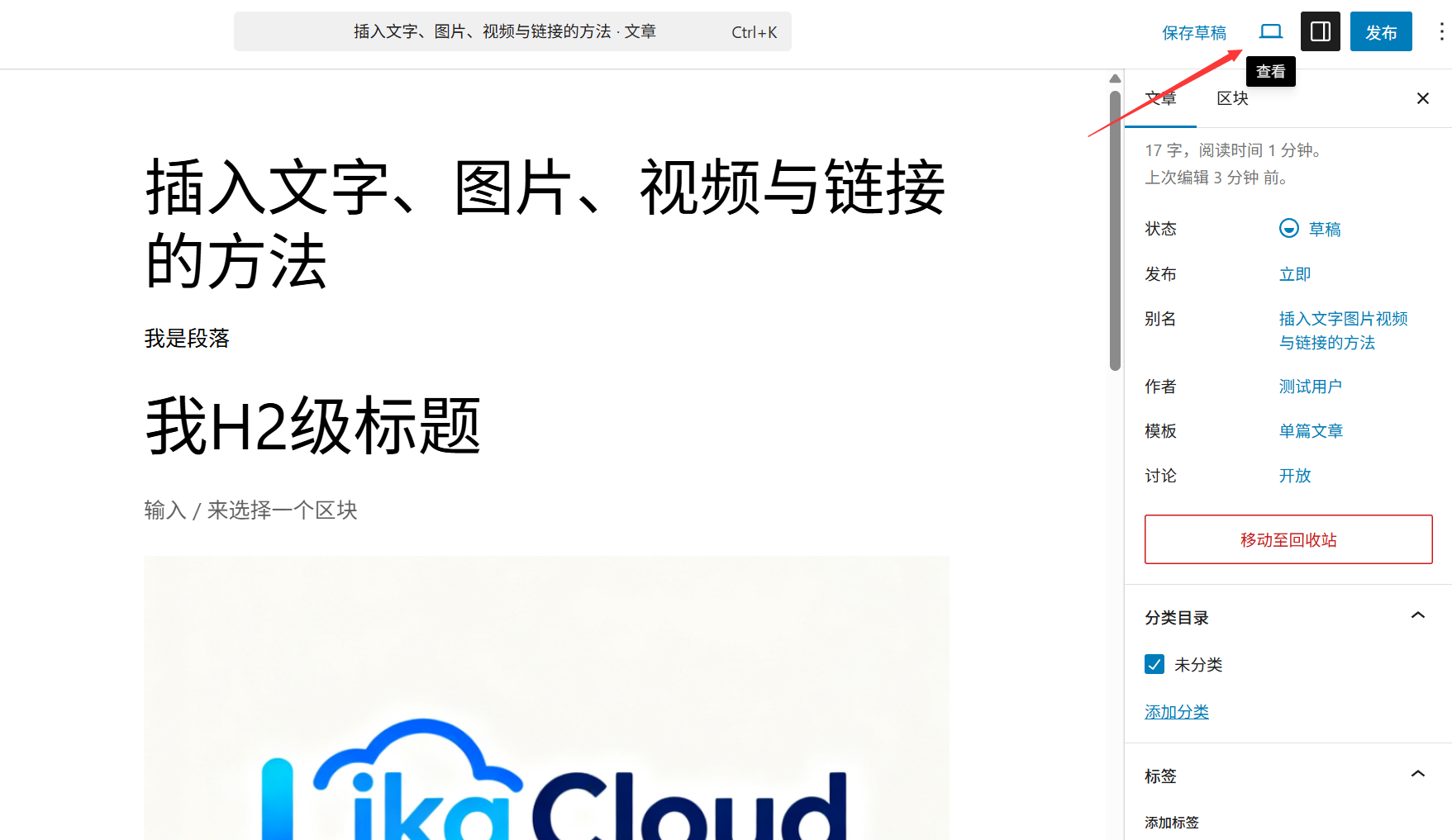
1. 2 ways to preview an article
- General Preview: Click the "Preview" button in the upper right corner of the editor to open a preview page in the current window (showing the full effect of the article on the frontend of the site, including theme style, sidebar, etc.).
- New window preview: Click on the drop-down arrow to the right of the 'Preview' button and select 'Preview in new window', suitable for editing while previewing (the new window will not affect the content in the editor).
2. 7 details that must be checked during previewing
- Title and content: The title is complete, with no typos; the body paragraphs are fluent, with no extra spaces or garbled code.
- Pictures and videos: Whether the image is displayed properly (no cracked image icon) and is the right size (not stretched or blurred); whether the video can be played properly and whether the loading speed is too fast.
- Link Validity: Click on all hyperlinks (text links, image links) in the text to confirm whether you can jump to the correct page (to avoid wrong or invalid links).
- formatting: Whether the hierarchy of headings is clear (H2 and H3 are clearly distinguished); whether the formatting of lists, citations, etc. is correct; and whether the text alignment is uniform (e.g., left-justified in the body, centered in the headings).
- Mobile Adaptation: Press
F12Open your browser developer tools, switch to mobile view (or visit the preview link directly from your phone), and check that the text doesn't overlap and the image doesn't extend beyond the screen. - Categories and labels: The bottom of the preview page usually displays the article belongs to the category and label, to confirm whether it is correct (if not displayed, may be the theme has not set the relevant module, does not affect the function).
- Featured Image: If a featured image is set (see subsequent sections for details), check that it is displayed properly at the top of the post or on the listing page.
Third, publish articles: let readers see your content
Once the preview confirms that there are no errors, the article can be published. After publishing, the article will officially appear on the frontend of the website where visitors can view, comment and share it.
1. Detailed steps for publishing articles
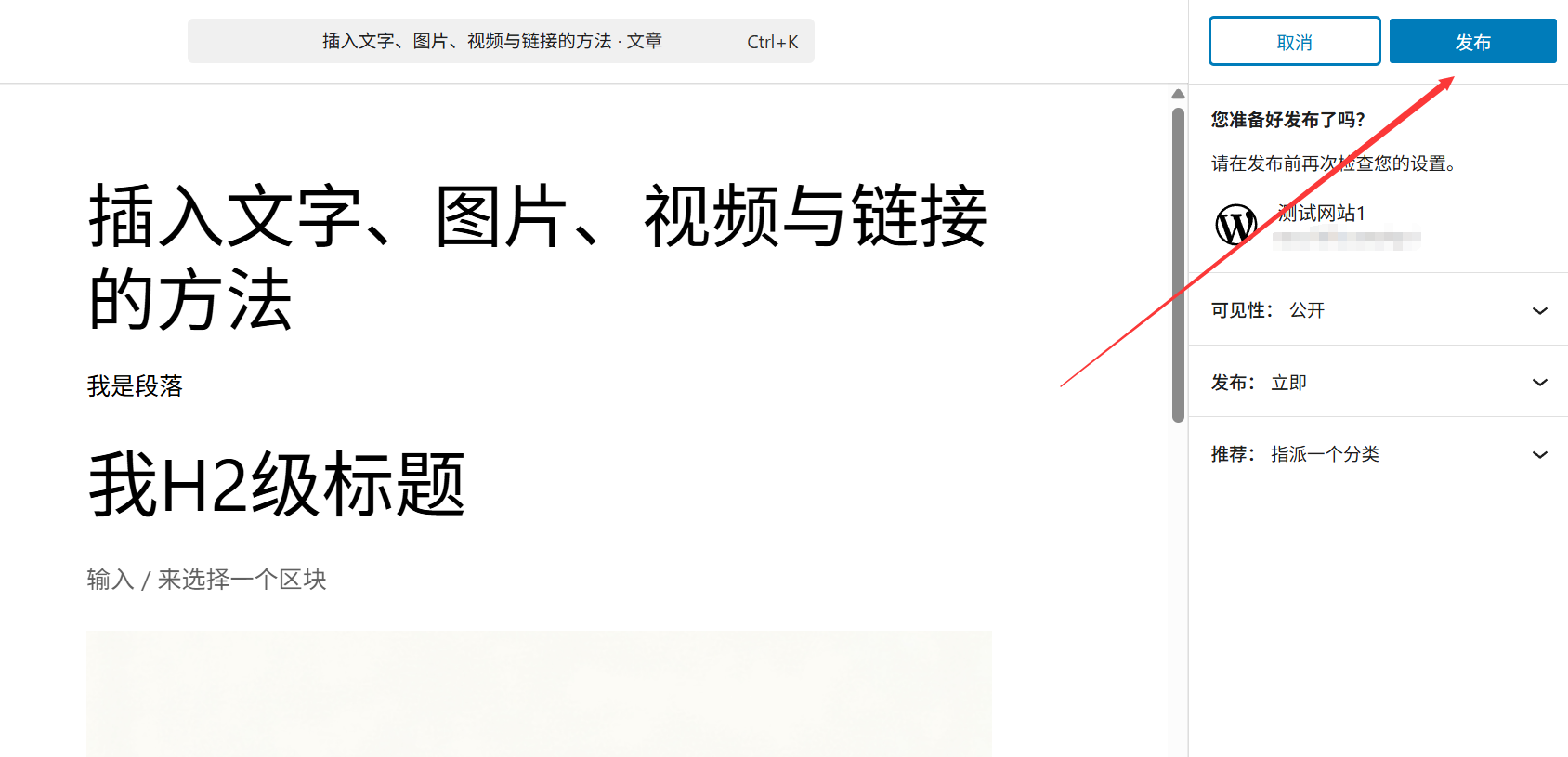
- Confirmation of basic settings: Check in the "Documentation" panel on the right side of the editor:
- "Status and Visibility": Default is "Public" (visible to everyone), if you want to restrict access, you can choose "Private" (visible to administrators only) or "Password Protected" (password access required).
- "Category" and "Label": Whether they have been set correctly (at least one of the categories is selected, and the label is optional).
- "Featured Image": whether to add or not (some themes will display featured image on the homepage or list page to enhance the attractiveness).
- Click the Publish button:
- If the article is published for the first time, the "Save Draft" button in the upper right corner of the editor will change to the "Publish" button, and a confirmation window will pop up after clicking it.
- Click "Publish" in the confirmation window, the system will prompt "Article has been published", and the button will change to "Update" (click "Update" for subsequent changes).
- View Published Articles: Click the "View Article" button (displayed at the top of the editor after publishing) to jump directly to the front article page and confirm the final result.
2. Post-release operational techniques
- Copy the article link: On the front post page, copy the URL from your browser's address bar, which can be used to share on social media (e.g. WeChat, Weibo) or add a citation link to another post.
- Setting the time of first releaseIf you want an article to be published automatically at a certain time in the future, click on the calendar icon next to "Publish Now" in the "Publish" option of the "Document" panel on the right side, select the date and time, click "OK" and then click "Schedule" (suitable for writing the content in advance and publishing it at regular intervals).
- Close Comments: If you don't want readers to comment, uncheck "Allow Comments" in the "Discussions" panel on the right (you need to check "Discussions" in the "Panels" on the top right corner to display it).
IV. Solutions to common problems
1. How do I correct an error found after publishing?
- Go to WordPress backend "Posts→All Posts", find the published post and click "Edit".
- After modifying the content in the editor, click the "Update" button in the upper right corner and the modification will take effect in real time (no need to republish).
2. What should I do if I mistakenly publish an unfinished article?
- Immediately go to the article editing page, change the "Status" from "Published" to "Draft" in the "Status & Visibility" of the "Document" panel on the right, and click "Update".
- At this time, the article will be hidden from the foreground, only in the background "draft" to show, modify the completion of the re-release can be.
3. Previews fine, but formatting wrong after publishing?
- Possibly a caching issue: press in the foreground to
Ctrl+F5(Windows) orCommand+Shift+R(Mac) Forces a page refresh. - If you still have problems, check if you are using special formatting (e.g., content copied from Word may have hidden codes), and you can delete the misplaced parts and reformat them in the editor.
V. Summary of essential operating procedures for novices
A complete article publishing process is suggested below:
- Write content → For each completed section press
Ctrl+SSave the draft; - After inserting the picture/video/link → Save again;
- Click "Preview" → Check all details in a new window (focus on links, images, mobile display);
- Fixes issues found in preview → Save draft;
- Confirm that the settings for categories, tags, featured images, etc. are correct → Click "Publish";
- Click "View Article" after posting → Check it one last time and "Edit → Update" if there is any problem.
Remember: an extra 5 minutes spent previewing and checking before publishing can prevent 90% of low-level mistakes. Adopting rigorous publishing habits not only improves the quality of your content, but also creates a professional impression on your readers.
 English