


















Images are an important part of website content, but they are also the "number one killer" that slows down the speed - an unoptimized high-definition image (e.g., 5MB) may lead to an increase of 3-5 seconds in page loading time, which will directly make users lose patience. The good thing is that image optimization is simple, through the two core means of "compressed volume" and "delayed loading", you can reduce the loading time of 50% or more images. In this section, we will use the plugin to realize fully automatic optimization, which can be handled by newbies without any technical knowledge.
Why pictures must be optimized? 3 solid data
- Images usually account for 60%-80% of the total loading volume of a website (far more than other content such as text, code, etc.).
- For every 1 second increase in loading time, the user churn rate increases by 20% (especially mobile users are more sensitive to speed).
- Unoptimized images can directly pull down Google PageSpeed scores (affecting SEO rankings).
core objective: Compresses image size 50%-80% without noticeable loss of image quality and allows non-first-screen images to be "loaded on demand".
II. Method 1: Image compression (automatic volume reduction with plug-ins)
The principle of image compression is to remove redundant data (e.g., shooting device information, undisplayed pixel details) while keeping the image quality basically unchanged to the naked eye. We recommend using "Smush" plugin to realize fully automatic compression, which supports batch processing of existing images and automatic compression of newly uploaded images.
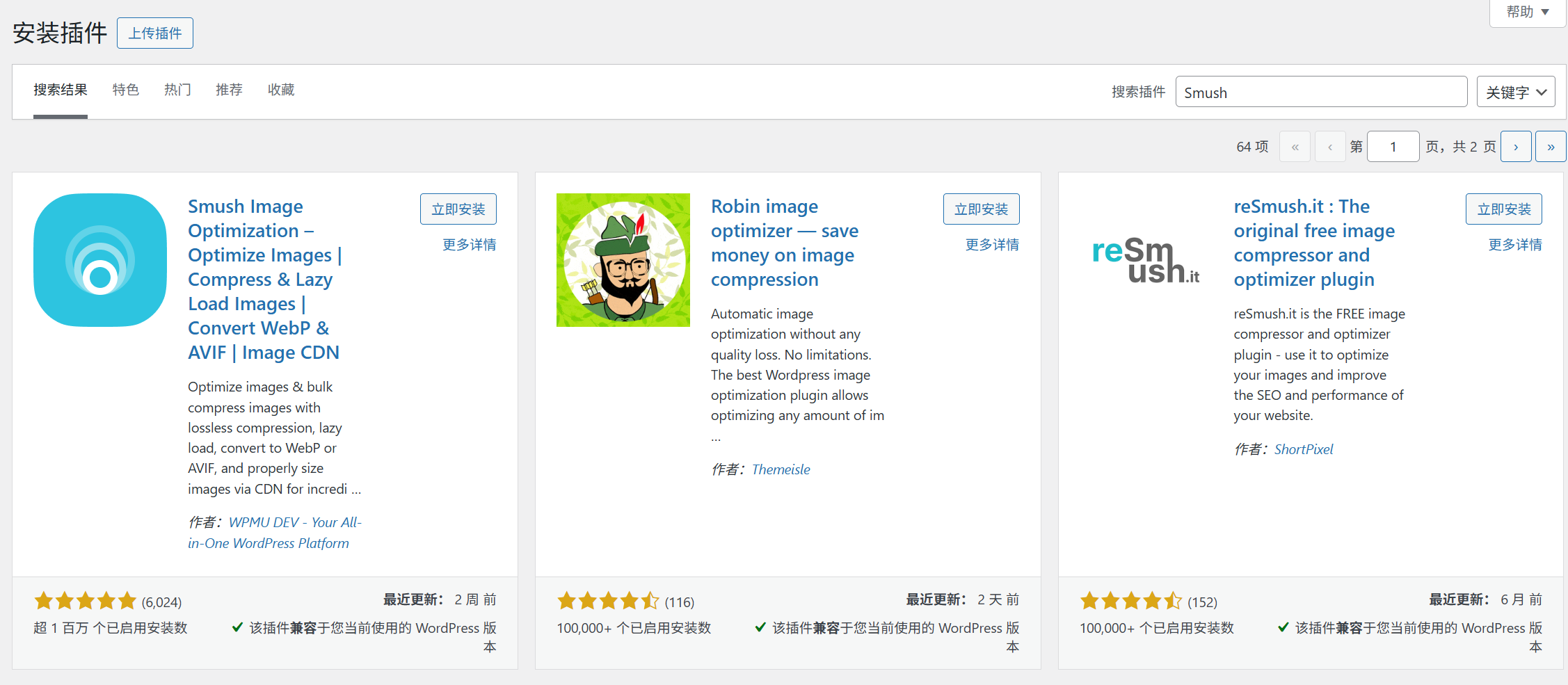
Step 1: Install and Activate Smush Plugin
- Log in to the WordPress backend and go to "Plugins → Install Plugin".
- Search for "Smush", find the plug-in labeled "Developed by WPMU DEV", and click "Install" → "Activate".
Step 2: Configure automatic compression (no manual processing required for new images)
After activation, the plugin will automatically jump to the settings page, configure it as follows:
- Enable automatic compression: In the "Settings" tab, make sure "Automatically compress newly uploaded images" is checked (it is checked by default), so that future uploads will be automatically compressed without the need to do it manually.
- Select compression mode:
- Lossless compression" (default option) is recommended for newbies: only redundant data is removed, no loss of picture quality, compression rate about 30%-50%.
- If you are looking for a higher compression rate (e.g. if the image size is still too large), you can choose "Lossy Compression": a slight loss of image quality (barely noticeable to the naked eye), with a compression rate of up to 60%-80% (need to be turned on by clicking "Advanced Settings").
- Save Settings: Click "Save Settings" at the bottom of the page.
Step 3: Batch compression of existing images (one operation, full network optimization)
If the website already has a large number of uncompressed images (such as previously uploaded article images), use the "Batch Compression" function to optimize them in one click:
- On the Smush plugin page, click the "Batch Smush" tab on the left.
- Click "Start Now" and the plugin will automatically scan all images in your media library.
- After scanning, click "Apply Smush to XX images", the system will batch compress (the process may take a few minutes, no need to wait, can run in the background).
- View compression results: When the compression is complete, "Total Space Saved" (e.g., "12MB Saved") will be displayed, and a comparison of the size of each image before and after compression will also be listed.
Method 2: Delayed loading (letting images "load on demand")
The principle of Lazy Load is:The image will only start loading when the user scrolls to the image positionThis way the first screen (the first area you see when you open the page) will be loaded first. In this way, the first screen (the first area you see when you open the page) images will be prioritized for loading, and non-first screen images (such as the following article images and footer images) will not be loaded for the time being, which significantly reduces the initial loading time.
Enable delayed loading in one click with the Smush plugin (no additional plugins needed)
Smush has a built-in delayed loading feature that eliminates the need to install a separate plugin with setup steps:
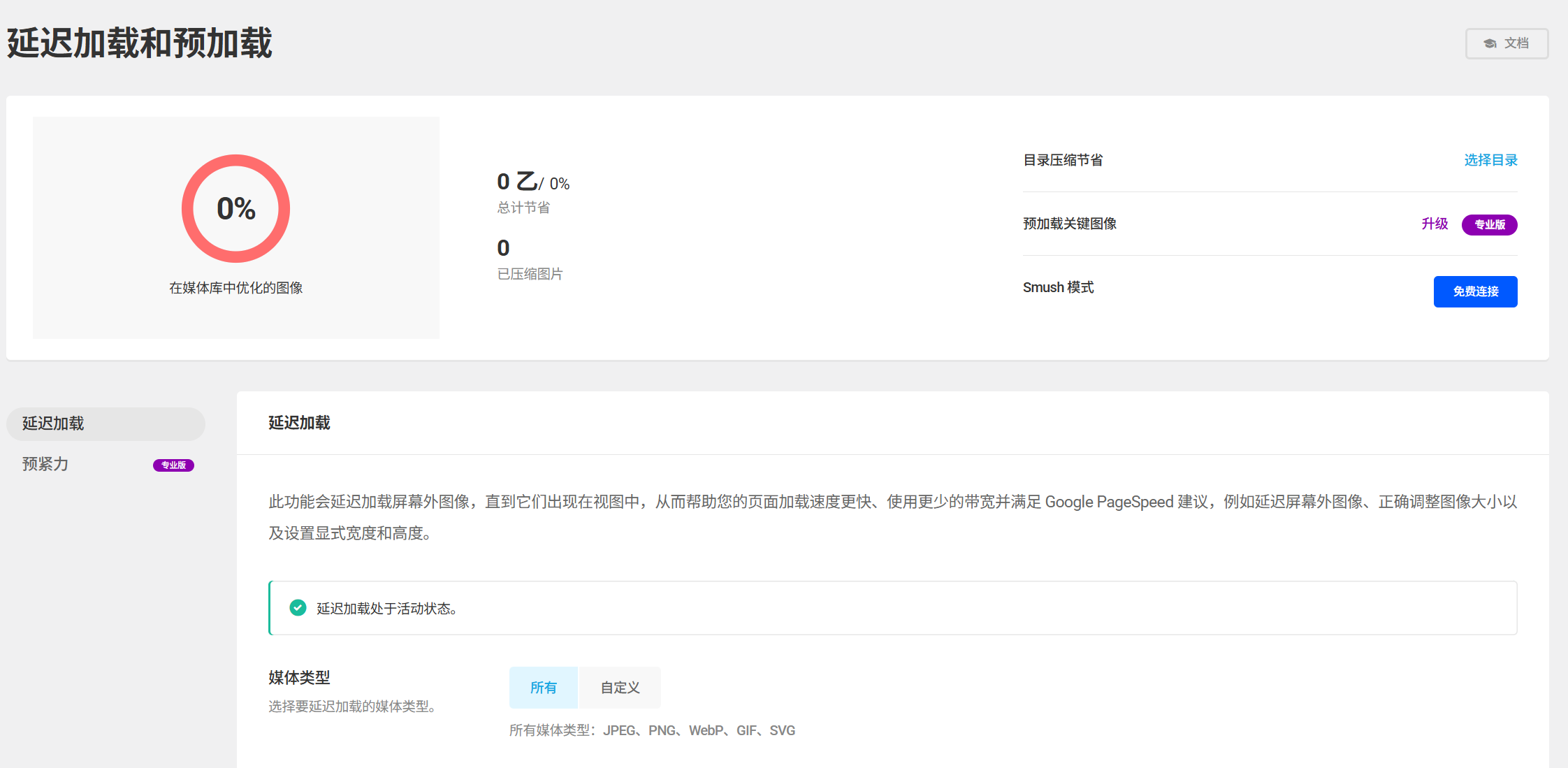
- On the Smush plugin page, click the "Delayed Loading" tab on the left.
- Check "Enable Delayed Loading" and configure it as recommended below:
- "Delayed loading image type": select all (image, avatar, thumbnail, etc.).
- "Exclude the first screen image": It is recommended to check the box (the first screen image is not delayed to ensure that users can quickly see the core content when they open the page).
- "Loading Animation": leave it as default (show a slight animation to alert users that the image is loading).
- Click "Save Settings" and the delayed loading takes effect immediately.
Verify that delayed loading is in effect
- Open any article page of the website (containing multiple images) and press F12 to open the browser "Developer Tools".
- Click on the "Web" tab to refresh the page and watch the image load:
- When initially loaded, only the first screen image will be shown in the "Network" list.
- Scroll down the page, and the loading records for these images appear in the "Network" list only when the non-first-screen images come into view, indicating that the delayed loading is in effect.
four. extra tips on picture optimization that newbies must know
1. Choose the right image format (more basic than compression)
Choosing the right format before uploading an image can reduce the size at the source:
- Photo / Complex Image: With WebP format (30%-50% smaller than JPG and with better image quality), Smush plugin can automatically convert JPG/PNG to WebP (turn on "Auto Convert to WebP" in "Advanced Settings").
- Simple Graphics / Icons: Use PNG format (supports transparent backgrounds, small size), avoid JPG.
- Never use BMP, TIFF format: These formats are huge and not suitable for web use.
2. Control the size of images (don't use "large images shrinking display")
A lot of newbies will just upload a high resolution image taken by their camera (e.g. 3000×2000 pixels) and set it to display as 300×200 pixels via WordPress - this is wrong! Because the browser will still load the original large image, wasting bandwidth and time.
proper practice:
- Before uploading, use an image tool (e.g., your computer's Paint or the online tool Canva) to crop the image size to the actual display size (e.g., 1200 pixels wide for the first banner).
- If you don't know how to use image tools, you can install the plugin "Imsanity" to automatically compress large uploaded images to a specified size (e.g. maximum width 1200 pixels).
3. Avoid misuse of images (more is not better)
- Don't use pictures for content that can be explained in words (e.g., simple step-by-step instructions).
- Multiple consecutive images can be merged into a rotating image (e.g. product display) to reduce the number of images loaded at the same time.
V. Common problem solving
1. Is the image quality significantly worse after compression?
- If you are using "Lossy Compression", you can lower the compression strength in the Smush settings ("Advanced Settings" → "Compression Strength" to 50%).
- It is recommended to prioritize "Lossless Compression" + "WebP Format" to balance the size and image quality.
2. Delayed loading leads to abnormal display of images (e.g. blank, misplaced)?
- Check that the first screen image is excluded (failure to exclude may cause the first screen image to delay loading and appear briefly blank).
- If some images must be loaded immediately, you can enter the CSS class name of the image in the "Exclude" box in Smush's "Delayed Loading" settings (simple code knowledge is required, newbies can temporarily disable delayed loading on the page where the image is located).
3. No significant speed increase after optimization?
- Retest with GTmetrix (refer to Tools for checking website speed), check the "Waterfall Chart" to confirm that the image loading time is reduced.
- If it is still slow, it may be due to other factors (e.g., slow server response, too many plug-ins), which need to be combined with subsequent optimization methods (e.g., enabling caching).
wrap-up
Image optimization is the operation with the "highest input-output ratio" in website speed optimization -- with the Smush plugin, it takes 10 minutes to set up, and then you can reduce the loading time of images over 50%. The core steps are: Install Smush → Enable auto-compression and batch compression → Enable delayed loading (exclude first screen images).
Remember, the principle of image optimization is "enough is enough": you don't have to pursue the ultimate compression rate or upload ultra-high-definition images; it's best to find a balance between image quality and speed, so that users can see the content and load it quickly at the same time.
 English