











Website security is the “bottom line” for all operators - even if the website is beautifully done, once it is hacked (e.g., by implanting viruses, tampering with content, stealing data), not only will you lose the trust of your visitors, but you may also face legal risks. For the uninitiated.Wordfence It's one of the most trusted security plugins that acts like a “website security guard”, guarding your website 24/7, and the free version is powerful enough to deal with most security threats.
Why choose Wordfence and what security problems does it solve?
Wordfence is the top security plugin with over 4 million installs in the official WordPress plugin repository, and is known as the “Swiss Army Knife of Security” because it's a one-stop solution to a newbie's biggest security headache:
- brute force solution (Brute Force Analysis): Stop hackers from repeatedly trying to log into the backend (e.g. someone using software to guess your password);
- Virus / Malicious Code Scanning: Regularly check website files for tampered code or viruses and prompt removal;
- Real-time firewall: Intercept malicious access (e.g., SQL injection attacks, cross-site scripting attacks, which are commonly used by hackers);
- Login Log Monitoring: Record who has logged in to your site and from where, and be alerted to abnormal logins;
- blacklisting feature: Block malicious IP addresses from accessing the site.
In short: installing Wordfence will help you block more than 80% of common attacks against WordPress sites.
Second, Wordfence installation and basic settings (free version enough)
Step 1: Install and activate the plugin
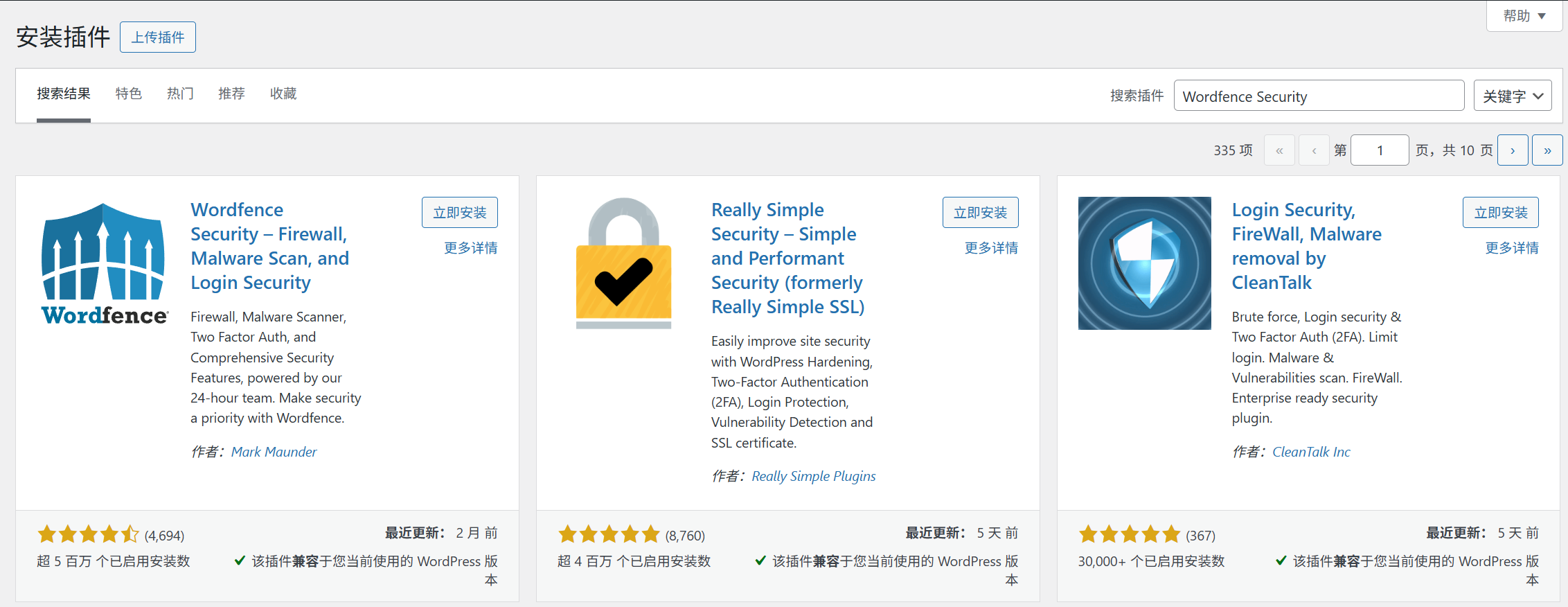
- Backend [Plugin] → [Install Plugin], search for “Wordfence Security”;
- Click [Install Now] and click [Activate] when finished.
- The first activation will bring up the welcome page, directly click “Start the Tour” (a newbie guide for a quick overview of the core features).
Step 2: 3 Must-Do Basic Setups (5 minutes)
1. Configure firewalls (core functionality, blocking malicious access)
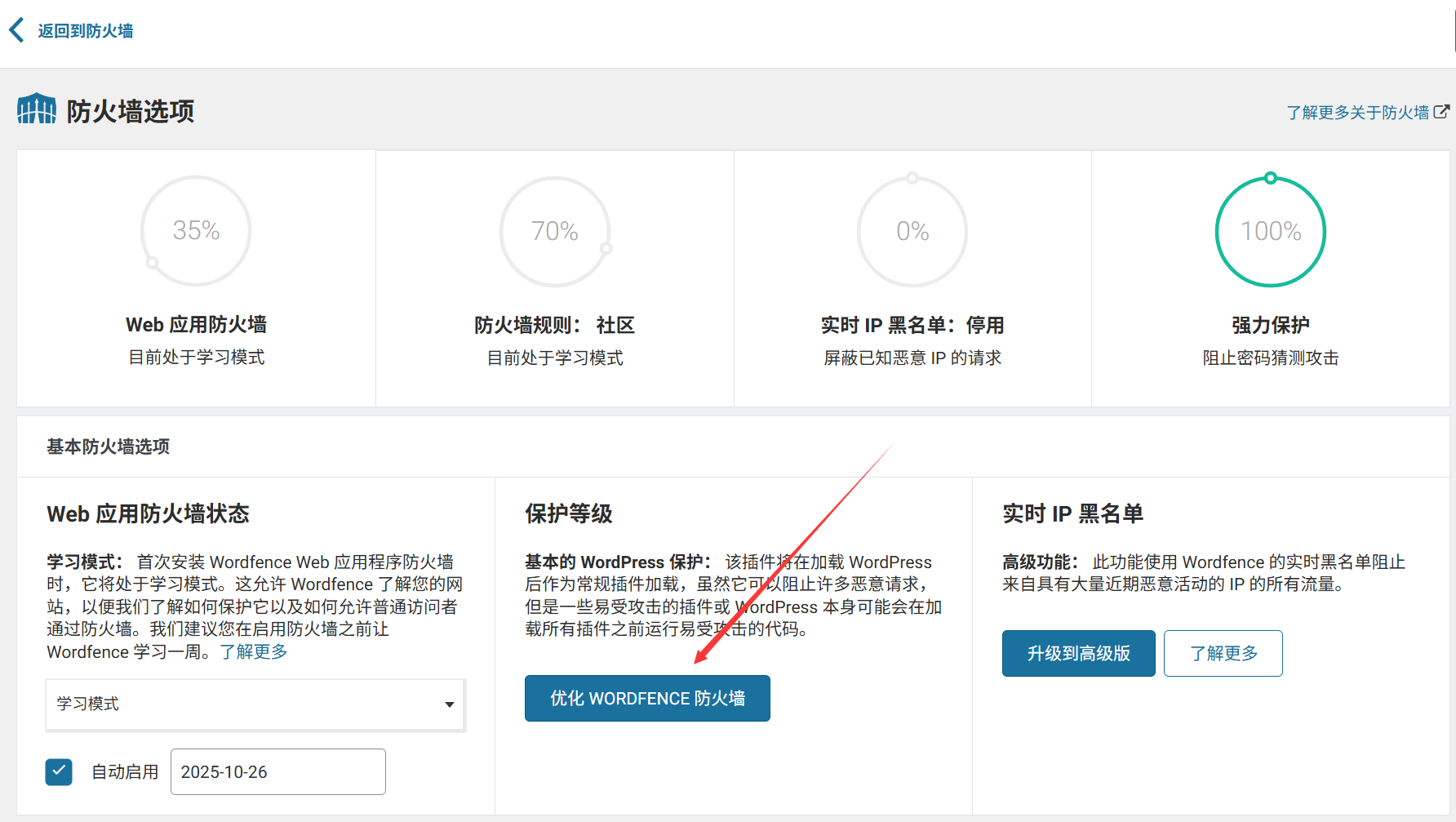
- Once activated, Wordfence will prompt “Optimize Firewall”, click “Optimize Wordfence Firewall”;
- Follow the prompts to select “Basic Wordfence Firewall Protection” (the default option in the free version) and click “Continue”;
- Wait for the auto-configuration to complete (approx. 10 seconds) and “Firewall Optimized” will be displayed.
Function: This step will allow the firewall to operate in the most efficient manner, blocking most attack requests.
2. Setting up login security (preventing passwords from being cracked)
- Find [Wordfence] → [Login Security] in the left menu;
- Enable “Force strong passwords”: check “Require strong passwords for all new users” (to avoid setting weak passwords like “123456” for yourself or other users);
- Enable “Login Attempts Limit”: the default setting is “Lock out for 15 minutes after 10 failed attempts”, no need to change it for newbies (to prevent hackers from brute-force password guessing);
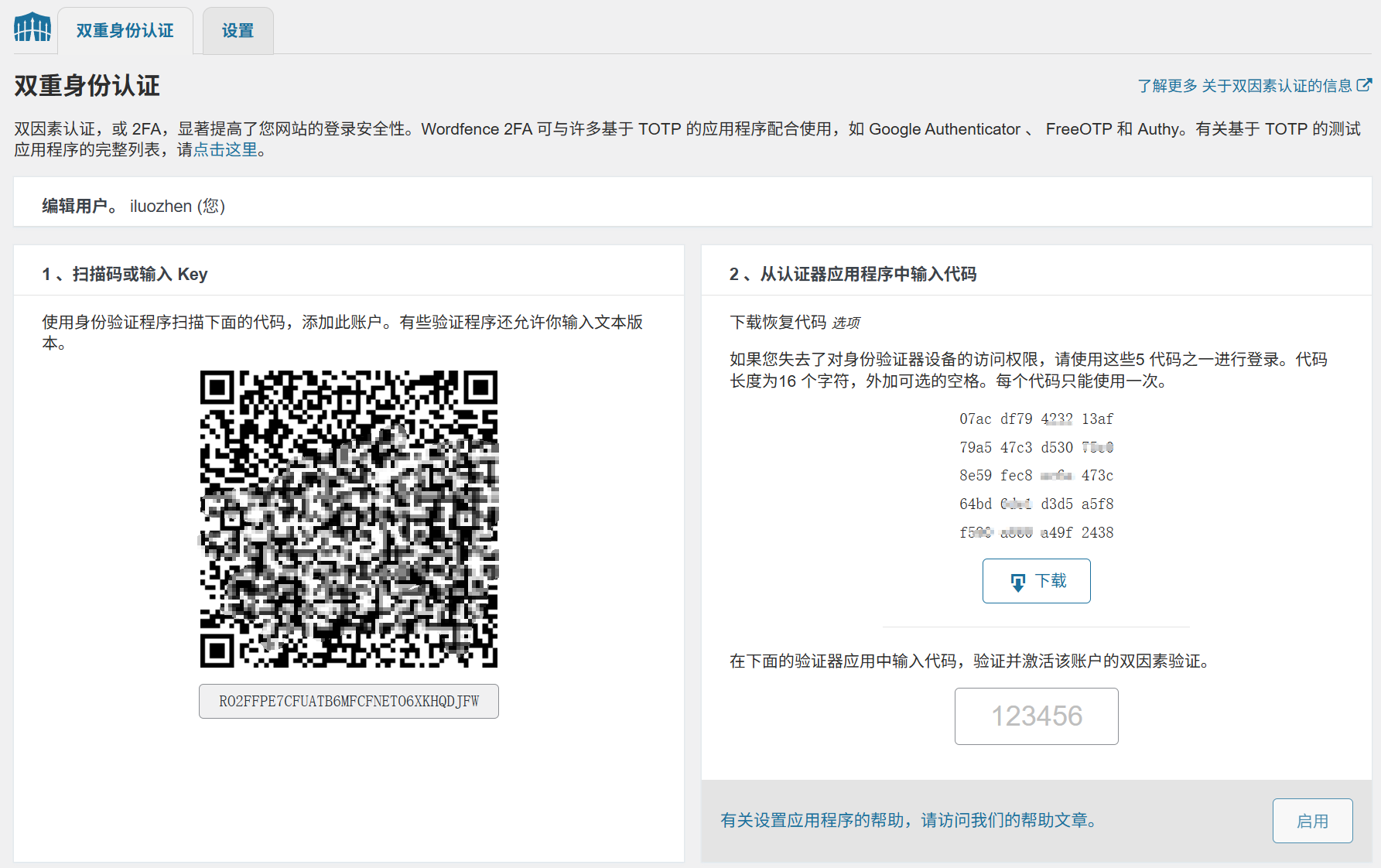
- Recommended to enable “two-factor authentication” (optional but highly recommended): click “Set two-factor authentication”, follow the prompts to bind the cell phone or authentication App (e.g. Google Authenticator), in addition to the password when logging in, you also need to enter the Dynamic authentication code, double the security.
3. Run a first virus scan (to check if the site is infected)
- Left menu [Wordfence] → [Scan], click “Start New Scan”;
- The first scan may take 5-10 minutes (depending on how many files are on the site), and you can continue to work on other functions while the scan is taking place;
- After the scan is completed, if it shows “No Problems Found”, it means that the website is currently safe; if “Threats” are found, click “Repair” as prompted (the free version supports repairing most of the (The free version supports fixing most of the common problems).
suggestion: Set up automatic scanning (default scanning once a day), no need to operate manually, and will automatically send email reminders when problems are found.
Third, the free version vs paid version: newbie choose which?
Wordfence is available in a free version and a paid version (Wordfence Premium) for newbies:
- free version: Enough to cope with the security needs of 90% (including firewall, virus scanning, login protection, and basic logging), which is fully capable of meeting the security needs of personal blogs and small business sites.
- paid version: About $99 per year, with more advanced features such as “real-time threat intelligence” (detects new viruses earlier than the free version) and “country IP blocking” (e.g., banning IP access from a certain region) for e-commerce sites, commercial sites with high traffic.
Beginner's Conclusion: Install the free version first, do a good job of basic protection; if the site has a later trading function or a large amount of traffic, then consider upgrading the paid version.
IV. Frequently Asked Questions for Novice Users
- What if the scan prompts “Repairable issues found” and I'm afraid to click Fix?Don't worry! Wordfence will automatically back up the files before repair, if there is a problem with the site after repair, you can restore the original files in [Wordfence] → [Tools] → [Backup].
- Need to be nervous about getting an email that says “someone is trying to log into your site”?No need to panic! This is a normal reminder from Wordfence (indicating that the firewall is working). If the email shows “Attempt blocked”, it means the attack has been blocked; if you receive reminders from the same IP several times, you can manually blackout the IP in [Wordfence] → [Firewall] → [Block IP].
- Site slowed down after installation?It may be that the server resources are occupied during scanning, and it will return to normal after the scanning is finished. If it has been slow, you can adjust the “Scanning Sensitivity” down (reduce the scanning frequency and depth) in [Wordfence] → [Tools] → [Performance Optimization].
- I forgot my backend password, will Wordfence prevent me from retrieving it?It will not. When you reset your password through the “Forgot Password” feature, Wordfence recognizes it as a normal operation and does not intercept it (but records it in the login log).
To summarize: the core of the security plugin is “preventing ahead”
Many newbies think “no one is looking at my site, it won't be attacked”, but in reality, hacking relies heavily on automated bot scans, and any WordPress site can be a target.
The value of Wordfence is not in “fixing problems after they happen”, but in “blocking them in advance”. Spending 10 minutes to install and set up the basics will save you the trouble of having your site hacked in the future (recovering a hacked site can take days or even weeks). Remember: website security is like locks on doors in reality, you don't necessarily use them every day when they're installed, but you certainly don't have peace of mind when they're not installed.
 English