


















When a website has been operating for a while, the media library will accumulate a large number of images, videos, documents and other files. If you don't do a good job of categorizing and managing them, finding files is like rummaging through a cluttered drawer, which wastes time and affects efficiency. This section will teach you how to categorize your media library files and how to quickly find the files you need, so you can easily manage even thousands of files.
I. Default filtering of the media library: fast positioning without plug-ins
WordPress comes with a basic filtering feature for scenarios with a small number of files (e.g. less than 100), which can be used without a plugin:
1. Filter by file type (picture / video / audio / document)
By default, there are “All”, “Pictures”, “Videos”, “Audio”, “Documents” tabs at the top of the media library. "Documents" tab, click the corresponding type to display only that type of files.
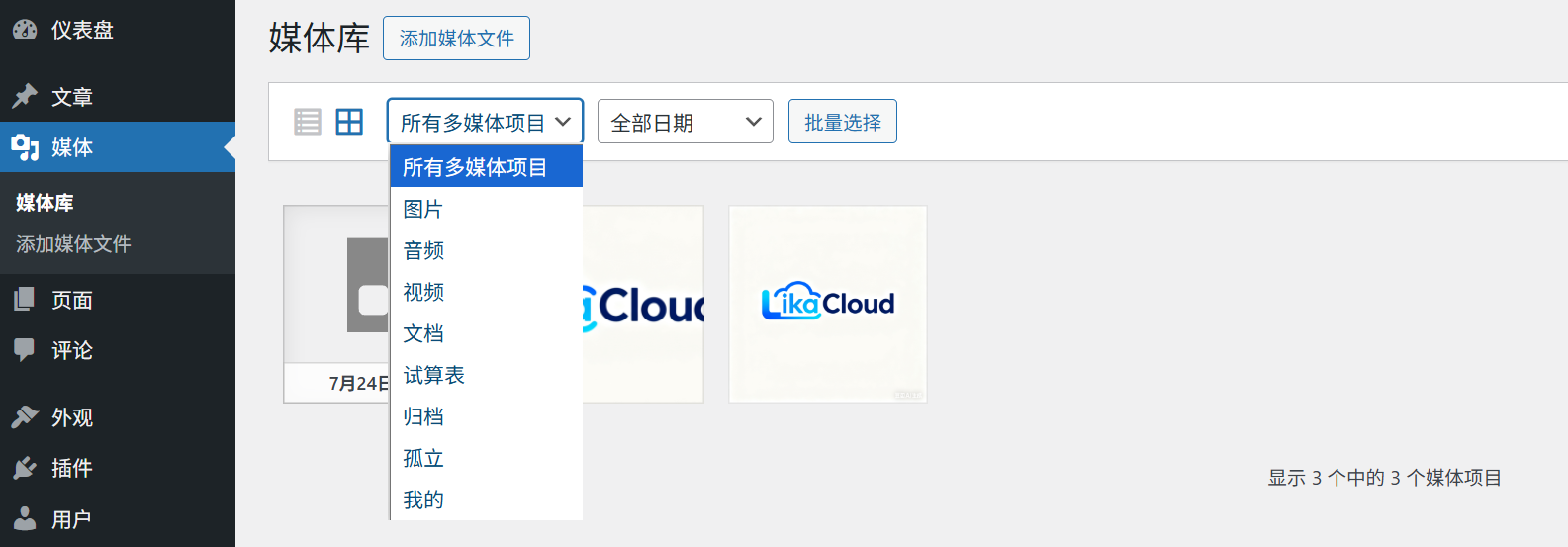
- Example: If you want to find the previously uploaded PDF manual, click “Documents” and all PDF, DOC, etc. documents will be listed separately.
2. Filtering by date
The right sidebar has a “Date” filter, which allows you to filter files by “Year” and “Month” (WordPress automatically groups files by the time they were uploaded).
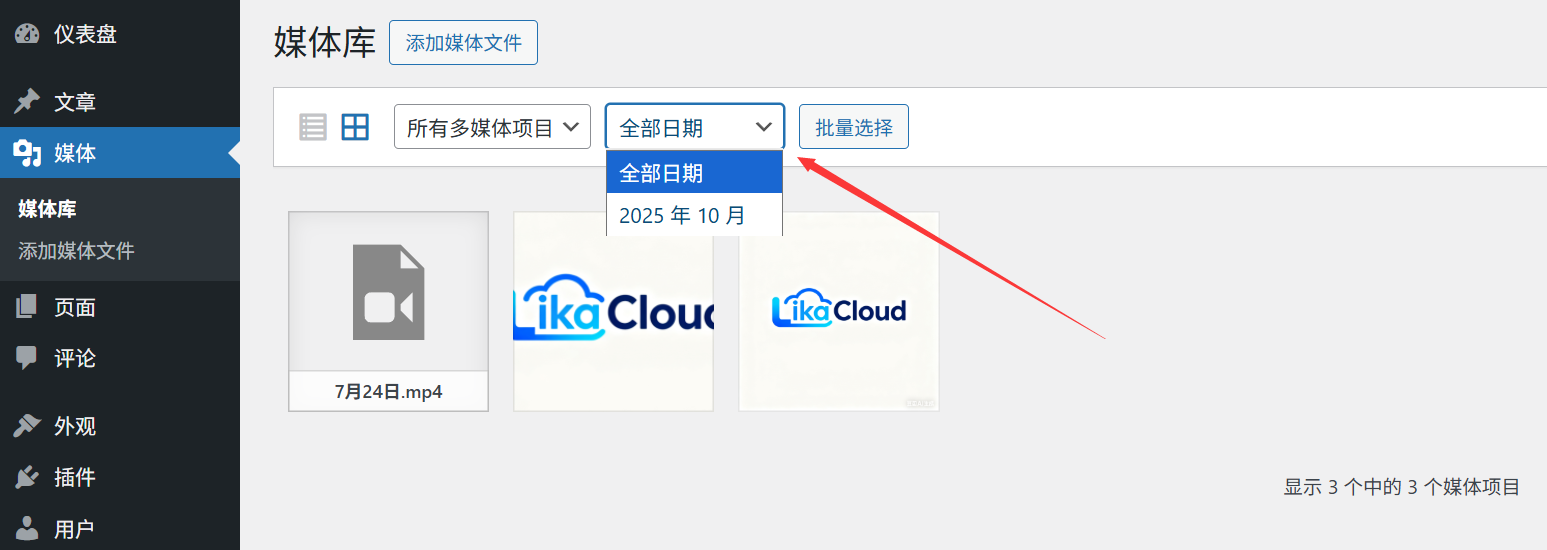
- Example: If you want to find product images uploaded in October 2025, select “2025” → “October” in the Date Filter to display files from that time period.
3. Keyword search
The top search box allows you to search for files by “filename” or “alt tag content”:
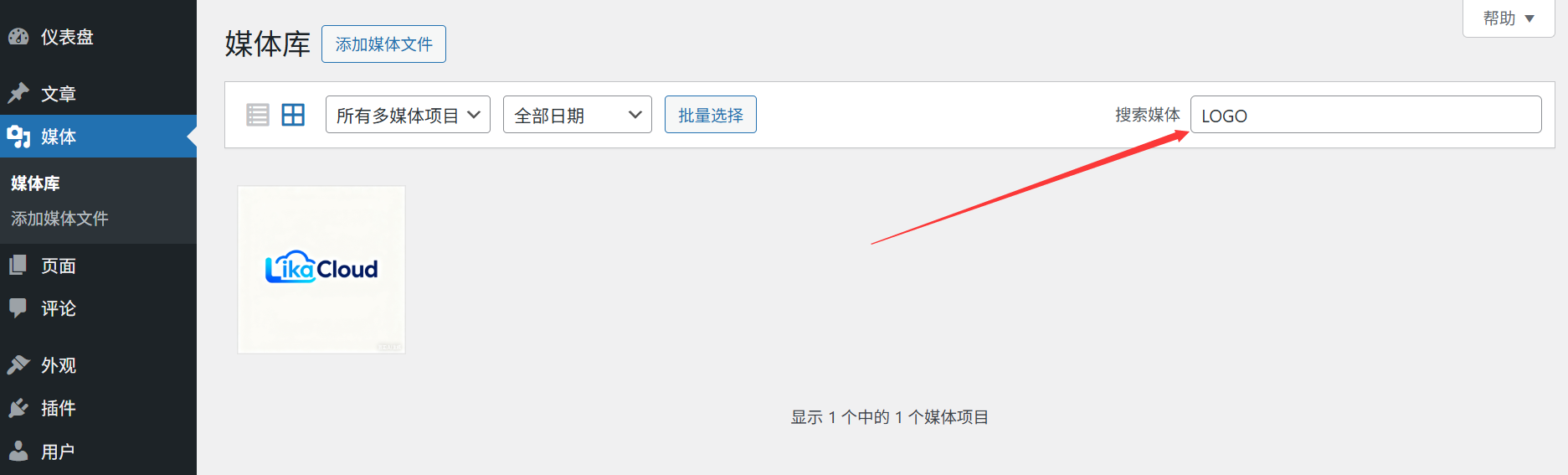
- Search for the file name: If you named the image “service-cover.jpg” before, type “service” to find it;
- Search alt tag: If the alt tag of the image says “company front desk photo”, input “front desk” can also be searched (provided that the alt tag has been added).
II. Categorization of the media library: refinement with “annex categories” and “tags”
When there are more than 100 files, the default filtering is not enough (for example, you want to separate the “Product Diagram”, “Team Diagram” and “Activity Diagram”). This time you need to add “classification” and “label” to the file, similar to the logic of adding classification labels to the article.
1. How do I enable the media library categorization feature? (plugin required, super easy)
WordPress does not open the categorization feature for media files by default, it needs to be unlocked with a plugin:
Recommended plug-ins “Media Library Categories”(free), the steps are as follows:
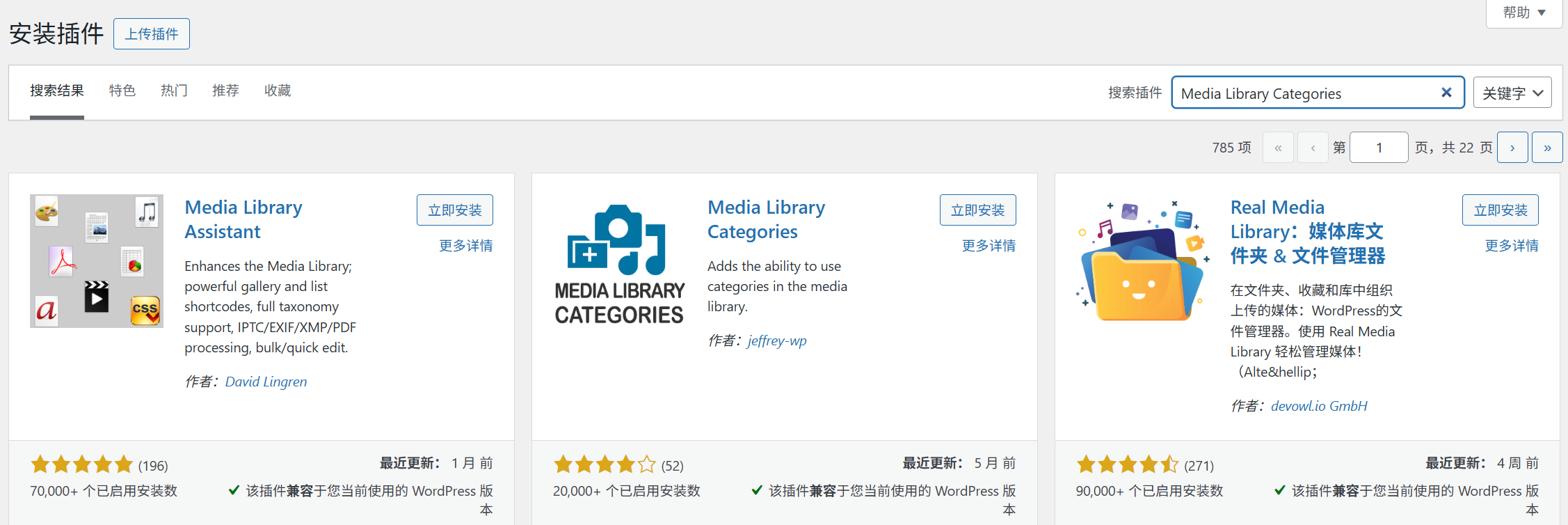
- Backend [Plug-in] → [Install Plug-in] → Search for “Media Library Categories” → Install and activate;
- After activation, go to [Media] → [Library], the right sidebar will have “Attachment Categories” and “Attachment Tags” options (exactly the same as the usage of category tags for articles).
2. How do I add categories and tags to my documents?
Method 1: Direct categorization during upload (recommended)
After uploading the file, in the pop-up setting window, on the right side, “Attachment Category” can check the existing category (or new category), “Attachment Label” can input the key words (e.g. “Product Diagram”), insert the file after completion. “2025 New Products”), insert the file after completion.
Method 2: Batch categorize existing documents
- Go to [Media] → [Library] and switch to “List View” (top right icon);
- Check the multiple files that need to be categorized and click “Batch Operation” at the top → Select “Edit” → Click “Apply”;
- In the batch edit window, check “Attachment Category” or fill in “Attachment Label” and click “Update” to categorize multiple files at once.
3. Categorization skills: how to plan for better categorization?
It is not better to have more categories, we suggest to categorize them by “usage scenarios” or “content topics”, for example:
- Commonly used categories for enterprise websites:
- Product diagrams (lower molecule classification: product front, product details, usage scenarios)
- Team Chart (Lower Molecular Classification: Employee Headshots, Team Activities)
- Promotional graphics (lower molecule categories: Banner graphics, posters, logos)
- Documentation (Lower Molecular Classification: Contract Templates, Product Manuals, Quotations)
- Common Categories for Personal Blogs:
- Article illustrations (by article topic: travel, food, technology)
- Header image (cover image dedicated to the top of the article)
- Emojis / Decorative images (images used to add interest within a post)
Third, advanced search skills: quickly locate the “hidden deep” documents
When the number of files is extremely large (e.g. thousands), a combination of the following techniques can dramatically improve the efficiency of finding files:
1. Combined filter: type + category + date
For example, if you want to find “Images uploaded in September 2025 that belong to the ‘Product Images” category", the procedure:
- Click on “Picture” (filter type) at the top;
- Right side “Attachment Category” Check “Product Diagram” (Filter Category);
- Right “Date” Select “September 2025” (filter date); triple filtering will result in very accurate results.
2. Searching by filename pattern
By uploading files with standardized naming conventions (see Section 17.1), you will get twice the results when searching:
- Example: All product images named “product-001.jpg” “product-002.jpg”, search for “product” that can be list all product images;
- Example: all event graphs contain dates, e.g. “event-202510.jpg”, search for “202510” to find the October event graph.
3. Extend your search with plug-ins
If you need to search by “file size” and “dimensions” (e.g., to find Banner images with a width greater than 1920px), you can install the plugin “Media Library Assistant”It supports more detailed filtering by file size, dimensions, format and other conditions.
IV. Frequently Asked Questions for Newcomers
- Do I have to use a plugin to categorize? Is there an alternative method?Yes, Media Library Categories requires a plugin (not supported by WordPress core). Beginners recommend “Media Library Categories”, simple operation, and post classification logic consistent, easy to get started.
- What's the difference between categorization and labeling? How do they make more sense to use?
- Categorization: There is a hierarchical relationship (e.g., “product diagram” contains “product details”) that lends itself to “broad category” delineation;
- Tags: no hierarchy, is a level keywords (such as “red” “promotion”), suitable for additional details of the description. Example: a “red dress promotional chart”, classification selection “Product Chart ¡ú Clothing”, label fill “red” “promotional ”.
- Does deleting a category affect the file?No. When you delete a category, the file itself is not deleted, it just no longer belongs to that category (similar to deleting an article category, the article does not disappear).
- What if my media library is too messy and I want to reorganize it?It is recommended to filter by “type” (image / video / document), and then add categories in bulk (using the batch operation of the list view), organize a part of it every day, and gradually standardize it.
Categorizing and searching your media library not only saves time when looking for files, but also makes teamwork smoother (e.g., if a colleague is looking for a certain type of image, they can find it by category). Remember: 10 minutes spent categorizing your media library up front will save you countless hours of searching later, and it's well worth it!
 English