


















After image optimization, the website speed will be significantly improved, but two key operations are still needed to achieve the 'open in seconds' effect:Enable CacheandDisable unnecessary plug-ins. Caching allows the site to "remember" what has been loaded, avoiding double-counting; while redundant plug-ins act like a background program that constantly consumes power, quietly slowing down the server's responsiveness. This section will complete these two optimizations in the simplest way possible, with full visualization for newbies and no code knowledge required.
First, why these two optimizations can speed up? Core principle
1. Caching: allowing websites to "remember" content and avoiding duplication of effort
- concern: Every time a user visits the site, WordPress has to read posts from the database, call the theme code, load plugin functions, this process requires real-time server calculations, which takes a long time (especially when the number of visits is high).
- The role of caching: Save the calculated page content (such as home page, article page) as a static file, and when the user visits again, the server returns the static file directly, skipping the complex calculation, and the loading time can be shortened 50%-80%.
- figurative metaphor: It's like when a restaurant makes a semi-finished product ahead of time and heats it right up when the customer orders it, much faster than making it on the spot.
2. Disable unnecessary plug-ins: Reducing the "burden" on the server
- concern: Every plugin runs code in the background (e.g. real-time detection, loading styles), and even if you're not actively using them, they're taking up server resources (memory, CPU) and causing slower responses.
- data reference: A site with 5 required plug-ins is on average more than 30% faster than a site with 20 plug-ins, and the more plug-ins, the higher the probability of conflicts (which can lead to abnormal functionality).
Operation 1: Enable caching (with the WP Rocket plugin, preferred by novices)
There are a number of caching plugins thatWP Rocket It is the one with the easiest operation and the most obvious effect (although it is a paid plugin, newbies can experience the free features first, or replace it with similar free plugins, such as WP Super Cache). The following is an example of WP Rocket, explaining the core settings:
Step 1: Install and activate the caching plugin
- Log in to the WordPress backend and go to "Plugins → Install Plugin".
- If using WP Rocket: After purchasing from the official website, install it through the "Upload Plugin" function (you need to download the plugin zip first).
- If you use a free alternative plugin (e.g. WP Super Cache): just search for the plugin name and click "Install → Activate".
Step 2: Enable Basic Caching (key setting)
Using WP Super Cache as an example, enabling caching is a 3-step process:
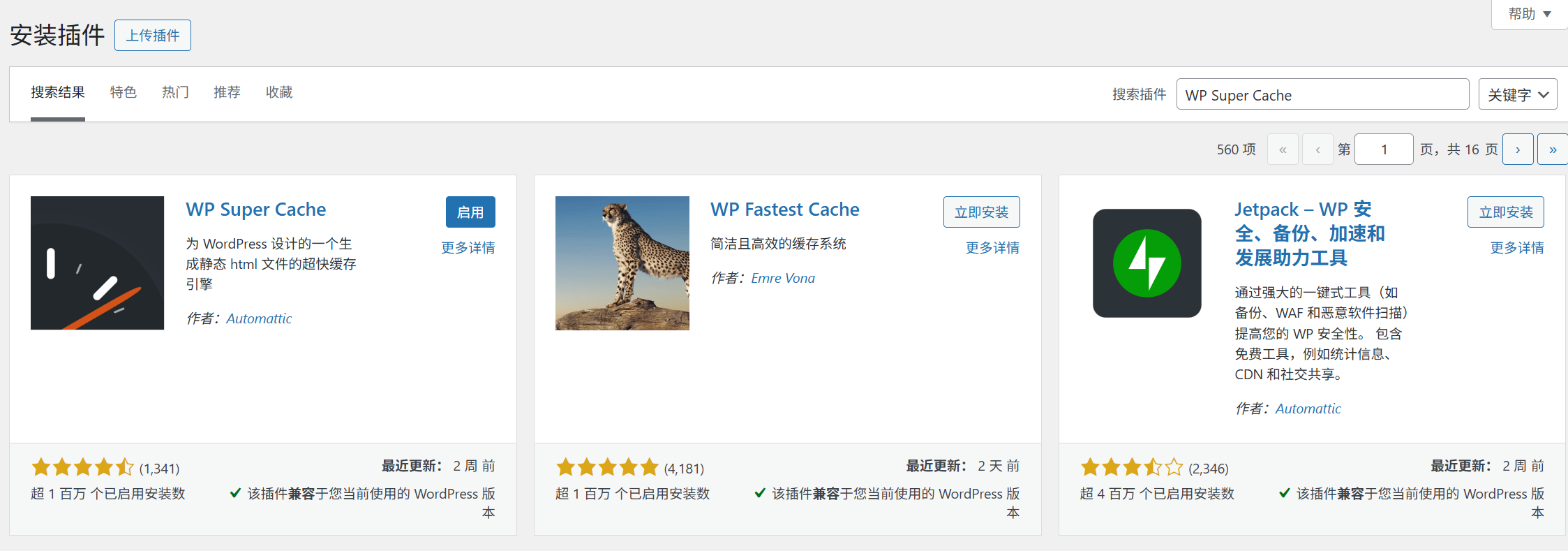
- After activation, go to "Settings → WP Super Cache" page.
- In the "Cache On" option, select "Enable Cache" and click "Update Status".
- Switch to the Advanced tab and check the following core options (others remain default):
- "Cache Mode": Select "Simple" (suitable for newbies, no need for complicated configuration). "Expiration time": set to "3600 seconds (1 hour)" (update the cache every hour to balance the freshness and speed). "Compress page": check (compress HTML code to reduce transmission size).
- Click "Update Configuration" and the cache takes effect immediately.
Step 3: Verify that the cache is in effect
- Open the home page of the website and press
Ctrl+F5Force a page refresh (clear local cache). - Right-click on the blank space of the page and select "View Page Source", if you can see a comment like "Cached by WP Super Cache" at the bottom of the code, it means that the cache is working properly.
Advanced Tip: Automatically Clear Expired Cache
The cache saves a snapshot of the page, but after publishing a new post or modifying content, the cache needs to be updated to show the latest content. The plugin handles this automatically:
- Automatically clears the cache of the home page and related category pages when posting a new article.
- If a page has been manually modified (e.g. updating the "About Us" page), you can click the "Delete Cache" button in the plugin settings to force a refresh of all caches.
III. Operation 2: Close and remove unnecessary plug-ins (3-step streamlining method)
Many newbies will blindly install plug-ins (e.g., installing "recommended plug-ins" when they see them), but the 80%'s features are not really useful. Streamline the plug-ins by following the steps below to speed up and minimize conflicts:
Step 1: List all installed plug-ins
Go to the "Plug-ins→Installed Plug-ins" page to view all plug-ins and sort them by "Enabled" status (first process the plug-ins that are being enabled).
Step 2: Determine whether the plug-in is "necessary" (a criterion for novices)
Ask yourself 3 questions, and if one of the answers is "no", consider deactivating:
- Is it used daily / weekly?(e.g. "Yoast SEO" is necessary for writing articles every day; "Holiday Decorating Plugin" is only for specific holidays and is non-essential).
- Are there alternative functions?(If the functions of "Image Compression Plugin" and "Smush" are duplicated, just keep one).
- Does the deactivation affect the core functionality of the site?(e.g. "Contact Form 7" is used for contact form, after deactivation, the form will be invalidated, which is necessary; after deactivation, only data will not be seen, which does not affect the core function, which is non-essential).
Common types of removable plug-ins:
- Duplicate functionality plugins (e.g. multiple SEO plugins, multiple caching plugins).
- Plug-ins for temporary use (e.g. "Database Cleanup Plug-in" can be deleted after cleaning and does not need to be enabled for a long period of time).
- Plug-ins that have a single function and can be replaced by code (e.g., the "Disable Right-Click Copy Plug-in" can be realized with a single line of code).
Step 3: Securely deactivate and remove the plug-in
- Discontinue use and observe for 1-2 days: Find non-essential plug-ins, click "Deactivate" (do not delete them directly), visit the website during this period, and make sure that there are no functional anomalies (e.g., misplaced pages, invalid forms).
- Delete after confirming that there are no errors: If the site is normal after deactivation, click "Delete" (deletion removes the plug-in file completely and frees up server space).
- Retention of "standby plug-ins: For plug-ins that may be used occasionally (e.g. "Database Backup Plug-in"), they can be deactivated but not deleted, and then enabled when needed (faster than reinstalling).
Fourth, the novice common problems and optimization recommendations
1. After enabling caching, the site shows old content (not updated)?
- Cause: The cache is not automatically updated (e.g. the cleanup mechanism is not triggered after modifying a page).
- Solution: Click the "Delete Cache" button in the Cache plugin (WP Super Cache in "Settings→WP Super Cache→Delete Cache"), and refresh the cache manually.
2. Unsure if the plug-in is necessary and afraid to remove it?
- Use the "Function List Method": List the core functions of your website (e.g. "write articles, user comments, contact form") in a notepad, and keep only the plug-ins that realize these functions, and deactivate all the others.
- Refer to "Minimum Plugin Combination": the number of plug-ins recommended for newbie websites should be controlled at 5-8 (e.g. security plug-ins + caching plug-ins + SEO plug-ins + image optimization plug-ins + form plug-ins, which are enough to meet the basic needs).
3. Want to verify the speed improvement after optimization?
- Tested with GTmetrix (reference) Tools for checking website speed), comparing the "Load Time" and "Performance Score" scores before and after the optimization, usually improves 20-40 points.
- Focus on "Server Response Time" (TTFB): if it is more than 1 second before optimization, it should be reduced to less than 500 milliseconds after enabling caching.
wrap-up
Enabling caching and streamlining plugins are "zero-cost, high-return" speed optimizations -- caching allows servers to reduce double-counting, streamlining plugins reduces the burden on servers, and the combination of the two can kick a site's responsiveness up a notch.
Remember the core principles: caching plug-ins "can take effect by default settings after installation", no need to over-configure; the number of plug-ins "the fewer the better", only to retain the core functions. After completing these two steps, your website not only loads faster, but also reduces failures caused by plug-in conflicts, laying the foundation for long-term stable operation. So far, the core methods of website speed optimization have been fully covered, and the follow-up only requires regular maintenance.
 English