











After installing the theme, the next step is to customize the theme settings according to your branding and preferences.WordPress provides intuitive visual customization tools that allow you to change the look and layout of your website without any knowledge of code. This section will detail how to change the logo, adjust the color scheme, set fonts and typography, and modify the layout of your site to help you create a unique web presence.
I. Enter the theme customization interface
WordPress theme customization is centralized in the Customizer, an intuitive visual tool that lets you preview changes in real time.
Step 1: Accessing the Customizer
- Login to WordPress Backend(Address:
域名/wp-admin)。 - There are two ways to access the customizer:
- Method 1: Click on the left menu item "、" to select "、" or "、".exterior condition"-"customizable」。Method II: On any page of the frontend of the website, click on the "¡§Contact Us¡¨ button in the top management bar.customizable" button.
- Once you enter the customizer, you will see an interface divided into two columns:
- left side: A customization options panel containing various adjustable settings.right side: A live preview window showing the effect of the changes.
Step 2: Understanding Basic Customizer Operation
In the customizer, you can:
- Click on the options in the left panel to set them.
- See the effect of the changes in real time in the preview window on the right.
- Use the device switch buttons at the top (computer, tablet, phone) to preview the display on different devices.
- Click on the "¡ÓSave and Publish" button to save the changes.
- Click on the "¡Óabolish"button to discard the changes and exit.
- Click on the "¡ÓSaving draftsThe "button" saves the current settings but does not apply them immediately.
II. Changing the site identity: Logo and site icon
The website identity includes the logo and the site icon (favicon), which are important elements of the brand identity.
1. Uploading and setting up the logo
Logo is the visual identity of a website and is usually displayed at the top of the website.
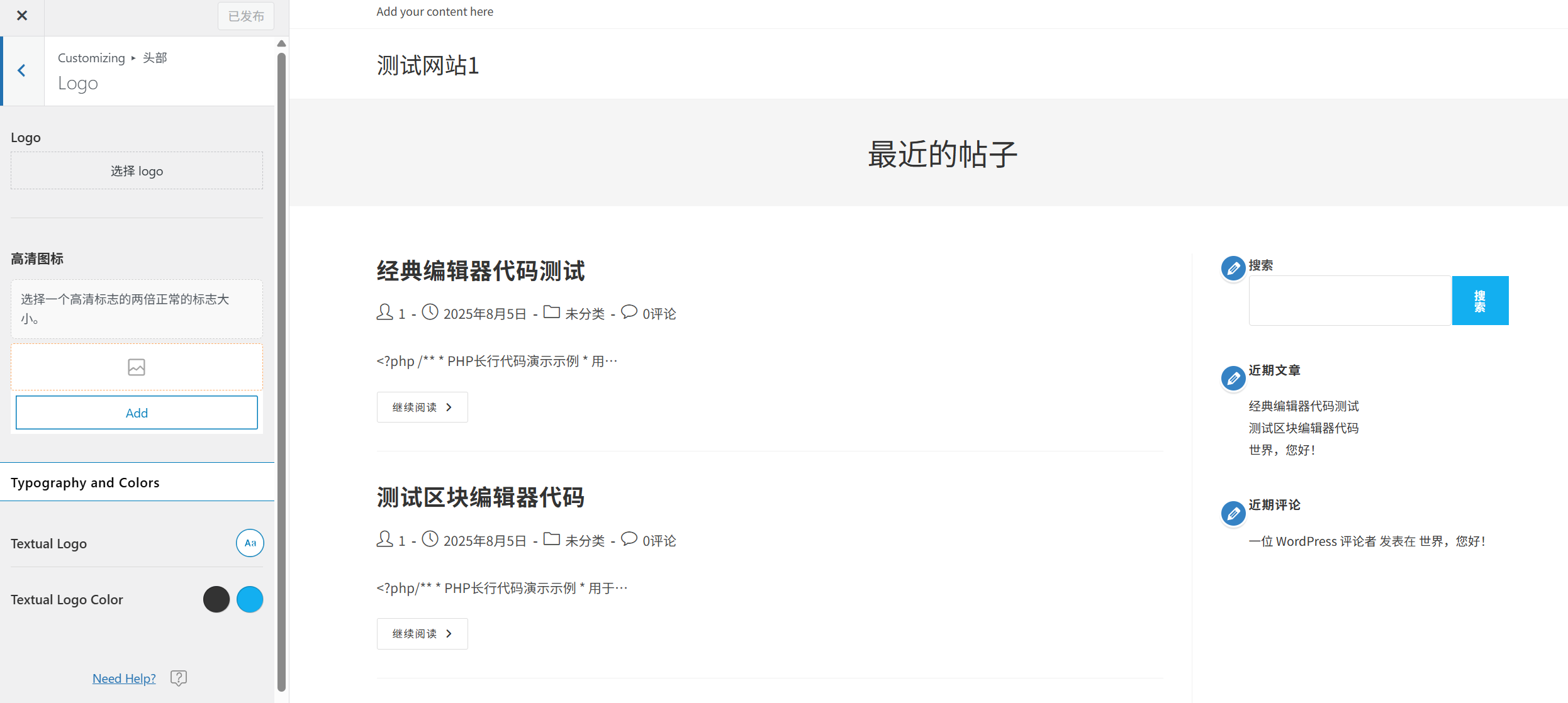
Setup Steps:
- In the left panel of the customizer, locate and click on the "site identification" or "logo" option (names may vary from topic to topic).
- Click on the "¡ÓSelect File" or "Upload Logo" button.
- In the Media Library pop-up window, you can:
- Upload a new logo image (recommended PNG format with transparent background).
- Select an existing image for the logo.
- After uploading, you can adjust the size and position of the logo (supported by some themes).
- Click on the "¡ÓSave and Publish" button to save the settings.
Logo Design Recommendations:
- Use a PNG format with a transparent background to ensure that it displays well on different background colors.
- Logo size recommendation: between 200-400 pixels in width and no more than 100 pixels in height.
- Keeping it simple ensures that it is clearly recognizable even on small-sized devices.
2. Setting the site icon (Favicon)
Site icons are small icons displayed on browser tabs, bookmark bars, and mobile device home screens that help with brand recognition.
Setup Steps:
- In the "site identification" Settings page, locate the "Site icon" or "Favicon"Options.
- Click on the "¡ÓSelect File" or "Upload site icon" button.
- Upload a square image of at least 512x512 pixels (PNG format recommended).
- WordPress automatically generates icons of different sizes for different scenarios.
- Click on the "¡ÓSave and Publish" button to save the settings.
Site Icon Design Recommendations:
- Use simple, recognizable graphics or text.
- Ensure clear recognition even at small sizes (e.g. 16x16 pixels).
- Keep your brand consistent by styling with the logo.
III. Custom color schemes
Color is an important part of website design, and the right color scheme can enhance the user experience and strengthen the brand image.
1. Selection of preset color schemes
Many themes offer preset color schemes so you can quickly apply a professional color scheme:
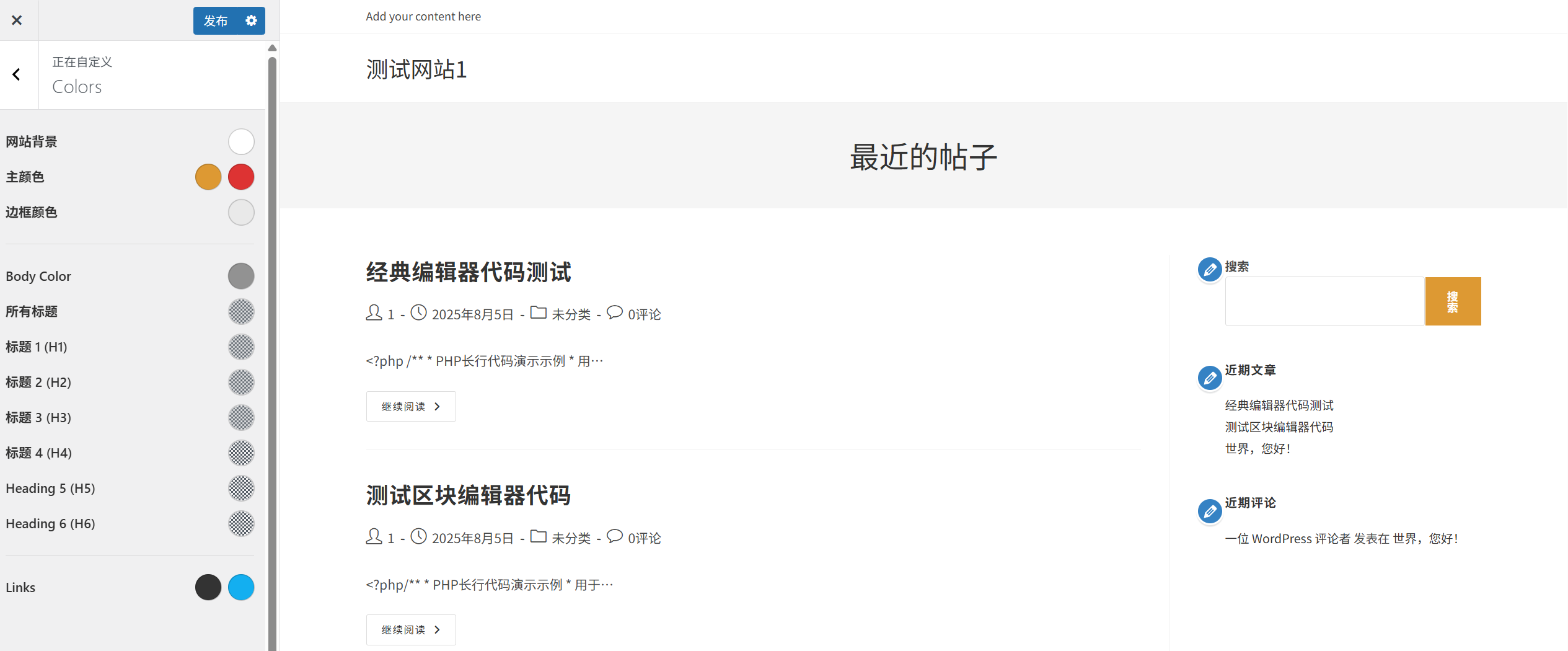
- In the left panel of the customizer, locate and click on the "color" or "color scheme"Options.
- Browse the available preset color schemes and click to select the one you like.
- The preview window on the right shows the effect in real time.
- Click on the "Click" button when you are satisfied.Save and Publish" button.
2. Customized colors
You can customize the colors of various elements if the preset scheme doesn't fit the needs:
- In the "color" Settings page, locate the "Custom colors" or similar option.
- Click the color picker next to the element you want to change (e.g., background, text, link, button, etc.).
- In the color selector that pops up, you can:
- Select a color by clicking directly on the color panel.
- Enter the hexadecimal code for the color (e.g. #FF5733).
- Adjusts the brightness, saturation, and transparency of the color.
- Repeat steps 2-3 to set the colors of the other elements.
- Click on the "¡ÓSave and Publish" button to save the settings.
Color Matching Suggestions:
- predominant: The main color representing the brand, used for logos, buttons and other important elements.
- secondary color: Used to emphasize and highlight, contrasting with the dominant color.
- neutral color: Includes background color, text color and border color to ensure readability.
- color psychology: Different colors convey different emotions (e.g., blue for trust, red for passion).
- contrast (balance of black and white in TV screen setup): Ensure that there is sufficient contrast between text and background to improve readability.
IV. Setting fonts and typography
Fonts and typography directly affect the readability and professional feel of a website, and reasonable font settings can enhance the user experience.
1. Selecting a preset font scheme
Many themes offer preset font schemes so you can quickly apply professional typography:
- In the left panel of the customizer, locate and click on the "typographical" or "calligraphic style"Options.
- Browse the available preset font schemes and click to select your favorite.
- The preview window on the right shows the effect in real time.
- Click on the "Click" button when you are satisfied.Save and Publish" button.
2. Customized fonts
You can customize the fonts of various text elements if the preset scheme doesn't meet your needs:
- In the "typographical" Settings page, locate the "Custom Fonts" or similar option.
- Select the text element you want to change (e.g., title, body, button text, etc.).
- For each element, this can be set:
- font family: Select the font style (e.g. Arial, Helvetica, Times New Roman, etc.).
- font size: Resize the text (usually in pixels px).
- thickness of font: Set the thickness of the text (e.g. normal, bold, fine, etc.).
- Row height: Adjusting line spacing affects readability.
- word spacing: Adjusts the distance between characters.
- Repeat steps 2-3 to set the fonts for the other text elements.
- Click on the "¡ÓSave and Publish" button to save the settings.
Font Selection Suggestions:
- Font Pairing: Usually choose 2-3 fonts (e.g., one for headings and one for body text) to avoid the confusion of using too many fonts.
- readable: Prioritize easy-to-read fonts, especially for body text.
- Responsive Fonts: Ensure that fonts display well on different devices.
- Loading speed: Too many custom fonts can increase site load time and affect performance.
- brand consistency: Choose a font style that matches your brand image.
V. Adjusting the layout of the website
Website layout determines how the content is arranged, and a proper layout can enhance user experience and readability of the content.
1. Selection of preset layouts
Many themes offer preset layout options that allow you to quickly apply different page structures:
- In the left panel of the customizer, locate and click on the "Layout" or "page layout"Options.
- Browse the available preset layouts (e.g. left sidebar, right sidebar, no sidebar, etc.).
- Click to select your favorite layout and the preview window on the right will show the effect in real time.
- Click on the "Click" button when you are satisfied.Save and Publish" button.
2. Customized layouts
You can customize the layout of your site if the preset layouts don't meet your needs:
- In the "Layout" Settings page, locate the "Customized Layout" or similar option.
- For different page types (e.g., home page, article page, page, etc.), the layout can be set up separately.
- Common layout settings include:
- Container width: Adjust the width of the content area of the website.
- Sidebar Position: Choose whether the sidebar is on the left, right or hidden.
- Sidebar width: Scale the width of the sidebar.
- Inner and outer margins: Adjusts the spacing between elements.
- Article Layout: Set the arrangement of the articles (e.g. list, grid, etc.).
- When adjusting the settings, the preview window on the right shows the effect in real time.
- Click on the "Click" button when you are satisfied.Save and Publish" button.
Layout design recommendations:
- Mobile first: Ensure that the layout displays well on mobile devices.
- White space is reasonable: Proper white space improves the readability of the content.
- emphasize: Place important content in a prominent position to direct the user's attention.
- consistency: Maintain consistency in the layout of the various pages of the site to enhance the user experience.
- Testing different devices: Test the layout on devices of different sizes.
VI. Other common theme settings
In addition to the basic settings mentioned above, most themes offer other customization options:
1. Background settings
- background color: Set the background color of the site.
- Background image: Upload a website to add a background image.
- Background repetition: Sets how the background image is repeated.
- background position: Sets the position of the background image.
2. Navigation menu settings
- menu position: Set where the navigation menu is displayed (e.g. top, sidebar, bottom, etc.).
- Menu Style: Set the appearance and behavior of the menu (e.g. drop-down menus, animation effects, etc.).
- menu color: Sets the color of the menu text and background.
3. Footer settings
- Footer content: Set the content displayed in the footer (e.g., copyright information, contact information, etc.).
- Footer Layout: Set the number of columns and structure of the footer.
- footer color: Sets the background color and text color of the footer.
4. Blog setup
- Article Layout: Set how blog posts are displayed (e.g. list, grid, etc.).
- Article metadata: Set whether or not to display the date, author, category and other information of the article.
- Excerpt length: Set the length of the article summary.
VII. Common problem solving
1. No immediate effect after changing the settings?
- clear the cache: Browser cache may cause you to see an older version of the site. Try clearing your browser cache (press Ctrl+F5 to force a refresh).
- Checking for preservation: Make sure you click on the "Save and Publish" button to save your changes.
- plug-in conflict: Some caching plugins may affect the live preview. Try temporarily disabling the caching plugin.
2. Can't find some setting options?
- Thematic differences: The setting options provided by different themes may vary. If you can't find a specific setting, it may be that your theme doesn't support that feature.
- View Document: Check the theme's official documentation for the specific setup options offered by the theme.
- Using plug-ins: If the theme does not support the features you need, consider using the relevant plugin to achieve.
3. How do I restore the default settings?
- Theme Customizer: In the customizer, some themes provide a "Restore Default Settings" or "reprovision" button.
- Reinstall the theme: If it can't be recovered through the customizer, try uninstalling and reinstalling the theme.
- Backup and recovery: If you create a backup before making changes, you can restore to the previous settings via the backup.
4. Is the customizer running slow or lagging?
- Browser issues: Try using a different browser, or update your current browser to the latest version.
- plug-in conflict: Some plugins may affect the performance of the customizer. Try temporarily disabling all plugins and then enabling them one by one to find out the problematic plugins.
- server resources: Insufficient server resources may also cause the customizer to run slowly. Contact your hosting provider to find out if you can increase the resource limit.
5. How do I backup my theme settings?
- Use the features that come with the theme: Some themes offer the ability to export/import settings, options for which can be found in the customizer.
- Using plug-ins: Install specialized theme settings backup plugins such as "Customizer Export/Import".
- Manual Backup: For users familiar with the code, you can manually backup the theme settings options in the database.
VIII. Best practices in theme setting
- Maintaining consistency: Ensure that the site's colors, fonts, and layout are consistent across all pages, creating a unified brand image.
- Focus on readability: Prioritize the readability of your content, choosing the right font size, line height, and contrast.
- Testing different devices: Test your settings on different devices such as computers, tablets and phones to ensure responsive results.
- Regular backups: Back up your theme settings before making major changes in case something goes wrong.
- Don't over-customize: Avoid adding too many customization settings, which can add complexity to your site and affect performance.
- Reference to good design: Check out the designs of the best websites in the industry for inspiration, but don't copy them directly.
- Keep it simple.: A clean design is usually more professional and easier to maintain.
wrap-up
Theme setup is an important step in creating a unique website image. With the WordPress customizer, you can easily change the logo, adjust the color scheme, set fonts and typography, and modify the layout of your website without any knowledge of code.
Remember, good design is not just about aesthetics, it should enhance the user experience and readability of your content. Always consider your target audience and brand image when making any changes to create websites that are both aesthetically pleasing and functional.
 English