


















Documentation Objectives: Before you start installing WordPress, use the Pagoda Panel, a powerful tool that installs all the necessary software and extensions for your server in advance, to ensure that the subsequent process of installing and using WordPress is smooth and hassle-free.
population (esp. of a group of people): Novice users who are new to website building, Linux servers and WordPress.
Core ideas: We will use the minimalist operation of the Pagoda Panel to transform a complex command-based installation into an intuitive graphical click. Instead of memorizing commands, all you have to do is understand what each component does and follow the steps.
Step 1: Preparation
- Have a cloud server: e.g. AliCloud, TencentCloud, HuaweiCloud, etc. Make sure the system is pure (recommended)CentOS 7.x / 8.xmaybeUbuntu 20.04、Debian12),View Recommended Hosting Providers
- The latest version of Pagoda Panel has been installed: Be sure to successfully install the Pagoda panel on your server. The installation command is usually a one-click script, visit the Pagoda website (
bt.cn) to get the latest installation commands.View Server Purchase and Initialization Settings - Ability to log in to the Pagoda Panel: Accessed via browser
http://您的服务器IP:8888Login Panel.
Step 2: Install the core software (LNMP environment) through the Pagoda panel
LNMP (Linux, Nginx, MySQL, PHP) is one of the best combination of environments to run WordPress. We install them all at once.
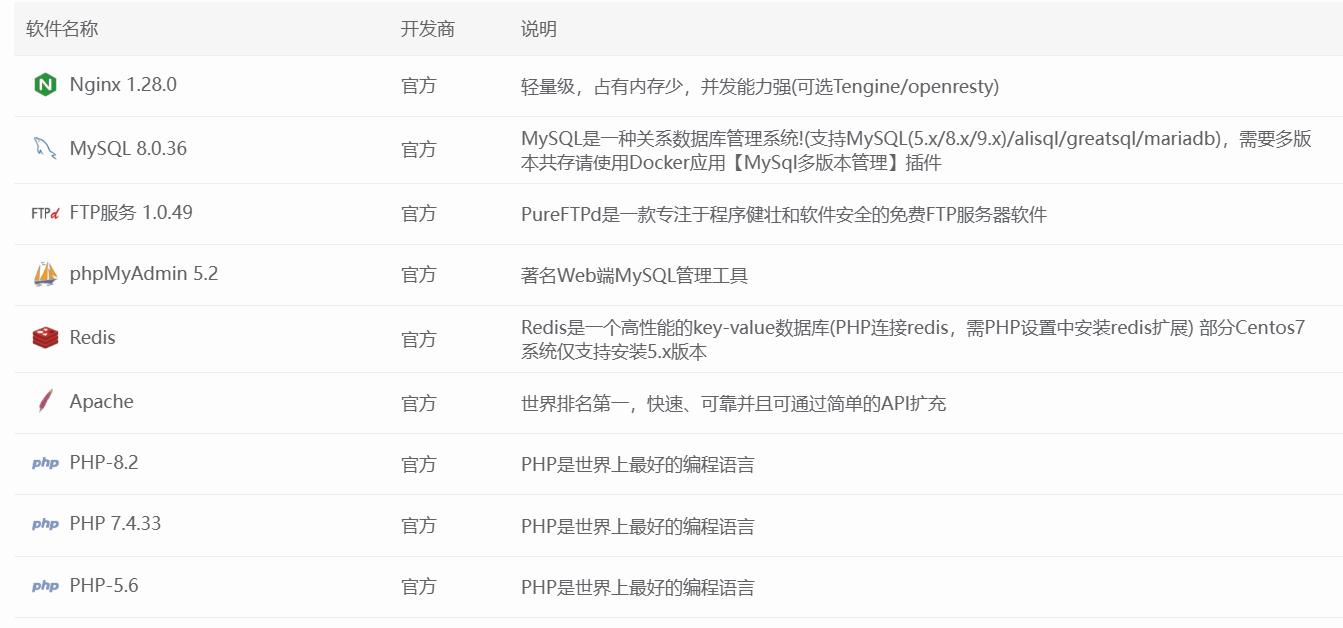
- After logging into the Pagoda panel, a “Recommended Installation Packages” window will usually pop up. If it doesn't, click on "Recommended Packages" in the left navigation bar of the panel.“Software Store”。
- In the “Software Store”, choose“One-click deployment”Category. You'll see multiple kits, we've chosen the most classicLNMPKit.
- Key Configuration Options: The choices made here directly affect WordPress performance and compatibility. Be sure to follow the recommendations below for your settings:
- Web server: Nginx
- Version: RecommendedNginx 1.20or higher stable version. Good performance and low resource consumption.
- Database: MySQL
- Version: RecommendedMySQL 5.7. It is very stable and has the best compatibility with all WordPress plugins. If you have a server with more than 2GB of RAM, you can consider theMySQL 8.0for better performance.
- Be sure to remember the MySQL root password you set!This is the “master key” to the database and is very important.
- Programming language: PHP
- Version.This is the most important choice!Highly recommended choicePHP 7.4. It is currently the best version for compatibility and performance balance with WordPress and its plugins. If your theme/plugin explicitly requires it, you can also choose thePHP 8.0maybe8.1。
- manipulate: In the PHP version column, if you don't have the version you want in the drop-down menu, you can install it separately by clicking on the small icon behind it.
- Pure in-memory caching: Redis
- Version: Choose the latest stable version, such asRedis 6.2。
- Function: Redis can greatly improve the access speed of the WordPress website, especially the loading speed of the post page and home page.Installation is highly recommended。
- Web server: Nginx
- Confirmation of installation: Check the box to agree to the agreement and click“One Click Installation”. Pagoda then automatically downloads, compiles and installs all the software for you in the background. This process requires20-60 minutesPlease be patient and do not close your browser tabs during this time.
Step 3: Install and configure PHP extensions
WordPress and many of its plugins require specific PHP extensions to function properly. After installing PHP, we must add these “parts”.
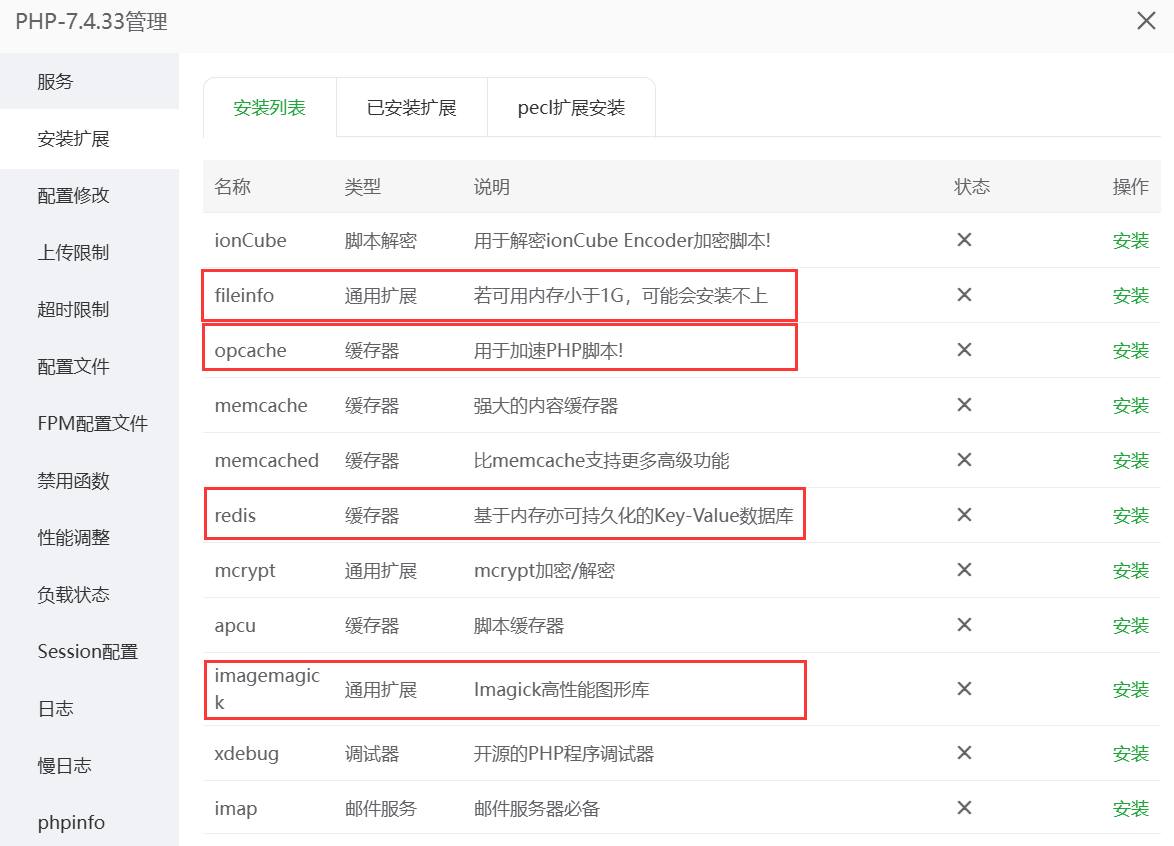
- After the installation is complete, go back to the top page of the Pagoda Panel, find the PHP version you just installed (e.g. PHP-7.4) in the list of installed versions in the “Software Store”, and click on the right side of the“Settings”Button.
- On the new page, click on the top navigation bar of the“Installation of extensions”Tab.
- Install the following for WordPressRequired extensions::
- opcache: PHP comes with a performance gas pedal that can dramatically improve the efficiency of PHP execution.compulsory。
- redis: A driver that allows PHP to connect to and manipulate Redis.(If you have Redis installed, this is a must)
- ImageMagickmaybeGD: Image processing extension. used by WordPress to crop and scale uploaded images. Usually Pagoda installs GD by default, but theImageMagick is better for image processing, we recommend installing it.。
- exif: Used to read the EXIF information of the picture (such as shooting camera model, aperture, etc.), if your site has photography content, it is recommended to install.
- Optional but recommended extensions::
- memcached: Another popular caching tool, used by some advanced caching plugins.
- fileinfo: Some plug-ins (e.g. video players) need it to recognize the file type.
- Installation: Find the extension and click on the corresponding “Install” button. Pagoda will automatically complete the installation.
Step 4: Inspection and Confirmation
After installing all the software and extensions, it's a good idea to do a thorough checkup.
- Back to Pagoda Panel HomeYou should see the following software in the installed list of the “Runtime Environment” or “Software Store” with the status of “Running”:
- Nginx
- MySQL
- The PHP version you have chosen (e.g. PHP-7.4)
- Redis
- Checking PHP extensions: Go to the “Install extensions” page of the PHP settings again, and confirm that
opcacheandredisThe status of the extension is “Installed”.
To summarize: what software do you already have installed?
At this point, you have created a full-featured, high-performance server environment for installing WordPress. You have installed:
| Software/Components | recommended version | primary role |
|---|---|---|
| Nginx | 1.20+ | Web server that handles user access requests. |
| MySQL | 5.7 | Database that stores all the articles, pages, settings and other data of the website. |
| PHP | 7.4 | The programming language, WordPress is written in PHP and is the brain of the website. |
| Redis | 6.2+ | Pure memory caching to greatly improve website access speed. |
| PHP extension: opcache | - | PHP Accelerator to improve PHP efficiency. |
| PHP extension: redis | - | Enabling PHP to use Redis. |
| PHP Extension: ImageMagick | - | Process the pictures for better results. |
What's next?
Now, your server “foundation” has been laid very firmly! Next, you can start installing WordPress!
 English