











After successfully logging into the WordPress backend, you will be presented with a series of feature-rich interfaces. These menus and functions are the core tools for managing your website, and they seem to be complex but logical. In this section, we will introduce the functions and usage scenarios of the main menus in the backend one by one to help you quickly familiarize yourself with the interface.
I. Recognizing the overall layout of the back office
The WordPress backend interface is divided into 4 main areas with a clear and fixed layout:
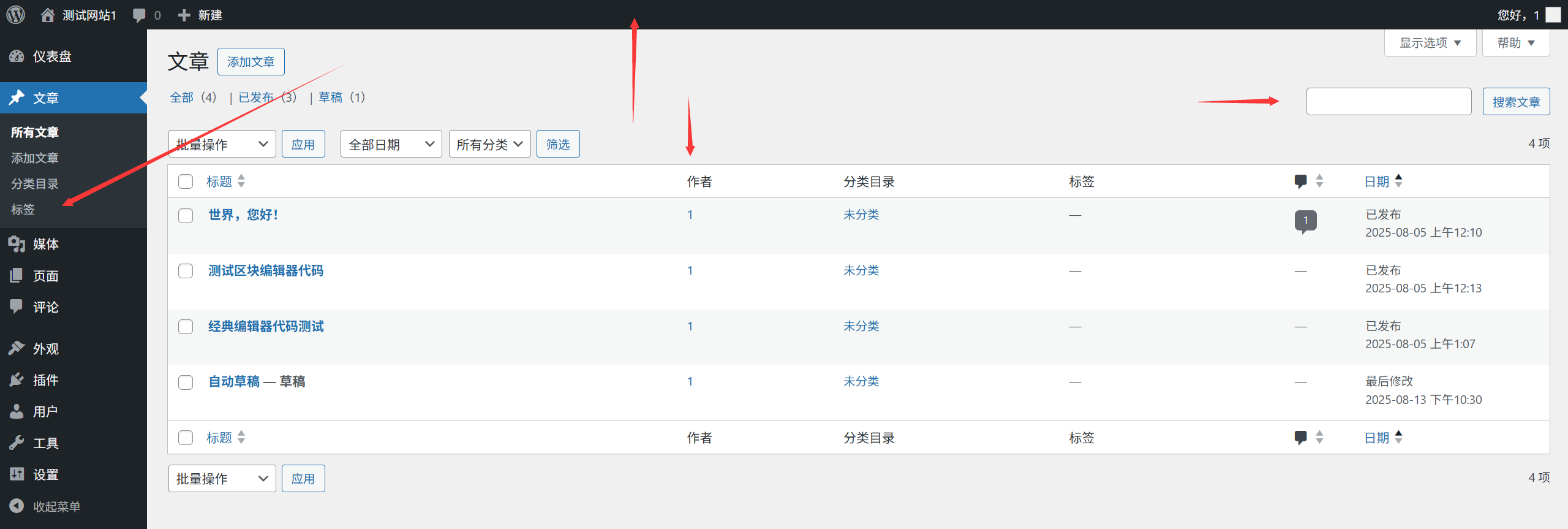
- Top Toolbar: Displays site name, search box, notifications, user information, etc. (globally visible).
- Left menu bar: Includes all core functionality portals (collapsible for small screen operation).
- main content area: Displays the specific functions and settings of the current menu (contents switch with the menu).
- right-hand sidebar: Some pages display help information, quick actions, or recommended content.
II. Core Menu Functions in Detail
1. Dashboard: the site overview center
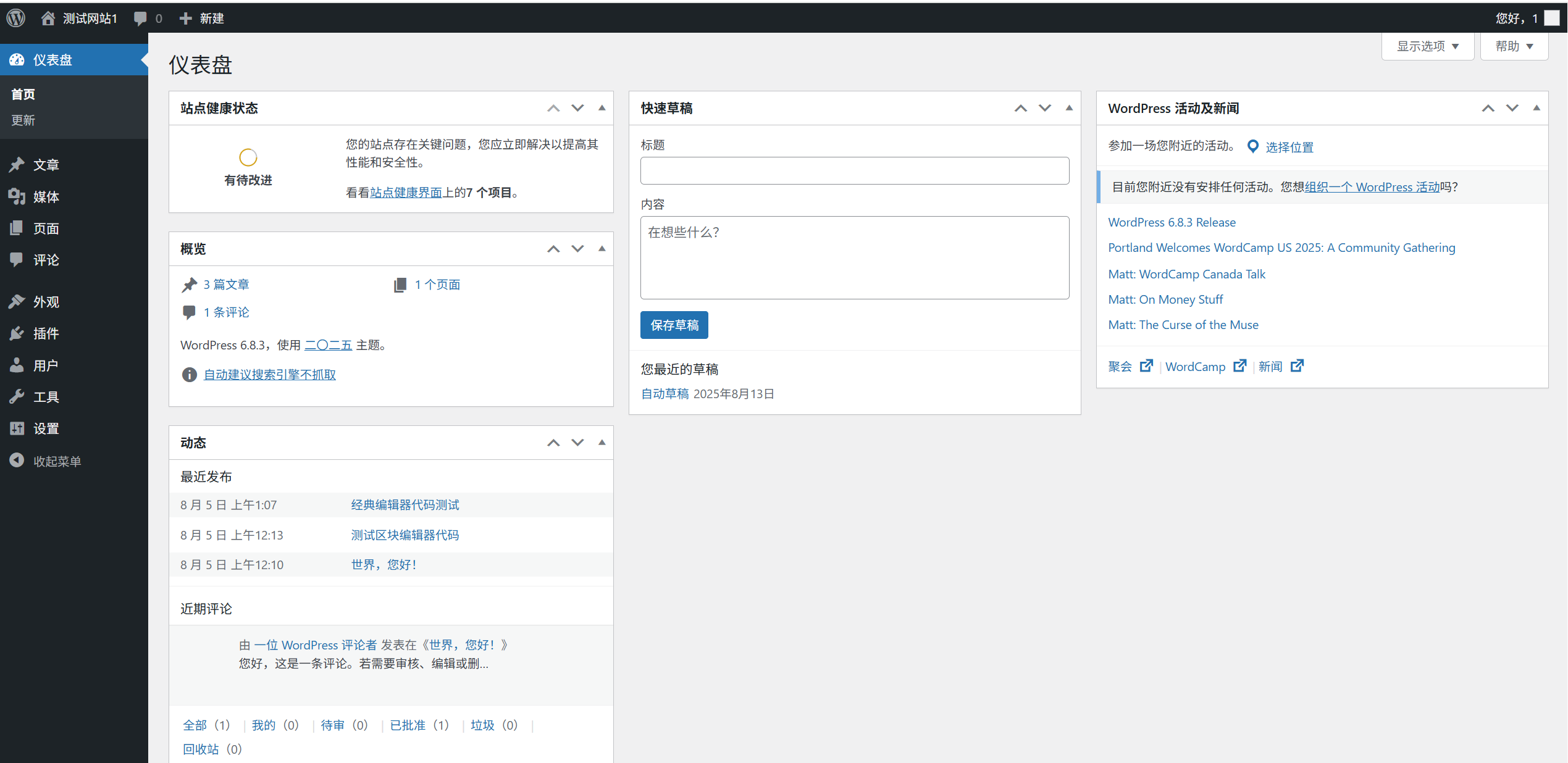
The Dashboard is the default page after logging into the backend, equivalent to a website's 'control panel', displaying key information and shortcuts to entry:
- Summary of website status: Displays the number of posts, pages, comments, and WordPress version information.
- Activity Log: Recent site activity (e.g., what articles have been posted, who has logged in).
- Quick drafts: Temporary recording of inspiration, which can be transferred directly to a draft article.
- ** WordPress 新闻 **:官方更新通知、安全提示等(可关闭)。
- Quick Operation Buttons: Quick access to frequently used functions such as "Write Article" and "Add Page".
Tips for use: Click "Screen Options" in the upper right corner to customize which modules are displayed (newbies are advised to keep the default).
2. Posts: managing blog content
The "Posts" menu is used to manage all blog posts (suitable for time-sensitive content, such as news, tutorials, diaries) and contains the following submenus:
- All Articles: View, edit, delete or batch manage published articles and drafts.
- Add new article: Go to the editor to create a new article (core function, see Chapter 15 for details).
- categorized directory: Categorize the articles (e.g. "Technology" "Life" to make it easier for users to find them).
- Labels: Add keyword tags to articles (e.g. "recipes" "home cooking" for a food article).
The core difference: Posts are sorted by posting time and are usually displayed on the "Blog" page of the site, with support for commenting.
3. Media: management of images and documents
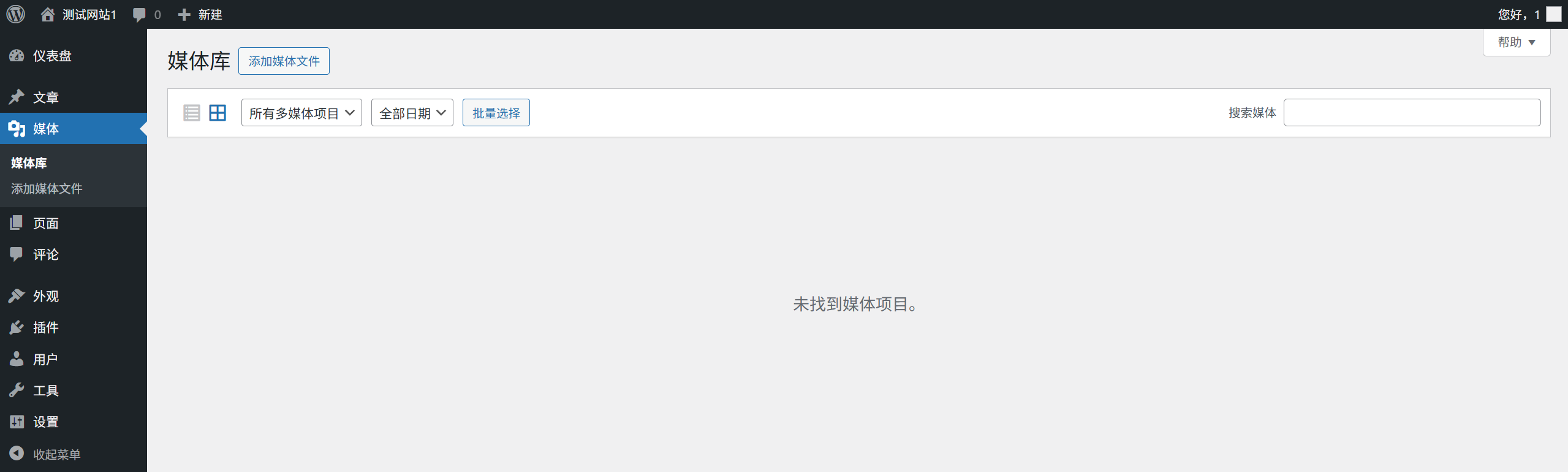
The Media Library is the website's "file manager" for storing and managing all uploaded images, videos, documents, and more:
- \n Library: View all uploaded files (supports list/grid view with filtering by date, type).
- Add new file: Upload pictures, videos, etc. (single file size is usually limited to 2-10MB, which can be adjusted in the server settings).
Tips for use: When uploading images, it is recommended to compress them first (e.g. using TinyPNG tool) to avoid slowing down the website; fill in the "alternative text" (alt tags) for each image, which is good for SEO and easy to be understood by visually impaired users.
4. Pages: creation of stand-alone pages
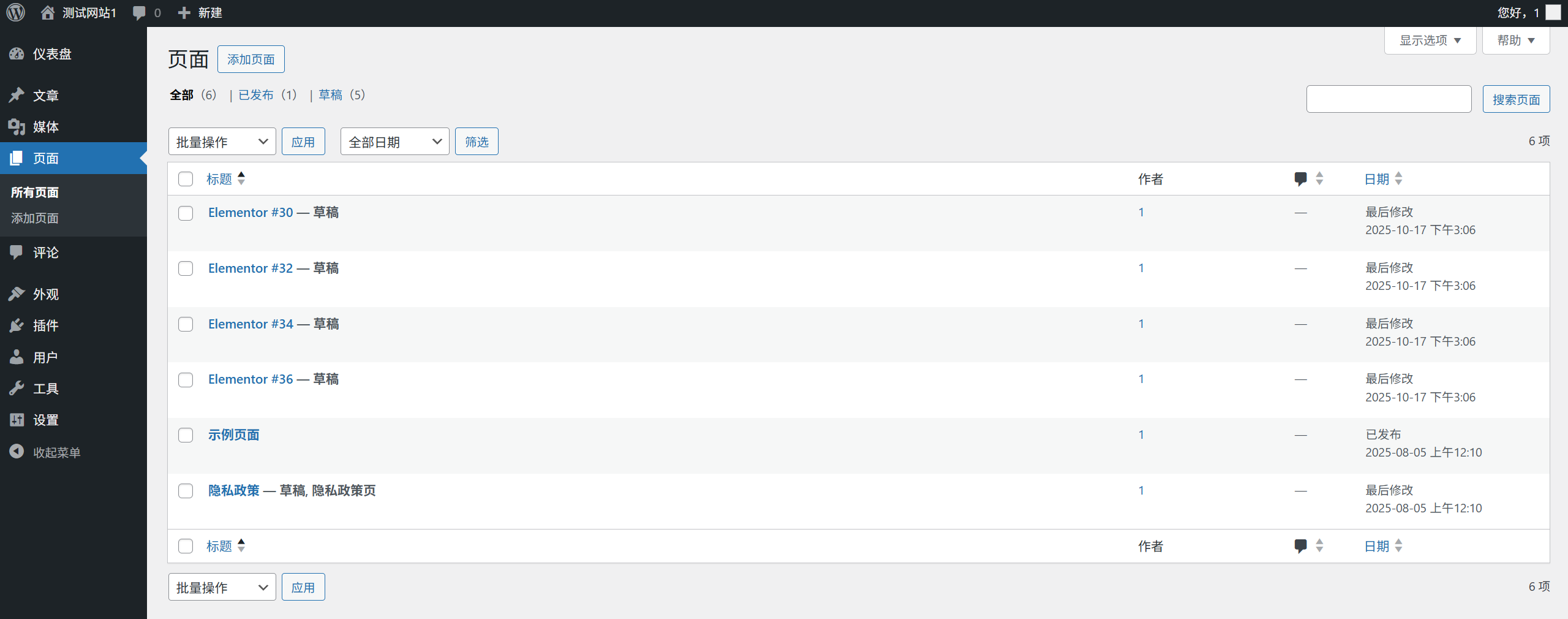
'Pages' are used to create non-timeless, fixed content (e.g. 'About Us' 'Contact Us'), with sub-menus including:
- All Pages: Manage created pages (can adjust sorting, set parent page).
- Add New Page: Create a new page (the editor is similar to articles, but with cleaner functionality).
Core differences from articles:
- The page has no publication date and will not appear in the blogroll.
- Pages can be set at a hierarchical level (e.g., "Services" is the parent page and "Web Development" is the child page).
- The comments feature is turned off by default on the page (it can be turned on manually).
5. Appearance: designing the website style

The "Appearance" menu is used to control the visual appearance of the website and is the central entry point for beautifying the website:
- thematic: View, install, and switch themes (see Chapter 12 for details); click Customize to open the live customization panel.
- customizable: Adjust the basic settings of the theme (e.g. logo, colors, menu positions) in real time, what you see is what you get.
- gadget: Add components to the sidebar, footer, and other areas (e.g., search box, categorized listings, ad space).
- menu: Creates and manages site navigation menus (see Chapter 14 for details).
- Home Page Setting: Choose whether to display "Latest Posts" or "Static Page" on the home page of your website (newbies are advised to choose Static Page).
Beginner's Tips: If you have installed a visual editor such as Elementor, the corresponding editing portal will be displayed in the Appearance menu.
6. Plugins: extending the functionality of the site
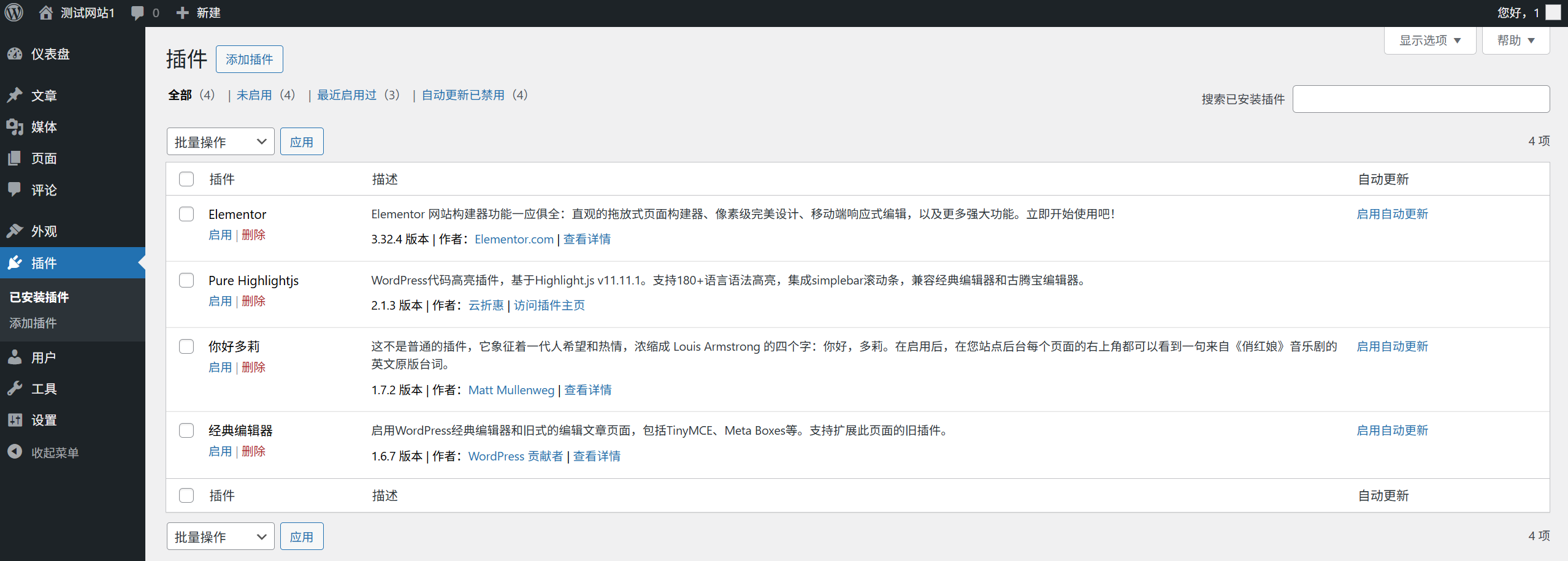
Plugins are WordPress "feature extension tools", by installing a plugin you can add a variety of features (e.g. forms, SEO optimization, anti-theft links):
- Installed plug-ins: View all plug-ins, which can be enabled, disabled or deleted (it is recommended to keep only essential plug-ins).
- Add New Plugin: Search for and install plugins from the official plugin repository (see Chapter 18 for details).
- Plug-in Editor: Modify the plugin code (prohibited for newbies! (Wrong modifications can cause the site to crash).
Security tips: Install only highly rated and frequently updated plug-ins; remove unused plug-ins regularly to minimize security risks.
7. Users: Managing website accounts
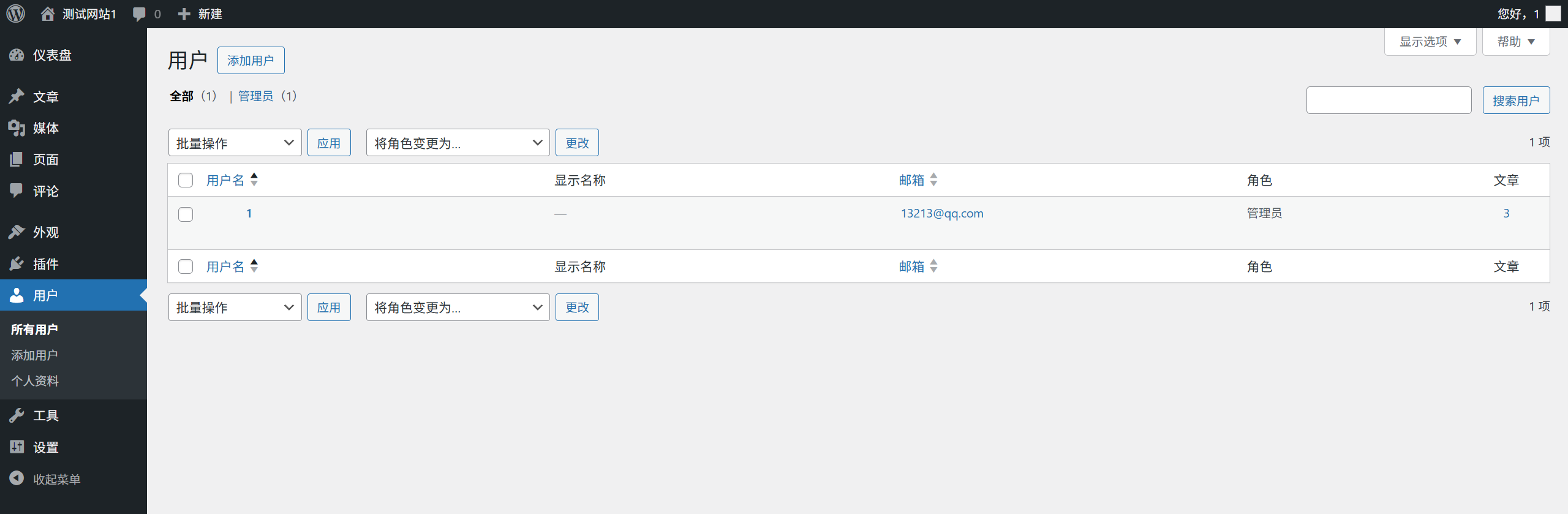
The "Users" menu is used to manage all accounts that can log in to the website, and the submenus include:
- all users: View and manage all users (can modify permissions, delete accounts).
- Add New User: Create new accounts (e.g., assign editing privileges to team members).
- personal profile: Modify the information of the currently logged-in user (e.g. nickname, password, e-mail).
Permission statement: WordPress has 5 user roles with permissions from highest to lowest:
- Super Administrator (for multi-site networks)
- Administrator (has all permissions and can change settings)
- Editor (can publish and manage all articles)
- Authors (can only post and manage their own articles)
- Subscribers (can only manage profiles)
8. Tools: a collection of useful functions.
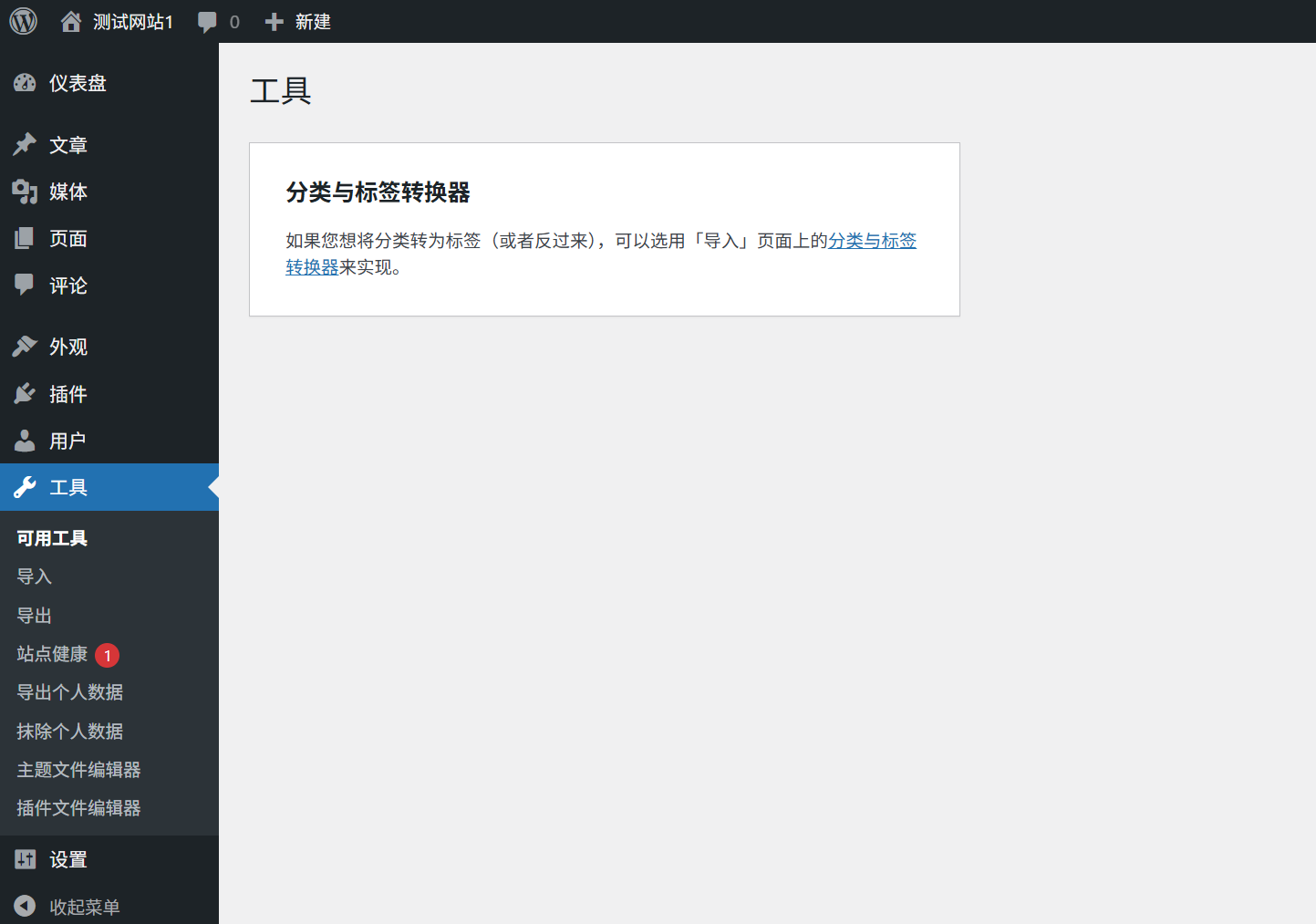
The "Tools" menu contains a number of auxiliary functions, commonly used by novices:
- Site Health: Check the status of the site (e.g., for updates, security issues, performance bottlenecks).
- Import: Import articles from other platforms (e.g. Blogger, Sina blog).
- derive: Export content such as articles, pages, etc. (for backing up or migrating your site).
- Available Tools: Includes some tools that are not commonly used (e.g. browser screenshot test).
9. Settings: core site configuration
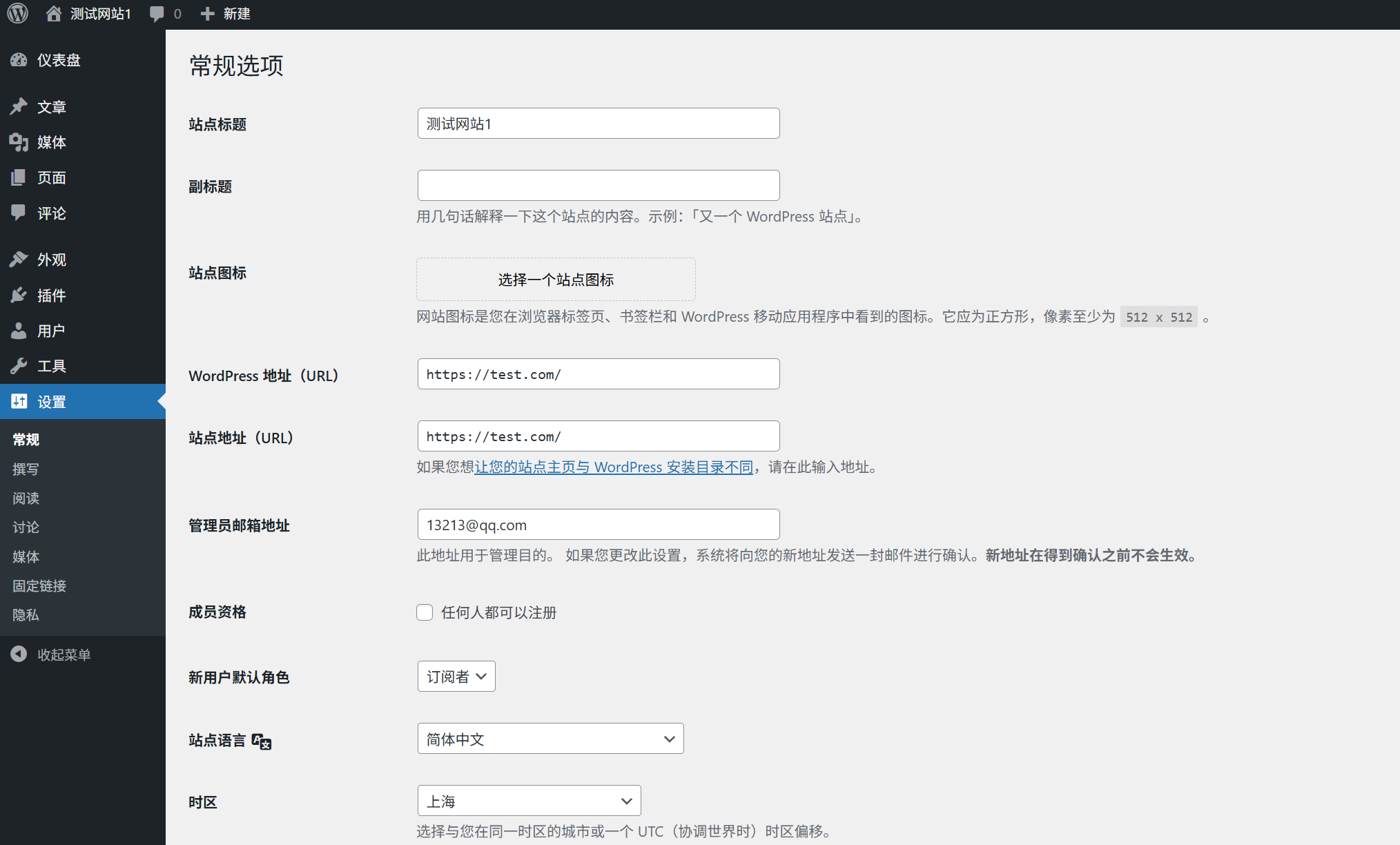
The "Settings" menu is the "core control panel" of the website and contains the key configurations for the operation of the website (change with caution):
- routine: Set the site title, subtitle, time zone, language, administrator email, etc.
- write: Set default categories, default formatting, etc. for articles (just keep the default for newbies).
- read: Set the content to be displayed on the home page, the number of articles to be displayed per page, search engine visibility, etc.
- talk over: Control comment features (e.g., whether comments are allowed, comment review rules).
- media, esp. news media: Set the default size of the uploaded image (it is not recommended to change it to smaller size to avoid blurring of the image).
- Permanent link: Set the URL format (recommended "article name" format, see Section 10.3 for details).
Important Notes: Be sure to click the "Save Changes" button at the bottom of the page after changing the settings, otherwise the changes will not take effect.
Third, background operation tips
- Quick search function: The search box in the top toolbar allows you to quickly find articles, pages, users or settings.
- Folding menu: Tap the arrow at the top of the left menu to collapse the menu to save space (for small screen devices).
- screen options: Almost every page has 'screen options' in the top right corner to customize what to show (e.g. hide unwanted modules).
- help button: The "Help" button at the top right corner of each page will show the instructions for using the current function, so newbies can check it out more often.
- Log out: Click on your username in the upper right corner of the top toolbar and select "Logout" to secure your account (be sure to do this for public computers).
wrap-up
WordPress backend menu seems to be numerous, but the logic is clear: "Posts" and "Pages" are used for managing content, "Media" is used for managing files, "Appearance" is used for designing styles, "Plugins" is used for extending functionality, and "Settings" is used for core configurations.
draw attention to sth.
As a newbie, you don't have to master all the features right from the start, just familiarize yourself with the core menus of "Post", "Page", "Appearance" and "Settings". As you get more familiar with it, you can gradually explore the other features.
 English