


















Before installing WordPress, we need to create a webspace in the Pagoda panel to host the WordPress files and associate the created database. This process is very simple and can be done in just a few steps.
pre-conditions
Before you begin, make sure you have done the following:
- Successfully logged in Pagoda Panel
- Necessary web environment installed (Nginx or Apache, PHP, MySQL)
- MySQL database has been created (refer to Section 6.2).
Step 1: Enter the website management interface
- After logging in to the Pagoda Panel, find the "Sites" option on the left menu bar and click on it to enter the site management page.
- Click the 'Add Site' button in the top right corner of the page to open the form for creating a site.
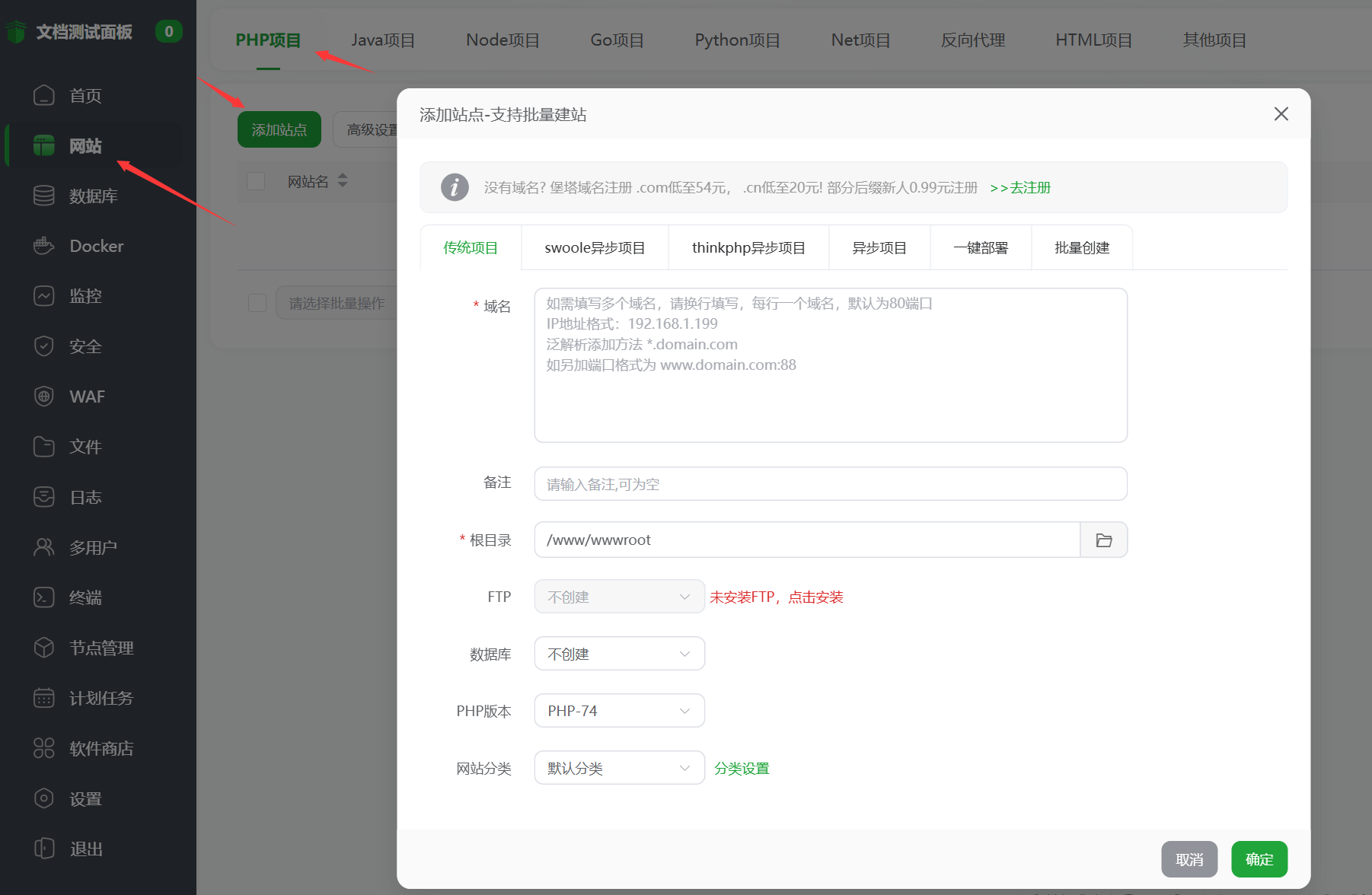
Step 2: Fill in the basic information of the website
In the "Add Site" pop-up window, you need to fill in the following key information:
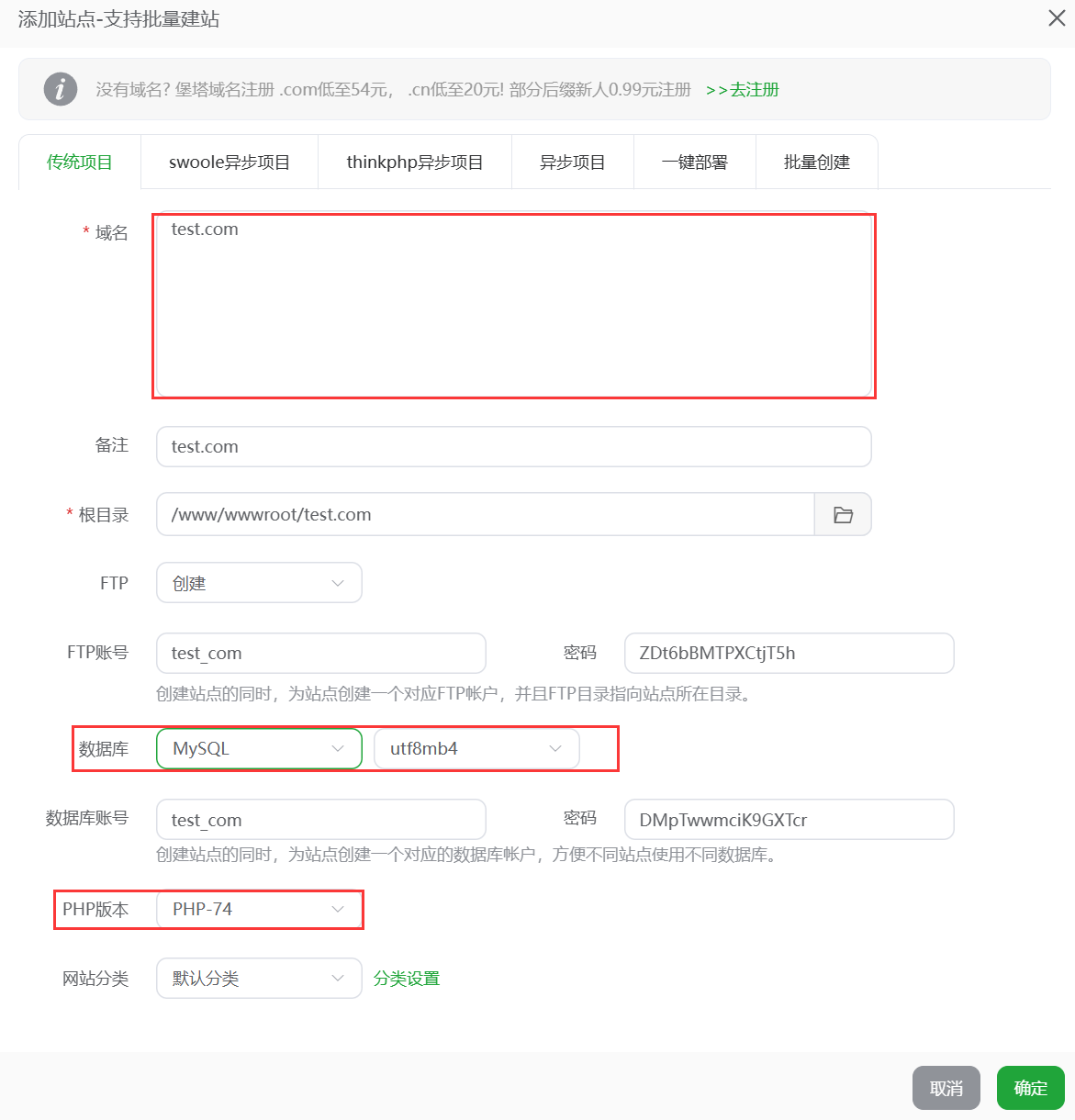
- domain name:
- Fill in your domain name in the "Domain Name" input box (e.g.
example.com) - Can be filled out at the same time with
wwwand withoutwwwdomain name (e.g.example.comandwww.example.com), separated by spaces - If you don't have a domain name yet, you can also fill in the server IP address to access it temporarily.
- Fill in your domain name in the "Domain Name" input box (e.g.
- root directory:
- Click on the folder icon to the right of the "Root Directory" input box.
- It is recommended to create a folder related to the domain name (e.g.
/www/wwwroot/example.com) - Make sure this directory is empty for subsequent uploads of WordPress files
- FTP Settings(Optional):
- Beginners are advised to check the "Create FTP" box.
- Automatically generate or customize FTP username and password, and record it (it will be used for subsequent file uploads)
- If you don't create it, you can add it separately in the "FTP" menu later.
- Database settings:
- Select "Associate with an existing database" (which we have previously created)
- Select your database for WordPress in the drop-down menu
- Verify that the database username is correct
- PHP version:
- Select the PHP version from the drop-down menu (PHP 7.4 or 8.0 is recommended for best compatibility) Do not select a lower version (e.g. PHP 5.6) as it may not support the latest WordPress!
Step 3: Complete Website Creation
- After filling in all the information, click the "Submit" button.
- The system automatically creates the web catalog, configures the web server, and associates the database.
- After successful creation, you will see the information of your newly created website in the website list.
Step 4: Confirm successful website creation
- Enter your domain name or server IP address into your browser.
- If you see the "Congratulations, site created successfully!" or a similar alert page, it means the site was created successfully.
- If you cannot access it, check the following points:
- Whether the domain name has resolved correctly to the server IP (refer to Section 4.4 Domain Name Resolution)
- Is port 80/443 open on the server firewall?
- Whether the status of the site in the Pagoda panel is "Running" or not
Recording of important information
After the site is created, record the following information for backup:
- Website root directory path (e.g.
/www/wwwroot/example.com) - FTP information (if created): host address, username, password
- Database association status (to confirm that it is correctly associated)
the next step
Once the site has been successfully created, we can upload the previously downloaded WordPress installer to the root directory of the site via the FTP utility, seeUpload the web program installer via Pagoda。
draw attention to sth.
Tip: After creating a website, it is recommended to turn on the SSL certificate for the website immediately in the Pagoda panel (click the "SSL" button in the website list). Turning on the HTTPS access is more secure and also good for SEO.
Recommended Hosting Service Providers
LikaCloud has collected recent hosting events and shared them in the hope that it will save you some time in duplicating information.
 English