


















WordPress, the world's most popular website builder, has always been one of the main targets for hackers. Andregular updateIt is the easiest and most effective way to defend against attacks and secure your website - 90% More than a few website hacks are related to the use of an outdated WordPress core program, theme or plugin. This section will take you through the process of understanding why and what to update, as well as the exact steps to update securely.
3 core reasons why it must be renewed
Many newbies refuse to update for fear that 'updating will cause errors on the site', but in reality, the risk of not updating far outweighs the problems that updating can cause:
- Fixing security holesHackers can exploit vulnerabilities in the program to break into websites (e.g., steal data, place ads, tamper with content.) WordPress officials and developers continue to find and fix these vulnerabilities.Updating is "patching" a website。typical example: A well-known plugin had been found to have a vulnerability through which hackers could gain administrator privileges, and a patch to fix the vulnerability was only available in new versions.
- Improve performance and compatibilityUpdates will optimize code efficiency (making the site faster) and adapt to new server environments (e.g. new versions of PHP). Older versions may cause functionality anomalies due to incompatibility (e.g. image uploads fail, forms cannot be submitted).
- new featureSome of the updates will bring useful features (e.g. WordPress core updates may optimize the editor, theme updates may add new layout templates) and improve the efficiency of website management.
II. 3 types of content to be updated
There are three main parts involved in updating a WordPress website, and you can't have one without the other:
| typology | Update Frequency | significance | clarification |
|---|---|---|---|
| WordPress Core | 1-2 months | ★★★★★ | I.e., the WordPress program itself, officially releases "security updates" (minor versions, e.g., 6.4 → 6.4.2) and "feature updates" (major versions, e.g., 6.3 → 6.4). |
| thematic | 2-3 months | ★★★★☆ | Theme developers will fix bugs, adapt to new versions of WordPress or optimize styles. |
| plugin | Irregular (frequently updated) | ★★★★☆ | Functional plugins (e.g. SEO, forms) are updated frequently and security plugins (e.g. Wordfence) have security patches almost monthly. |
III. Steps for security updates: avoiding problems with updates
Backup" and "test" before updating is the key to minimize the chance of error. By following the steps below, even novice users can complete the update safely:
Step 1: 2 Things You Must Do Before Updating
- Backup sites (core!)
- Use a backup plugin (e.g. UpdraftPlus) to create a full backup (containing files and databases).
- After the backup is complete, confirm that the backup file can be downloaded locally (to prevent loss of backups due to server failure).Why? If the site crashes after an update, a backup can be used to quickly restore the site to its pre-update state.
- Check for update compatibility
- Check the update description: On the "Update" page in the backend, click "Details" under the update item, and check if there is any compatibility requirement such as "Requires PHP 8.0+" (if the server PHP version is too low, you need to upgrade the server environment first).
- For major version updates (e.g. WordPress 6.3→6.4), you can first search for "WordPress 6.4 compatibility issues" on the web to see if there is any feedback on large-scale error reporting (the official release of fixes for minor releases is usually made after 1-2 weeks, so newbies can wait for this time to make changes).
Step 2: Sequential updating (reducing the risk of conflicts)
It is recommended to update in the order of "Core → Theme → Plugin" and check if the site is normal after each update:
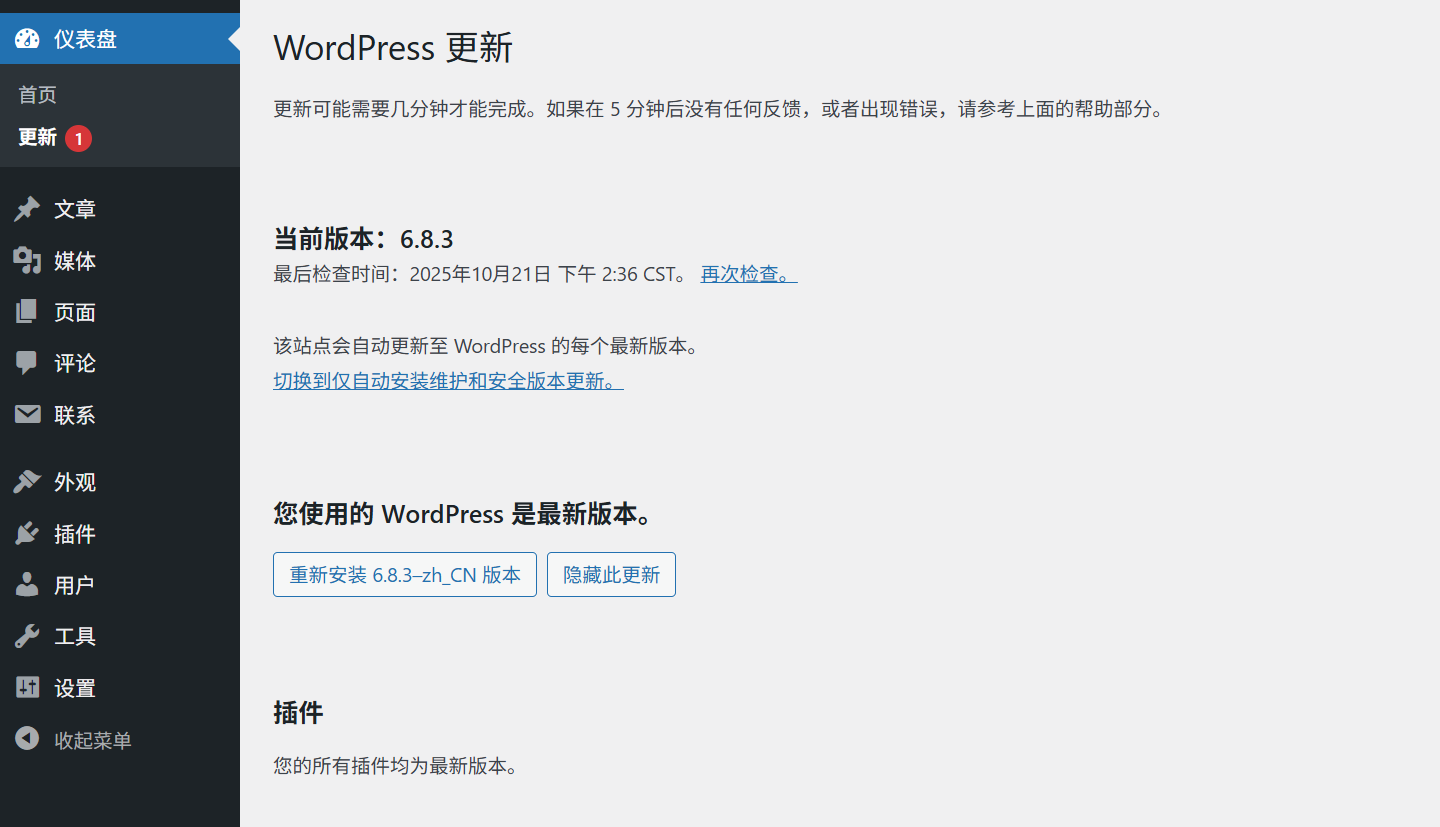
- Update WordPress Core
- Go to the background "Dashboard→Updates" page, if there is a core update, it will show "WordPress X.X.X is available".
- Click "Update Now" and the system will automatically download and install the new version, during which the website may be unavailable for a short period of time (10-30 seconds).
- After the update is completed, it will show "Successfully updated to WordPress X.X.X", at this time, visit the frontend of the website to confirm that the home page and article page can be opened normally.
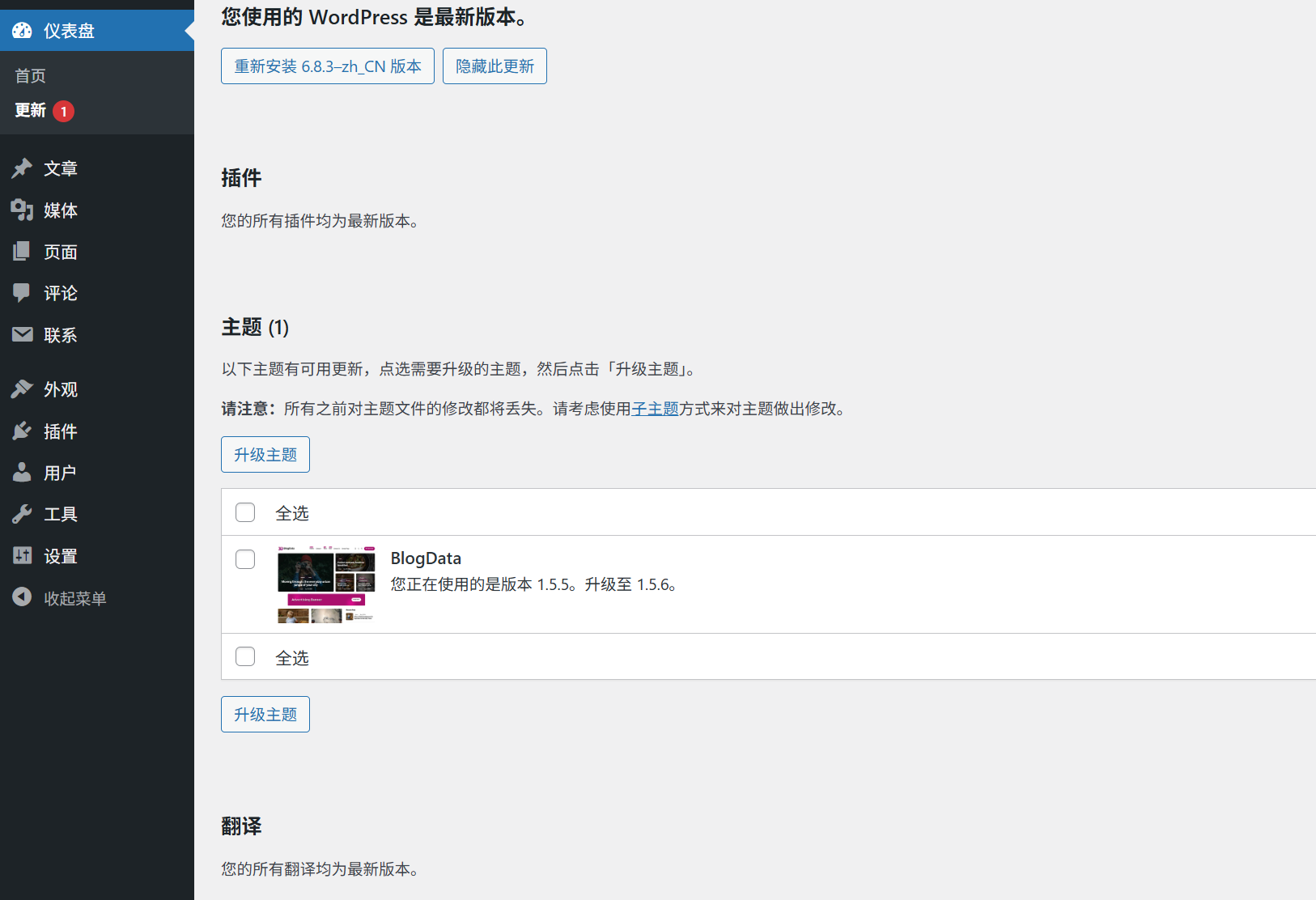
- Updated Themes
- Find the theme updates on the "Updates" page (or go to "Appearance→Themes" and "Update available" will be displayed for themes with updates).
- Click "Update", wait for it to finish, and then check if the website style is normal (focus on the homepage layout, menu, and button styles to see if they are misplaced).
- Updating Plug-ins
- On the "Updates" page, plug-in updates are sorted by "Security Update Priority", so it is recommended to update plug-ins labeled "Security Update" first.
- You can batch check the plugins and click "Update Selected Plugins", but not more than 5 plugins per batch (to avoid high server load).
- After all the updates, test the plugin functionality (e.g. if the contact form can be submitted, if the SEO plugin loads properly).
Step 3: Post-Update Checks
- Front-end access testing
- Open the home page, 1-2 articles page, "About Us" page, etc. and confirm:
- The page loads properly (no white screens, no errors).
- Media files such as pictures and videos are displayed normally.
- The navigation menu jumps around properly.
- Open the home page, 1-2 articles page, "About Us" page, etc. and confirm:
- Backend Functionality Testing
- Try posting a test article (with text and images) to confirm that the editor is functioning properly.
- Check that core plug-ins (e.g., security plug-ins, backup plug-ins) can be opened and used properly.
- Troubleshooting (if something goes wrong after the update)
- If the site white screen or error, the probability is that the plug-in conflict: go to "Plug-ins ¡ú Installed Plug-ins", batch disable all plug-ins, and then one by one to enable and test, to find the plug-in that caused the conflict (temporarily disabled, waiting for the release of its compatibility updates).
- If the style is messed up, the theme may be incompatible with the new version of WordPress: switch to the default theme (such as Twenty Twenty-Three), if it returns to normal, you need to contact the theme developer to get a fix patch.
- When the above methods do not work, restore the site with a backup (refer to the How to Restore a Website with Backups), wait for the issue to be resolved before trying to update.
IV. Common problems and solutions for novices
1. What should I do if I am afraid that the update will cause errors on my website?
- Minor version updates for peace of mind: Minor versions of the core program (e.g. 6.4.1 → 6.4.2) usually only fix bugs and have few compatibility issues.
- 1-2 weeks for major version updates: Wait for the official release of 1-2 small patches before updating (by this time most compatibility issues have been resolved).
- Use a "test environment" to try out the changes first: If possible, set up a test site on a local computer or spare server, update the test site first, and then update the official site after confirming that there are no errors.
2. "Update failed" or "Unable to connect to WordPress server"?
- Check the server network: Contact your hosting provider to make sure the server can access the official WordPress server normally (some domestic servers may require special settings).
- Manual update: Download the latest WordPress installer and replace it via FTP.
wp-adminandwp-includesFolders (reserved)wp-contentfolders andwp-config.php(Documentation).
3. Can I turn off automatic updates?
- Not recommended! WordPress has automatic minor version updates (security patches) enabled by default, which is an important line of defense to protect your website.
- If you need to close for special reasons, you need to modify
wp-config.phpfile (not recommended for novices, may lead to security risks).
wrap-up
Regular updates are the 'first line of defense' for website security, remember:The risk of not updating far outweighs the problems that updating may causeThe first thing you need to do is to make a backup before updating. Make a backup before updating, operate in the order of "Core → Theme → Plugin", and double-check the site's functionality after updating -- this process can help you 99% avoid updating errors.
Get into the habit of "checking for updates once a week" (you can set a reminder in the backend "dashboard"), so that the website is always in a safe and efficient state.
 English