


















In WordPress, Pages are the “skeleton” for displaying the core information of a website. For most websites, the home page, about page, services page, and contact page are essential basic pages. This section will take you by the hand and teach you how to create these common pages and provide content planning advice.
I. Generic steps for creating a page
Regardless of which page is created, the basic operation process is the same, learn this general step, the follow-up can be repeated:
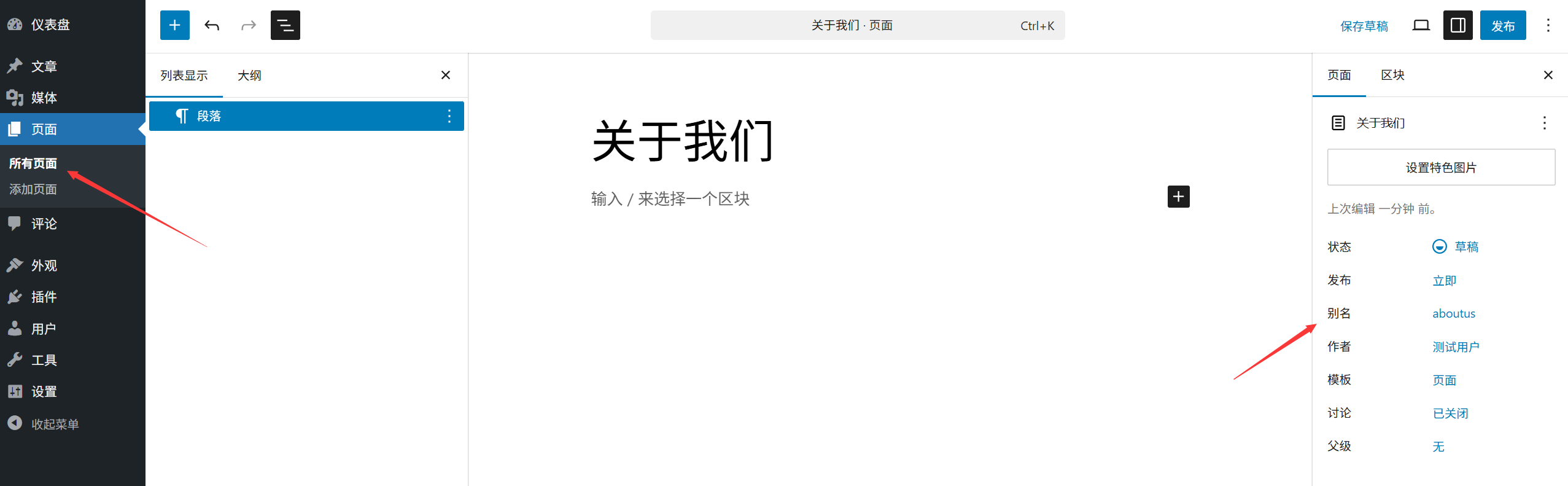
- Go to the page creation screenLogin to WordPress backend → Click [Pages] → [Add New Page] on the left menu to enter the editor interface.
- Setting the page titleFill in the “Add Title” field at the top with the page name (e.g. “About Us” “Contact Us”) and the title will be displayed at the top of the page and in the navigation menu.
- Edit page contentUse an editor (a visualization tool such as Gutenberg or Elementor) to add text, images, buttons, etc. (see below for specific content suggestions).
- Setting page properties (optional)This can be set in the “Page Properties” panel on the right:
- parent page: If a hierarchical relationship is required (e.g. “Design Service” under “Service Page”), you can select one of the created pages as the parent page;
- templates: Some themes provide specialized templates (e.g. “full screen template” “blank template”).
- Preview & ReleaseClick on the upper right corner [Preview] to see the effect, after confirming that there is no error, click [Publish] can be.
Second, the four commonly used page creation and content planning
1. Home page: the “face” of the site”
The home page is the first page that visitors see when they enter the website, and its role is to quickly deliver the core information and guide visitors to browse other content.
Content planning recommendations:
- Header Banner (Banner): Succinct headline (e.g. “Professional WordPress Website Building Services”) + Subheading (Core Benefits) + Action Buttons (e.g. “Learn About Services” “Contact Us”).
- core value area: 3-4 highlight modules, illustrated with icons + short sentences (e.g. “10 years of experience” “responsive design” “after-sales support”).
- Introduction / Features: Briefly introduce the website positioning (e.g. “We specialize in building official websites for small and medium-sized enterprises”).
- Cases / Works: 3-6 representative examples (with pictures + captions), if available.
- Testimonials / Endorsements: Customer reviews, co-branding logos, etc. to enhance the sense of trust.
- Conducted Action Areas (CTA): Put obvious buttons at the bottom to guide visitors to the next step (e.g. “Enquire Now” “View Package”).
Special settings:
Once created, you need to set it as a “static home page”:
Background → [Settings] → [Reading] → Select “Static Page” → Set the homepage you just created as “Home” → Save the settings.
2. About page: a “business card” for building trust”
The About page is a key page that introduces yourself / your brand to visitors, with the aim of building trust and connection.
Content planning recommendations:
- Brand Story: Succinctly describe the founding context, philosophy, or mission (avoid redundancy and highlight “why it exists”).
- Team / Founder:: With a photo + a short introduction (e.g. founder's experience, core team strengths) to add a sense of intimacy.
- Development history (optional): Show important points with a timeline (e.g. “Founded in 2018” “Serving 1000 + customers by 2022”).
- Values / Strengths: Describe differences from similar brands (e.g., “attention to detail,” “value for money”).
- Honors and qualifications (optional): Place certificates, awards, screenshots of media coverage, etc. to enhance authority.
- Contact Leads: Add a “Want to learn more? Contact us” and link to the contact page.
3. Service pages: “menus” showing the core business”
Service pages are used to detail the products or services you offer and need to be clear and organized so that visitors can quickly find the information they need.
Content planning recommendations:
- Services Overview: A sentence summarizing the scope of services (e.g. “We provide one-stop service from website building to promotion”).
- Service List: Point-by-point description of each service included:
- Name of the service (e.g. “enterprise official website construction” “e-commerce website development”);
- Service content (list exactly what is included in bullet points, e.g. “domain + server + design + on-line”);
- Advantages / Features (e.g. “7 days fast delivery” “Lifetime technical support”);
- Accompanying diagrams (relevant scene diagrams and case diagrams to enhance visualization).
- Price information (optional): If it is appropriate to make it public, you can put a simple price list (e.g. “from ¥1999 for the basic version”).
- Frequently Asked Questions (FAQ): Answer potential questions (e.g. “What information do I need to provide to build a website?” “What is included after sales?”) .
- action button: Place an “Enquiry Details” button at the bottom of each service module or page to link to the contact page.
4. Contact pages: “bridges” for transformation”
Contact page is the key entrance for visitor conversion, need to lower the communication threshold, so that visitors can easily find contact information.
Content planning recommendations:
- Contact form: Add a form with a plug-in (e.g. Contact Form 7) containing commonly used fields:
- Name, email, phone (required);
- Message content (optional, set word limit);
- Submit button (e.g. “Send Message”).
- Other Contacts:
- phone number (e.g. “400-123-4567”);
- Email (e.g. “[email protected]”);
- 地址(如 “XX 市 XX 区 XX 路 XX 号”,可嵌入地图截图或第三方地图代码);
- Social media accounts (WeChat, Weibo, Shake, etc., put icons + links).
- Contact Tips: Indicate the timeframe for responding (e.g., “Respond within 24 hours during business hours”) to minimize visitor waiting anxiety.
- Enterprise WeChat / QR Code (optional): Put customer service WeChat QR code to facilitate instant communication.
III. Tips for Beginners
- preserve a sense of unity of style: Fonts, colors, and button styles are as consistent as possible on all pages (can be unified through theme settings).
- Concise and clear content: Avoid large paragraphs of text and use more subheadings, short sentences, lists and images to break up content.
- Add internal links: Insert links to other pages as appropriate (e.g., About page links to Services page, Services page links to Contact page) to direct visitors to more content.
- Test Form Functionality: After publishing the contact page, submit the form once yourself to confirm that you can receive the message properly (to avoid mailbox misconfiguration leading to missed messages).
 English