











When the number of pages on a website increases, a proper sorting and hierarchical structure can make the content more organized and visitors can find the information more easily.WordPress provides simple page sorting and hierarchical settings with the “Parent Page” and “Sort” parameters, you can create a clear page structure.
I. What is page hierarchy? The relationship between parent and child pages
Page hierarchy is the way content is organized through the Parent Page setting, similar to the “parent-child” relationship of folders:
- parent page: The equivalent of “folders”, which are higher level pages (e.g. “service centers”);
- subpage: The equivalent of a “subfolder” is content that is subordinate to the parent page (e.g., “Website Development” “SEO Optimization”).
give an example:
服务中心(父页面)
├─ 网站建设(子页面)
├─ SEO优化(子页面)
└─ 品牌设计(子页面)
The benefits of this structure are:
- Make the website content logic clearer and visitors can quickly understand the content categories;
- Drop-down menus are automatically generated in the navigation menu (child pages are displayed in the parent page drop-down list);
- The URL of the child page will contain the parent page's slug (e.g.
example.com/服务中心/网站建设), more SEO friendly.
II. How to set up a parent page (create a child page)
Step 1: Make sure the parent page is created
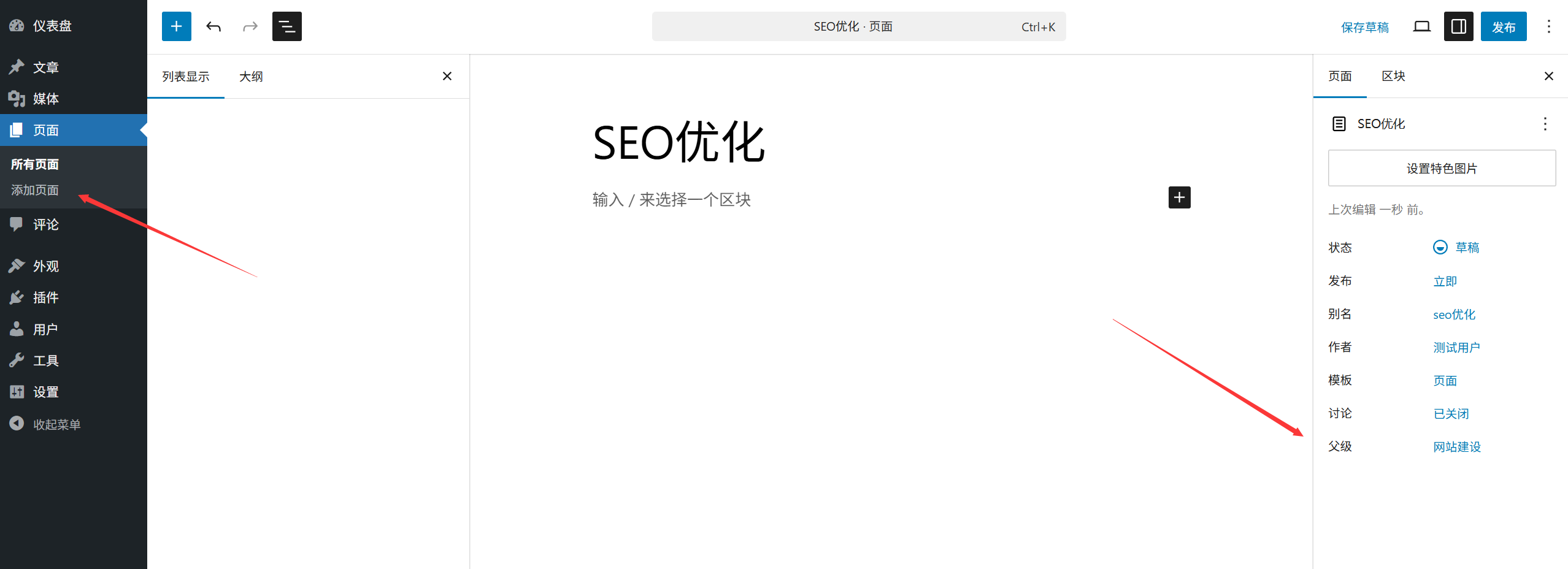
First you need to create a “parent page” (e.g. “Service Center”) and publish it in order to set up parent pages for other pages.
Step 2: Setting up a Parent Page for the New Page
- Create a new page (or edit an existing page) and enter the editing interface;
- Find the [Page Properties] panel on the right sidebar (if it is not shown, click the “Settings” icon in the upper right corner and check “Page Properties”);
- In the [Parent Page] drop-down menu, select a published page as the “parent page” of the current page;
- For example, if you select “Service Center” in the parent page when you create the “Website Construction” page, “Website Construction” becomes a child page of “Service Center”. " child page;
- Click [Publish] or [Update] to complete the settings.
Step 3: View Results
After setting, in the background [Page] list, the child page will be displayed below the parent page and indented to clearly distinguish the hierarchical relationship.
Third, how to adjust the page sorting (customize the display order)
By default, WordPress sorts pages by their “publish time” (newer ones come later), but you can customize the sort order so that important pages come first.
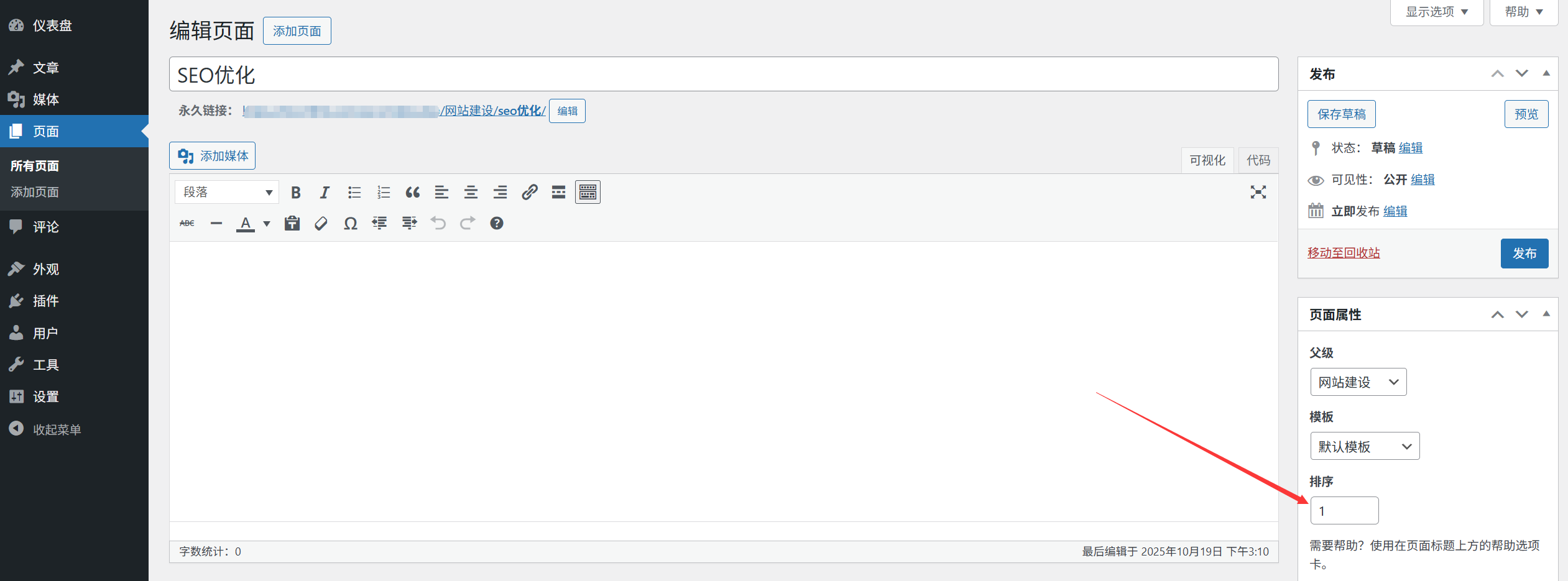
Method 1: Manual sorting by “order” parameter
- Edit the page and open the [Page Properties] panel on the right;
- Fill in the numbers in the [Order] input box (default value is 0);
- The smaller the number, the higher the page order (e.g., 1 ahead of 2, 0 ahead of 1);
- For example, if you want “About Us” to be first in the navigation menu, set the order to 1; “Service Center” to be second, set it to 2, and so on;
- Click [Update] and all pages will be sorted from smallest to largest by the number filled in.
Method 2: Batch sorting using a plugin (suitable for multi-page scenarios)
If the number of pages is large (more than 10), it is inefficient to enter numbers manually, and it is recommended to use a plug-in to simplify the operation:
- Install and activate the plug-in “Simple Page Ordering” (search in the backend [Plug-ins] → [Install Plug-ins]);
- After activation, enter the [Page] list, and directly drag the pages with the mouse to adjust the order (similar to dragging files to sort);
- Auto-save after dragging, no additional operation required.
Fourth, the application of page hierarchy and sorting scenarios
1. Common hierarchical structure of corporate websites
首页(无父页面)
├─ 关于我们(无父页面,顺序1)
│  ├─ 公司简介(子页面)
│  └─ 团队介绍(子页面)
├─ 服务中心(无父页面,顺序2)
│  ├─ 网站建设(子页面)
│  └─ 营销推广(子页面)
└─ 联系我们(无父页面,顺序3)
2. Representation in the navigation menu
After setting the hierarchy, when you add a parent page to the navigation menu, the child page will automatically show up as a drop-down option:
- The top navigation displays parent pages such as “About Us” and “Service Center”;
- When you hover over “Service Center”, the drop-down menu displays sub-pages such as “Website” and “Marketing”.
3. Cautions
- Don't set the hierarchy too deep (2-3 levels maximum is recommended) or visitors may get lost;
- Sorting numbers are recommended to be set at intervals (e.g. 10, 20, 30) to facilitate the subsequent insertion of new pages (e.g. insert 15 between 10 and 20);
- The content of the sub-page should be related to the topic of the parent page (e.g. “About the team” is a sub-page of “About us”, which makes more logical sense).
V. Frequently Asked Questions for Newcomers
- Can a subpage have another subpage?Yes, WordPress supports multiple levels (e.g. “Grandfather→Father→Son”), but it is recommended to have a maximum of 3 levels to avoid a complex structure.
- Will the URL change after modifying the parent page?will. The URL format of the subpage is
域名/父页面slug/子页面slugIf the slug of the parent page is changed, the URL of the child page will be synchronized (this can be avoided by using the 301 redirect plugin). - Sorting not in effect?It may be that the theme is sorted by release time by default, you can manually adjust the menu order in [Appearance] → [Menu], or contact the theme developer to confirm the settings.
By setting up the page hierarchy and ordering wisely, your website will be like a “clearly categorized bookshelf”, making it easy for visitors to find what they need, and also improving the search engine's understanding of the site structure (good for SEO).
 English