


















Site loading speed is the “life or death” of the visitor experience - research shows that 53% of visitors will simply close the site if the page takes more than 3 seconds to load. And WP Super Cache Is a website can make the “fly” caching plug-ins, through a simple setup, it will be able to enhance the page loading speed of 50% or more, and completely free of charge, especially suitable for newcomers to the operation.
First, why do you need a caching plugin? Use an analogy to understand
In a nutshell.A cache is a “temporary copy” of a website”。
Let's say: if the site is compared to a restaurant, visitors visit the page is like “ordering”. There is no cache, the chef (server) each time to do this dish from scratch (dynamically generated pages, call the database, load plug-in code, etc.), the speed is very slow; with cache, the chef will do a batch of “prefabricated dishes” in advance (cache file), visitors order directly on the table, the speed of the natural speed a lot faster.
WP Super Cache does just that:Generate and save these “pre-made dishes” (static cache files) so that the server doesn't have to repeat the work and visitors can open the page faster。
Second, why is WP Super Cache suitable for newbies?
As the officially recommended caching plugin for WordPress (with over 2 million installs), its core strengths are “simplicity, efficiency, and stability”:
- Minimalist settings: The default configuration will take effect without having to understand jargon like “cache type” and “expiration time”;
- high compatibility: Almost all themes and plugins coexist peacefully with each other and rarely conflict;
- The effect is obvious: When enabled, website loading times are typically cut in half (especially noticeable for web hosting users);
- Totally free: All core features (static caching, compression, CDN support) are free of charge and have no feature limitations.
Third, WP Super Cache installation and basic settings (5 minutes to get)
Step 1: Install and activate the plugin
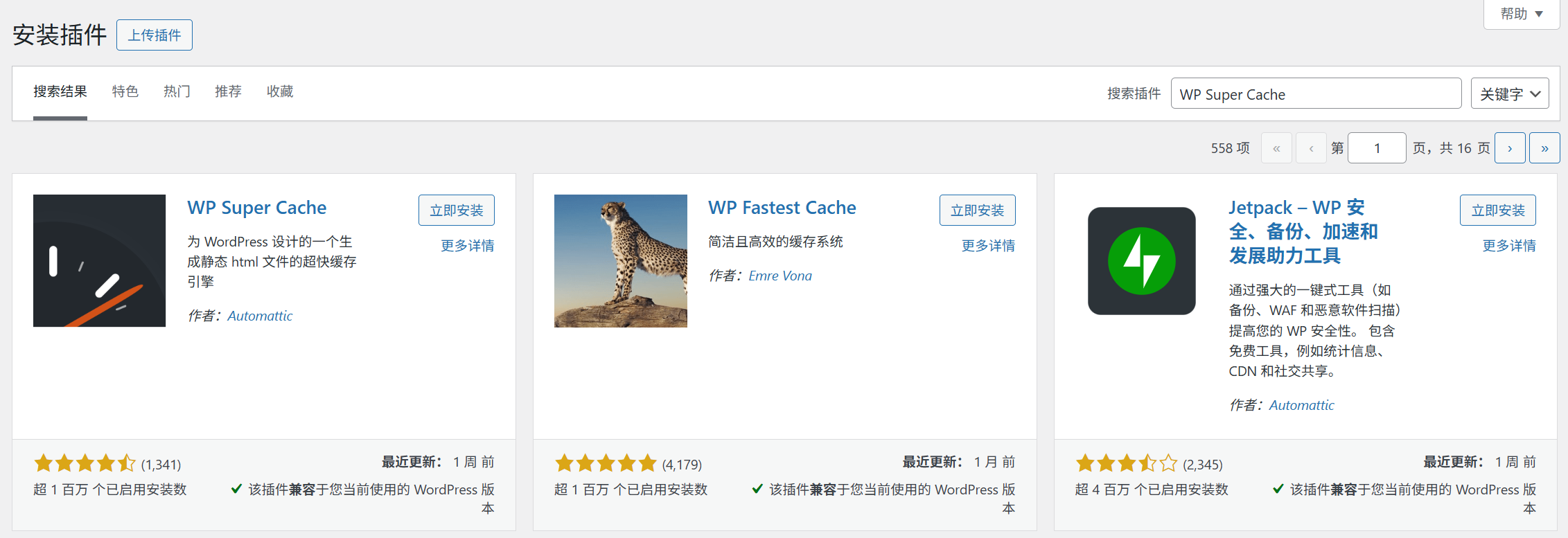
- Background [Plugin] → [Install Plugin], search for “WP Super Cache”;
- Click [Install Now] and click [Activate] when finished.
Step 2: Enable caching (core step, one click to enable)
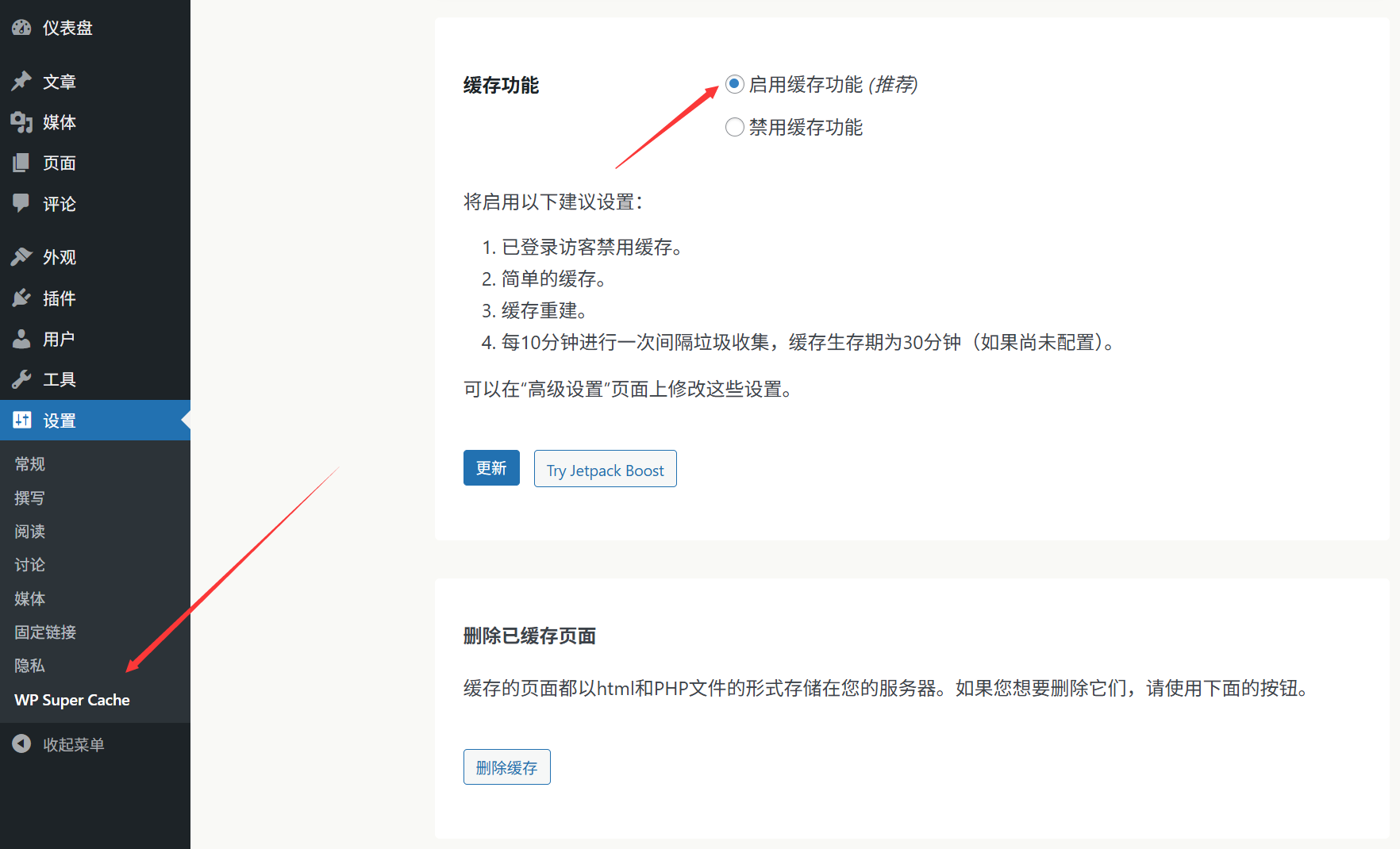
- After activation, click [Settings] → [WP Super Cache] on the left menu;
- Go to the “Easy” tab and select “Enable Cache” in “Cache Status”;
- Click [Update Status] at the bottom of the page and the plugin will automatically configure the base cache rules (about 10 seconds to complete).
At this point, the caching feature is in effect! Visitors to the site will automatically load the cached files and the speed will be significantly increased.
Step 3: 2 must-do optimization settings (further speed up)
1. Turn on “Compression” (to make the file size smaller)
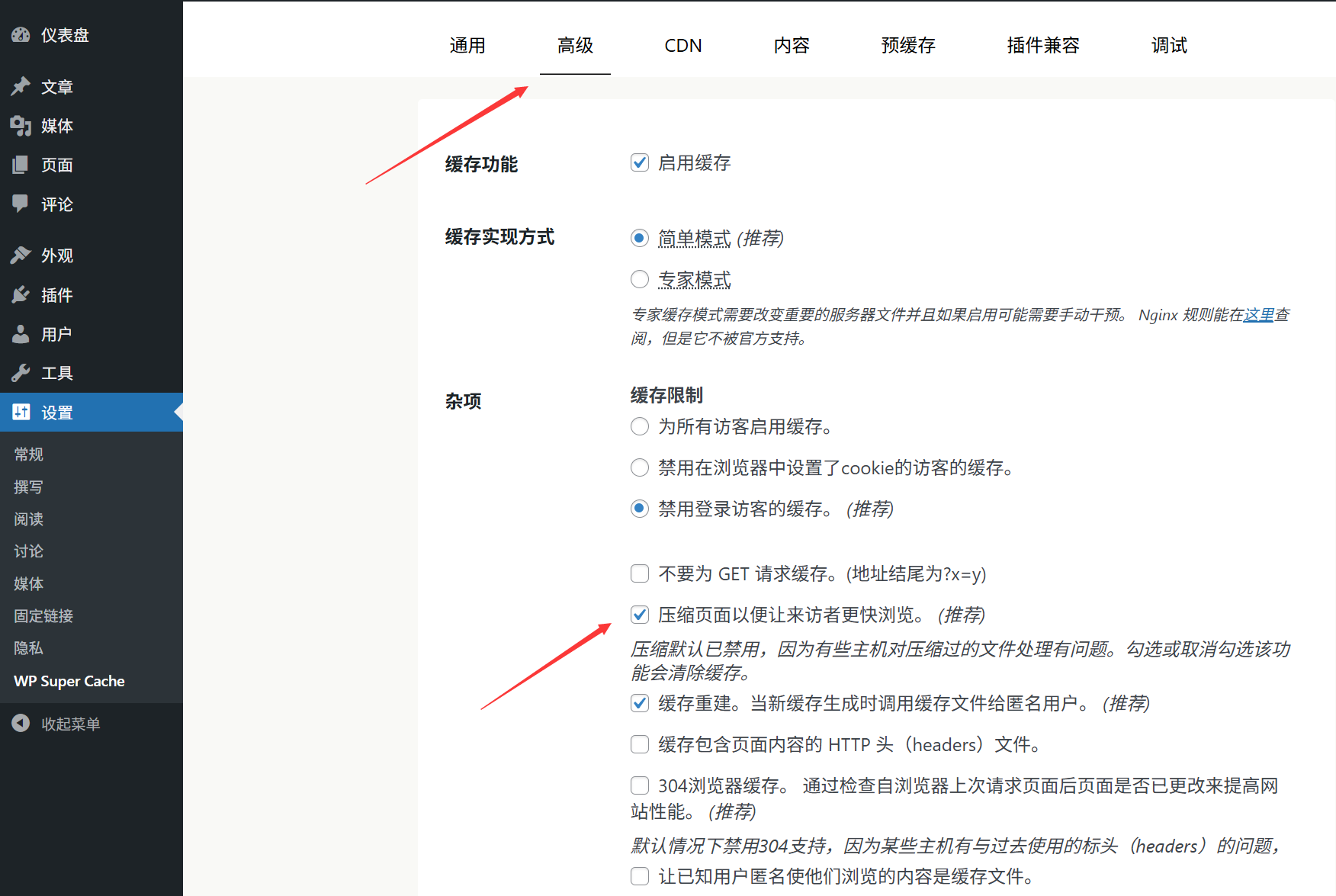
- Go to the “Advanced” tab and find the “Compression” option;
- Check “Compress pages to make them smaller and faster” (enabling Gzip compression reduces the size of HTML/CSS files above 50%);
- Click [Update Settings] to save.
2. Setting the cache expiration time (to keep content fresh)
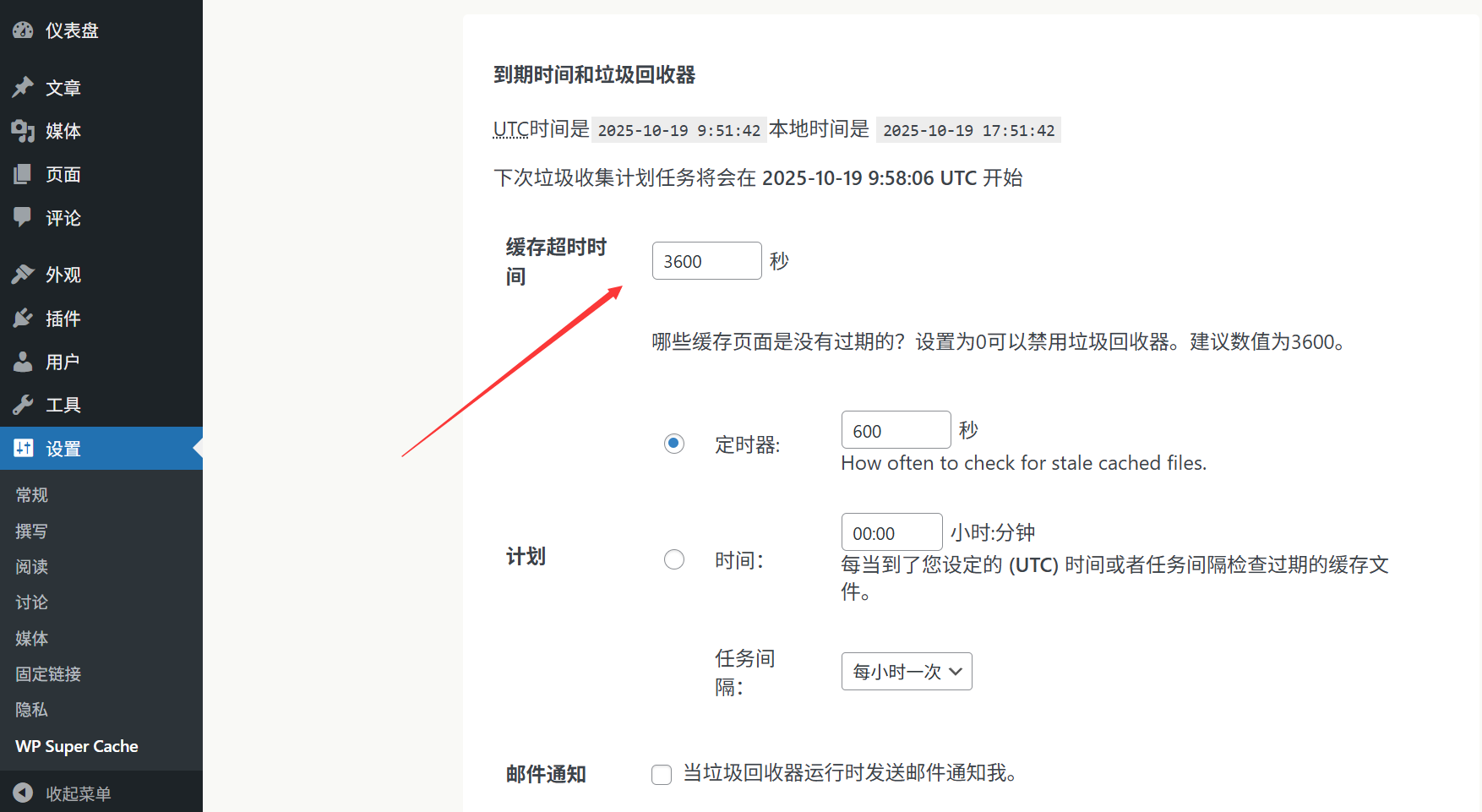
Cache files are “static copies”. If the website content is updated (e.g. new articles are published, pages are modified), the cache needs to be updated in a timely manner to avoid visitors seeing old content:
- Find “Cache expiration time” on the “Advanced” tab;
- Recommended setting is “3600 seconds” (1 hour): automatically updating the cache every hour ensures that the content is fresh and does not increase the server burden by frequently rebuilding the cache;
- If the site is updated very frequently (e.g., multiple posts per day), it can be set to “1800 seconds” (30 minutes).
Newbie must know: 3 practical operations related to caching
1. Manually flushing the cache (mandatory after content update)
You need to manually refresh the cache when you change the theme, publish an important article, or find that the site is displaying old content:
- Go to [Settings] → [WP Super Cache] → “Delete Cached Pages”;
- Click “Delete all caches” and wait 1-2 minutes for the new content to take effect.
2. Exclude pages that do not need to be cached (special scenarios)
Some pages that need to display content in real time (e.g. shopping cart, user center) cannot be cached and can be excluded manually:
- Go to the “Advanced” tab → “Pages not cached”;
- Fill in the input box with the relative path of the page (e.g. shopping cart pages are usually
/cart/), one per line; - By clicking [Save], no cache file will be generated for these pages.
3. See if caching is in effect (verify settings)
To confirm that the cache is working properly, you can check the following steps:
- Open any page of the website, right-click on the blank space of the page → [View Page Source Code];
- Pull down to the very bottom of the code and if you see something like “Generated by WP Super Cache on ...” at the bottom of the code, if you see a comment like "Generated by WP Super Cache on ...", it means that the cache is in effect.
V. Frequently Asked Questions: Cache Causes “Minor Troubles” and Solutions
- Updated article / page, frontend still has old content?Cause: The cache file is not updated. Solution: Refresh the cache manually (click “Delete all caches”), or wait for the cache to expire automatically (for the time you set, e.g. 1 hour).
- Site styling error (e.g. CSS failure) after enabling the plugin?Cause: Old CSS files are cached and conflict with new styles. Solution:
- Flush the cache first (delete all caches);
- If it doesn't work, go to “Advanced” tab, uncheck “Cache compressed CSS and JS files”, save it and try again.
- Is the slow login to the backend of the site related to caching?WP Super Cache only caches the front page (what visitors see) by default, it does not cache the backend (the interface that administrators operate), and a slow backend is usually caused by too many servers or plugins.
- Do I need to use it with other acceleration plugins?Not recommended! Caching plug-ins have similar functions, and installing more than one at the same time (e.g. WP Super Cache + W3 Total Cache) will lead to conflicts and slow down the site instead, so just pick one and use it.
To summarize: caching is “the most cost-effective means of speeding up”
Optimizing your website speed may feel complicated for newbies, but WP Super Cache tells you about it:Just 5 minutes to set up and you'll get an immediate speed boost!。
Remember the two core points:
- After enabling cache, remember to manually refresh the cache every time you modify important content (e.g., change homepage, post new products);
- Don't bother with advanced settings, the default configuration + compression is enough for a 90% site.
With a faster website, visitors are more willing to stay and search engines give higher rankings (speed is an important factor in SEO), and it can all start with the installation of a caching plugin.
 English