











Functionality testing is the last line of defense before a website goes live - even if the content is beautiful, if the links don't work or the form submission fails, users will feel unprofessional and even leave. This section focuses on two core functional tests:Site-wide link validity(to ensure that all links jump properly) andForm Submission Function(to ensure that users can contact you without any problems), with simple tools and steps to help you troubleshoot the problem, which can be easily done by novices.
I. Why is it important to test these features before going live?
- Link FailureThe user clicks on the "404 page does not exist", which will directly reduce the sense of trust, and the search engine will also reduce the site score due to a large number of dead links.
- form fault: Contact forms, subscription forms can't be submitted, and potential customers or readers are missed (e.g. users want to collaborate but can't send a message).
- data show: Statistically, 40% users who experience a link failure once will not revisit the site; 60% potential customers will switch to a competitor because the form cannot be submitted.
These issues can be identified and resolved with a simple test, and a full station check can be completed in just 30 minutes.
Second, the test 1: the effectiveness of the whole site links (to ensure that there is no dead link)
Links in the website include: navigation menu, hyperlinks within the article, image links, button links and so on. Manually click one by one low efficiency, recommended tools batch detection, rapid positioning of dead links.
Method 1: Batch testing with an online tool (for novices, no installation required)
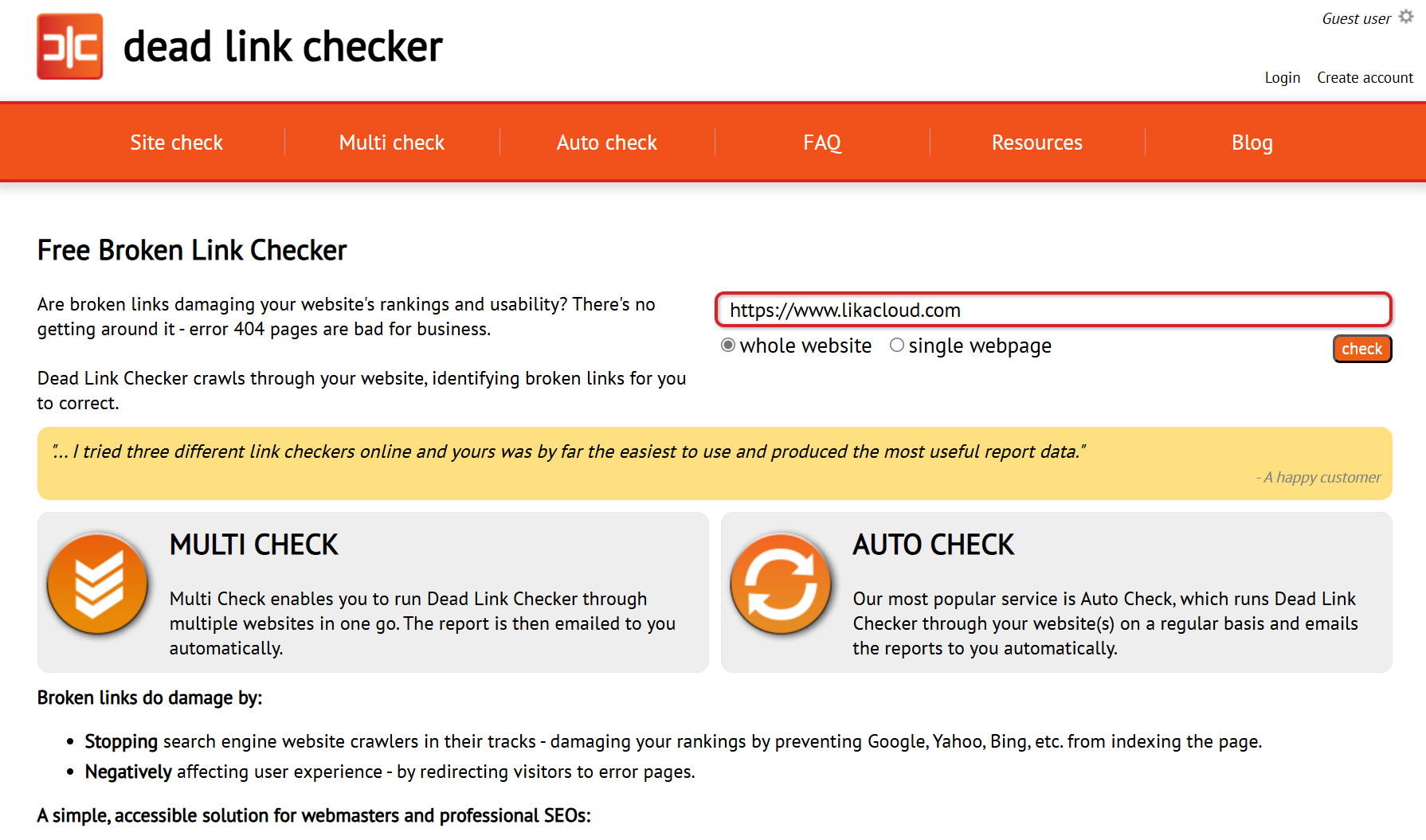
Recommended Tool:Dead Link Checker(Free of charge, support Chinese website)
Official website:https://www.deadlinkchecker.com
Step 1: Select Detection Mode
After opening the official website, select "Site Check" mode and enter the address of your website homepage (e.g. https://www.likacloud.com/), click "Check".
Step 2: Set the detection range (default recommended for beginners)
- "Crawl Depth": Keep "10" (10th layer of pages detected, enough to cover small and medium-sized websites).
- "Follow External Links": Select "No" (do not detect external links, only follow links to your own website).
- Click on "Check" to start detection (the process may take a few minutes, depending on the number of pages on the site).
Step 3: Interpret test results and repair
When the detection is complete, the tool lists all link statuses:
- Green "OK": The link is normal and does not need to be processed.
- Red "Broken": Dead links (displaying a specific error when clicked, e.g. "404 Not Found").
3 Ways to Fix Dead Links:
- Link misspelling: The most common! For example, it will be
https://example.com/aboutput down ashttps://example.com/abou, just modify it correctly. - Page deleted: If the original page has been deleted, point the link to the new relevant page (e.g., change the link to the old article to point to the category page).
- External links not working: If a page linking to another site is no longer valid, delete the link or replace it with a valid alternative link.
Method 2: Manual focused testing (assisted identification)
Even if the tool displays properly, it is recommended to manually check the following key links (where users click most often):
- navigation menu: Click on all menu items (including drop-down menus) to confirm that they all go to the corresponding page.
- Home Button: Buttons such as "Learn More" and "Contact Us" ensure that the links are correct.
- Anchor text links within articles: Open 3-5 articles at random and click on the hyperlinks in the articles (especially the ones with leading words such as "click here" and "view details").
- Image link: Click the rotating image on the home page, the article with the image (if you set up a click to jump), and confirm that the jump target is correct.
III. Test 2: Form Submission Functionality (ensuring that users can contact you)
Interactive features such as contact forms, subscription forms, message boards, etc. are the core channels of communication between the site and its users, and it is important to ensure that messages can be submitted and received properly.
Step 1: List all forms to be tested
Start by identifying what forms (common types) the site has:
- The Contact Form on the Contact page (e.g. a form created with Contact Form 7).
- 'Comment Form' at the bottom of the article.
- Subscribe to the newsletter's "Email Subscription Form".
- E-commerce site's "add to cart" "checkout form" (if any).
Step 2: Simulate a user submitting a form (key test point)
Take the most commonly used "Contact Form" as an example, and test it according to the following steps:
- Fill out the form and submitInput the real test data (e.g. name as "Test User", email as your own email address, content as "Test if the form is submitted properly") and click the "Submit" button.
- Check submission feedback:
- Normal: A success message is displayed (e.g., "Message sent"), and the page reports no errors.
- Exceptions: No response after submission, displaying red box errors (except for unfilled mandatory items), and jumping to a white screen, all indicate that there is a problem with the form.
- Acknowledgement of receipt of the message:
- Check if the receiving email address set for the form (e.g., the email address specified in the "Email" setting for Contact Form 7) receives the test email. If the form is stored in a database (e.g., some plug-ins will save the submission record), log in to the backend to check the form record and confirm that the test data has been saved.
Step 3: Test boundary cases (to avoid user submission failures)
In addition to the normal submission, the following scenarios (which the user may encounter) are tested:
- Mandatory fields are empty: Intentionally leave out required fields with "*" (e.g. name, email) and click submit to confirm that a clear prompt (e.g. "Please fill in your email address") will be displayed instead of a direct error report.
- Input Error FormatFor example, if you enter "12345" in the e-mail field (not in e-mail format), the confirmation will prompt "Please enter a valid e-mail address".
- Attachments uploaded (if any): If the form supports uploading files (e.g., resumes, pictures), test uploading files in different formats (e.g., PDF, JPG) to confirm that they can be submitted properly and receive attachments.
Common Form Problems and Solutions
| problematic phenomenon | Possible causes | cure |
|---|---|---|
| No response after submission | Form code errors, plugin conflicts | Disable other plugins and retry (troubleshoot conflicts); regenerate form code |
| Displays "Sending Failed" | Server mail function is not enabled | Contact your hosting provider to enable PHP mail; or switch to SMTP (install "WP Mail SMTP" plugin) |
| I can submit but I don't get emails | Mail is classified as spam | Check the "Spam" folder of mailbox; set the "Sender Name" to the website name in the form plug-in (to reduce the probability of being blocked) |
Fourth, the list of functional tests before going online (novice can be directly applied)
In order to avoid omissions, check and tick each one of them according to the following list:
Link Testing
- All links in the navigation menu (including drop-down menus)
- Links to all buttons and images on the home page
- Hyperlinks in 5 random articles
- Links to copyright information, privacy policy, etc. in footer
- Categorized directories and tab links
Forms Testing
- Contact form: submit normally + receive email
- Comment form: whether to display the comment after submission (or subject to review)
- Subscription forms: whether to receive a confirmation email after submission
- Other forms (e.g. search box, login box): function normally
wrap-up
Links and forms are the "blood vessels" and "communication channels" of a website, and pre-launch testing can help to avoid small losses. Use Dead Link Checker to batch test dead links and manually test key positions; form testing should not only be submitted normally, but also confirm that you can receive messages and handle possible error scenarios.
After completing these tests, your website will be able to welcome users in a "bug-free" state, laying a good foundation for subsequent promotion.
 English