











Yoast SEO is one of the popular SEO plugins for WordPress, and its core function is to help you optimize the presentation of your website in search engines. Among them, the settings of "Site Title and Meta Description Template" are especially critical -- they determine the overall presentation style of your website in search engine result pages (e.g. Baidu, Google), which directly affects users' willingness to click. This section will take you through the basic configuration of Yoast SEO to make your website more attractive in search results.
First, first understand: what is the title template and meta description template?
In search engine results, each website or page will display a "title" and "description" (some pages may not display a description, and the search engine will automatically crawl the content):
- caption: Usually blue, clickable text that is the user's first impression of the page (e.g., "WordPress Zero-Base Site Builder's Guide - My Blog").
- meta-description: Gray text below the title that summarizes the content of the page (e.g., "Teach you to build a WordPress website from scratch, including domain name, server, and theme setup process").
Yoast SEO's "Template Settings" feature can:
- Unify the formatting of titles and descriptions for pages across the site (to avoid duplication of effort).
- Automatic insertion of dynamic content (e.g. article name, category, website name) in the title / description.
- Ensure that title and description lengths are search engine compliant (avoid truncation).
Setup steps: 3 steps to complete the basic configuration
Step 1: Go to Yoast SEO Global Settings
- Log in to the WordPress backend and make sure that the Yoast SEO plugin is installed and activated (if it is not installed, see Yoast SEO Introduction and Installation)。
- Click "SEO" → "Search Appearance" on the left menu to enter the global settings page.
- The "Title & Meta Description" tab is displayed by default, and this is the core area for setting up templates.
Step 2: Setting up the site's global header template
The title template determines the title format of all pages (home page, articles, categories, etc.). Yoast has pre-built basic templates that newbies can use directly or with minor modifications:
1. Home page header template (most important!)
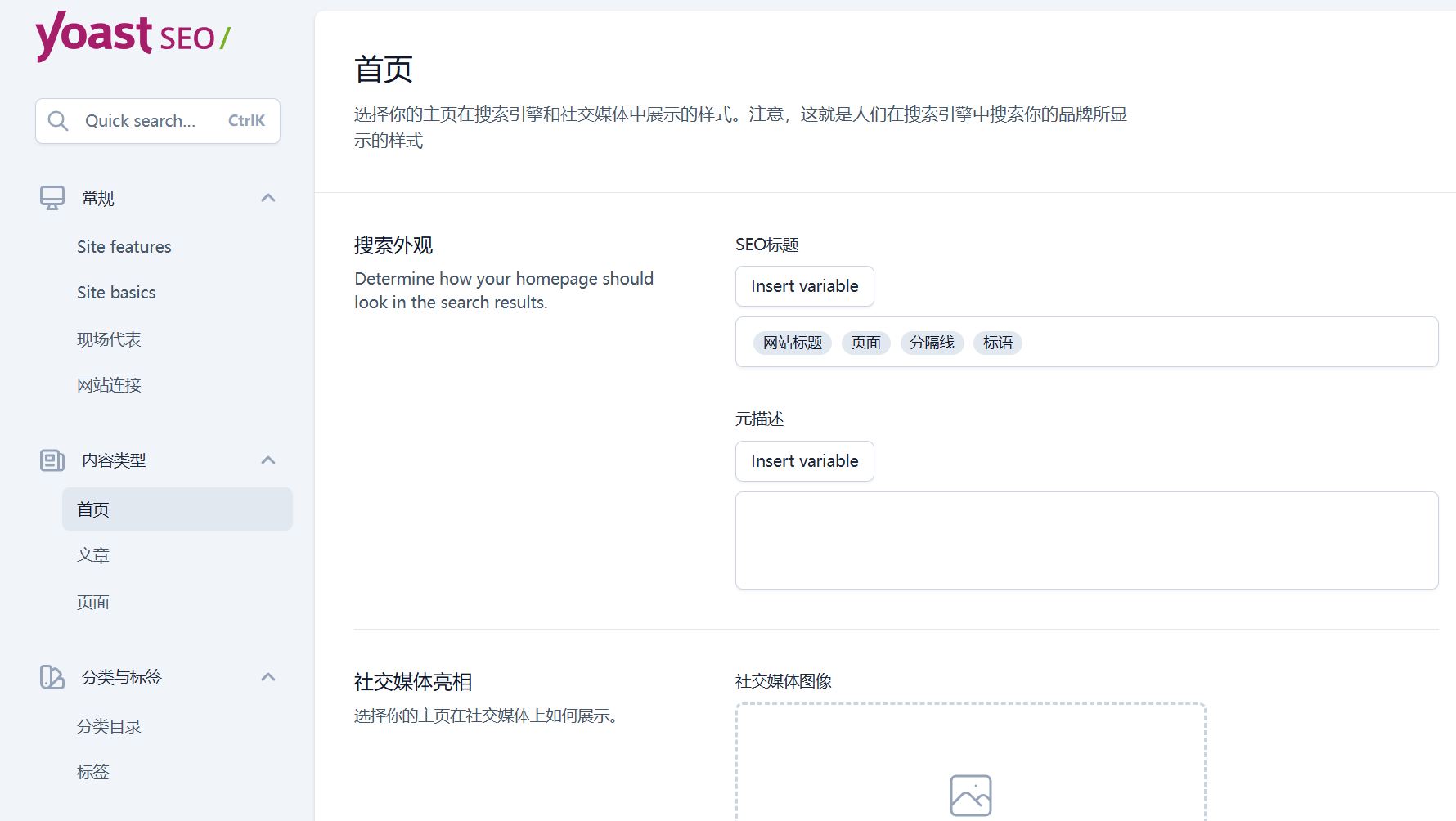
- Locate the "Home" setting area, and the default value in the "Title Template" input box:
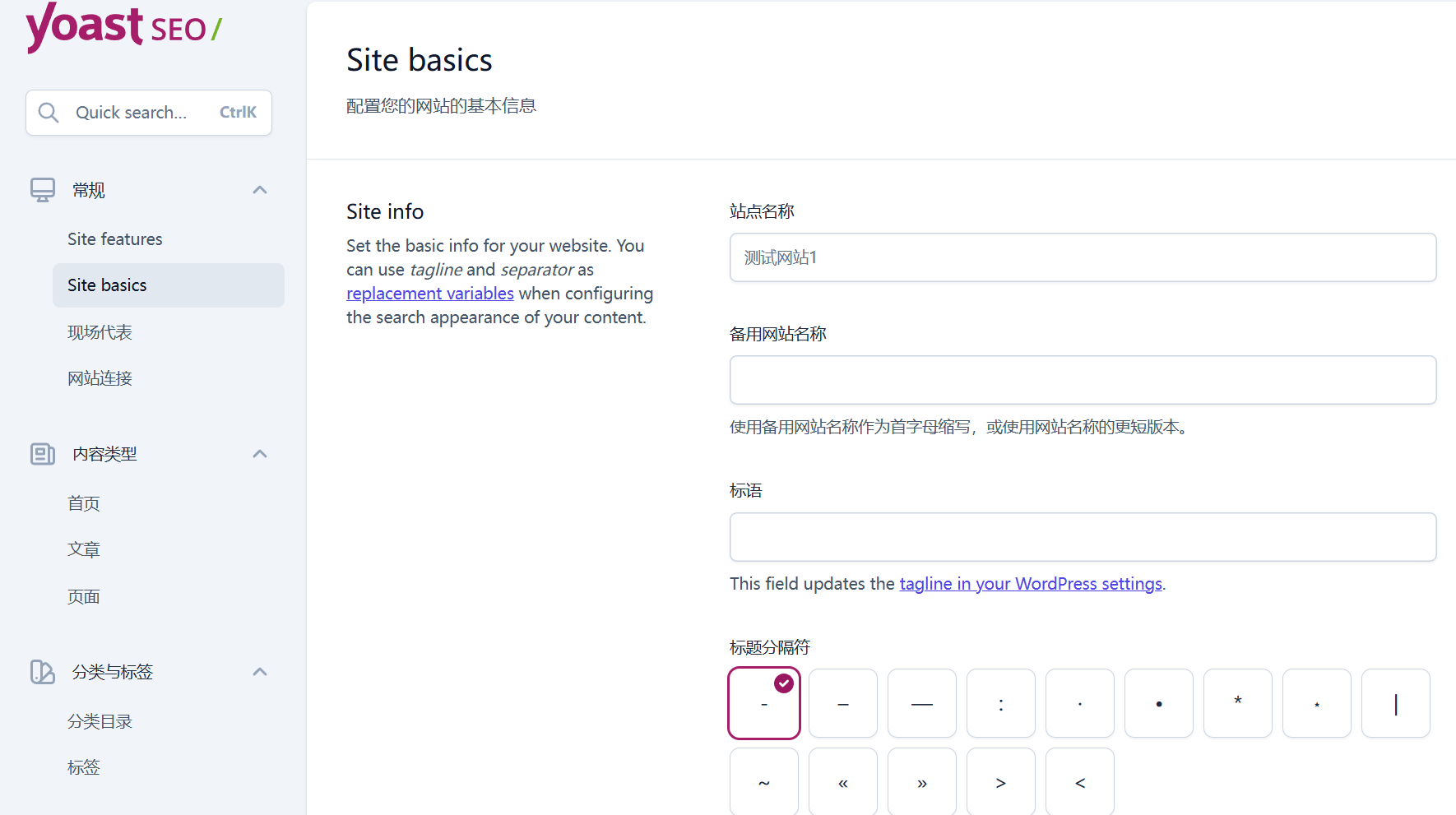
%%sitename%% %%page%% %%sep%% %%sitedesc%% - Code Meaning:
%%sitename%%: Automatically replace it with your site name (from "Settings→General" in "Site Title").%%sitedesc%%: Automatically replaced with the website subtitle (from "Settings→General" in "Subtitle").%%sep%%: Separator (e.g. "-" "|", selectable in "Separator Style" below).%%page%%: Automatically displays the current page number (e.g., "Page 2", effective for multi-page content).
- Recommended settings (concise and contains keywords):
%%sitename%% - %%sitedesc%% %%page%%(Example: "My Photography Blog - Sharing Travel Photography Tips Page 2")
2. Article / page title templates
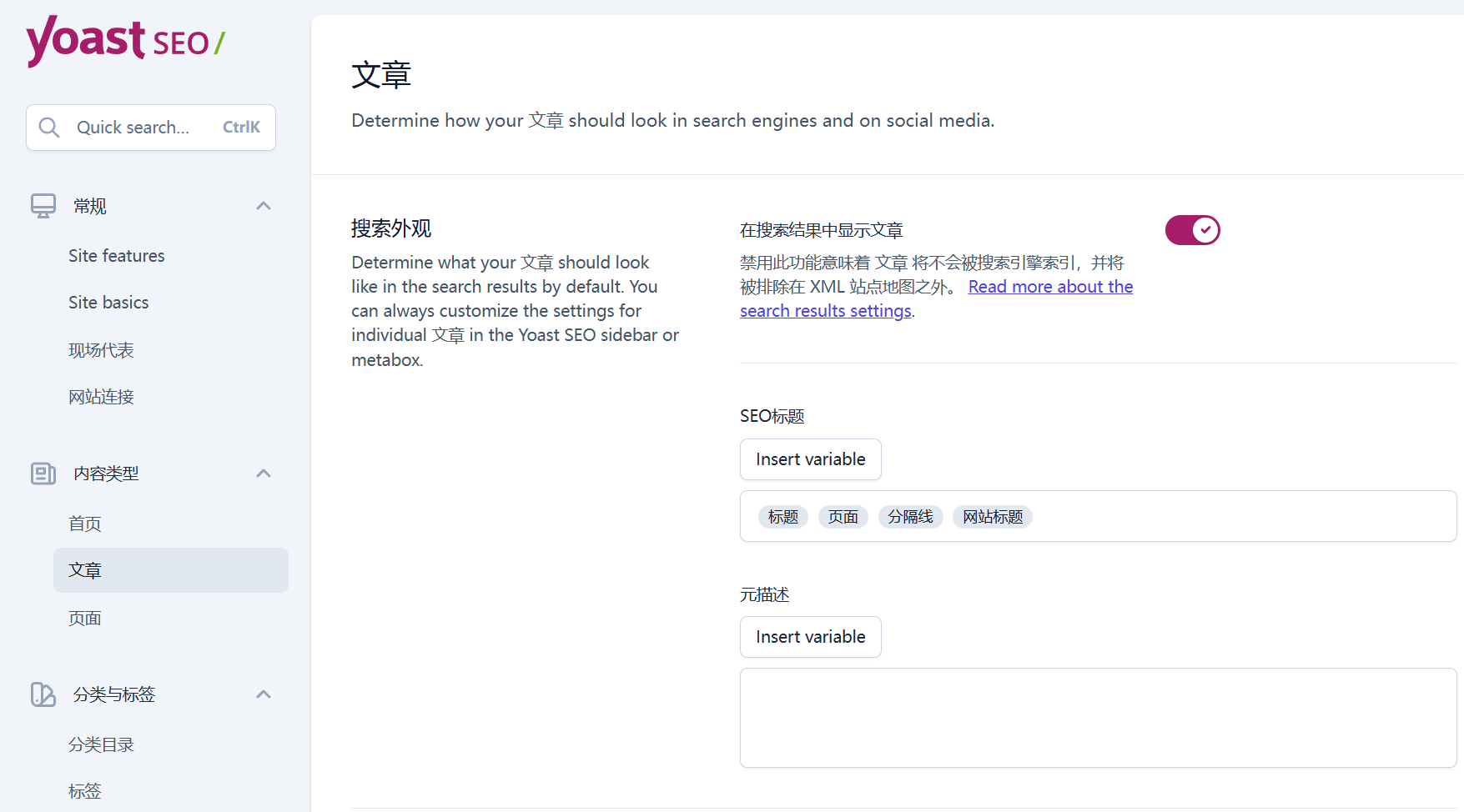
- The default templates for "Articles" and "Pages" usually do not need to be modified and are recommended to be kept:
- Article title template:
%%title%% %%page%% %%sep%% %%sitename%%(Example: "How to take pictures of the starry sky with a cell phone %% sep%% my photography blog") - Page title template:
%%title%% %%page%% %%sep%% %%sitename%%(Example: "About me %% sep%% my photo blog")
- Article title template:
- Core principle: the title must contain
%%title%%(specific title of the article / page) so that users know the content topic at a glance.
Step 3: Setting up meta description templates (to boost clicks)
Meta description is a short summary of the page content, Yoast also supports unified settings with templates, but it is recommended to set it differently according to the page type (homepage, article, category):
1. Home page meta description (focus on optimization)
- In the "Meta Description Template" input box in the "Home" settings area, fill out a 100-150 word website profile that needs to be included:
- The core theme of the website (e.g. "Travel Photography" "Workplace Skills").
- The value that users can get (e.g. 'free tutorials' 'useful tips').
- 1-2 core keywords (e.g. "cell phone photography tips" "workplace communication guidelines").
- Example (photography blog): "Focus on travel photography skills sharing, teaching you to use your phone / camera to take professional-grade photos, including composition, lighting, post retouching tutorials, suitable for novice photographers to start."
2. Article / page meta description
- Article Default Template:
%%excerpt%%(Automatically extracts the first 160 characters of the article abstract, recommended to keep). - Default template for pages: can be left blank and subsequently set up separately on individual pages (e.g. manually fill in the profile on the "About Us" page).
- Note: The longer the meta description, the better, more than 160 characters will be truncated by the search engine (display "...") It is recommended to keep it to 100-150 characters.
Step 4: Save the settings and preview the effect
- Once you have completed all the template settings, click the "Save Changes" button at the bottom of the page.
- Click the "Preview" button to see how the title and description will appear in search engines (if it exceeds the length it will prompt a red warning and need to be adjusted).
Third, the novice common problems and optimization techniques
1. The code in the template (e.g. %%title%%) Can it be modified?
- You can, but newbies are advised to use Yoast's preset codes (called "variables") to avoid manually entering fixed text:
- Mistake example: directly write "My Blog - A Good Post" (all posts will show the same title, which is not good for SEO).
- Correct Example: Use
%%title%% %%sep%% %%sitename%%(automatically replaced with the actual title of each article).
- Commonly used variable references:
%%category%%: The name of the category to which the article belongs (suitable for category page templates).%%tag%%: article tags (suitable for tag page templates).%%date%%: Release date (suitable for news sites).
2. Why doesn't the search engine change after setting?
- Search engines take time to crawl and update (usually 1-7 days), just be patient.
- If you want to speed up the updating process, you can take the initiative to inform the search engines that the content has been updated by following up on "Submitting a sitemap to search engines" (see section 25.2).
3. single page want to customize the title / description, how to override the template?
- Templates are 'Global Defaults' and support individual settings in a single post / page:
- When editing a post, scroll to the 'Yoast SEO' module at the bottom of the page.
- Fill in the "SEO Title" and "Meta Description" input boxes with customized content (which will automatically override the global template).
- It is recommended that important pages (e.g., home page, product pages) be optimized separately, and templates can be used for common articles.
wrap-up
Yoast SEO's title and meta description template setup is a "once and for all" basic optimization -- once configured, the whole site benefits. The core principle is: the title contains the core keywords and the theme of the page, the description clearly explains the value of the user, and the length of both is controlled within the search engine recommended range (50-60 characters for the title, 100-150 characters for the description).
After completing the global template setup, there is no need to make frequent changes, and the subsequent focus on optimizing the individual descriptions of the home page and core pages will suffice.
 English