


















In addition to using the FTP utility, you can easily upload WordPress installers to the server through the File Manager feature in the Pagoda panel. This way does not require additional software installation and is more novice-friendly as it operates directly in the browser. This section describes the steps in detail.
pre-conditions
Please confirm before starting:
- Successfully logged in Pagoda Panel
- Have created a good website in Pagoda (refer to theHow to create a website in Pagoda Panel)
- Downloaded WordPress archive
Step 1: Go to the root directory of your website
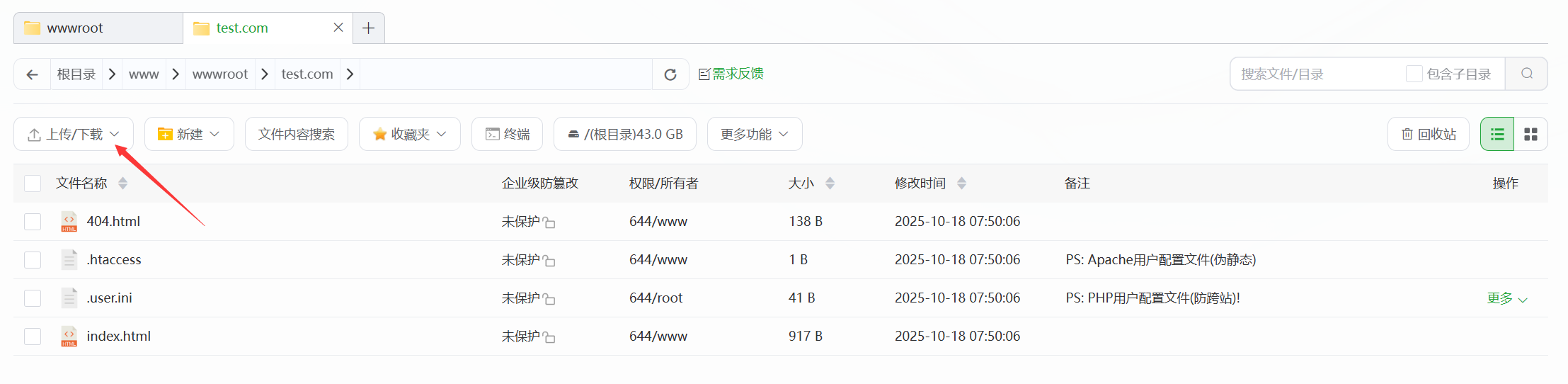
- After logging in to the Pagoda Panel, click on "Sites" in the left menu and find the site you created.
- Click on the "Root Directory" button (or the "Files" icon) on the right side of the site to enter the file management interface for that site.
- Make sure the current directory is empty (first time sites are usually created with only a default
index.html(files, which can be deleted or overwritten).
Step 2: Upload WordPress Zip
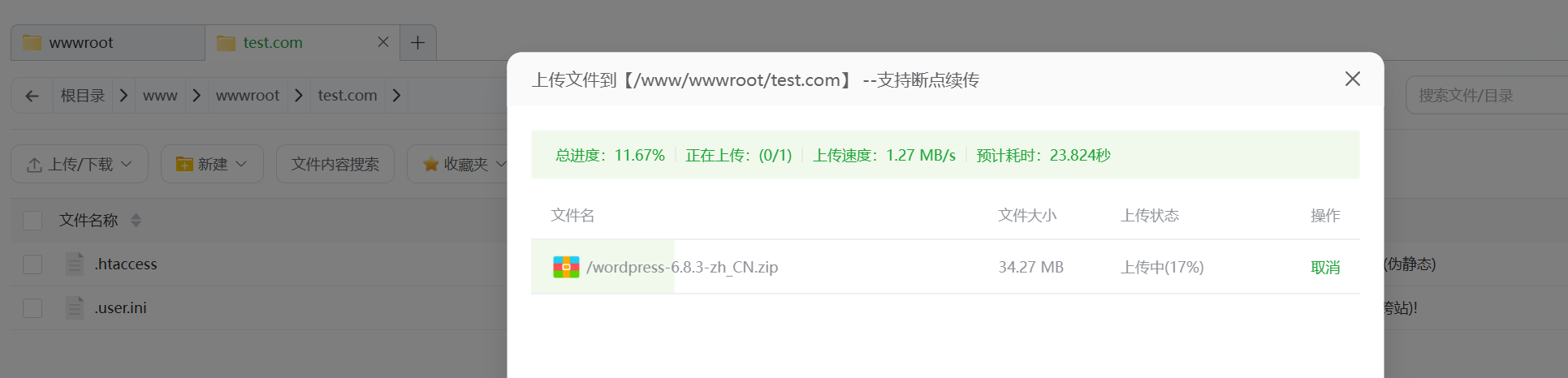
- In the file management interface, click the "Upload" button at the top.
- In the upload window that pops up, click on "Choose File" and locate the WordPress archive you downloaded on your computer (
wordpress-X.X.X.zip)。 - Wait for the upload to complete (the progress bar will show the upload status, the file size is about 20-30MB, the time consumed depends on the network speed).
Step 3: Unpack the installation package
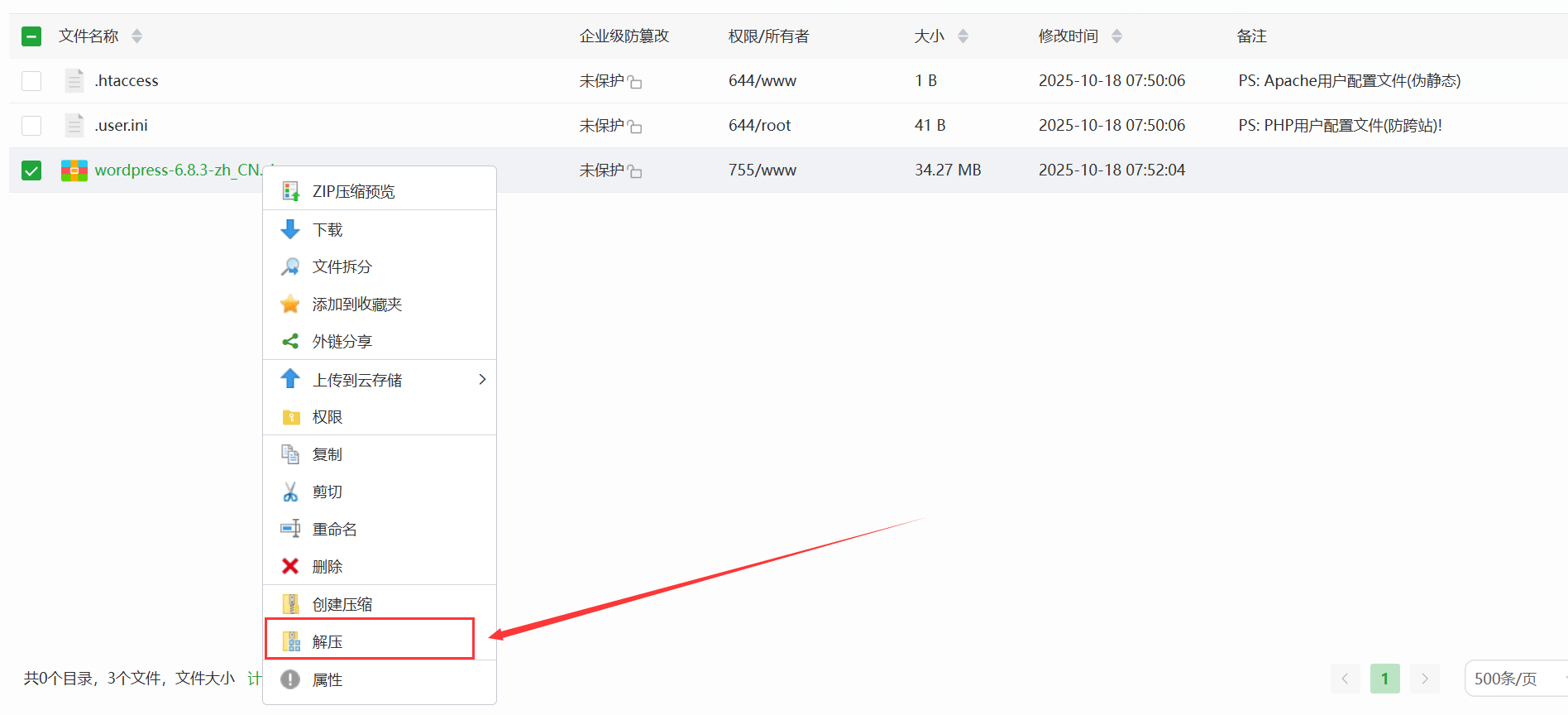
- After the upload is complete, find the file you just uploaded in the file list
wordpress-X.X.X.zipfile, check the checkbox in front of the file name. - Click the "Unzip" button at the top and confirm the unzip path in the pop-up window (default is the current directory, no need to change).
- Click "OK" to start decompression and wait for the decompression to complete (the number of successfully decompressed files will be displayed).
Step 4: Move the file to the root directory
Unzipping it generates a wordpress folder, which contains all the core files that we need to move to the root directory of the website:
- double-click
wordpressfolder into it, you'll see all the WordPress files (such as thewp-admin、wp-content(etc.). - Press <
Ctrl+ASelect all the files and click the "Move" button at the top. - In the pop-up path input box, delete the path at the end of the
/wordpressMake sure that the destination path is the root directory of the website (e.g./www/wwwroot/example.com)。 - Click OK and the system will move all files to the root directory.
- When the move is complete, you can delete the empty
wordpressfolder and the original zip package (optional, does not affect use).
Verify that the file was uploaded correctly
Once the upload is complete, the following key files / folders should be visible in the root directory of your website:
wp-adminfile (paper)wp-includesfile (paper)wp-contentfile (paper)wp-config-sample.phpfileindex.phpfile
take note of
After unzipping the zip archive and copying the installation package to the root directory of the website, you need to set permissions.
Log in to the server SSL:
fulfillment
find /www/wwwroot/test.com -not -name ".user.ini" -exec chown www:www {} +I'm going to visit my grandmother this weekend. /www/wwwroot/test. Replace it with your website root directory
If these files are present, the upload was successful and you can move on to the next step of the installation process.
Frequently Asked Questions
- Unzip the file with "Insufficient permissions"?Reason: Improperly set the permissions of the website catalog. Solution: Return to the website list, click "More" → "Permissions", and set the directory permissions to
755The file permissions are set to644Then, click "Apply" and re-decompress the file. - File already exists" after moving a file?Reason: A file with the same name already exists in the root directory (e.g., the default
index.html). Solution: Check the "Overwrite" option, or delete the original files in the root directory before moving them. - Upload speed too slow?Solution: Check your local network; if it fails several times, try uploading via FTP utility (refer to section 7.2).
the next step
After successfully uploading the WordPress files to the server, you can next run the installer (see Running the Installer for more information:Fill in the database information and basic site settings). At this point, you can start the WordPress installation process by accessing your domain name through your browser.
 English