











Many newbies will encounter a problem: the page designed on the computer, but on the cell phone, the text is crowded together, the pictures are misplaced - this is because of the lack of a good "responsive design" Elementor comes with a powerful responsive editing features, just a simple setup, you can make the site on the computer, tablet and cell phone to display the beautiful! and easy to use.
What is Responsive Design?
In a nutshell.Responsive design means that the same web page automatically adjusts its layout to the size of the device's screen.:
- On a computer (large screen), content may be displayed side-by-side (e.g., three columns of images);
- On a flat (medium screen), it automatically becomes two columns;
- On cell phones (small screens), it automatically stacks into a single column to avoid text being too small or content overflowing.
Elementor automatically adapts to most scenarios, but it still needs to manually optimize the details to ensure the best experience for each device.
Step 1: Getting to know Elementor's responsive editing model
Once you enter the Elementor editing interface, there are three icons on the right side of the top toolbar that correspond to the three device views:
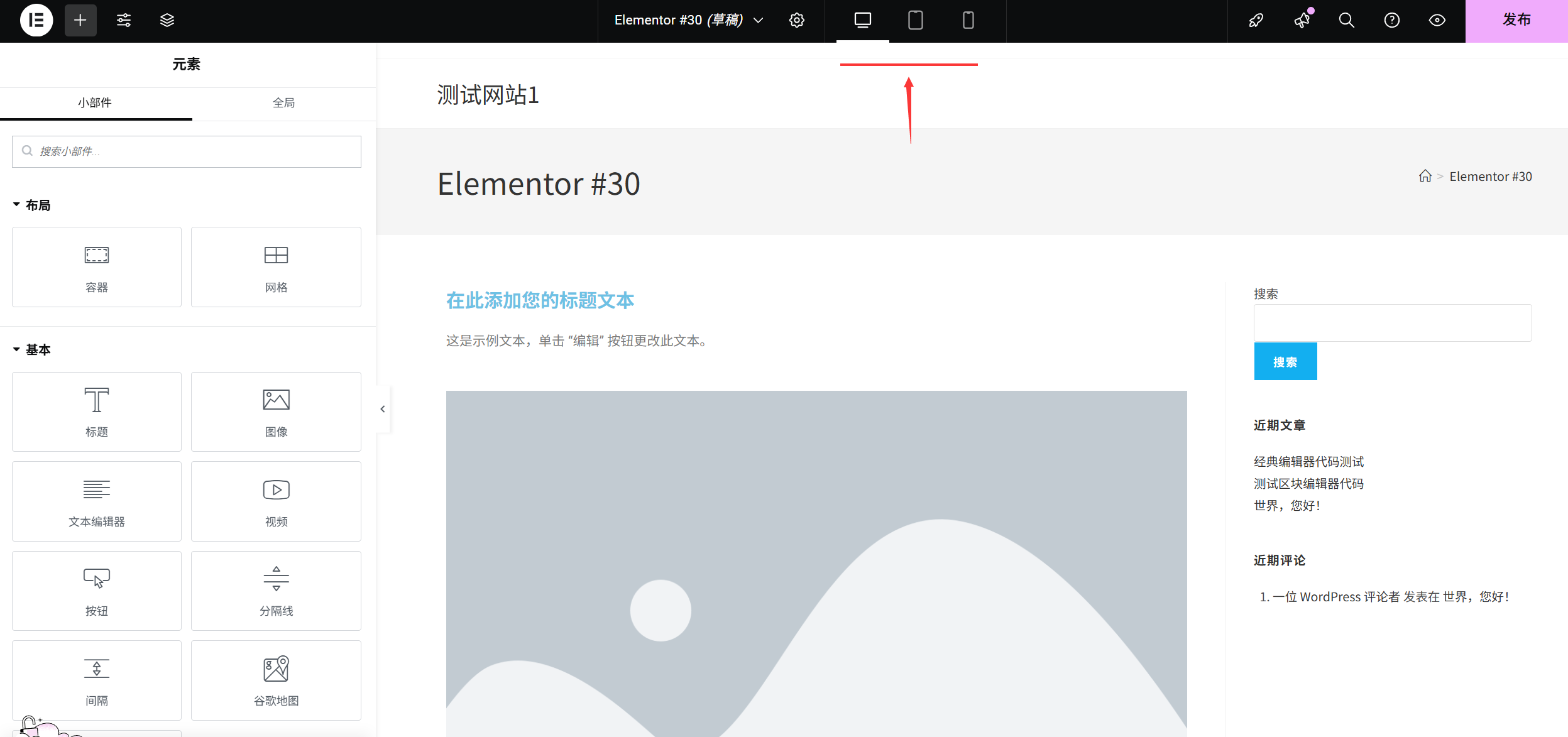
- 🖥️ desktop view(default display)
- 📱 flatbed view(768px left/right width)
- 📱 Mobile View(375px left/right width)
Operating Methods: Click the corresponding icon to switch to the preview mode for that device. All style modifications (e.g. font size, spacing, layout) can be set individually for a single device without affecting each other.
Step 2: Responsive Design Core Setup (3 mandatory)
1. Text size: avoiding text that is too small or too large on the phone
Text that looks right on a computer may not be readable on a phone (too small) or line breaks may be messed up (too big) and need to be adjusted individually:
- Select the text module (headings, paragraphs, etc.) and go to the "Styles" panel on the right.
- Find the "Font Size" setting and click the "Responsive Icon" (a small computer icon that displays three input boxes when clicked, corresponding to desktop/tablet/phone) next to the value.
- Switch to "Mobile View" and enter the appropriate size directly (e.g. headings are set to 24-32px on cell phones, paragraphs are set to 14-16px).
draw attention to sth.: The text size follows the principle of "the smaller the screen, the larger but clearer the text should be" to ensure that it can be read without zooming in on a cell phone.
2. Picture and module width: avoid going beyond the screen
Pictures that are set to "80% Width" on a computer may still appear too wide on a cell phone or have too much white space on the sides:
- Select the image/module and go to the right "Styles" panel (images are in "Styles" → "Width", other modules may be in "Advanced" → "Width").
- Click the Responsive icon next to the Width value to switch to Mobile View.
- Set the width to "100%" (so that the image/module fills the width of the phone's screen and avoids white space on the sides), or adjust as needed (e.g., 90% to leave a little margin).
take note of: If the size of the image itself is too small, setting it to 100% will blur it, so it is recommended to prepare high-resolution images (at least 1000px in width) in advance.
3. Spacing and margins: avoiding content cramming together
With limited screen space on your phone, too much spacing between modules will waste space, and too little will look cramped:
- Select any module (e.g. button, paragraph) and go to the "Advanced" panel on the right.
- Locate the "Outer Margin" (the distance between the module and other elements) or the "Inner Margin" (the distance between the internal content of the module and the border) and click the "Responsive Icon" next to the value.
- Switch to "Mobile View" and reduce the values (e.g. change the top outer margin from 50px to 20px to make the module more compact).
skill: Press and hold Ctrl key to select multiple modules at the same time and batch adjust the spacing for greater efficiency.
Step 3: Layout adjustment (optimization of column layout on mobile)
If your home page uses a "multi-column layout" (e.g., 3 columns of service descriptions, 2 columns of graphic combinations), it may be cramped on a cell phone and needs to be changed to a single column:
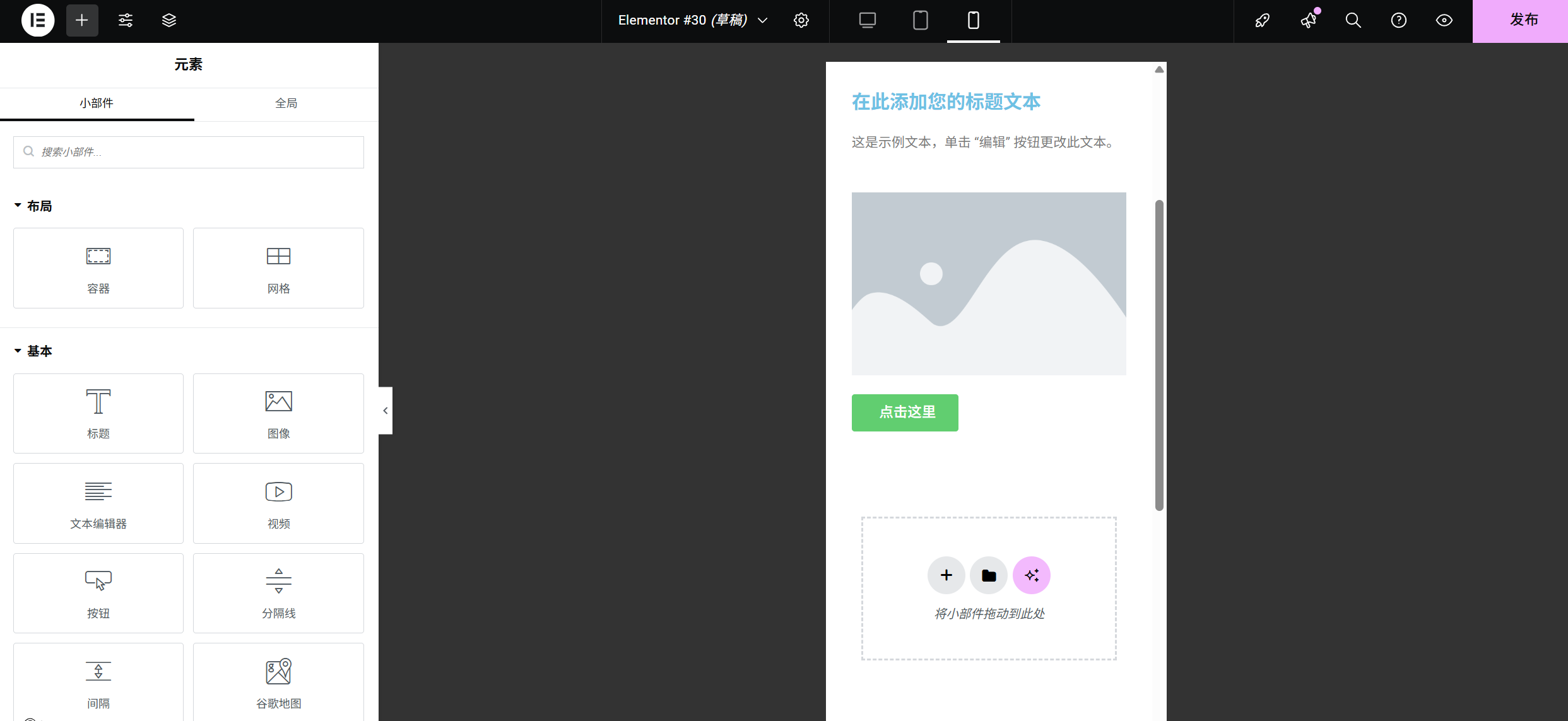
- Locate the Section containing multiple columns (click on the blue dotted box outside the module to select the entire section).
- Go to the "Layout" panel on the right and find the "Columns" setting (e.g. currently "3 Columns").
- Click the Responsive icon next to the Columns value to switch to Mobile View.
- Change the number of columns to "1 column", at this time, it will be automatically stacked into a single column on the phone, and the content will be clearer.
typical example: 3 columns on the computer to display products, 2 columns on the tablet, 1 column on the cell phone, not only to utilize the space of the large screen, but also to ensure the readability of the small screen.
Step 4: Hide unnecessary elements (for small screens)
Some elements that enrich the page on the computer but would be redundant on the phone (e.g., complex decorative icons, large explanatory text) can be hidden on the phone:
- Select the module you want to hide and go to the "Advanced" panel on the right.
- Scroll down to the "Responsive" settings and find the "Hide on mobile devices" option (or check "Hide on desktop" and "Hide on tablet" respectively).
- By checking "Hide on mobile devices", the module will automatically disappear in the mobile view and will not affect the computer and tablet display.
Applicable Scenarios: Decorative side icons, computer-specific contact form (which can be replaced with a cleaner form on mobile).
Step 5: Preview and test (key step)
Once the setup is complete, be sure to test it on a real device (or check it critically with the Elementor preview feature):
- Elementor Inside Preview: Click the "Desktop→Tablet→Mobile" icon and scroll through the pages to check each module:
- Is the text displayed in its entirety (no truncation, no overlap)?
- Are the images clear and fill the screen (no stretching, no distortion)?
- Are the buttons large enough (at least 44×44px on mobile for easy clicking)?
- Real Equipment TestingScan the "QR code" at the top of Elementor with your phone, open the page on your own phone, and actually operate the buttons and input boxes to feel the smoothness of the slide.
- Fixing Frequently Asked Questions:
- If text line breaks are messed up: reduce the font size on the mobile or increase the module width.
- If the picture is distorted: Set "Object Adaptation" to "Override" on the cell phone (Picture→Style→Object Adaptation).
- If the button is too small: Increase the "inner margin" of the button on mobile (at least 15px for top and bottom, 20px for left and right).
Responsive Design Principles for Beginners
- mobile first: Designed with the mobile view in mind before expanding to the computer (to avoid drastic modifications at a later stage).
- Less is more: Mobile phone screen space is limited, so keep only the core content and remove redundant elements.
- consistency: Colors and font styles are consistent across devices to avoid visitor confusion.
- regular inspection: After each new module is added, switch to mobile view to confirm that the display is OK.
With these steps, your website will render professionally on computers, tablets, and cell phones. Responsive design may seem complicated, but after a few operations with Elementor, you'll realize that you only need to fine-tune a few key parameters for different devices to solve the 90% display problem. Practice more, test more, and you'll soon master it!
 English